📄 License & Activation Guide
License & Activation Guide
MailDesk — and every other Metzler IT add-on — is a licensed product. After you purchase it, you activate your installation once with a personal license key.
This guide shows you how to find your key, activate it, check the license status, and renew it when needed.
The steps are the same on Odoo 17, 18 and 19.
How licensing works
Activation is a one-time setup. The process is simple:
You purchase the product.
Your license key is sent to you by email, automatically.
You paste the key once into Odoo and click Activate.
The module is unlocked and ready to use.
After activation, your license is checked and renewed automatically in the background. You do not need to re-enter the key or repeat any steps.
Before you start
Make sure the following is in place before activating:
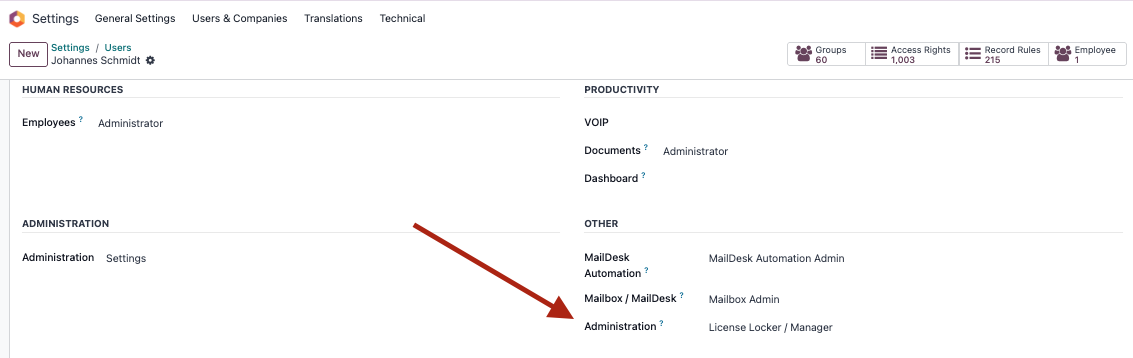
- Your Odoo user has the access group License Locker / Manager.
- In most cases, the system administrator user should already have this group by default.
- The mit_license_locker module is installed.
- Your purchase is complete and you have received the welcome email.
- You are signed in to Odoo as an administrator — activation is an admin-only screen.
- Your Odoo server has internet access, so it can reach the license server.
Step 1 — Get your activation key
After you complete your purchase, Metzler IT automatically sends your license key by email to the address used on your order. It usually arrives within a few minutes.
The key is a short code that always starts with MD-, for example:
MD-xxxxxxxxxxxx
You can also find your key at any time in your customer account on the Metzler IT portal.
Didn't receive the email?
- Check your spam or junk folder.
- Make sure you are looking in the inbox of the email address used for the order.
- Still nothing? Contact support — we will resend your key.
Step 2 — Open the activation form
In Odoo, open the activation screen. There are two ways to get there.
From Settings (recommended)
Open Settings.

Find the License Locker section.

Click Open Activation Form.
From the License Locker menu
Open the License Locker menu.

Click Tokens and open the license record.
The activation screen is only visible to Odoo administrators. If you cannot see it, ask the person who manages your Odoo system to perform the activation.
Step 3 — Activate your license
In the Activation Key field, paste the
MD-...key from your welcome email.
Click the Activate button at the top of the form.

Wait a moment while Odoo contacts the license server.

When activation succeeds, the status badge changes to Valid and a green "License active" message appears. Your module is now ready to use.
That's it
Activation is done once per Odoo database. You will not need to repeat these steps.
Checking your license status
The activation form shows a status badge at the top. It tells you the current state of your license:
Valid — your license is active and everything works.
Missing — no license has been activated yet. Enter your key and click Activate.
Expired — your license has run out. Renew it to restore access.
Invalid — the license could not be verified. Re-paste your key and activate again.
Not yet valid — your license is scheduled to start at a later date. Just wait until then.
The same form also shows your license details and the expiry date, so you always know when a renewal is due.
Renewing your license
In most cases you do not have to do anything — Odoo renews your license automatically in the background before it expires.
If you ever need to refresh it yourself, the activation form offers these buttons:
Refresh License — renews the current license straight away.
Re-Activate — use this if your key was regenerated in the customer portal. Paste the new
MD-...key first, then click Re-Activate.Validate Locally — re-checks the license status if the badge looks out of date.
All of these buttons appear at the top of the activation form.
Troubleshooting
"Access to this module is blocked"
This message means the license is not currently active. To fix it:
Open the activation form (see Step 2).
Check the status badge.
If it says Missing or Expired, re-paste your key and click Activate.
Activation failed
If clicking Activate shows an error, check the following:
The key was copied completely, with no extra spaces.
You used the latest key — if you regenerated it, the old one no longer works.
Your Odoo server has internet access.
The License Server URL on the settings screen still has its default value.
The key never arrived
Check your spam folder and confirm you are looking at the email address used for the order. If it is still missing, contact support and we will resend it.
If a problem continues after these checks, contact support and include the status badge value and any error message you see.
Frequently asked questions
Do I have to enter the key again later?
No. Activation is a one-time step. After that, the license renews automatically.
Does activation need an internet connection?
Yes — activating and renewing the license contacts the Metzler IT license server. A brief loss of connection does not interrupt your day-to-day work.
What happens when my subscription ends?
The license expires and the module is locked until you renew. Renew your subscription to restore access immediately.
Do I need a separate key for each module?
Your license covers the products you purchased. You activate once per Odoo database.
I am moving to a new server or database — what do I do?
Contact support so we can move your license to the new installation.
Need more help?
If you can't find an answer here:
Review the Troubleshooting section.
Compare plans in Basic vs Ultimate.
Read about Security & privacy.
Contact support through your Help Center — include your license status and any error message.