Calendar integration
Meetings are still booked over email - a customer suggests a time, a colleague replies, an invitation lands in your inbox. The usual next step is to copy all those details, by hand, into a calendar entry. MailDesk Calendar removes that step: your meeting lives right beside the email it came from, and turning a message into a calendar event is a single click.
Available in: Calendar integration (maildesk_mail_client_calendar). The integration
builds on MailDesk Pro, so a mailbox must already be connected and Pro must be installed.
Why it matters
If your team books meetings by email - sales follow-ups, customer calls, internal coordination - the calendar is where those conversations have to end up. Doing that by hand means re-typing dates, copying attendees, and hoping nothing was missed.
MailDesk Calendar keeps the email and the meeting together:
- One click from email to calendar. Schedule a meeting straight from an open message, with the subject, attendees, and organiser already filled in.
- Invitations you can act on in place. When a real
.icsinvitation arrives, MailDesk shows a clean card with the title, time, location, and guest list - and Accept, Tentative, and Decline buttons right there. - The link never gets lost. The connection between an email and its meeting is anchored to the message itself, so it survives being moved between folders.
- A way back. From any linked meeting in Odoo, one button takes you straight back to the email it started from.
How it works
Step 1 - Switch Calendar on for a mailbox (administrator)
Calendar is enabled per mailbox, so each team can have exactly the workflow it needs. Open MailDesk → Configuration → Mailboxes → Mailbox Accounts, open the mailbox, go to the Settings tab, and turn on the Calendar Planning & Invitation Workflow section.
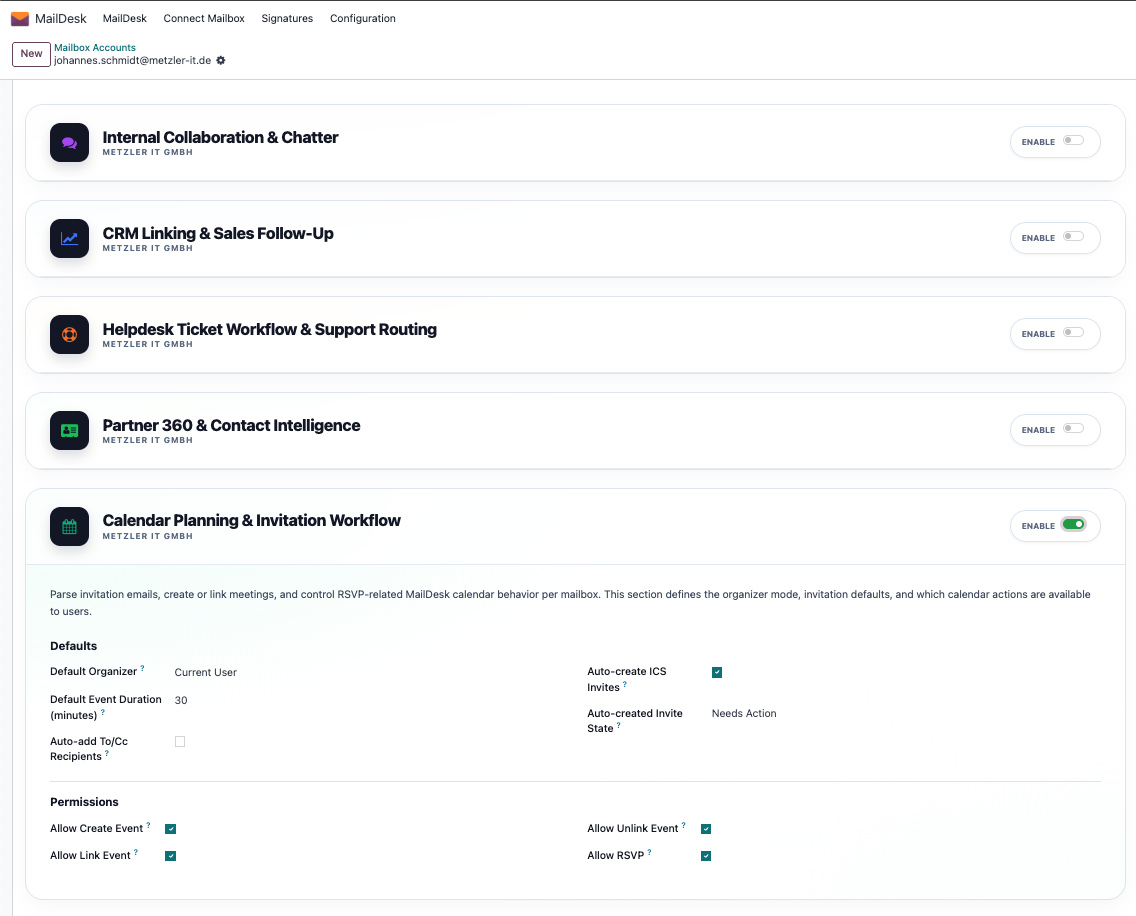
From here an administrator sets the defaults and decides which actions users get - for example, allow creating meetings but not unlinking them. You can also set the default meeting length, choose whether the organiser is the current user or the mailbox owner, and have the sender and recipients added as attendees automatically.
Auto-create runs when you open the email, and never accepts for you
If you turn on auto-create, MailDesk creates or updates a linked meeting when you open
an email that carries .ics invitation data - not the moment it arrives. Even then it
only sets a neutral status (Needs Action or Tentative). It never accepts an invitation
on your behalf.
Step 2 - Open the Calendar panel on an email
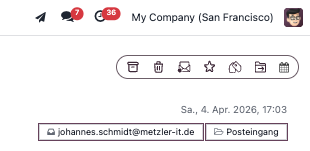
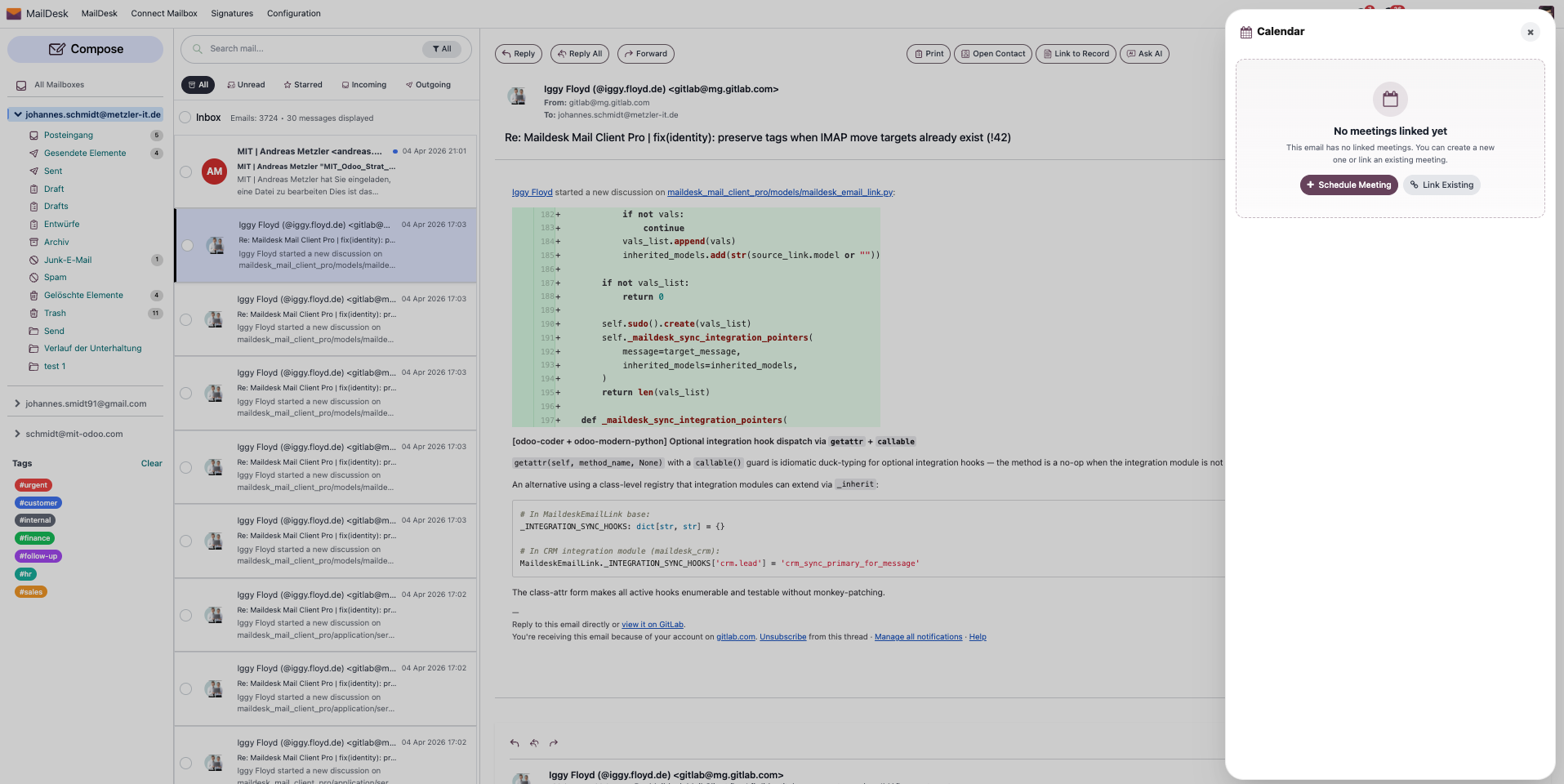
Open any email in MailDesk and click the calendar button in the side panel. This opens the Calendar panel for that message, and a small badge shows how many meetings are linked.
If nothing is linked yet, the panel simply invites you to get started with Schedule Meeting or Link Existing.
Step 3 - Schedule a meeting straight from the email
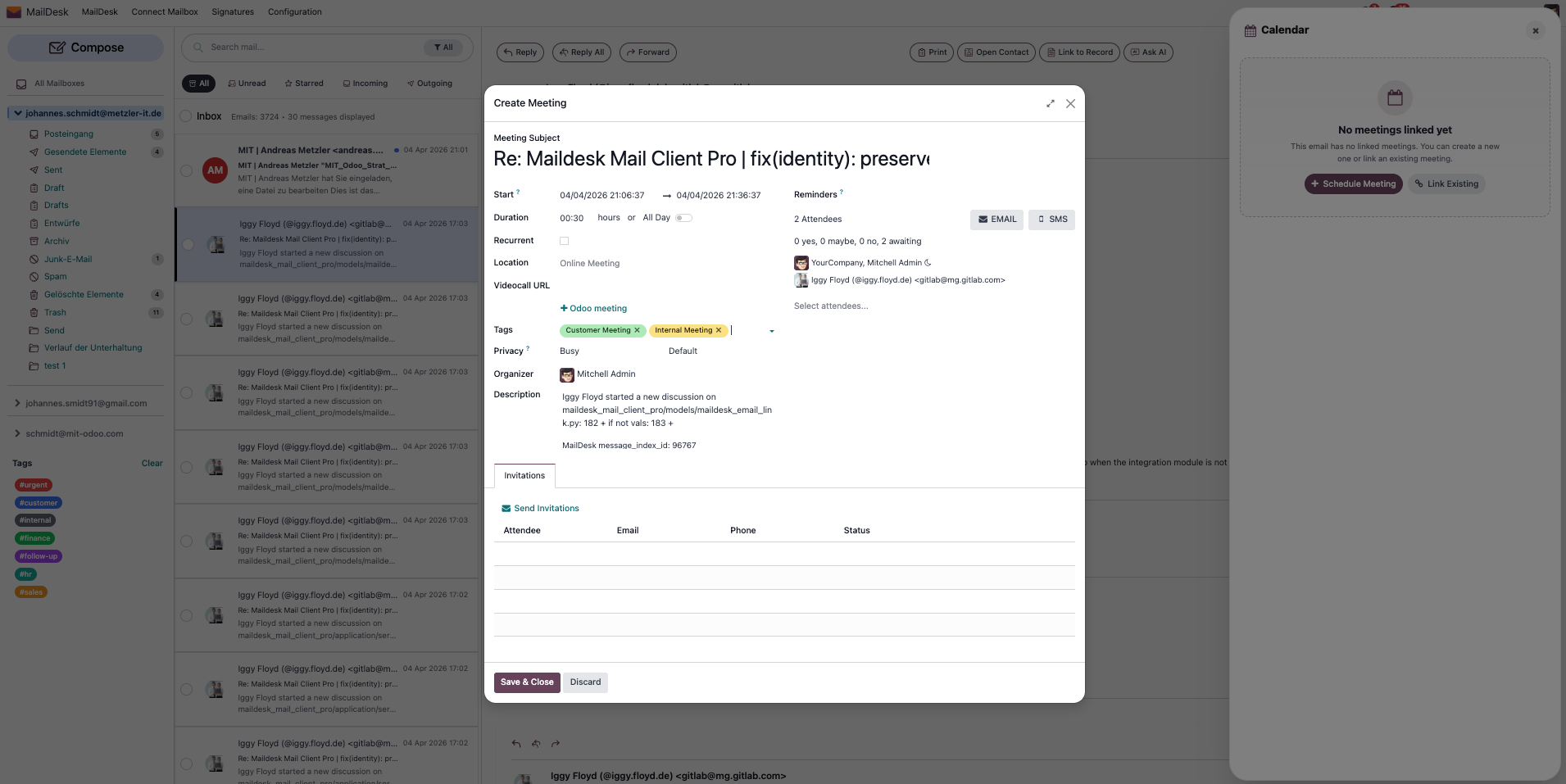
Click Schedule Meeting. Odoo opens the standard meeting form, already filled in from the email: the subject, a short preview, the sender and recipients as attendees, and the organiser based on your mailbox setting. Adjust the date and time, then save.
The meeting now appears in the Calendar panel for that email. The first one is marked Primary; any further meetings are listed below it.
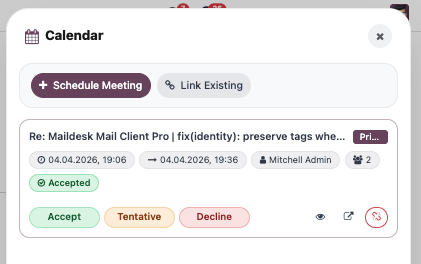
From a linked meeting you can open it in a popup, open it in a new browser tab, set your RSVP (Accept / Tentative / Decline), or unlink it - depending on which actions your administrator allowed. Unlinking only removes the connection; the meeting itself stays put.
Step 4 - Or link an email to a meeting you already have
Already created the meeting? Click Link Existing and search for it. MailDesk attaches the email to that meeting without creating a duplicate.
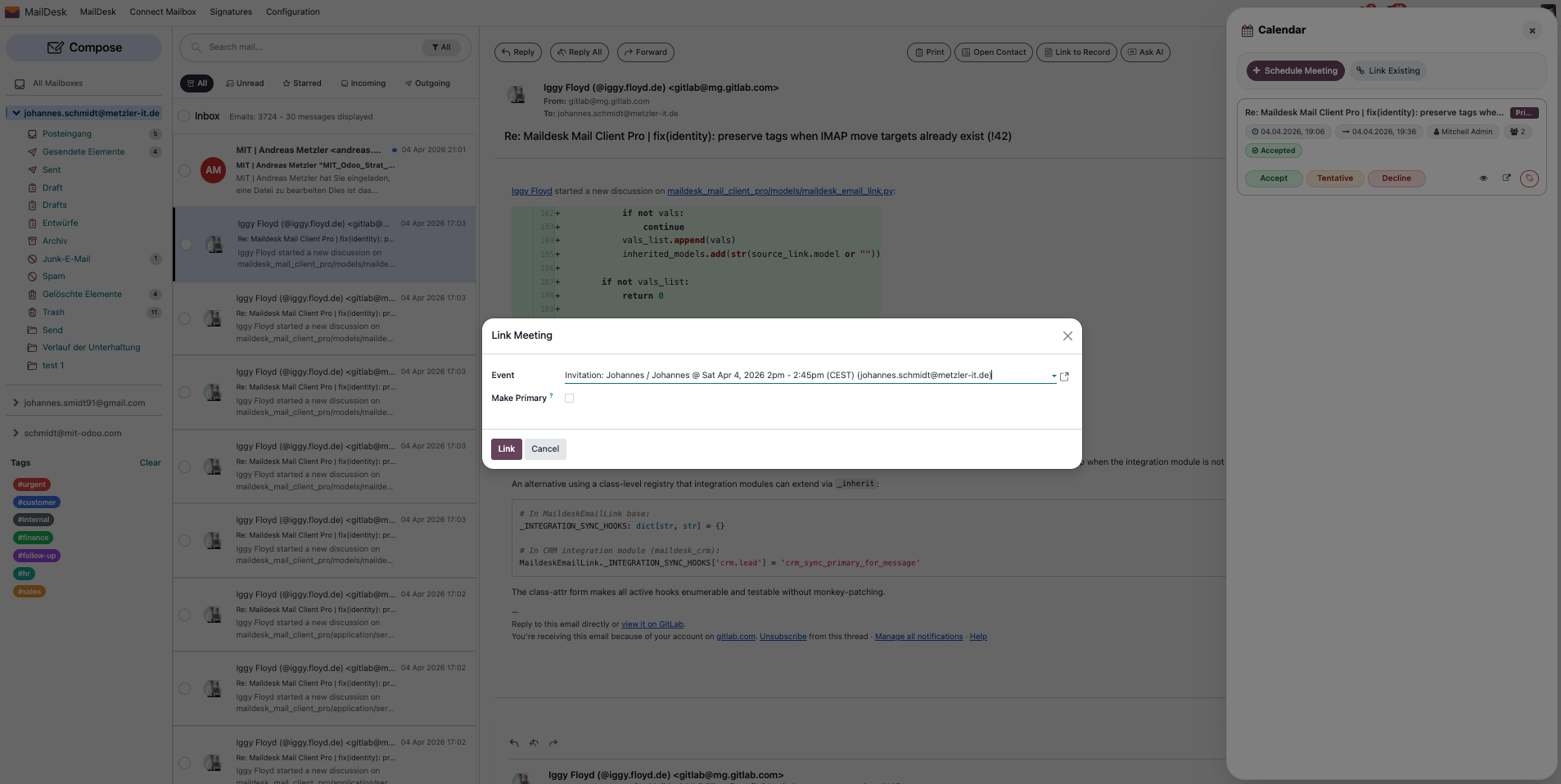
Step 5 - Jump from the meeting back to the email
The connection works both ways. Open a linked meeting in Odoo Calendar and you will find a MailDesk Emails button. Click it to open the original email again - the full conversation is one click away, and the link shows up in the meeting's chatter.
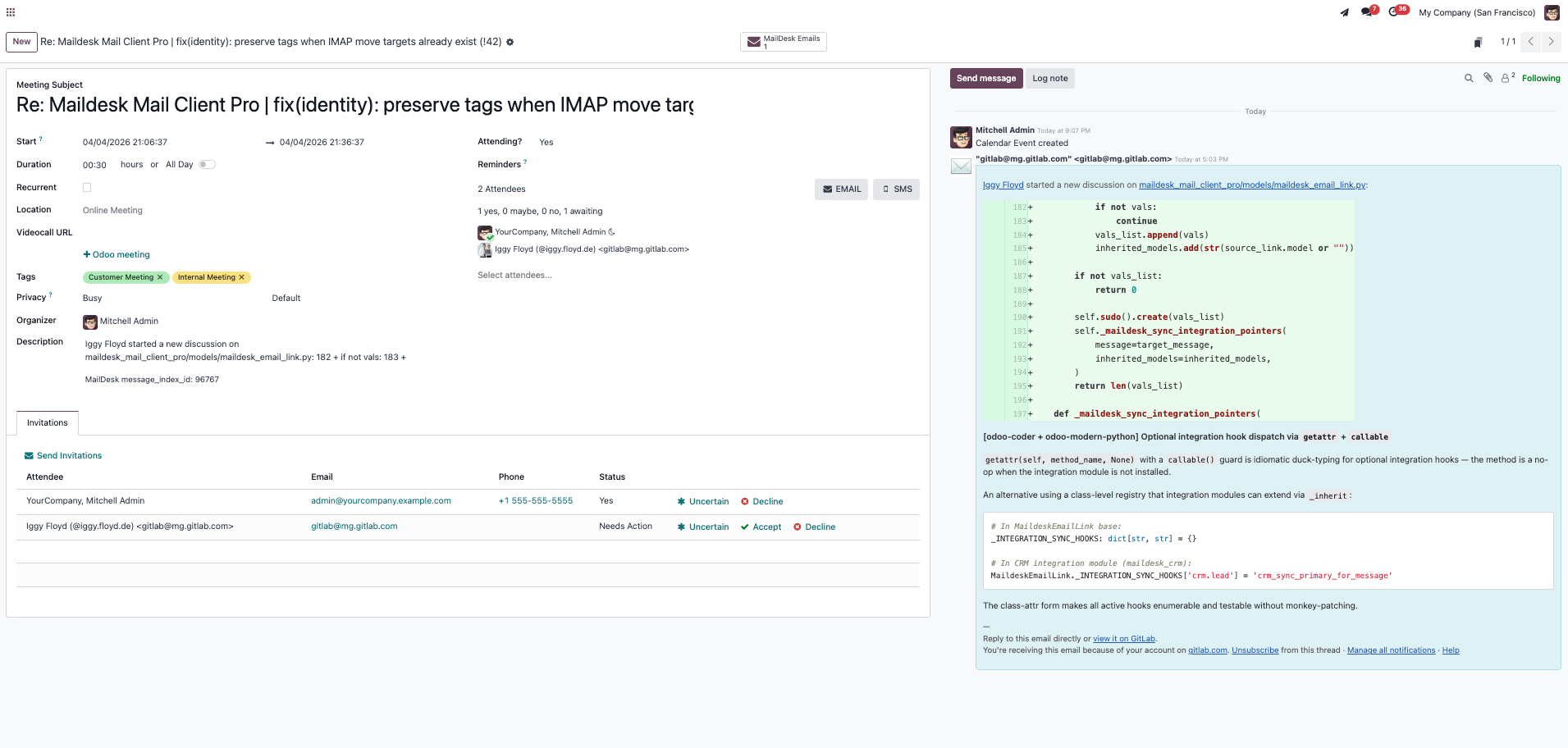
Step 6 - Respond to an invitation without leaving your inbox
When an incoming email carries a real calendar invitation (a .ics / text/calendar
attachment), MailDesk reads it and shows a clean Meeting Invitation card under the email,
with the title, date and time, location, organiser, and attendees.
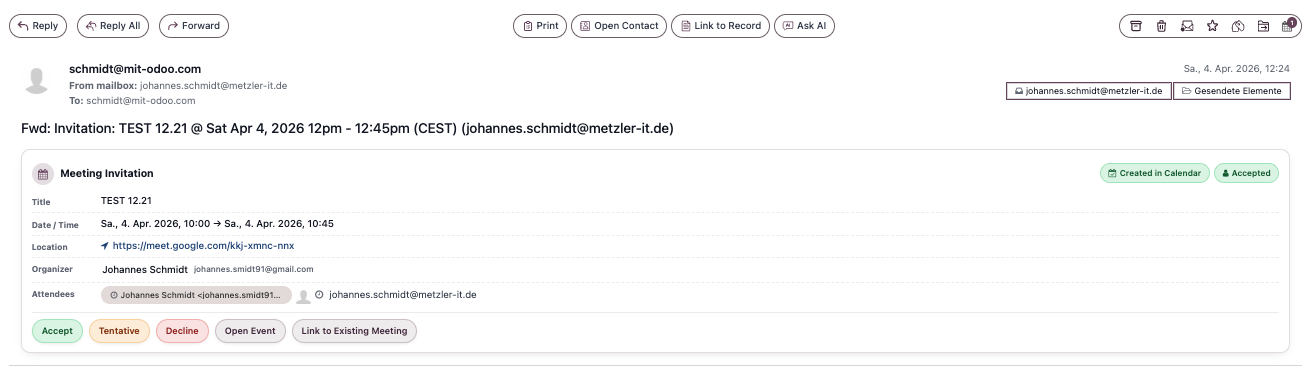
Right on the card you can choose Accept, Tentative, or Decline. If the meeting isn't in your calendar yet, Create in Calendar adds it, or Link to Existing Meeting connects it to one you already have. If it's already there, Open Event takes you straight to it.
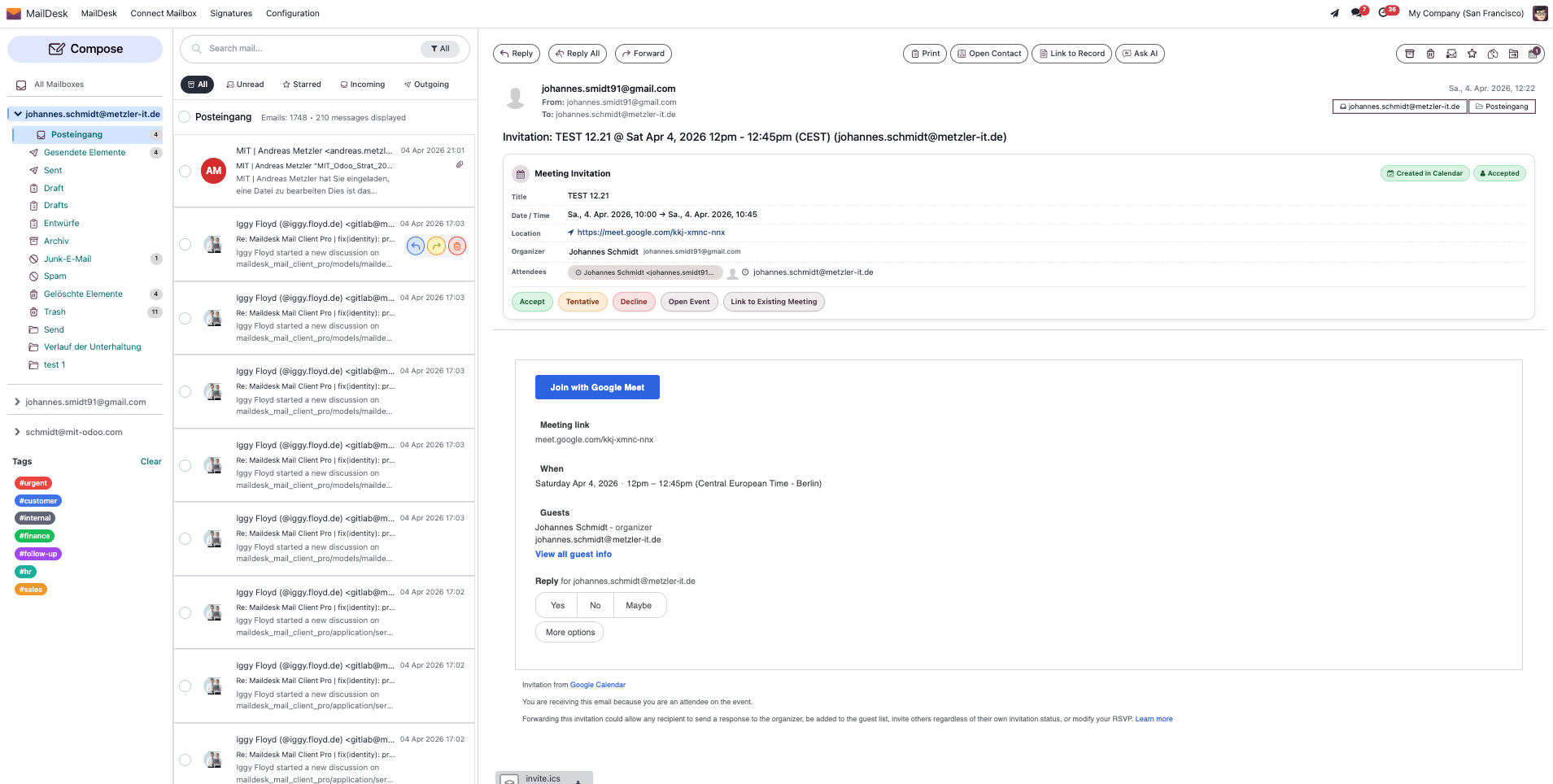
Your status updates in Odoo, quietly
When you respond, MailDesk updates your attendee status inside Odoo and links the meeting to the email. It does not send an RSVP email back to the organiser - so you stay in control of what gets sent.
Requirements
- MailDesk Basic and MailDesk Pro installed, with at least one mailbox connected.
- The Calendar integration module (
maildesk_mail_client_calendar) installed. - Odoo Calendar installed and available to the user.
- MailDesk works on Odoo 17, 18, 19, or 20 - the steps above are the same on each.
Permissions
- You only see the Calendar panel and meeting controls for mailboxes you already have access to. Standard Odoo calendar access rules still apply to the meetings themselves.
- Which calendar actions are offered - create, link, unlink, RSVP - is controlled per mailbox by an administrator in the enable step above. So an administrator can, for example, allow creating meetings but not unlinking them.
Get MailDesk Calendar
Stop re-typing meeting details out of your inbox. With MailDesk Calendar, every email becomes a meeting in one click, every invitation becomes a card you can act on, and every meeting keeps a link back to where it started.
It's an add-on for MailDesk Pro and works on Odoo 17, 18, 19, or 20 - your choice. Try it free, or talk to us about the right setup for your team: see plans and pricing.