Documents integration
Your inbox is full of attachments your team needs in Odoo Documents - and the only way to get them there is download, then re-upload, then do it all in reverse when you reply. MailDesk ends that round-trip. Save an inbound attachment into Odoo Documents with one click, and attach an existing Document to an outgoing email without ever leaving your mailbox. One copy of every file, in the folders you already trust.
Available in: Documents integration (maildesk_mail_client_documents). The integration builds on MailDesk Pro, so a mailbox must already be connected and Pro must be installed.
Why it matters
If Odoo Documents is your central file hub, every attachment is a small chore: download it from the email, upload it to the right workspace, apply the right tags - and repeat the whole dance backwards when you need to send a file out again. That is duplicated files, lost time, and folders that slowly drift out of order.
MailDesk collapses both directions into a single click:
- Save an inbound attachment to Documents - a button on each received attachment files it straight into the workspace folder you choose. Your existing folder structure, tags, and access rights apply automatically.
- Attach an existing Document to an outgoing email - a Documents button in the composer lets you pick a file from Documents and send it without re-uploading from your computer.
- No accidental duplicates - once an attachment has been saved, MailDesk marks it, so you never store the same file twice.
Best of all, there is no new system to learn. You keep working in MailDesk, and the files land exactly where your team already looks for them.
Note
MailDesk keeps a single source of truth. When you save or attach a file, it reuses the original document instead of cloning the binary - so you are never juggling extra copies.
How it works
Step 1 - Turn it on for a mailbox (administrator)
The integration is switched on per mailbox, so an administrator stays in control of who can use it.
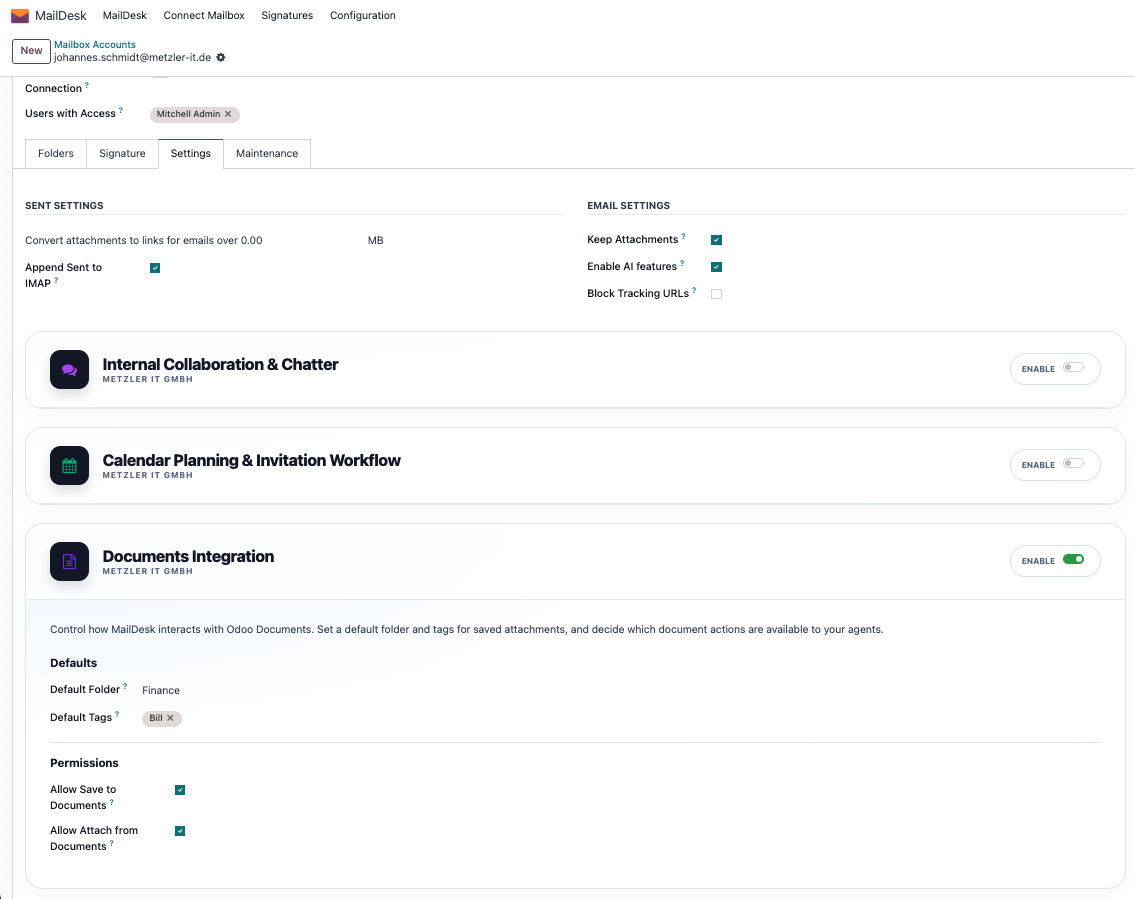
- Go to MailDesk → Configuration → Mailboxes → Mailbox Accounts and open the mailbox.
- Open the Settings tab. You will see a Documents Integration panel.
- Switch Enable on. The configuration options appear.
- Set the defaults and permissions you want, then Save.
What you can set per mailbox:
- Default folder - the workspace folder pre-selected when someone saves an attachment to Documents.
- Default tags - tags applied automatically to documents saved from MailDesk.
- Allow save attachment - whether users may save inbound attachments into Documents.
- Allow attach from Documents - whether users may attach existing Documents files from the composer.
Step 2 - See the buttons inside MailDesk
Once it is enabled, MailDesk simply gains two small Documents buttons - no extra menus, no clutter. They sit right next to the actions you already use.
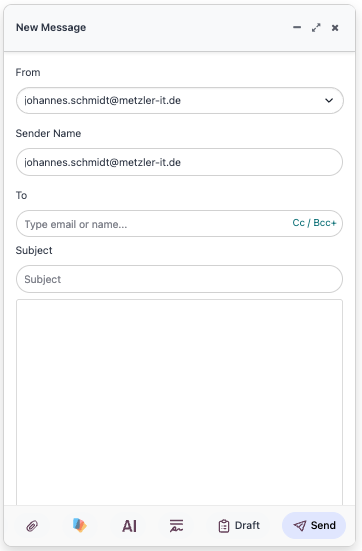
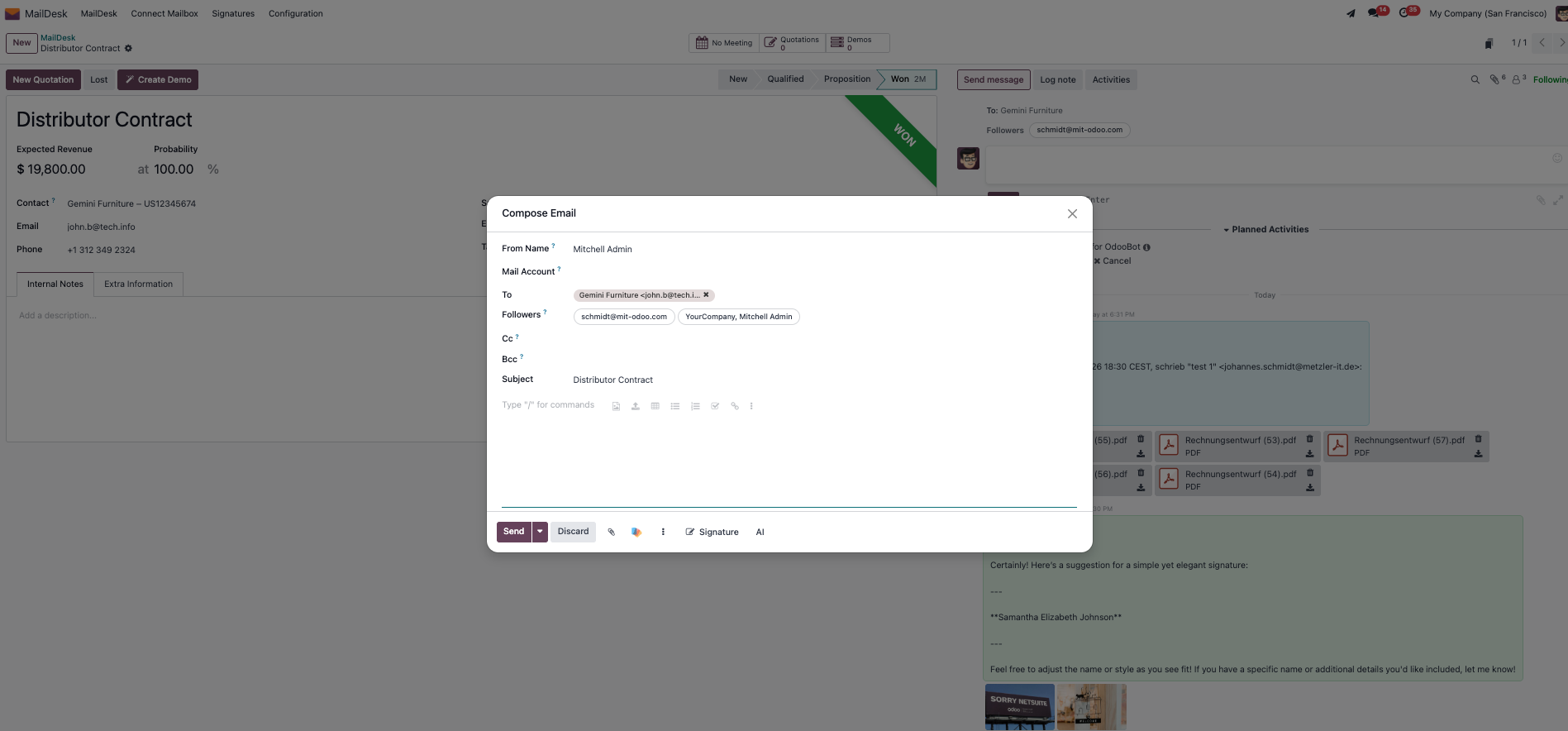
In the composer, you will see an Attach from Documents button next to the standard paperclip - that is your shortcut into Odoo Documents.
Step 3 - Attach a Document to an email
No more hunting through your downloads folder to re-send a file you already have in Odoo.
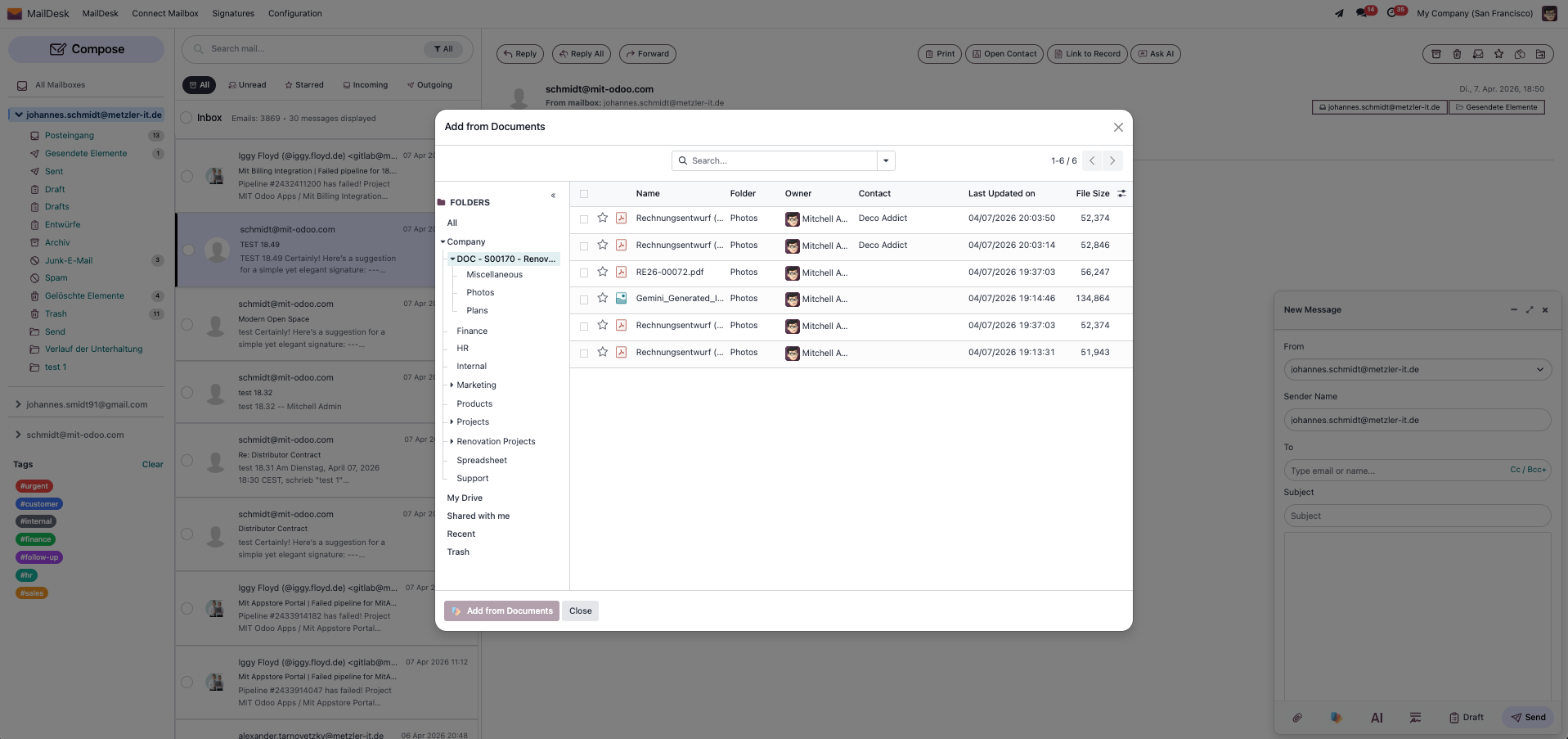
- Click Compose in MailDesk (or reply to an email).
- In the composer, click Attach from Documents (the Documents icon).
- The picker opens. Browse to the file, select one or more documents, and click Add from Documents.
The selected files are attached straight from Documents - no download, no re-upload, and no duplicate copy.
Step 4 - Spot what is already saved
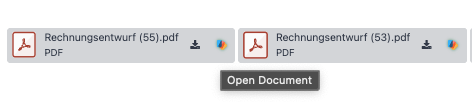
Open any received email and you will find a Documents action right on each attachment. Attachments that are already stored in Documents are marked, so you can tell at a glance what still needs filing.
Step 5 - Save an attachment to Documents
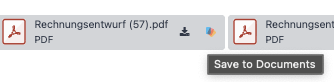
- On a received attachment, click Save to Documents (the Documents icon).
- A Choose a destination dialog opens. Pick the workspace folder - your default folder and tags from Step 1 are already applied, and you can change them.
- Confirm.
The file now lives in the chosen Documents folder, searchable like any other document, and the attachment in MailDesk is marked as saved so you never duplicate it.
Tip
The destination dialog also previews the documents already sitting in the folder you have selected - a quick sanity check that you are filing into the right place.
Step 6 - Familiar everywhere you compose
The Documents button feels native even in the standard Odoo mail composer, so the workflow is the same wherever you write.
The result - one tidy workspace
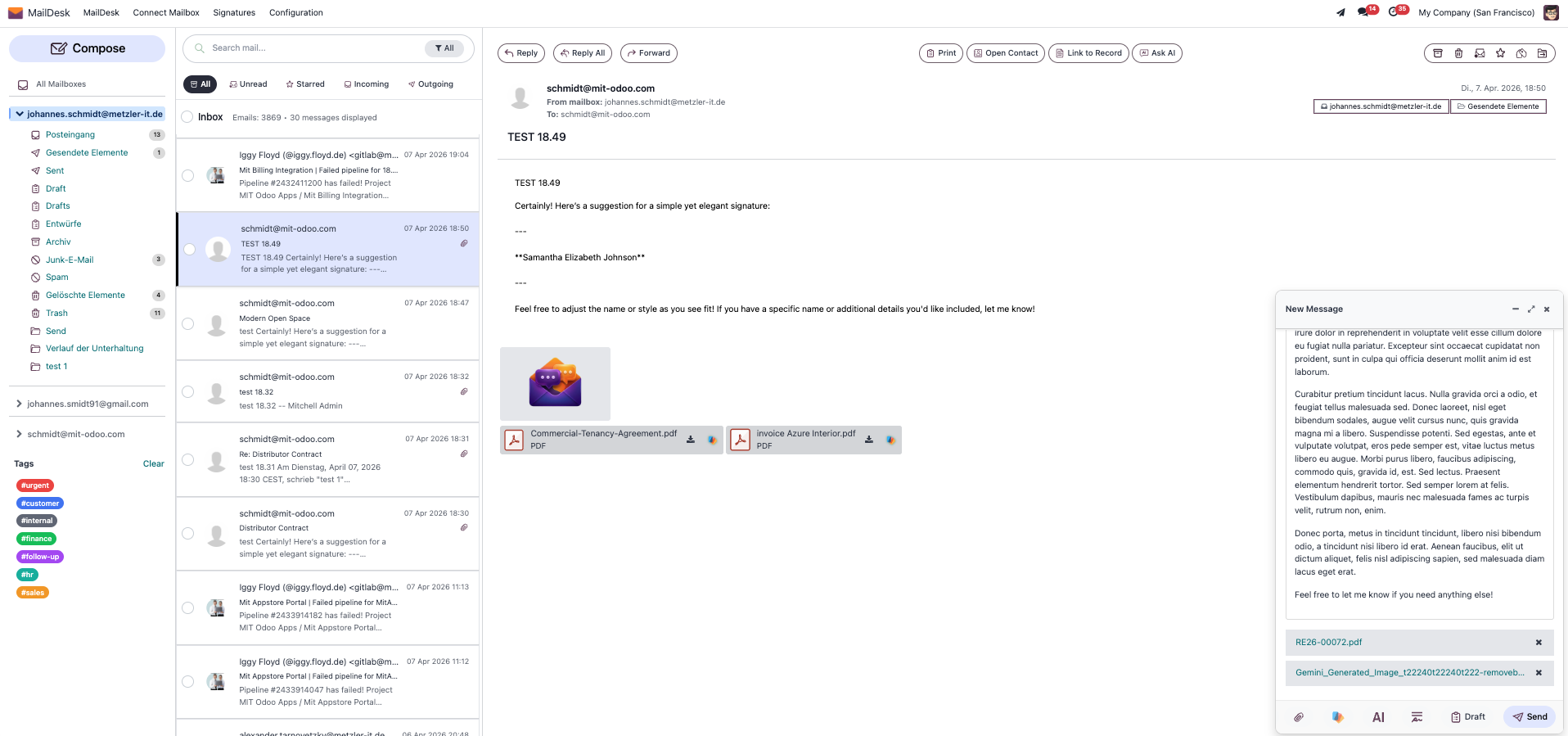
Your emails and their attachments, your Documents workspaces, and one set of folders, tags, and access rights - all working together from a single screen. Files flow both ways with a click, and every file stays a single, trusted copy.
Requirements
- MailDesk Basic and MailDesk Pro installed, with at least one mailbox connected.
- The Documents integration module (
maildesk_mail_client_documents) installed. - Odoo Documents installed, with access to at least one workspace.
- MailDesk works on Odoo 17, 18, 19, or 20 - the steps above are the same on each.
Permissions
- You can only save into, or attach from, Documents workspaces you already have access to. Standard Odoo Documents access rules always apply.
- An administrator decides per mailbox whether saving inbound attachments and attaching from Documents are allowed (see Step 1).
Get MailDesk Documents
Ready to stop downloading and re-uploading the same files? The Documents integration turns your inbox and Odoo Documents into one connected workspace - one click each way, one copy of every file, and the folders and access rights you already trust. See plans, start a free trial, or talk to us about your setup on the MailDesk pricing page. We are happy to help you find the right fit.