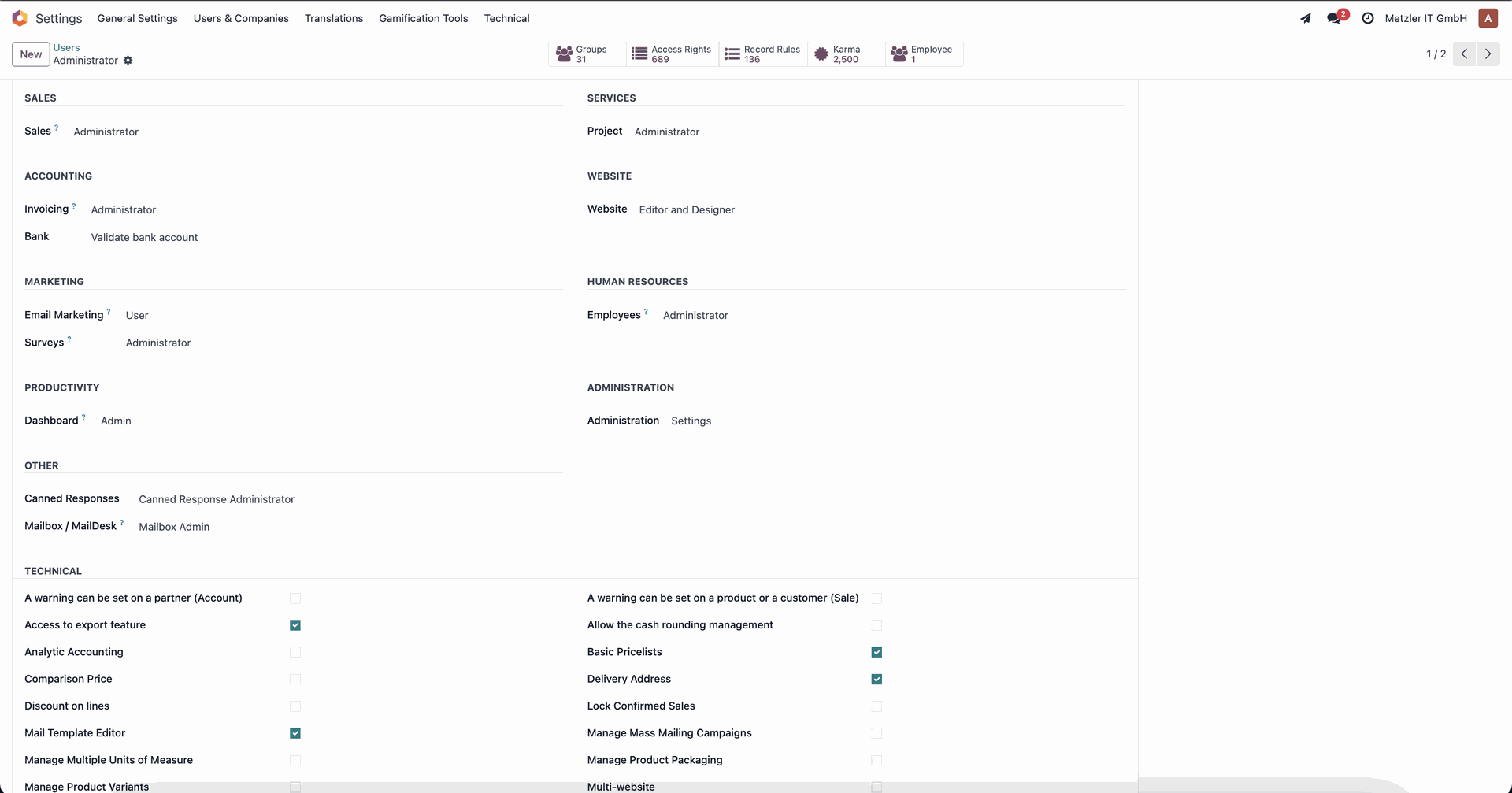
User Roles: Administrator and User
Maildesk offers two distinct user roles:
- Mailbox Administrator — has full access to all mailboxes, configuration options, and settings.
- Mailbox User — can only see and use the mailboxes explicitly shared with them. Other accounts are completely hidden from view.
This role-based structure provides clear access control and ensures data privacy within your organization.
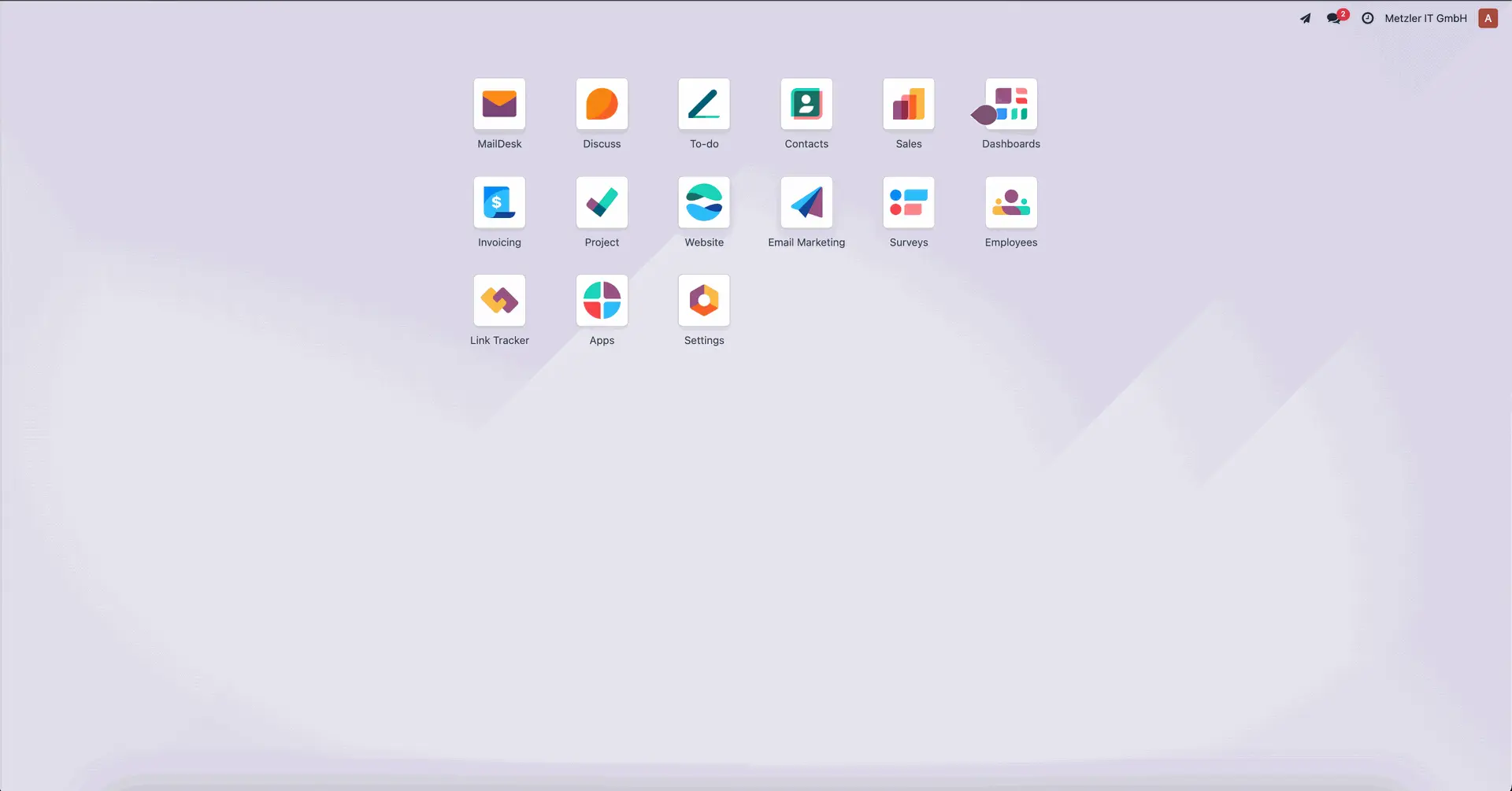
Maildesk in the Main Menu
Once at least one account is configured, the Maildesk app appears automatically in the Odoo main menu with its own icon — just like other core apps such as Sales, Contacts, and Invoicing.
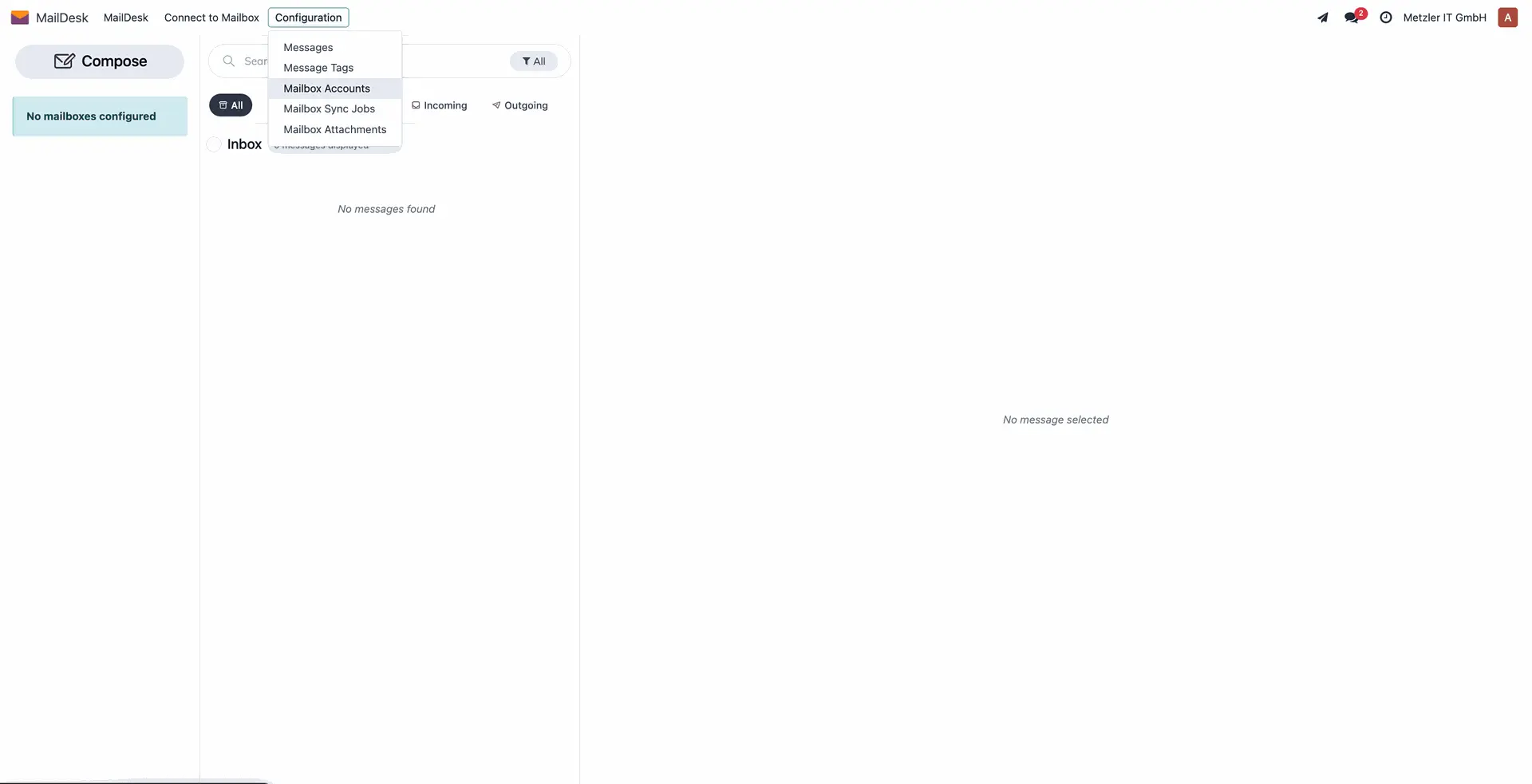
Empty Interface if No Mailbox Configured
If no mailbox is set up, the Maildesk interface will show a clean empty state, guiding the user to connect their first email account.
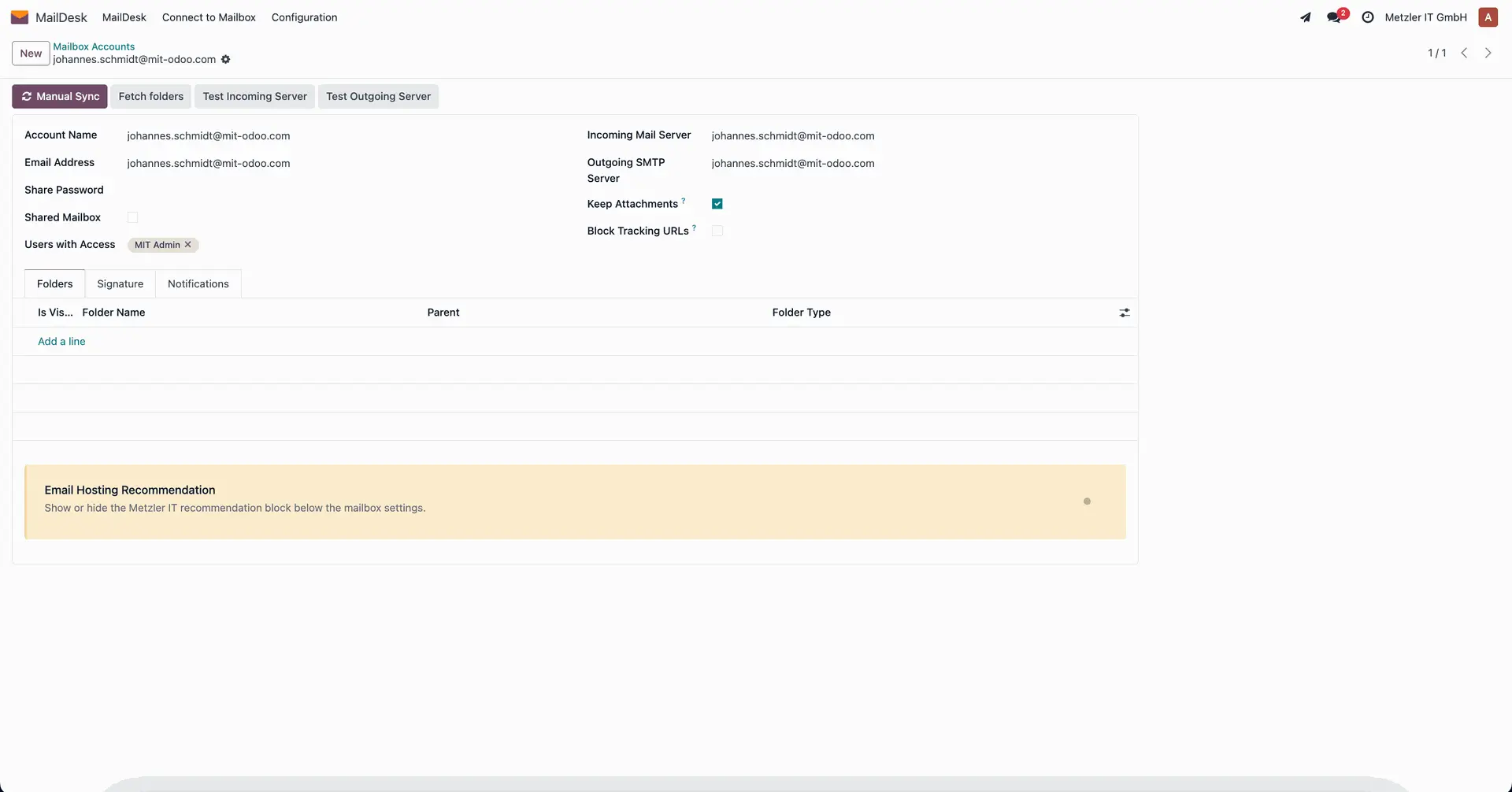
Email Account Configuration
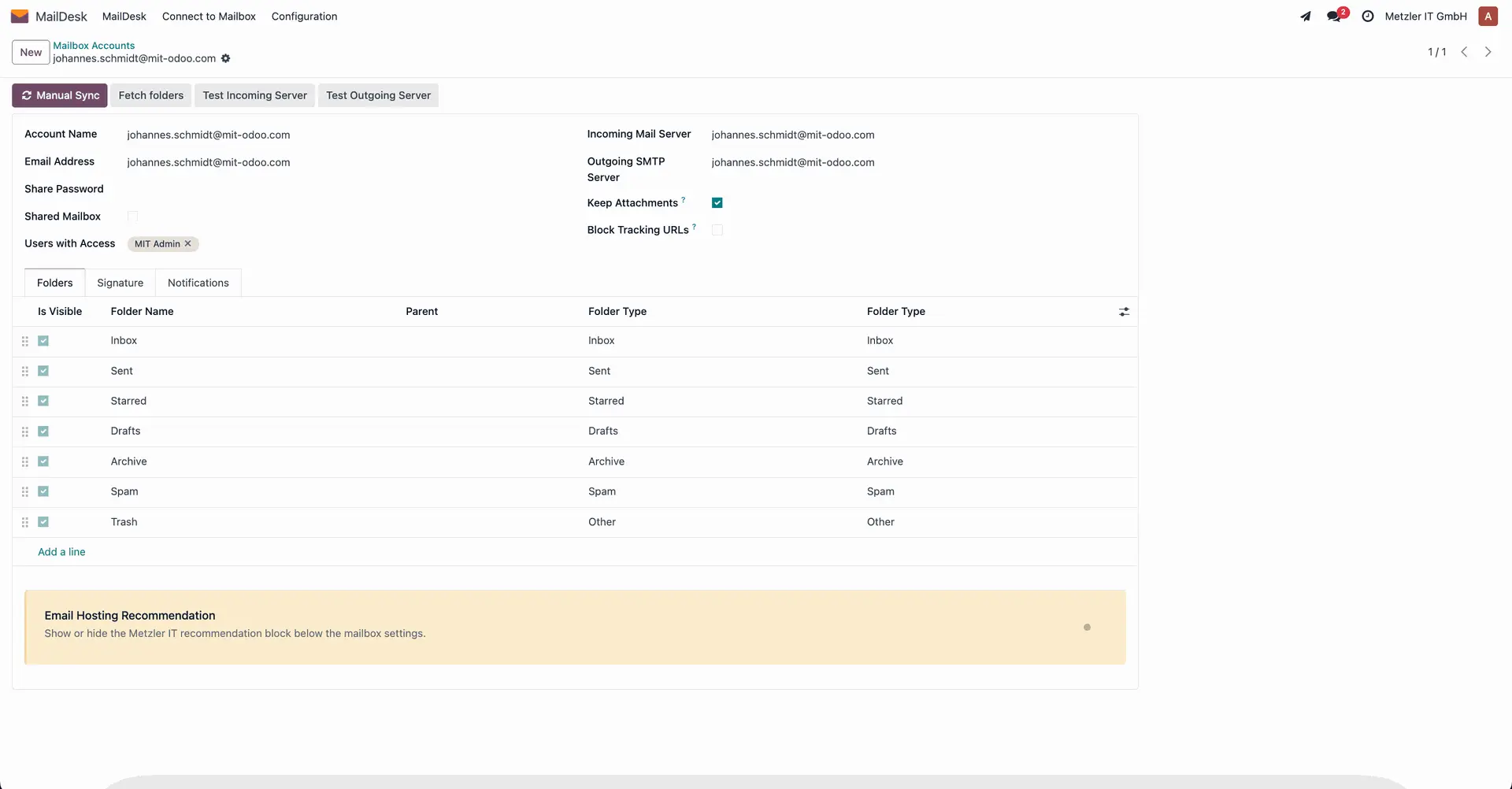
When configuring an account, you must specify:
- Email address
- Incoming (IMAP) and outgoing (SMTP) servers
- Login and password
About “Shared Password”:
If this option is enabled, any user who knows the email address and password can connect the account themselves. Upon connection, they’re automatically added to the list of shared users for that mailbox.
Other options:
- Keep Attachments: If enabled, all attachments are saved in Odoo. If disabled, attachments remain on the email server, and Maildesk links to them — saving space but slightly slowing down loading times.
- Remove Tracking Links: This feature strips tracking pixels and marketing links (such as UTM parameters) from incoming emails to protect privacy and speed up rendering.
Fetch Folders from Server
Clicking the "Fetch Folders" button retrieves all folders from the connected email server — including Inbox, Sent, Spam, Trash, etc.
Each folder must be assigned a correct folder type (e.g. Inbox, Sent), which ensures messages are routed and categorized properly.
Email Signatures
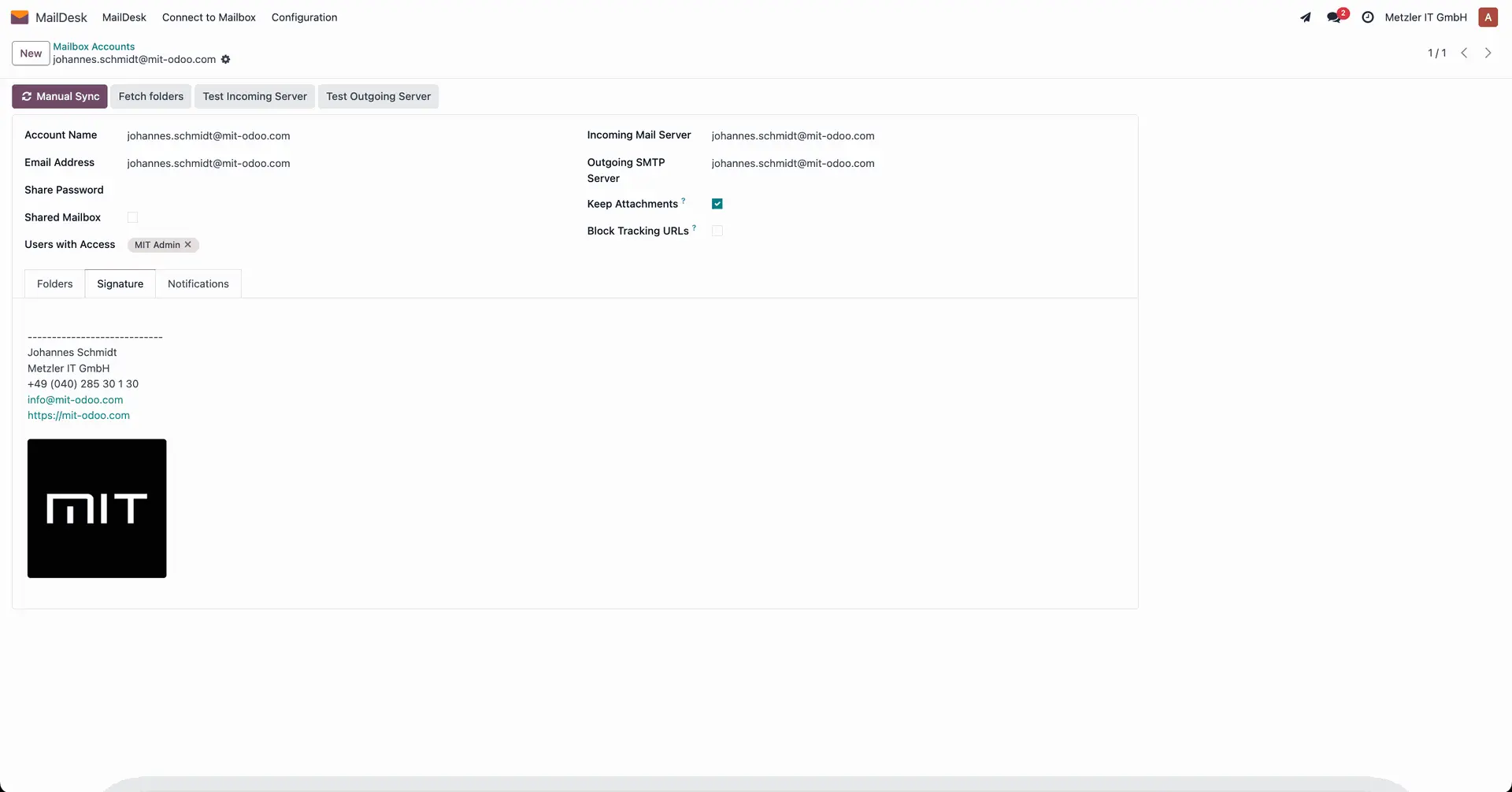
Each user can define a custom signature for every email account they use.
These signatures can be plain text or HTML and are selectable when composing messages.
Viewing Incoming Messages
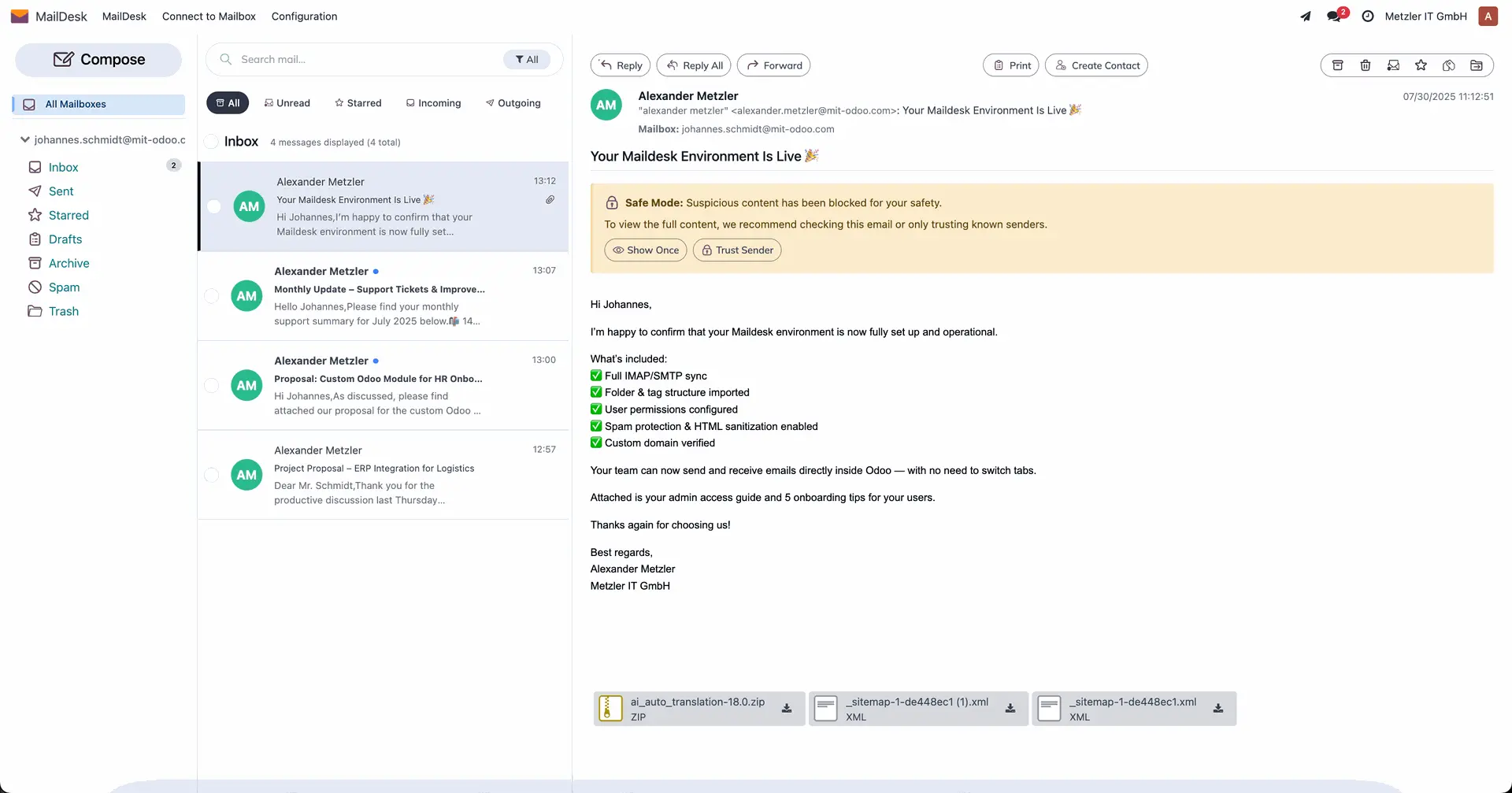
Once messages are synced, they appear in the Maildesk interface — including metadata such as subject, sender, timestamp, tags, and attachment indicators.
Unread messages are clearly highlighted.
Quick Reply
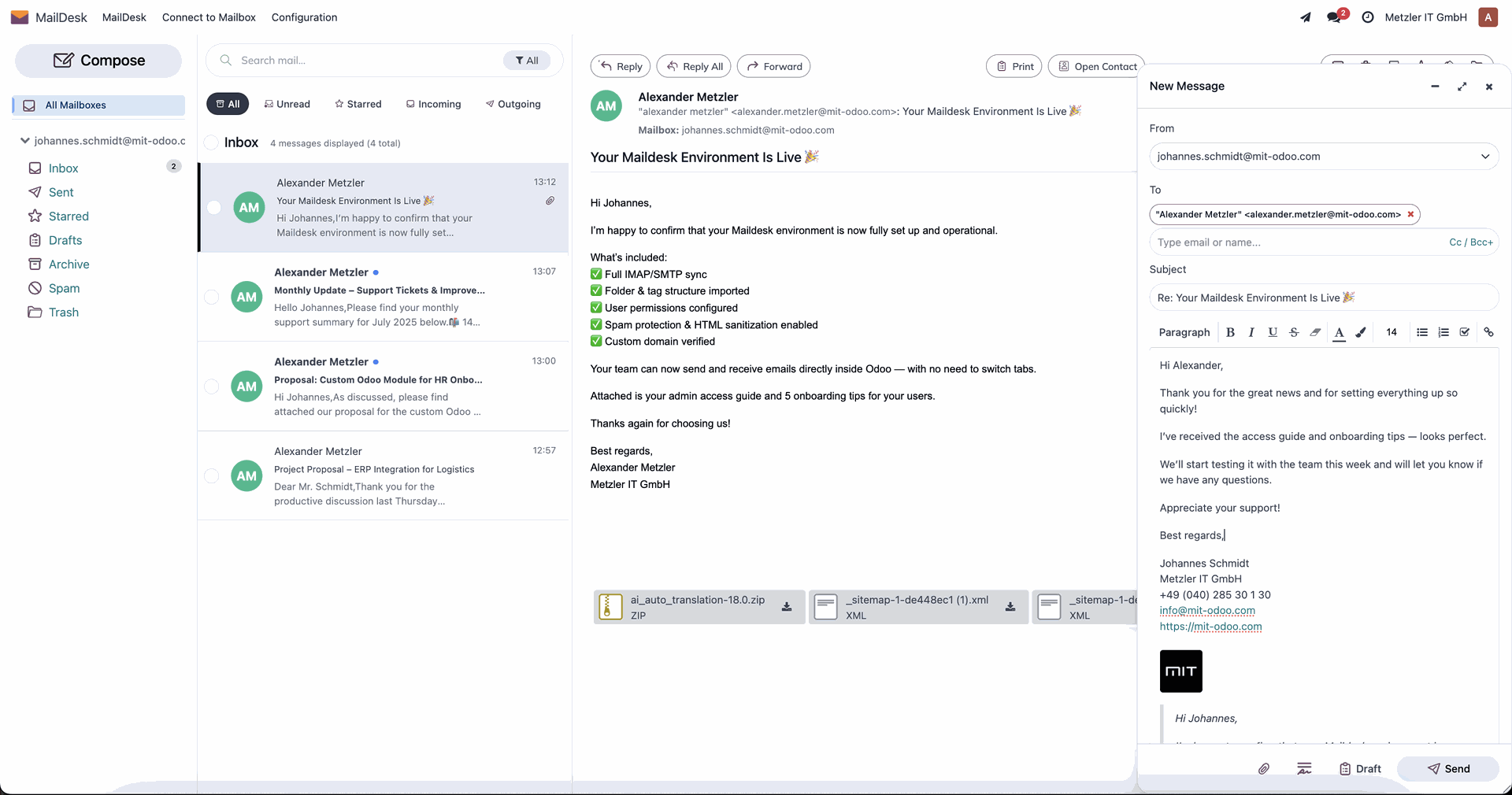
Clicking "Reply" opens the message composer with the recipient already filled and the original email quoted, enabling quick responses.
Die Antwort enthält automatisch den ursprünglichen Text als Zitat.
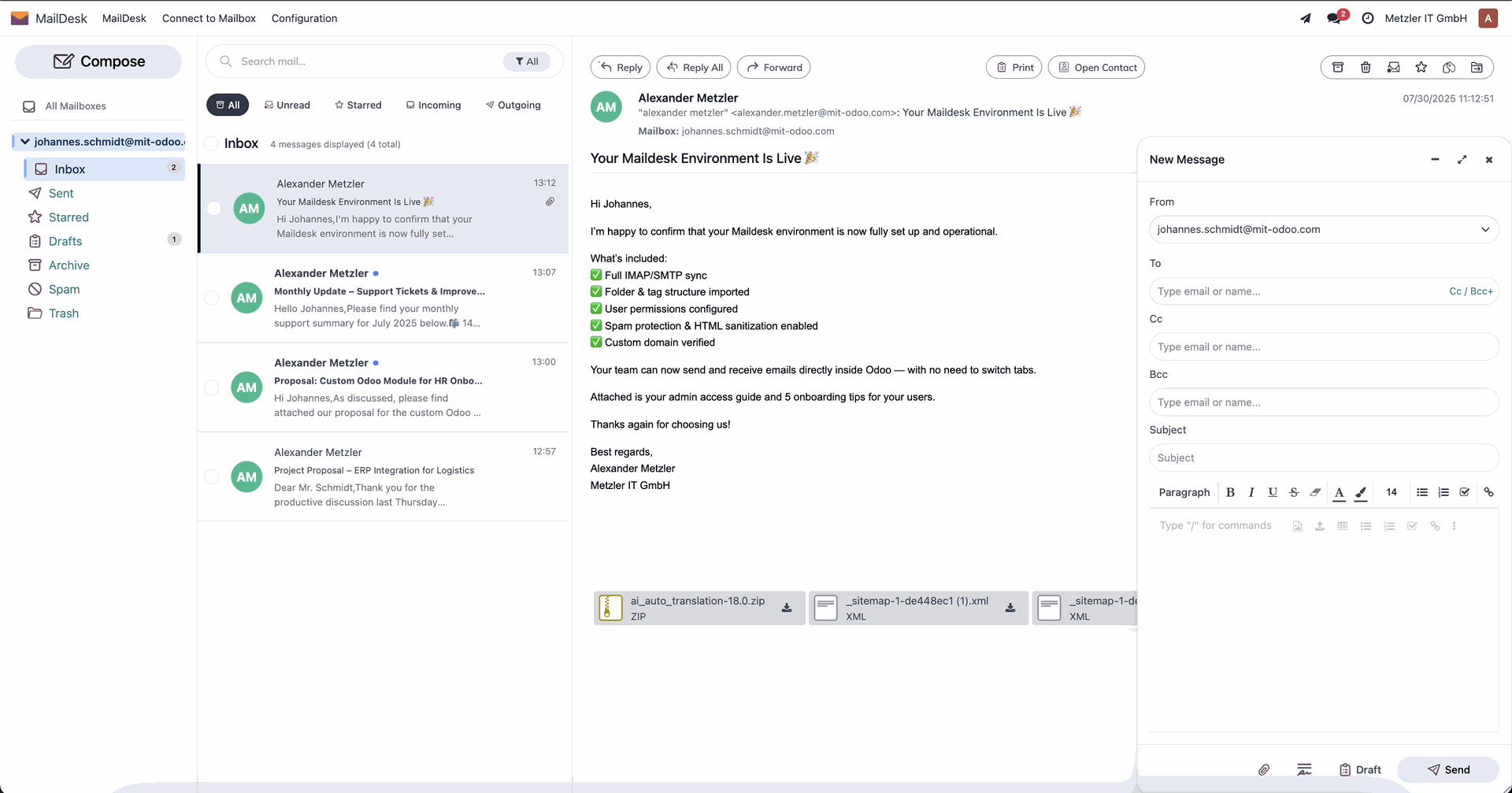
Powerful Composer
The built-in composer supports:
- Rich HTML formatting
- Drag-and-drop file uploads
- Autosave drafts
- Inline images and signatures
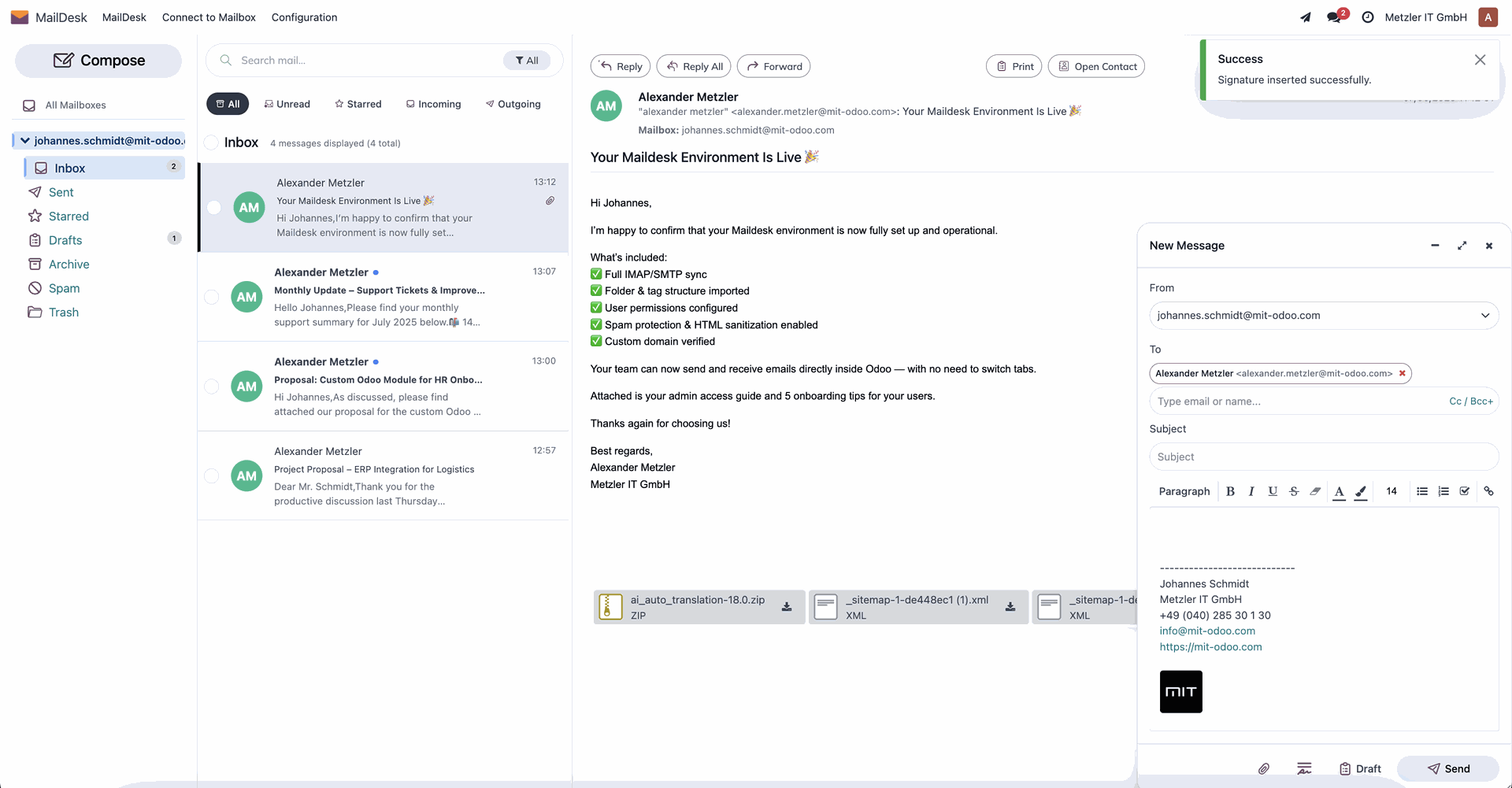
Insert Signature
When composing a message, users can instantly insert a saved signature associated with the selected account.
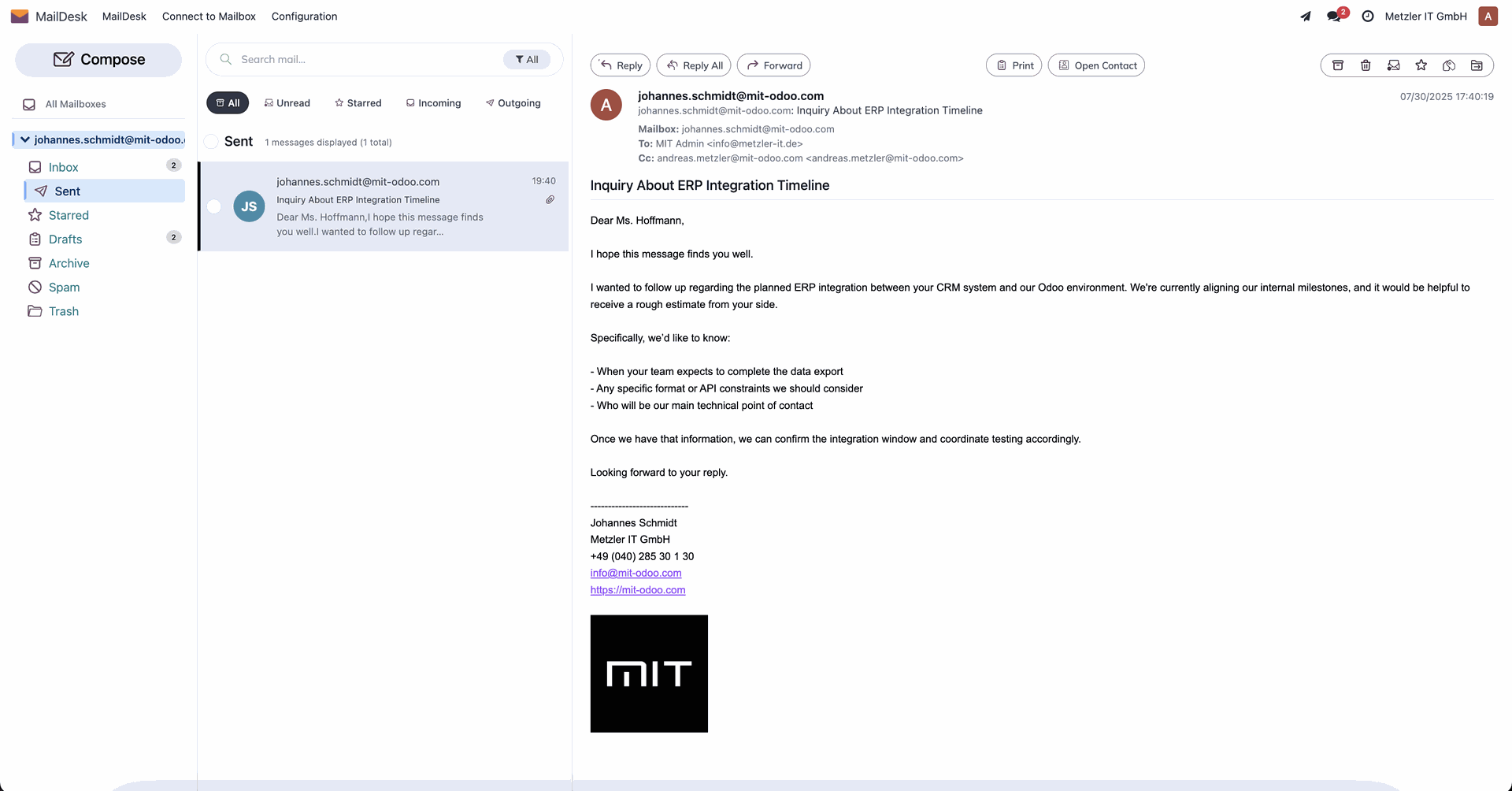
Sending Messages
Sent emails are transmitted via the configured SMTP server and automatically saved to the Sent folder (both in Maildesk and on the server, if supported).
Messages also appear in the Maildesk interface.
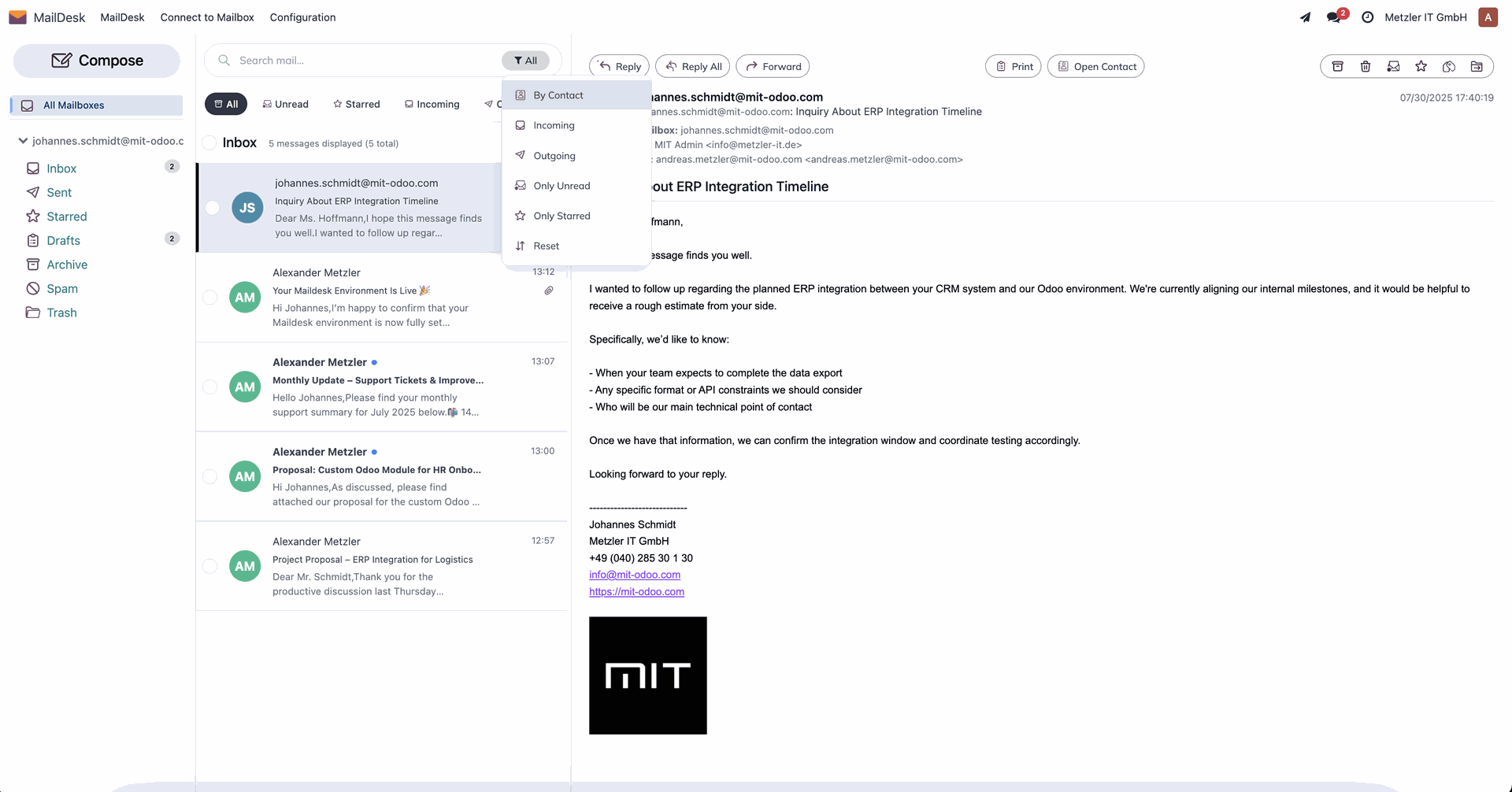
Advanced Filters
Users can filter emails by:
- Read/unread status
- Drafts or sent/received
- Presence of attachments
- Related contacts or tags
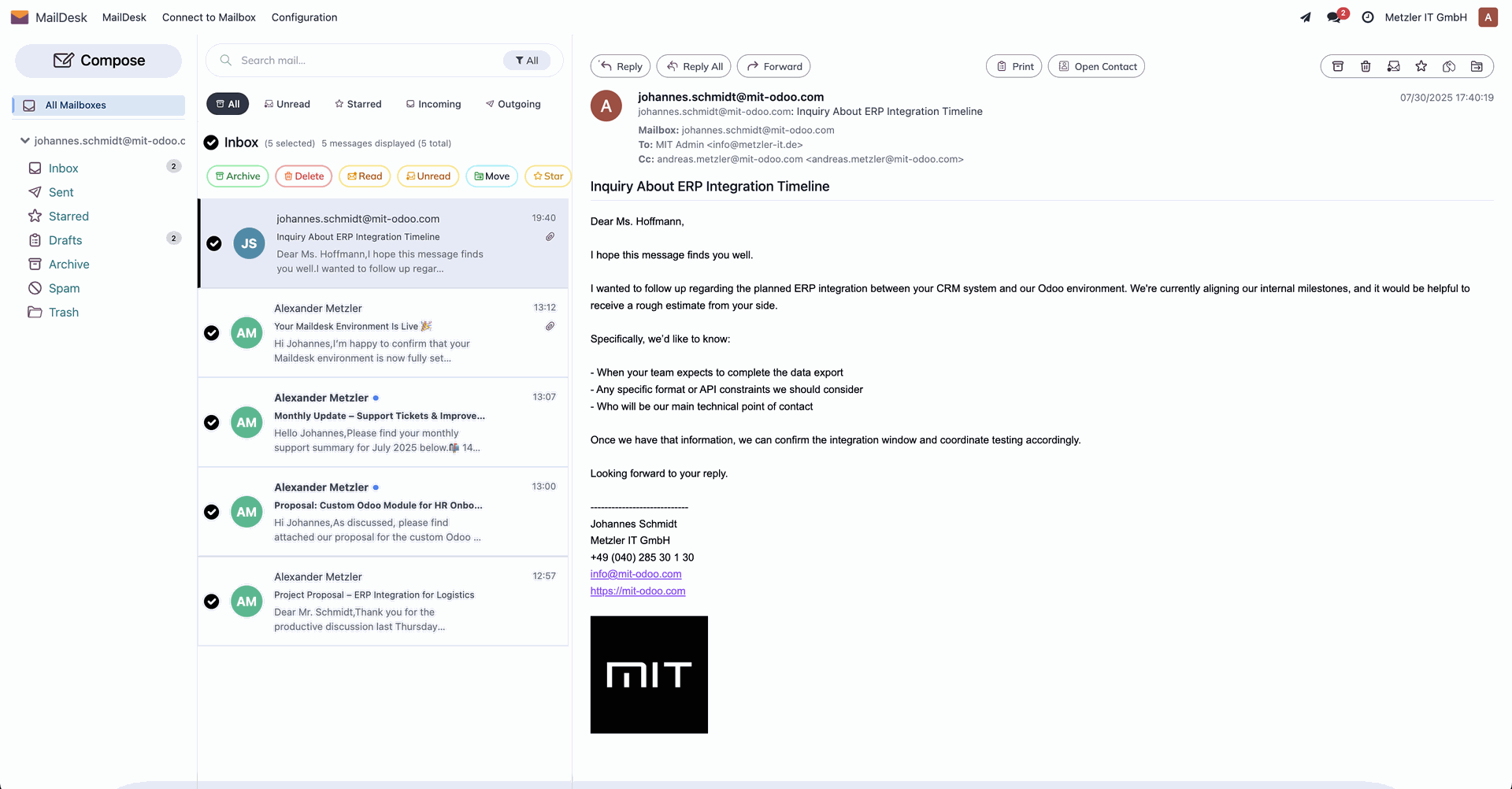
Multi-Selection and Mass Actions
Using Shift or Ctrl, users can select multiple emails and perform actions such as:
- Deleting
- Marking as read/unread
- Assigning tags
- Moving to folders
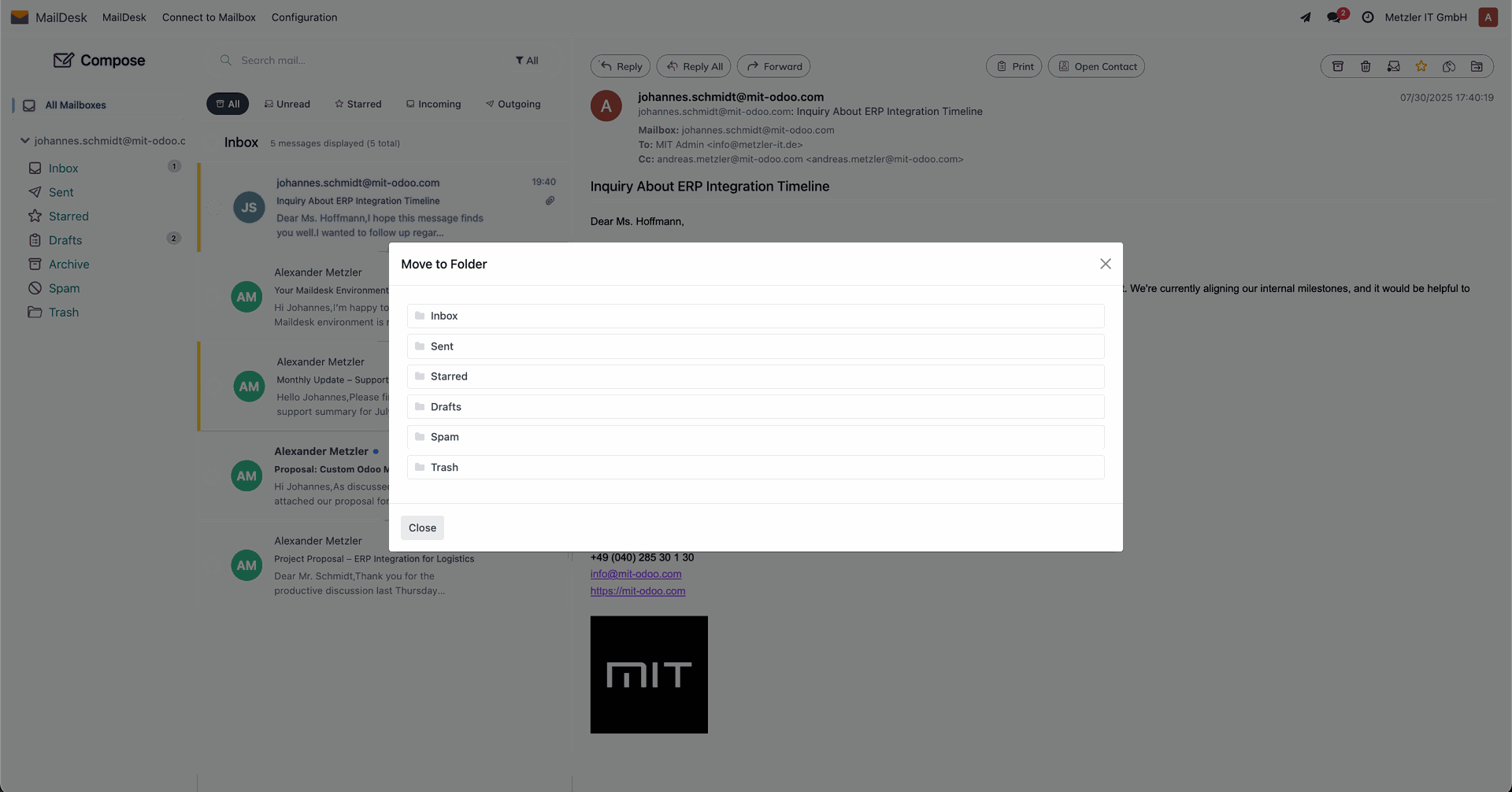
Move Emails to Folder
Selected emails can be moved to any existing folder. If the server supports the MOVE command, changes are synced bidirectionally;
otherwise, a copy/delete operation is used.
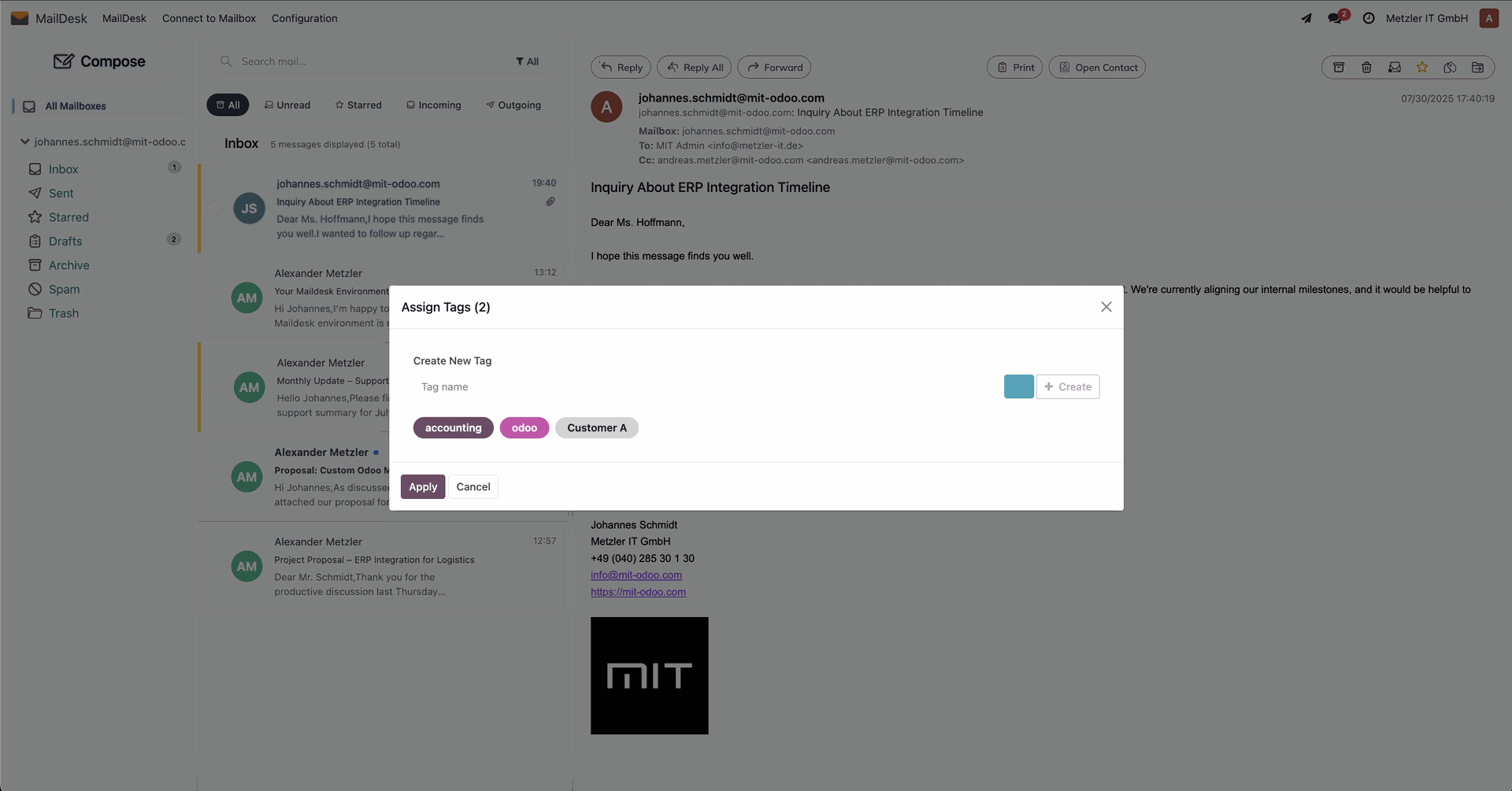
Assign Tags
Maildesk allows users to tag emails with one or more labels (e.g., “Important”, “To Review”).
Tag assignment is done via a user-friendly wizard.
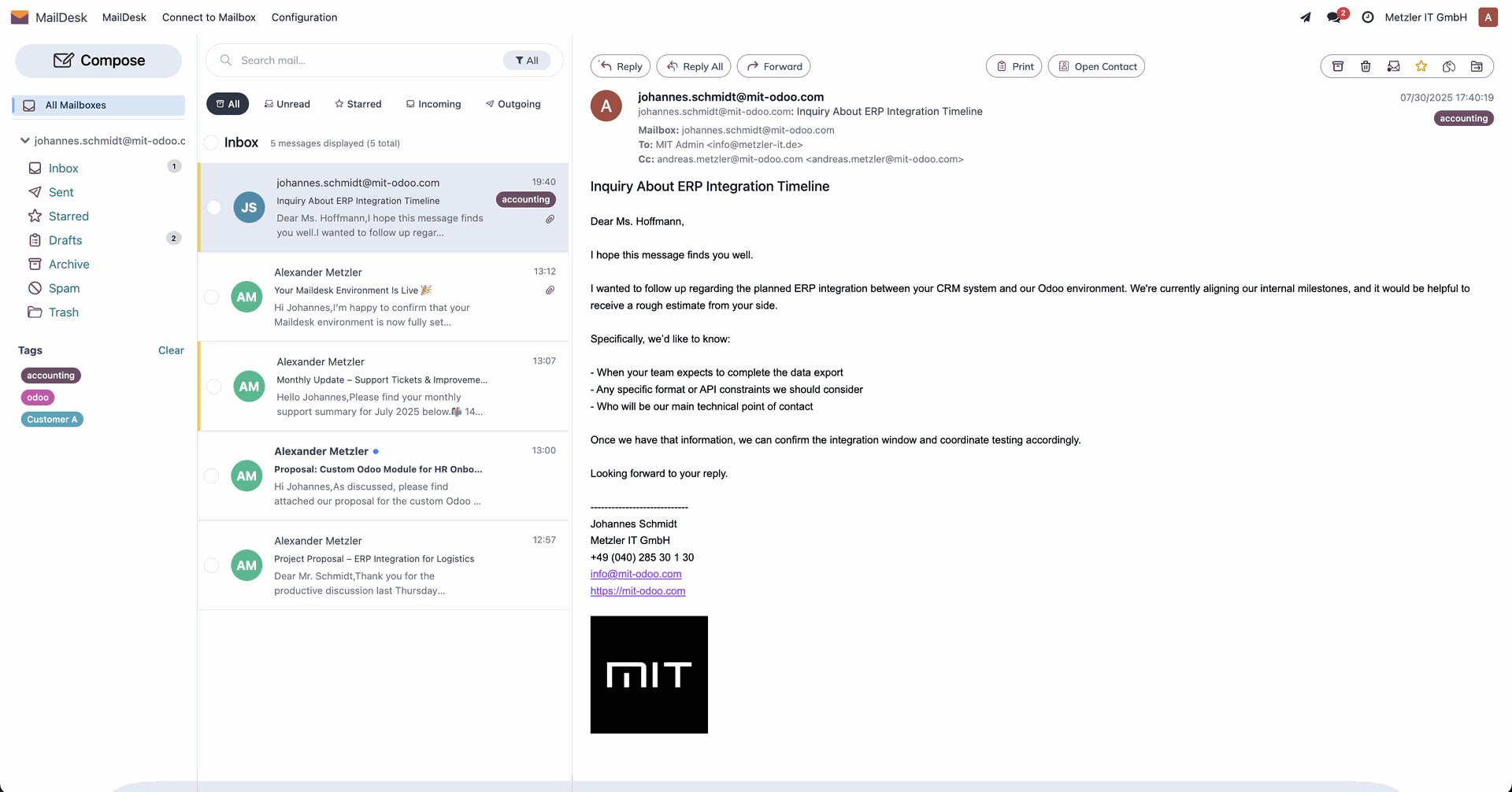
Display Tags
Tags are shown in the left sidebar and also directly within message previews — making it easy to spot and group labeled messages.
Tags, die einer E-Mail zugewiesen wurden, erscheinen im Nachrichtenblock.
Trash & Recovery
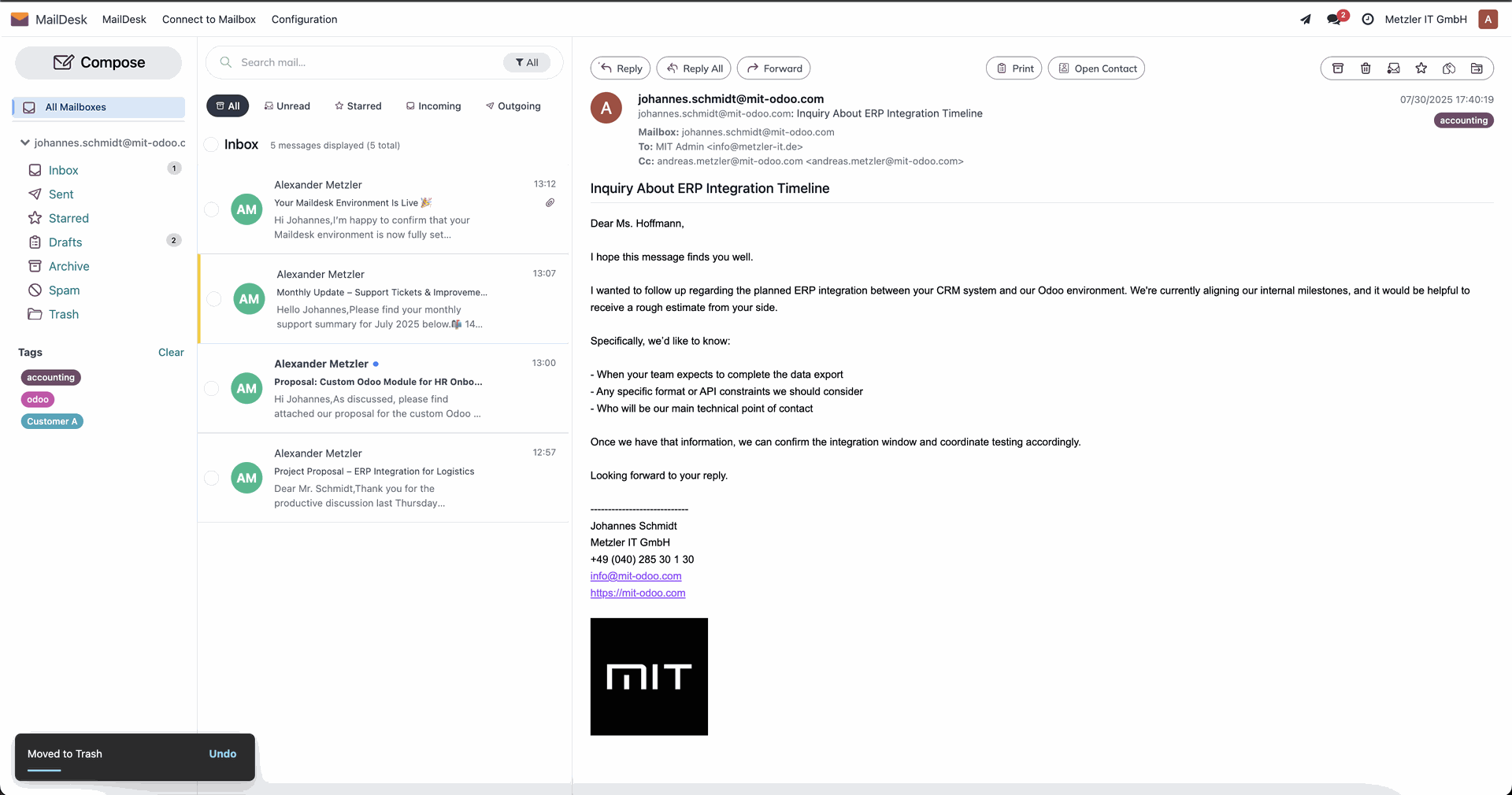
First deletion moves the email to the Trash folder.
A small notification appears at the bottom left, allowing the action to be undone.
Second deletion (from Trash) permanently deletes the email from Odoo.
Filter by Contacts
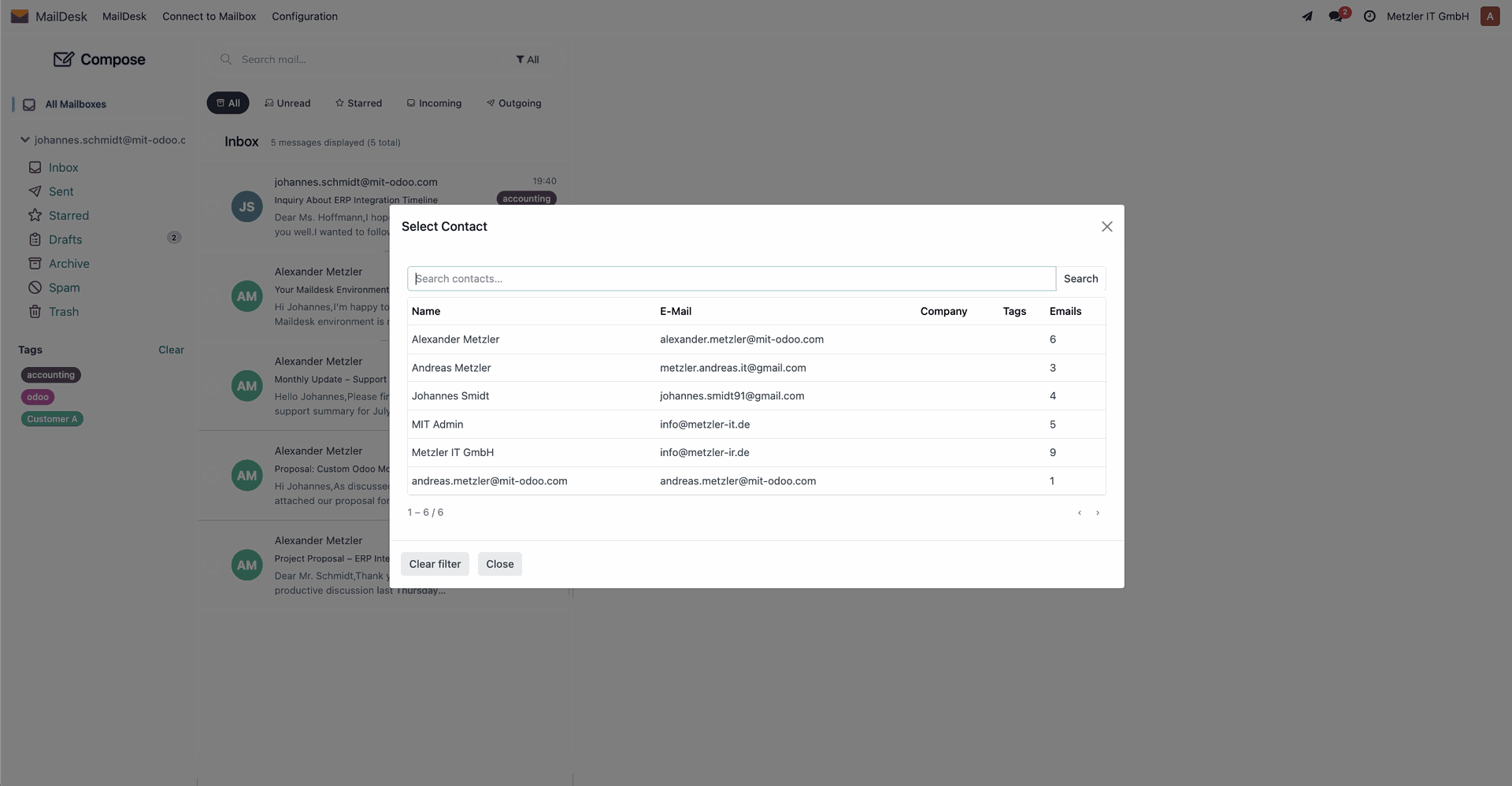
The contact filter shows a list of partners with whom emails were exchanged — including a count of messages.
Clicking a partner filters the message list accordingly.
Choose Sender Address
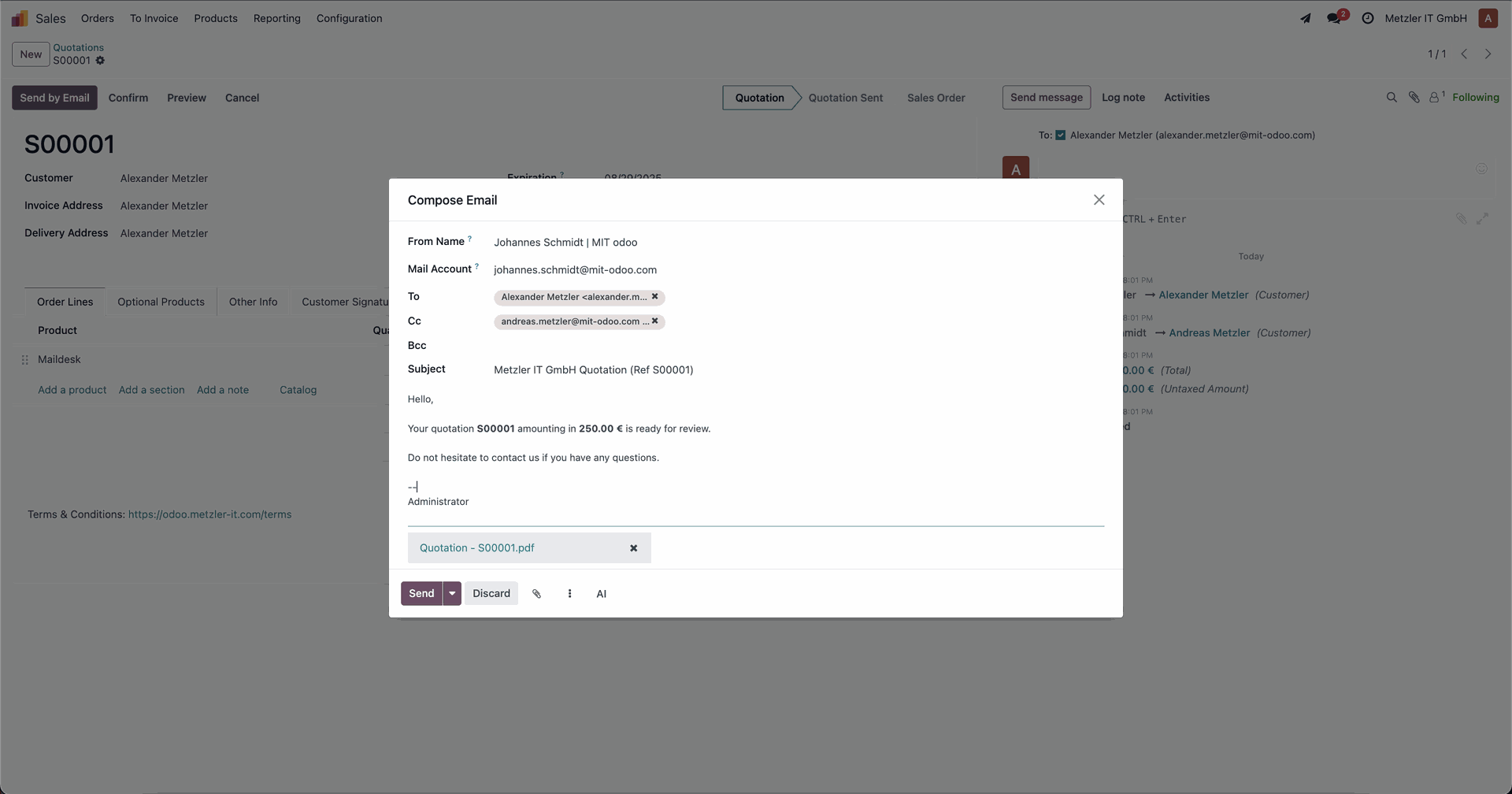
When composing a message, users can:
Select the mailbox from which to send
Choose how their name appears to the recipient
Add To, Cc, and Bcc recipients
Insert a signature
Attach files
Sending Sales Documents
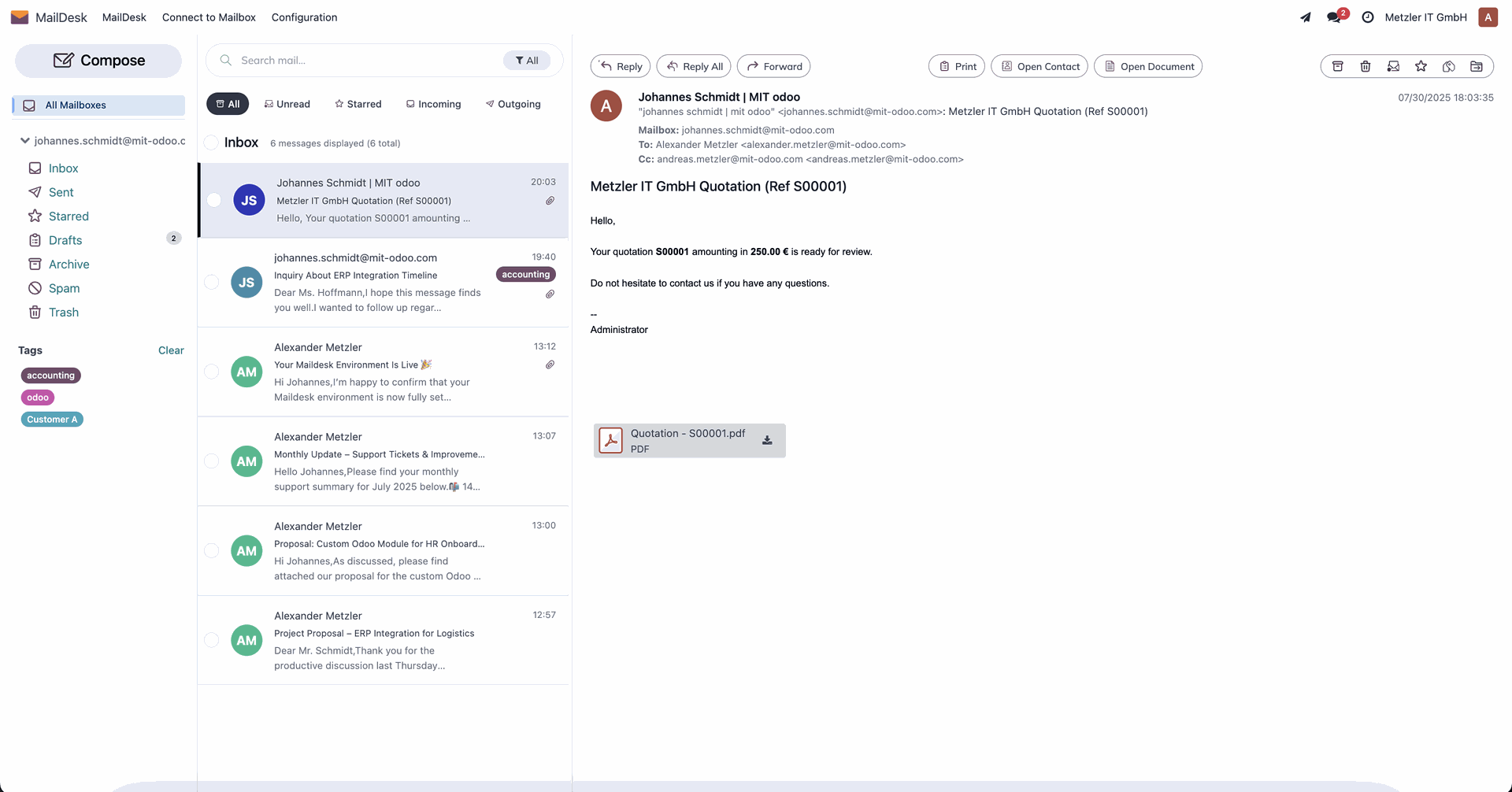
You can send documents such as Sales Orders or Invoices via Maildesk.
The email appears instantly in Maildesk and is automatically linked to the corresponding document in Odoo.
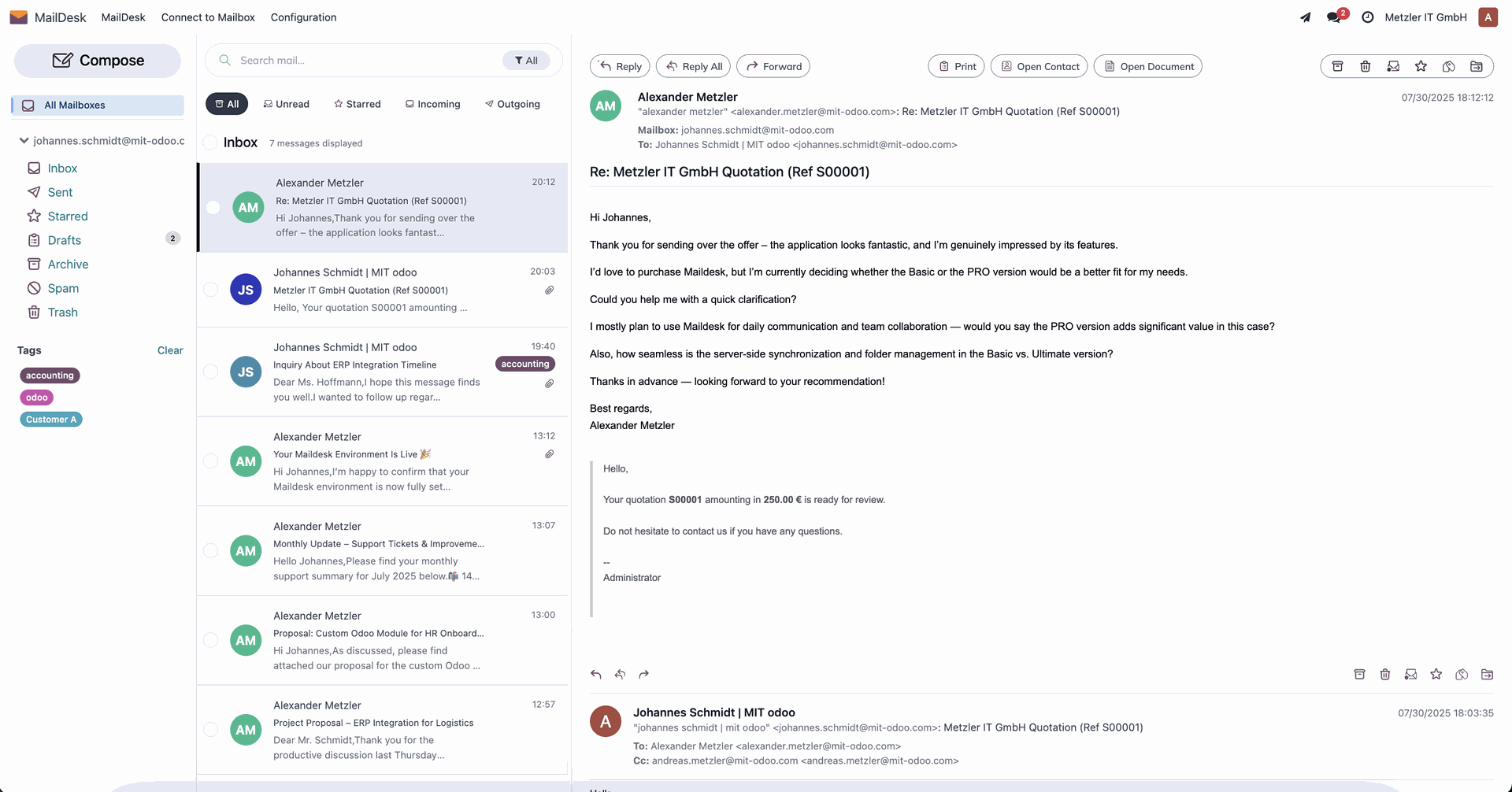
Customer Replies
When a customer replies to your email:
The reply is received into Maildesk
It is automatically linked to the original message
It’s also attached to the related Odoo document (e.g. Sales Order)
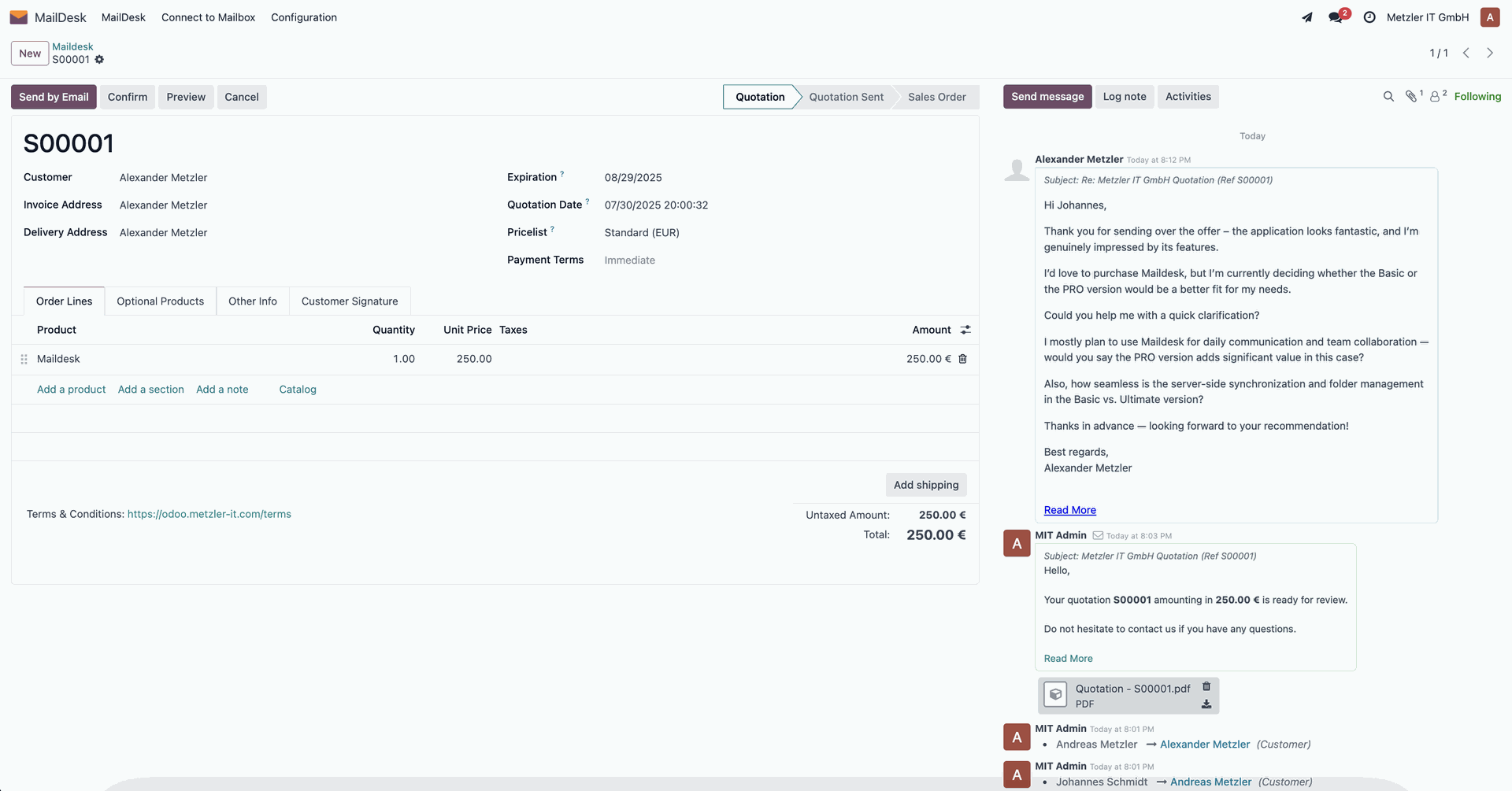
Email Thread in Documents
Within each related document (e.g. Sales Order), the full communication history is visible — including sent messages, replies, and attachments.
Dies umfasst gesendete und empfangene Nachrichten.
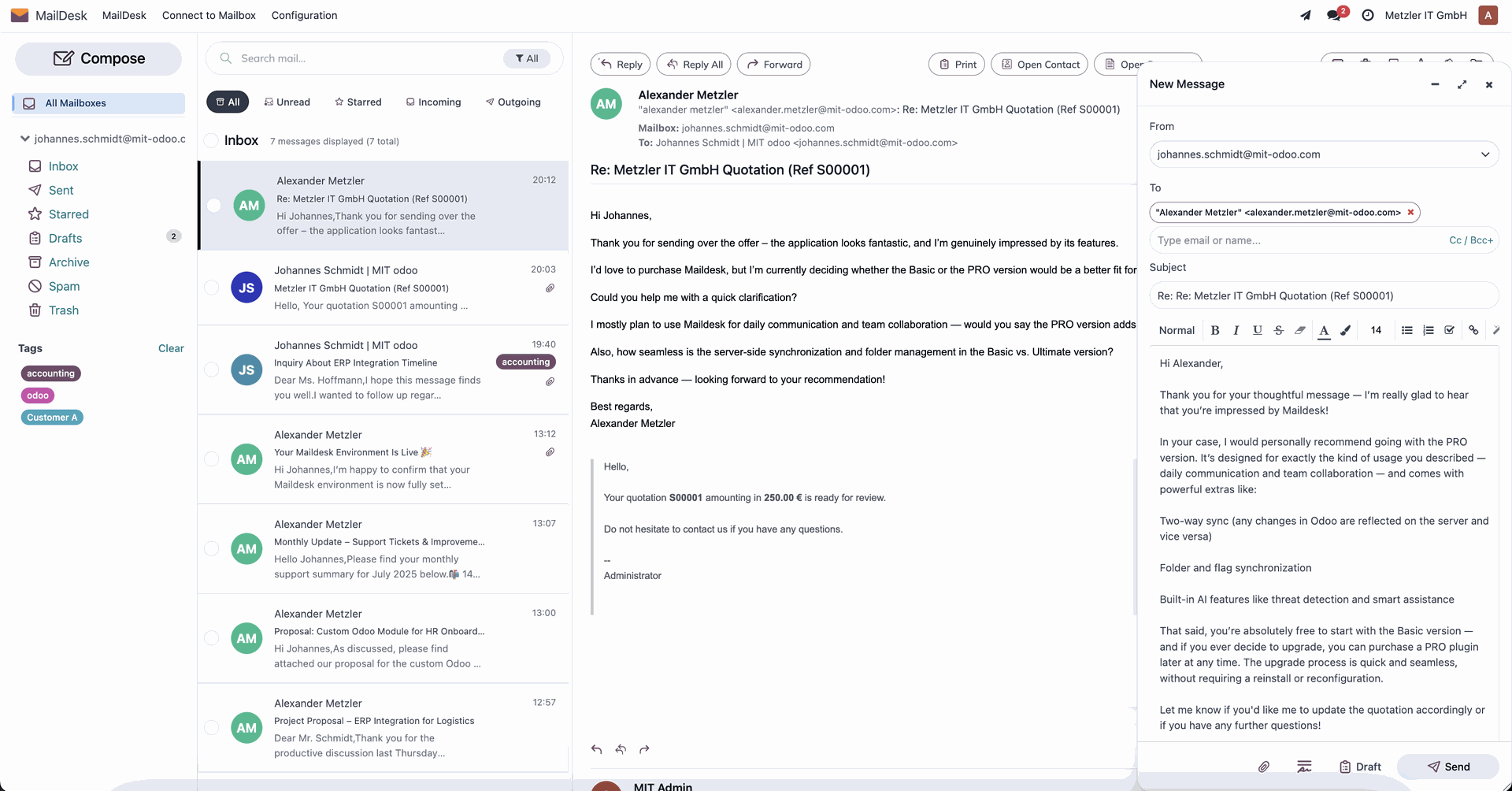
Reply from Maildesk to Document
You can respond to the customer directly from Maildesk, and the reply will be logged and linked to the associated document — maintaining a clean, centralized communication trail.
Die Antwort wird automatisch mit dem Dokument verbunden und gespeichert.