Mailbox account setup (administrator)
A mailbox account is the single record that turns one email address into a working mailbox inside Odoo - it names the address, links the servers that move mail in and out, and decides exactly which colleagues may open it. Get this one form right and your team reads, replies, and shares email without ever leaving Odoo or juggling a second login. This page walks you through it button by button, then shows how an ordinary user joins a shared mailbox with nothing but an address and a password.
Available in: Basic. Mailbox accounts, shared mailboxes, and the per-mailbox access list are part of the MailDesk engine, so they work the same whether or not Pro is installed. A few extra fields (per-mailbox AI options, the Remove Mailbox action, Cockpit fields) appear only with Pro and are clearly marked Available in: Pro below.
What you get
Every mailbox account holds, in one place:
- a friendly name so the mailbox is easy to spot in Odoo,
- the email address used to sign in and send,
- the sender name recipients see on your outgoing mail,
- a link to an Incoming Mail Server (where mail is fetched from) and an Outgoing SMTP Server (where mail is sent from), and
- a tidy access list that controls, person by person, who can open the mailbox.
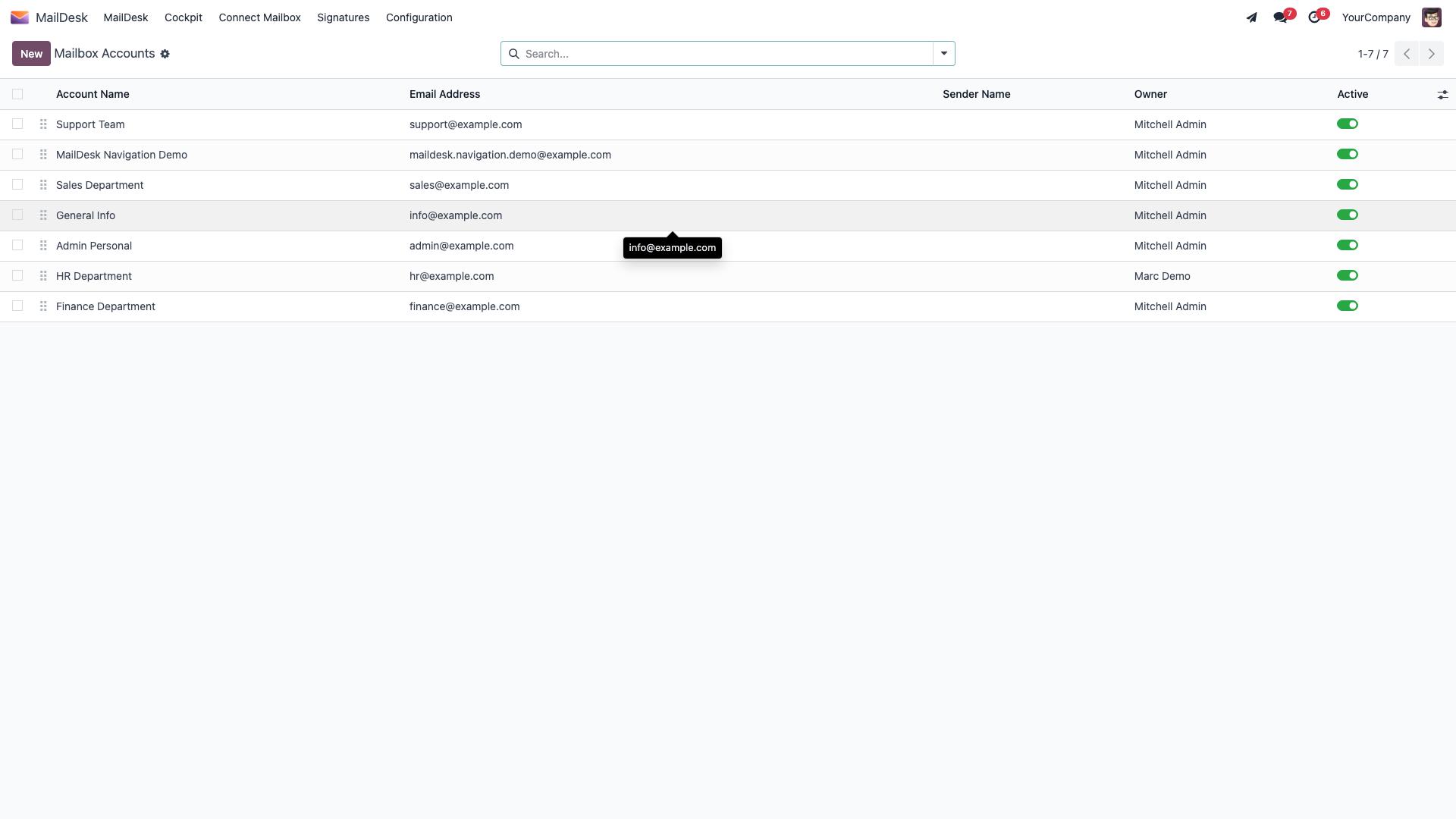
One Odoo user can hold several mailbox accounts at once - their own plus any shared team
mailboxes - and switch between them inside MailDesk. A support@ or info@ address can be
opened by a whole team without anyone sharing a single password.
The provider is set on the server, not here
Whether a mailbox is Gmail, Outlook / Microsoft 365, or generic IMAP is decided by the Server Type of the incoming server you attach - not by a switch on the mailbox account. Configure the servers first (or alongside this form): see IMAP / SMTP setup for the password path, Gmail OAuth setup and Outlook setup for the sign-in path.
Before you start
- MailDesk Basic installed. Works on Odoo 17, 18, 19, or 20 - the steps are identical on each.
- An incoming and an outgoing mail server, already configured or ready to set up while you create the account (IMAP / SMTP setup).
- For Gmail or Outlook over sign-in, the company-wide OAuth credentials configured first (Gmail OAuth setup, Outlook setup).
Who can do what
| Task | Who can do it |
|---|---|
| Create, edit, or delete a mailbox account | MailDesk Mailbox Admin |
| Choose which users may open a mailbox | MailDesk Mailbox Admin |
| Open and use a mailbox you have been granted | MailDesk Mailbox User |
| Join a shared mailbox yourself (with its share password) | MailDesk Mailbox User |
You set a colleague's MailDesk role on their user record, under Settings → Users → (pick the user) → Access Rights, in the MailDesk field (Mailbox User or Mailbox Admin).
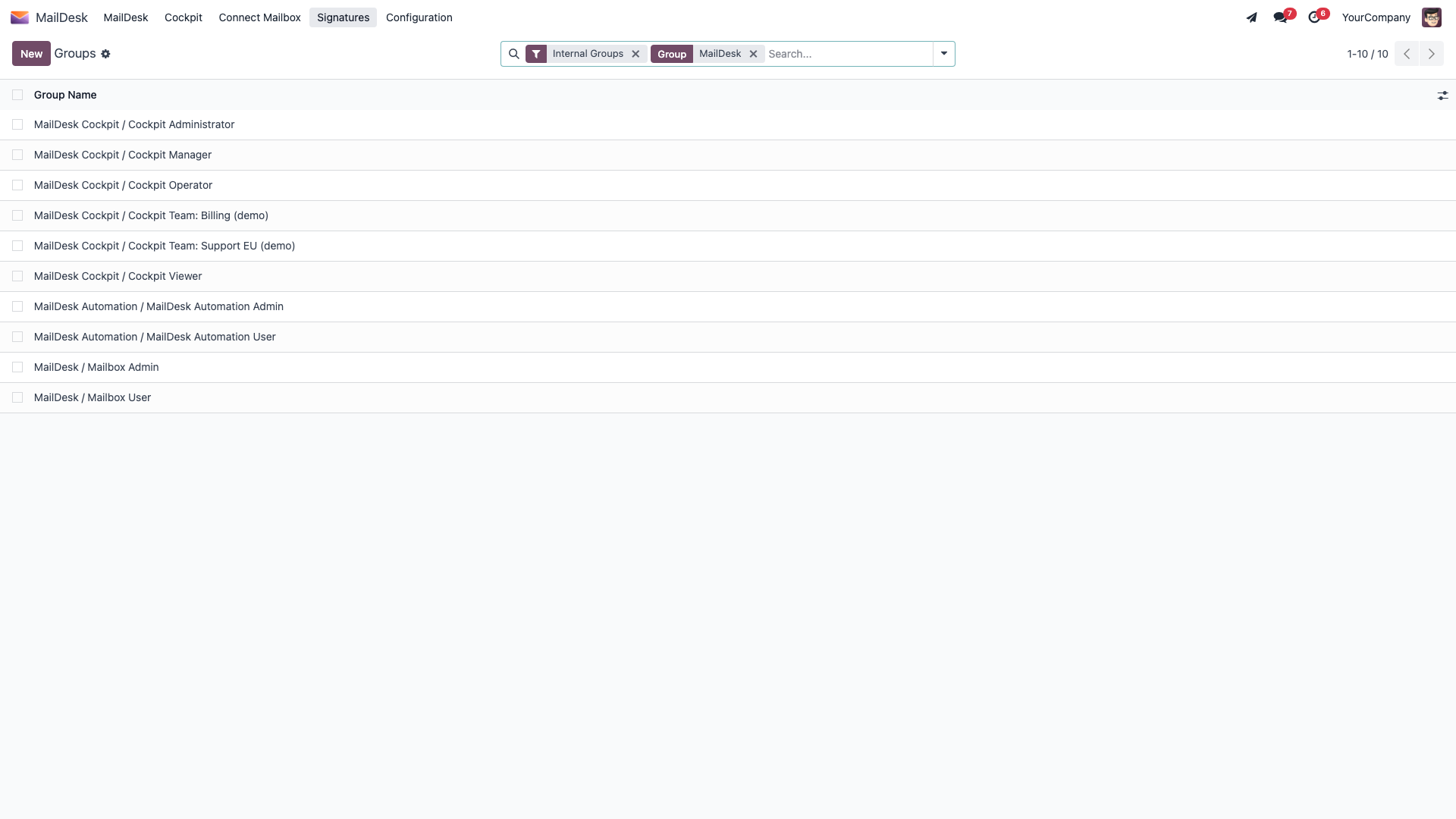
Only administrators create mailboxes
A Mailbox User can read and use a mailbox only when they appear in its Users with Access list. They cannot create or delete mailbox accounts - that stays with the administrator.
Step by step: create a mailbox account
1. Open the form
- Open the MailDesk app.
- From the top menu go to Configuration → Mailboxes → Mailbox Accounts. This menu is visible to mailbox administrators only.
- Click New.
2. Fill in the left-hand group
| Field | What to enter |
|---|---|
| Account Name | A friendly label shown inside Odoo - for example Support, Sales, or John Doe. Required. |
| Email Address | The full address used for sign-in and sending, for example [email protected]. It must contain an @. Required. |
| Sender Name | Optional. The name recipients see on your outgoing mail (for example Acme Support). Leave it empty to show just the address. |
You can leave Allow Personal Connection, Share Password, and Users with Access for the moment - they are covered under Choose who can open the mailbox and Shared mailboxes below.
3. Attach the two servers (right-hand group)
| Field | What to enter |
|---|---|
| Incoming Mail Server | The record that fetches mail - IMAP, Gmail OAuth, or Outlook OAuth. Only servers belonging to the same company can be selected. Required. |
| Outgoing SMTP Server | The record used to send mail, from the same company. Required. |
Need to build these first? See IMAP / SMTP setup. An incoming server belongs to exactly one mailbox account - it is that mailbox's connection, so give every mailbox its own. An outgoing server may be shared by several mailboxes, as long as its FROM Filtering allows each of their addresses (or is left empty).
4. Save
Click Save (the cloud / check icon at the top of the form). MailDesk now knows the address and where its mail lives.
5. Test the connection and fetch folders
Use the buttons in the form header - left to right:
| Button | What it does |
|---|---|
| Test Incoming Server | Signs in to the incoming server and confirms mail can be reached. |
| Test Outgoing Server | Confirms the outgoing server accepts a connection. |
| Fetch folders | Discovers the mailbox's folders and lists them on the Folders tab. |
A successful test shows a green Connection Test Successful! notice. After Fetch folders, the Inbox and the other folders appear on the Folders tab, and MailDesk starts filling the mailbox automatically.
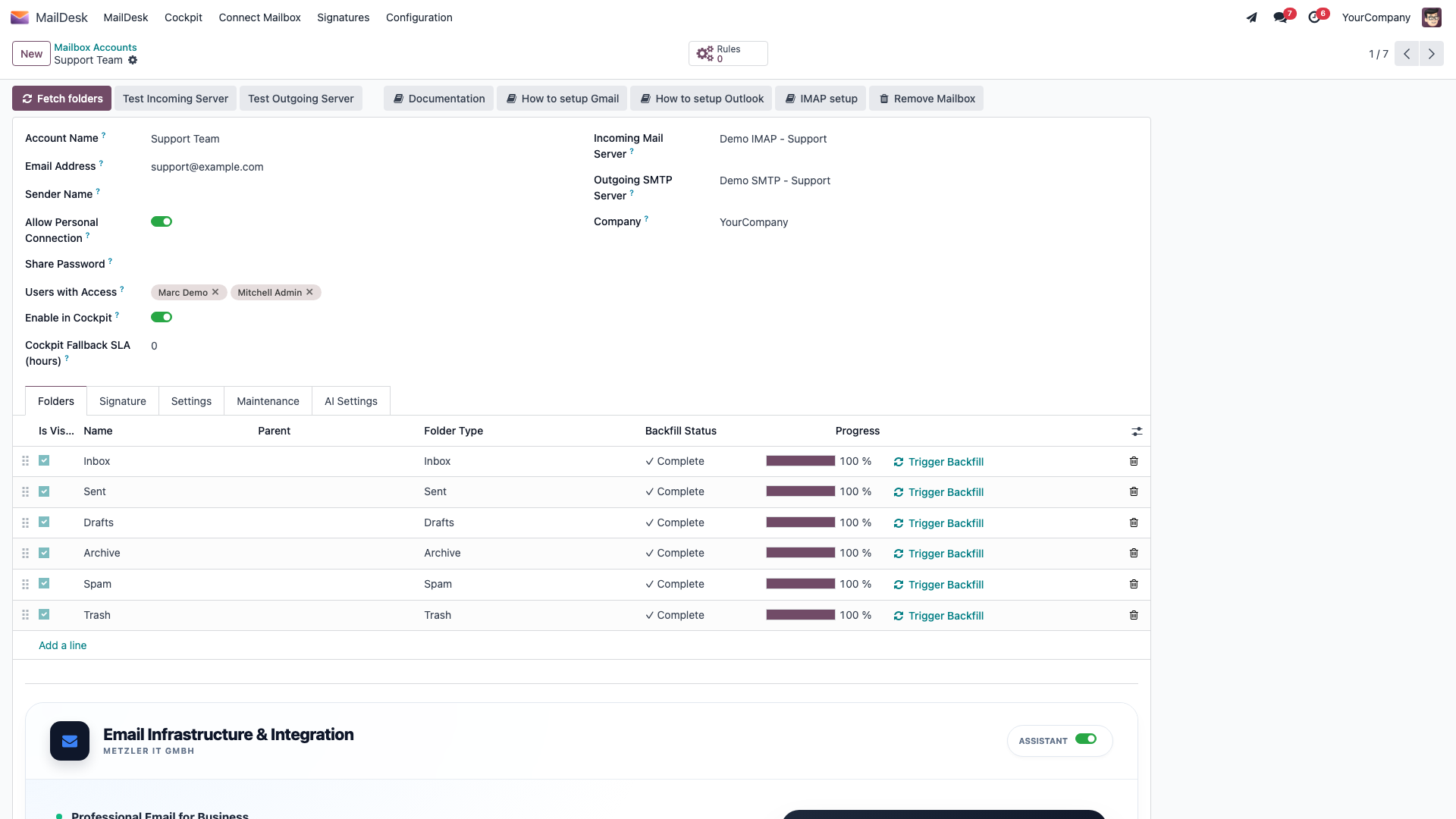
Gmail and Outlook connect by sign-in, not a stored password
When the incoming server's Server Type is Gmail OAuth Authentication or Outlook OAuth Authentication, you connect with a provider sign-in instead of a password. For Outlook, a Connect Microsoft Graph (OAuth) button appears in the form header - click it to sign in. The header also carries handy How to setup Gmail, How to setup Outlook, and IMAP setup links. Full walkthroughs: Gmail OAuth setup and Outlook setup.
Choose who can open the mailbox
A mailbox is private until you grant it. Access is controlled by the Users with Access list on the mailbox account: a colleague can open the mailbox in MailDesk only if their name is on that list.
- Open the mailbox account.
- In Users with Access, add each Odoo user who should be able to open this mailbox.
- Save.
The listed users now see this mailbox the next time they open MailDesk; everyone else does not.
Access is checked on every read
Removing a user from Users with Access revokes their access immediately - to the mailbox, its messages, and its folders. This is enforced on the server, not merely hidden in the interface, so there is no stale window where a removed user can still peek in.
Shared mailboxes
A shared mailbox - say support@ or info@ - is one mailbox account that several people open
together, with no shared login. There are two ways to fill its Users with Access list.
Not the same thing: a Microsoft 365 'Shared Mailbox'
This section is about sharing a connected MailDesk mailbox with other Odoo users. A Microsoft 365 Shared Mailbox (the login-less mailbox type created in the Microsoft 365 admin center) is a different concept with its own connect flow - see Connecting a Microsoft 365 Shared Mailbox. The two combine well: connect the M365 shared mailbox once, then share it with your team as described here.
Option A - you add the team
Simply add each team member to Users with Access (above). Nothing else is required, and you stay in full control of who comes and goes.
Option B - let the team join themselves with a share password
Hand out one address and one password, and let colleagues add themselves - no ticket to you, and no server settings exposed to them.
- Open the mailbox account.
- Turn on Allow Personal Connection.
- A Share Password field appears. Enter the password you will give the team.
- Save, then share the mailbox address and that password with the team.
The mailbox is now self-service. Anyone holding the address and the share password can join it from the Connect Mailbox menu (next section).
Join a shared mailbox (any user)
A colleague who has been given a shared mailbox's address and share password can add themselves in seconds - no administrator action, no server settings, nothing technical.
- Open the MailDesk app.
- Click Connect Mailbox in the top menu.
- In the Connect to Mailbox dialog, enter the Email Address (the shared mailbox) and the Password (the share password).
- Click Connect.
MailDesk reloads and the shared mailbox appears, ready to use.
If the connect dialog shows a message
| Message | Meaning | What to do |
|---|---|---|
| No shared mailbox found with this email. | No active mailbox with that address has Allow Personal Connection turned on. | Check the address; ask the administrator to enable Allow Personal Connection. |
| You already have access to this mailbox. | You are already on the access list. | Nothing to do - the mailbox is already available to you. |
| Incorrect password. | The share password does not match. | Re-enter the share password the mailbox owner gave you. |
Fine-tune a mailbox
Open a mailbox account and use the notebook tabs to adjust how it behaves.
| Setting | Where | What it does |
|---|---|---|
| Convert attachments to links for emails over … MB | Settings → Sent Settings | Large attachments on outgoing mail above this size are turned into links instead of files. |
| Append Sent to IMAP | Settings → Sent Settings | Copies sent messages into the server's Sent folder. On by default; turn it off if your server already saves sent mail itself (typical for Gmail and Outlook). |
| Keep Attachments | Settings → Email Settings | When on, attachments are downloaded and stored in Odoo; when off, they stay on the mail server and are fetched only when an email is opened. |
| Block Tracking URLs | Settings → Email Settings | Strips known tracking pixels and links from incoming mail to protect privacy. |
| Signature | Signature tab | An HTML signature added to every email sent from this account. |
Reset a mailbox if its view drifts
On the Maintenance tab (administrators only), Reset Mailbox Sync State clears the cached view of a mailbox and lets it rebuild automatically. Sign-in tokens and server settings are untouched, and any emails already linked to Odoo records are preserved. Mail is briefly unavailable while the rebuild runs.
With Pro installed
Available in: Pro. When MailDesk Pro is present, the mailbox account form gains:
- Enable AI features per mailbox, plus an AI Settings tab with a default reply tone and a team/mailbox context note - see What MailDesk AI can and cannot access.
- A Remove Mailbox action in the form header that safely retires a mailbox while keeping any emails already linked to Odoo records as a readable archive.
- Cockpit fields for the shared-inbox dashboard.
Troubleshooting
| Symptom | Likely cause | Fix |
|---|---|---|
| Test Incoming Server fails | Wrong host, port, or credentials - or the server type is not set | Re-check the incoming server (IMAP / SMTP setup); for Gmail/Outlook use the OAuth sign-in |
| Incoming server company must match the mailbox account company. | The attached server belongs to a different company | Use a server from the same company, or change the account's company |
| Incoming mail server … is already linked to another mailbox account. | A server can serve only one mailbox account | Create a separate server record for this mailbox |
| No folders after saving | Folders not fetched yet | Click Fetch folders in the form header |
| A user can't see a mailbox you set up | They are not on Users with Access | Add them to the list, or have them self-connect to a shared mailbox |
| This mailbox has N email(s) linked to Odoo records… when deleting | Deleting would destroy linked business history | Use Remove Mailbox (Pro) to keep the linked emails as an archive, or confirm a full delete there |
Related
- IMAP / SMTP setup - configure the servers a mailbox account points to.
- Gmail OAuth setup - connect Gmail and Google Workspace by sign-in.
- Outlook setup - connect Outlook and Microsoft 365 by sign-in.
- Security and access rights - the MailDesk roles in detail.
- What MailDesk AI can and cannot access - the per-mailbox AI controls (Pro).