Security & access rights (administrator)
Email is the most sensitive data your business handles - invoices, contracts, customer conversations. The worry is always the same: who can read what? MailDesk answers that with a permission model you can understand at a glance and trust on the server. This page shows you, step by step, exactly how to decide who sees which mailbox, how to give people access, and what each role can and cannot do.
Available in: Basic and Pro. The two access groups, the shared-mailbox model, and the per-mailbox record rules are part of the MailDesk engine (Basic), so they work identically on both tiers. The per-mailbox AI control covered near the end is Pro only - Basic has no AI.
The big picture in one minute
MailDesk security rests on three simple ideas. Once you see them, everything else on this page is just the detail.
- Two roles, not twenty. Every user is either a Mailbox User (works the mailboxes they are given) or a Mailbox Admin (also sets mailboxes up). That is the whole role model - nothing to over-configure.
- Every mailbox carries its own guest list. Each mailbox account has a Users with Access field. If you are not on that list, the mailbox simply does not exist for you.
- The rules run on the server, not in the screen. MailDesk uses Odoo's record rules, which Odoo enforces on every read and write at the database layer. There is no "hidden" data a curious user could coax out of the interface - if the rule says no, the data never leaves the server.
The result is exactly what you want from a team email tool: a colleague sees the shared
support@ inbox they help run, your accountant sees the finance mailbox, and neither one
can see into the other - without you having to think about it after setup.
What this protects
MailDesk keeps every mailbox account, its folders, its messages, the cached message bodies, the read/unread/star state, and the drafts behind Odoo's standard access control. Each mailbox carries an explicit list of the users allowed to see it, and Odoo's record rules enforce that list on the server for every read and write - not merely by hiding things in the interface. On top of that, the connection itself avoids storing passwords for Gmail and Outlook by using the providers' own sign-in (OAuth).
Why it matters in plain terms:
- A user only ever sees the mailboxes you have granted them - even a shared team mailbox
like
support@. - Credentials are minimised: Gmail and Outlook store no password at all, only revocable tokens. Classic IMAP credentials live inside your own Odoo database, behind Odoo's access controls and the per-mailbox record rules.
- Your email content stays inside your own Odoo database. MailDesk does not ship your mail off to any Metzler IT service to operate.
Before you start
- You need administrator access to Odoo, including the ability to edit users.
- Assigning users to MailDesk roles happens in Settings → Users & Companies → Users and requires an Odoo administrator.
- Creating mailbox accounts and choosing who may access them is a Mailbox Admin task.
- For the connection methods themselves, see the Gmail, Outlook, and IMAP / SMTP setup pages.
- MailDesk runs on Odoo 17, 18, 19, or 20 - the access model below is identical on each.
The two MailDesk roles
MailDesk adds exactly two access groups, both shown under the MailDesk category on a user's Access Rights tab. You will never hunt through a long list of cryptic permissions - there are two choices, and they mean what they say.
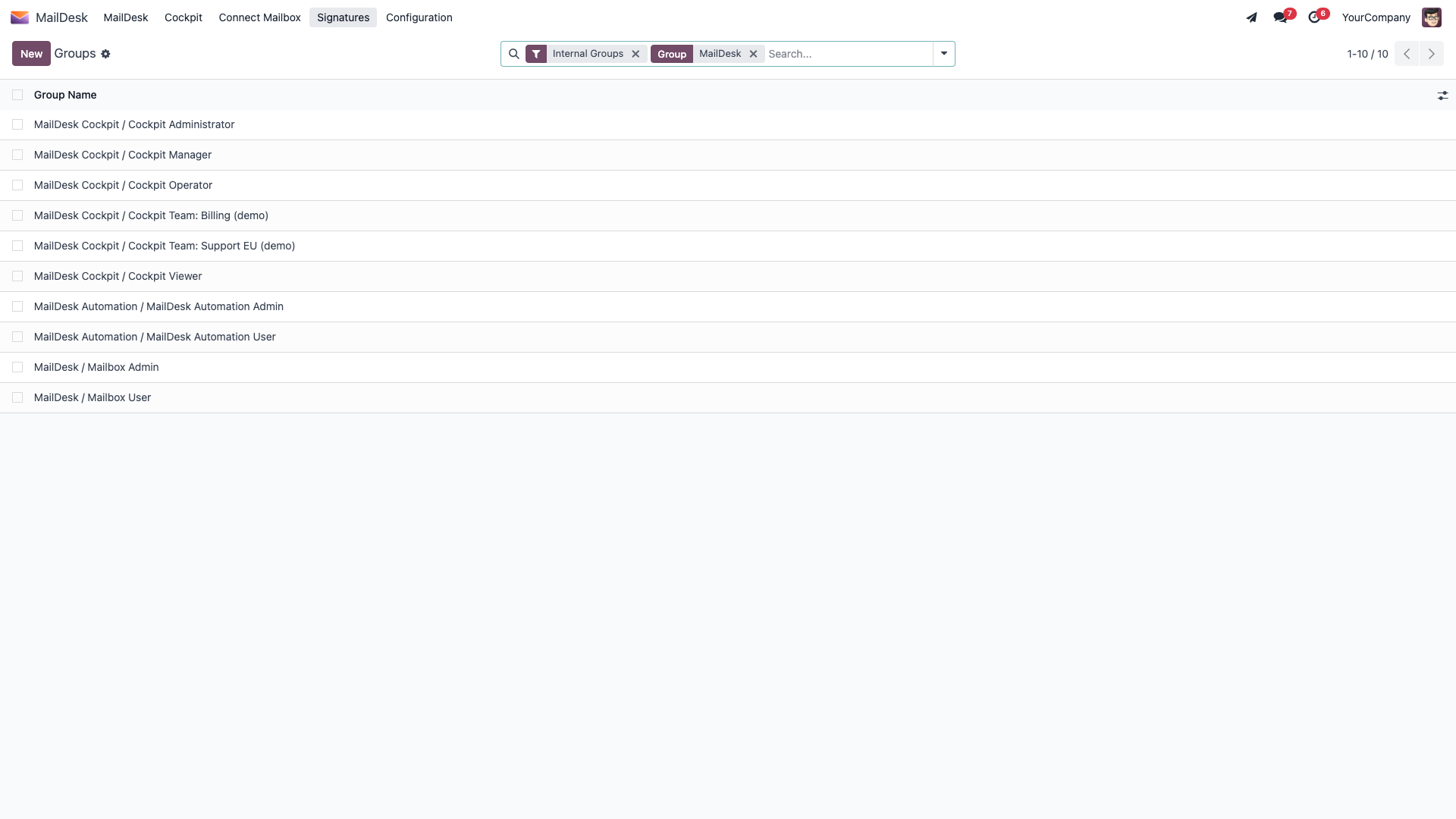
| Role | What it can do | What it cannot do |
|---|---|---|
| Mailbox User | Open the MailDesk app and work the mailboxes they have been granted: read accounts and folders, read and triage messages, and manage their own tags and drafts. | Create, reconfigure, or delete mailbox accounts; change who else has access. |
| Mailbox Admin | Everything a Mailbox User can do, plus full management of every mailbox: create, edit and remove accounts and folders, and manage all MailDesk records - for every mailbox in the company. | (No restriction - this is the management role. Mailbox Admin automatically includes Mailbox User.) |
Configuration is deliberately admin-only
A Mailbox User can read a mailbox account and its folders, but cannot change the account configuration or create new ones. Connecting and configuring mailboxes is on purpose a Mailbox Admin action - so an everyday user can never accidentally re-point or unhook a live mailbox. (They can, of course, still manage their own tags and drafts.)
How to assign a role
- Go to Settings → Users & Companies → Users and open the user.
- Click the Access Rights tab.
- Find the MailDesk category.
- Set the user to Mailbox User or Mailbox Admin.
- Save.
That is all it takes to let someone into MailDesk - but remember, the role alone does not hand them any actual mail. That is the next, crucial step.
Who can see a mailbox: the access list
Being a Mailbox User is the key to the building. Being on a mailbox's access list is the key to that specific room. A user needs both.
Every mailbox account has a Users with Access field - a simple list of Odoo users. MailDesk's record rules then restrict everything that belongs to that mailbox to the people on that list:
- the mailbox account itself,
- its folders,
- its messages,
- the cached message bodies,
- the read / unread / star / archive state,
- and that mailbox's drafts.
If a user is not on a mailbox's access list, that mailbox and all of its content are simply invisible to them. Because the rule is applied on the server for both reads and writes, it cannot be sidestepped from the interface, the search box, or anywhere else.
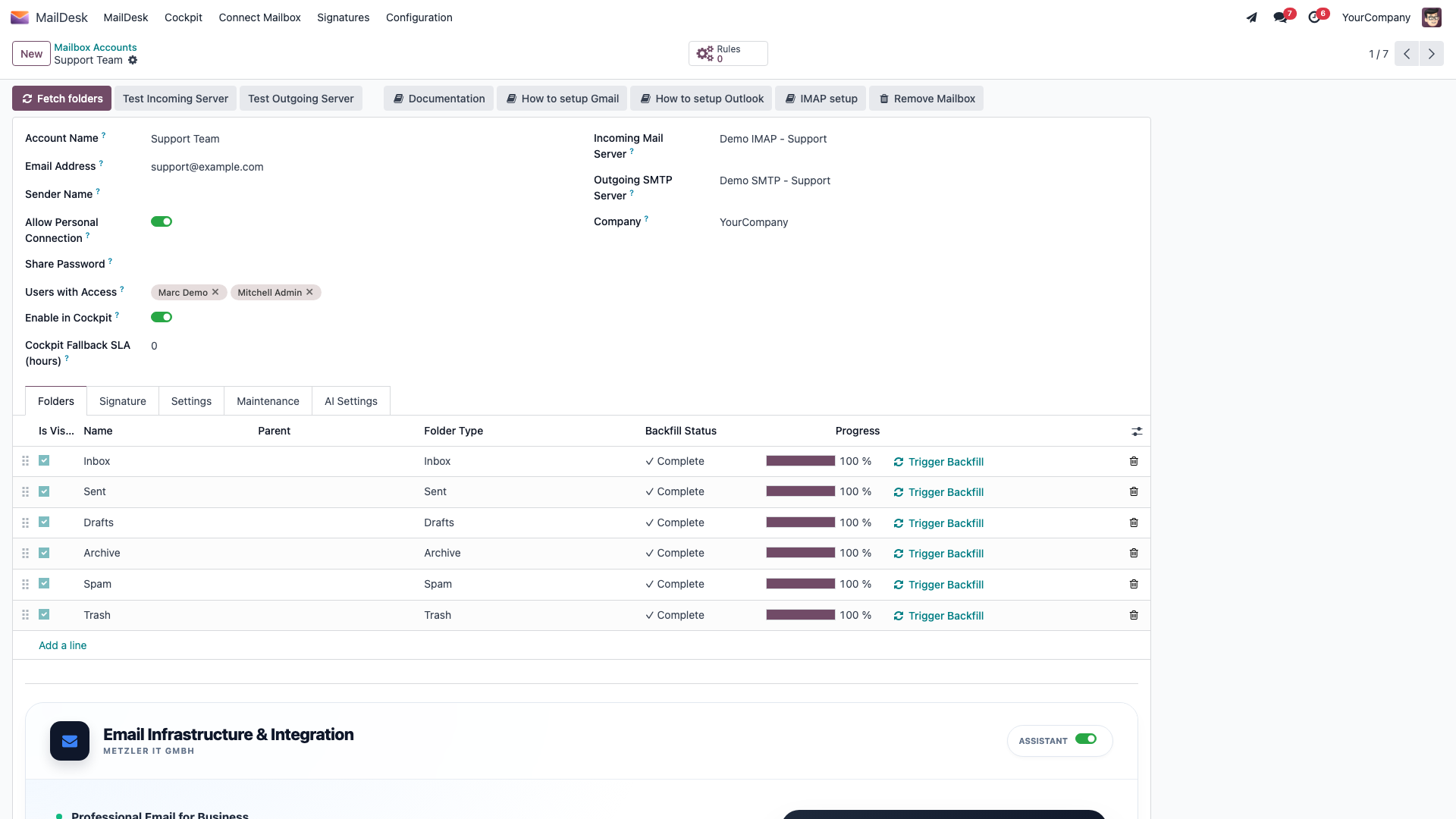
Mailbox Admins see everything - keep that group small
Members of Mailbox Admin are exempt from the per-mailbox access list: they can see and manage every mailbox. That is by design, so someone can always administer the system - but it is also why you should grant Mailbox Admin sparingly. Most people only ever need to be a Mailbox User on the mailboxes that concern them.
Personal mailboxes vs shared mailboxes
The same access list handles both common patterns:
- Personal mailbox - one person's account (for example
[email protected]). Add just that one user to Users with Access. - Shared mailbox - a team address such as
support@orinfo@. Add every team member who works that queue, and they all share one inbox, one set of read/unread marks, and one set of folders - no forwarding, no duplicates, no "did anyone reply to this?".
The Mailbox Account form also has an Allow Personal Connection switch. When it is on, the users you have granted can connect to the mailbox themselves by entering the email and password - handy for a shared address with one shared credential, where a password field then appears so that credential can be stored. Leave it off for OAuth mailboxes (Gmail, Outlook), where no password is ever stored.
How to grant or change mailbox access
- Go to MailDesk → Configuration → Mailboxes → Mailbox Accounts and open (or create) the account.
- In Users with Access, add the users who should work this mailbox - one for a personal mailbox, several for a shared one.
- For a team address sharing one credential, optionally turn on Allow Personal Connection.
- Save.
What you should see: every listed user now finds this mailbox in the MailDesk app the next time they open it; everyone else still cannot see it at all.
Per-mailbox AI control (Pro)
Available in: Pro.
With MailDesk Pro installed, each mailbox gains an Enable AI features switch on its Mailbox Account form. It is one layer of a deliberately strict, four-step AI permission model - and every step is checked on the server, so none of it can be bypassed from the interface:
- A global switch an administrator can use to turn all AI off at once.
- A per-feature switch (thread summary, reply draft, and so on).
- Enable AI features on the mailbox - off means no AI for that mailbox, full stop.
- A configured AI provider with a valid key (or a local server).
Attachment content is treated with even more care. A separate per-mailbox attachment-analysis setting is off by default and is the only thing that ever lets attachment content reach the AI - and even then, only on an explicit user action. Because it ships off and is not surfaced as a switch on the standard Mailbox Account form, no mailbox sends attachment content to the AI unless it has been deliberately opted in.
How to set a mailbox's AI control
- Go to MailDesk → Configuration → Mailboxes → Mailbox Accounts and open the account.
- Switch Enable AI features on or off for that mailbox.
- Save.
Want to know exactly what the AI can and cannot see?
For the complete data-access model - precisely which text is sent, what is never sent, and how to choose a cloud or a local provider - see What MailDesk AI can and cannot access.
Authentication and stored credentials
MailDesk always uses the strongest sign-in each provider offers, so you store as little as possible.
| Provider | Sign-in method | Password stored? |
|---|---|---|
| Gmail / Google Workspace | OAuth 2.0 + Gmail API | No - only revocable tokens |
| Outlook / Microsoft 365 | OAuth 2.0 + Microsoft Graph | No - only revocable tokens |
| Classic IMAP | Username + password (or app password) | Yes - stored in your own Odoo database, behind Odoo's access controls |
OAuth is the recommended path wherever it is available: faster sync, no stored password, and access you can withdraw at any moment from your Google or Microsoft account. Where you do use a classic IMAP password, protect it the way you protect any Odoo credential - serve Odoo over HTTPS so it is never sent in the clear, and secure the database and the server it runs on.
Revoking access
You can cut off MailDesk's access whenever you like; no provider password change is required.
- Gmail: remove the mailbox account in MailDesk, then revoke access in your Google Account → Security.
- Outlook / Microsoft 365: remove the mailbox account in MailDesk, then revoke the app in Microsoft Entra / Azure AD.
To remove MailDesk entirely, remove the mailbox accounts and uninstall the modules - that withdraws all access at once.
What MailDesk stores, and what it does not
MailDesk keeps only what it needs to show you your mail quickly:
- email metadata (sender, subject, date, folder),
- cached message bodies for fast reading (these expire automatically),
- OAuth tokens, or - for classic IMAP - the mailbox credentials, kept inside your own Odoo database behind Odoo's access controls,
- folder and synchronisation state.
MailDesk does not:
- store Gmail or Outlook passwords,
- send your email content to any Metzler IT service to operate,
- share email data with third parties,
- touch mailboxes you have not connected and authorised.
Where your data lives
Everything above is stored in your own Odoo database, on the server you control. MailDesk operates entirely inside your Odoo environment. The one exception is Pro AI: when you use an AI feature, the relevant email text is sent to the AI provider you configure - and if you choose a local / self-hosted AI server, even that stays on your own network. See What MailDesk AI can and cannot access.
Cached message bodies
To keep reading instant, MailDesk caches message bodies and attachment lists for a limited time and expires them automatically with a scheduled background job. The cache obeys the same per-mailbox access rules as the messages themselves, so a cached body is only ever visible to users on that mailbox's access list.
License verification
MailDesk confirms your subscription or one-time licence automatically, in the background, on a connected Odoo instance - there is nothing for you to do day to day. Verification covers MailDesk Basic, MailDesk Pro, and any Workflow Bridge add-ons you have installed.
If a licence is missing or has expired, the licence-protected features show a clear in-app notice that points you to the activation screen; the rest of your Odoo system keeps working normally. For the full activation walkthrough and the legal terms, see Licensing & tiers.
Best practices
A short checklist for a tidy, secure setup
- Grant MailDesk access only to the users who need it, and keep Mailbox Admin small.
- Add each person to only the mailboxes they actually work.
- Prefer OAuth (Gmail, Outlook) over passwords wherever you can.
- Serve Odoo over HTTPS only.
- Turn on two-factor authentication for your Odoo users.
- Keep Odoo and the underlying server up to date, and take regular database backups.
Troubleshooting
| Symptom | Likely cause | What to do |
|---|---|---|
| A user cannot see a mailbox they should | They are not on that mailbox's Users with Access list | Add them to the list on the Mailbox Account |
| A user cannot create or edit a mailbox account | They are a Mailbox User, not a Mailbox Admin | Grant Mailbox Admin only if they genuinely need to manage accounts |
| A user sees a mailbox they should not | They have Mailbox Admin, which bypasses the per-mailbox list | Move them to Mailbox User and add them only to the mailboxes they need |
| AI options greyed out for a mailbox | Enable AI features is off for that mailbox (Pro) | Switch it on, and confirm a provider is configured |
| MailDesk asks to sign in to Google / Microsoft again | The stored authorisation was revoked or expired | Re-run the provider sign-in - see OAuth problems |