Manager cockpit - KPIs, SLA, and AI briefings
Available in: Cockpit integration (maildesk_mail_client_cockpit). Requires MailDesk Basic, MailDesk
Pro, and the Automation engine.
Your team's inbox is busy, and right now you cannot see whether anything is slipping. Who is waiting too long? Which mailbox is overloaded today? The MailDesk Cockpit puts the whole picture on one screen - backlog, response speed, and SLA risk - so you can spot a problem and fix it before a customer ever notices.
Why it matters
Most managers find out about a missed email when the customer complains. The cockpit flips that around. It reads the email data MailDesk already has and turns it into a live manager's view, so you lead with facts instead of guesses.
- One screen for the team's health. See backlog, reply speed, and SLA pressure at a glance, without opening each mailbox.
- Act where you look. Reassign a thread, silence noise, or extend a deadline right on the dashboard - no second tool, no copy-paste.
- You only see your scope. Permissions and per-team rules keep each manager focused on their own mailboxes, not the whole company.
- Numbers you can trust. Every figure is calculated by MailDesk itself. When the AI writes a briefing, it only puts those numbers into plain words - it never makes the numbers up.
The cockpit is a read-and-act view on top of MailDesk. It does not change how your mail is synced or stored, and it never owns the email itself.
How it works
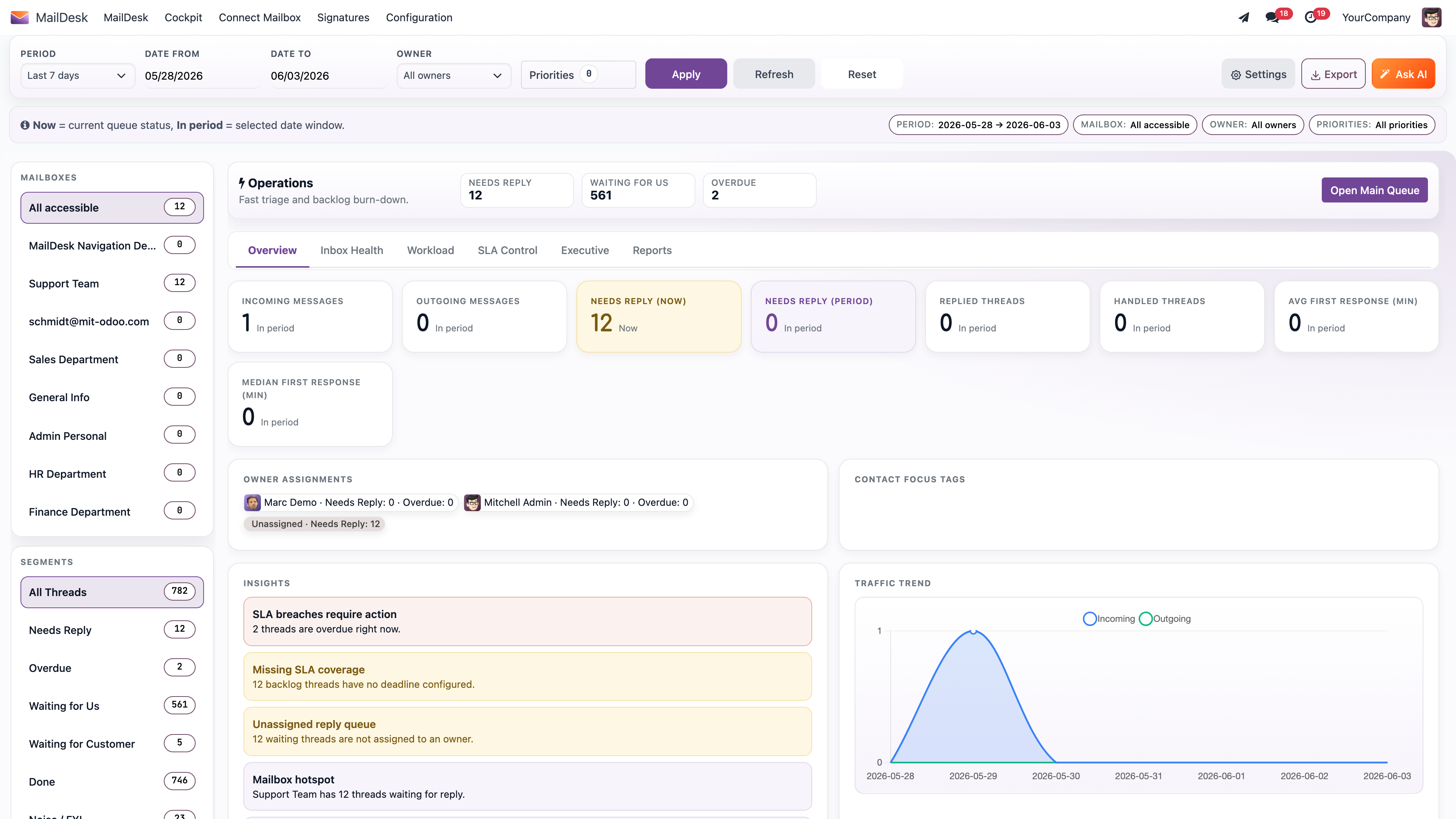
1. See the team's day in plain language
Open the cockpit and you get the headline first: live KPI cards for incoming, outgoing, waiting-for-us, needs-reply, and overdue, each with its trend. If you use AI briefings, the assistant turns those numbers into a short, readable summary of how the team is doing today and what deserves attention.
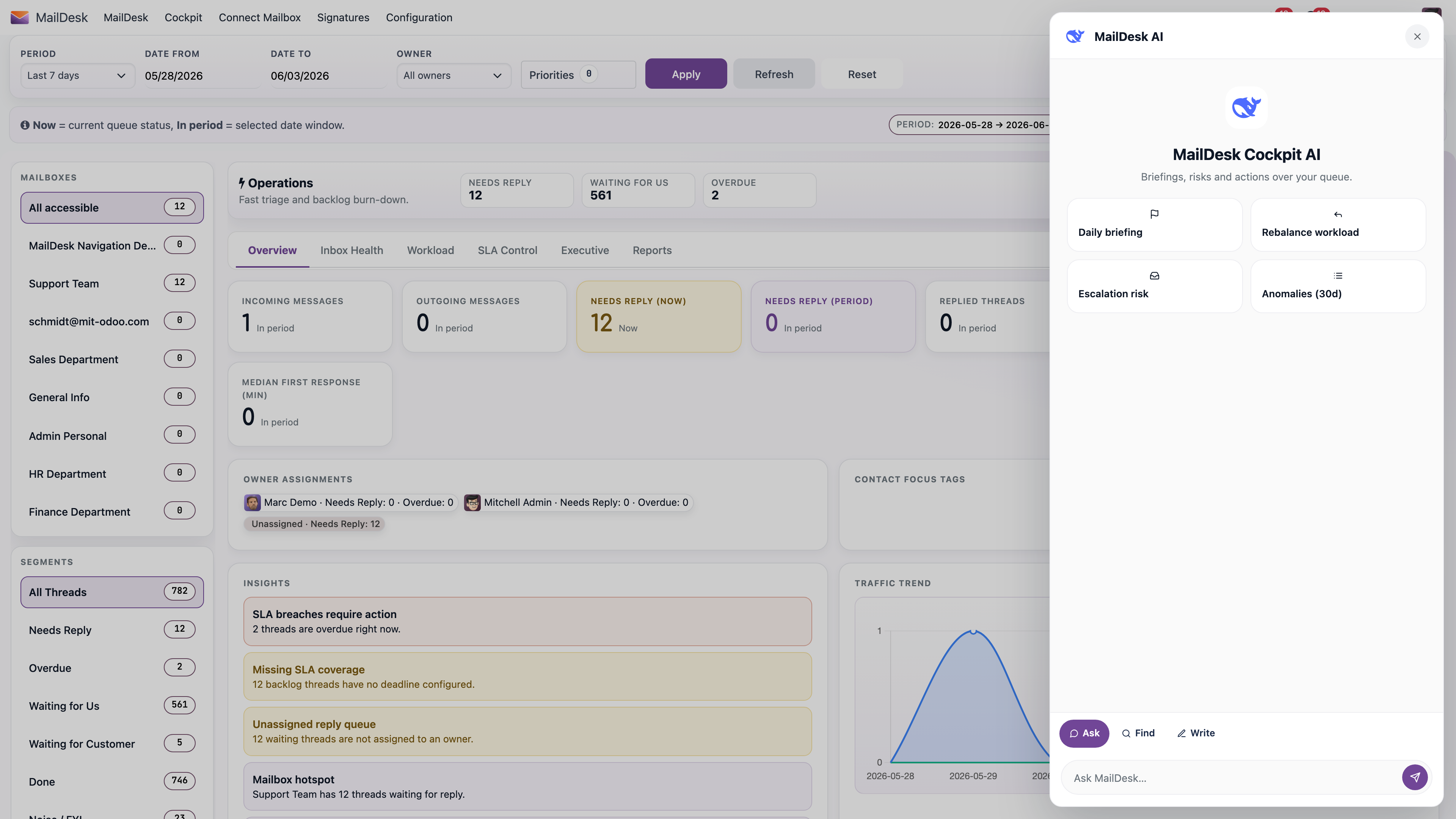
The briefing is optional. The KPIs, alerts, SLAs, and reports all work perfectly well without any AI at all.
2. Drill into the email - with its full Odoo context
Click any number and you see the exact threads behind it. Open one and a slide-in drawer shows the email body, attachments, an SLA chip, the customer's recent history, and the related Odoo records - the order, the invoice, the project - sitting right beside the message.
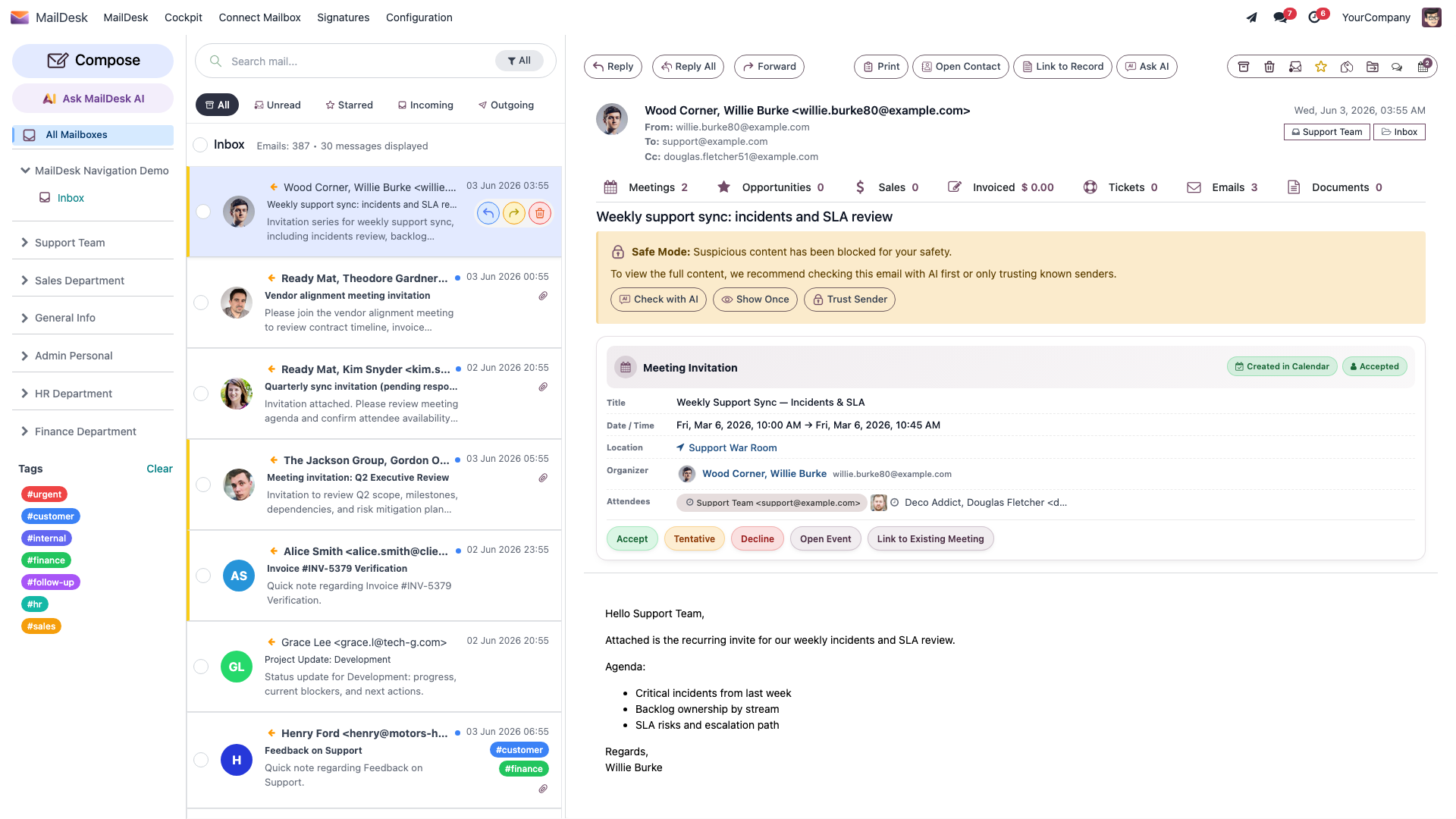
No more jumping between apps to understand who you are replying to. The context comes to you.
3. Triage and automate - so the team stays on top
From the same dashboard you can assign a thread to yourself, mark it as noise, or override an SLA in a click. Set it up once and let the cockpit keep watch for you:
- Alerts - a rule watches a KPI (for example, overdue threads above a threshold) and pings the team by in-app message, activity, email, or an outbound webhook to Slack or Teams.
- SLA control - define response targets and an escalation chain, scoped by team, mailbox, or customer.
- Scheduled reports - recurring CSV, XLSX, or PDF reports, delivered to inboxes on a schedule.
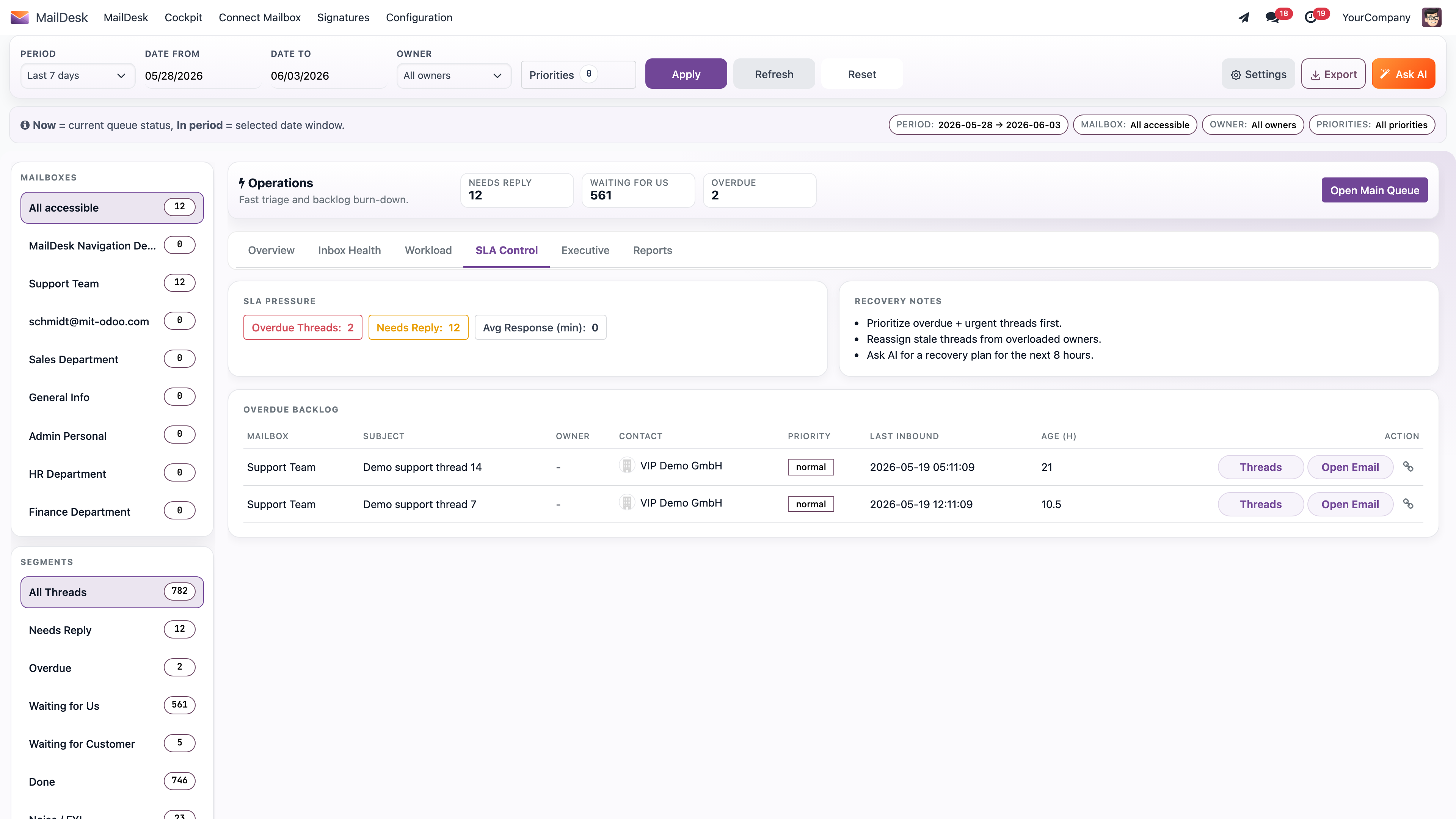
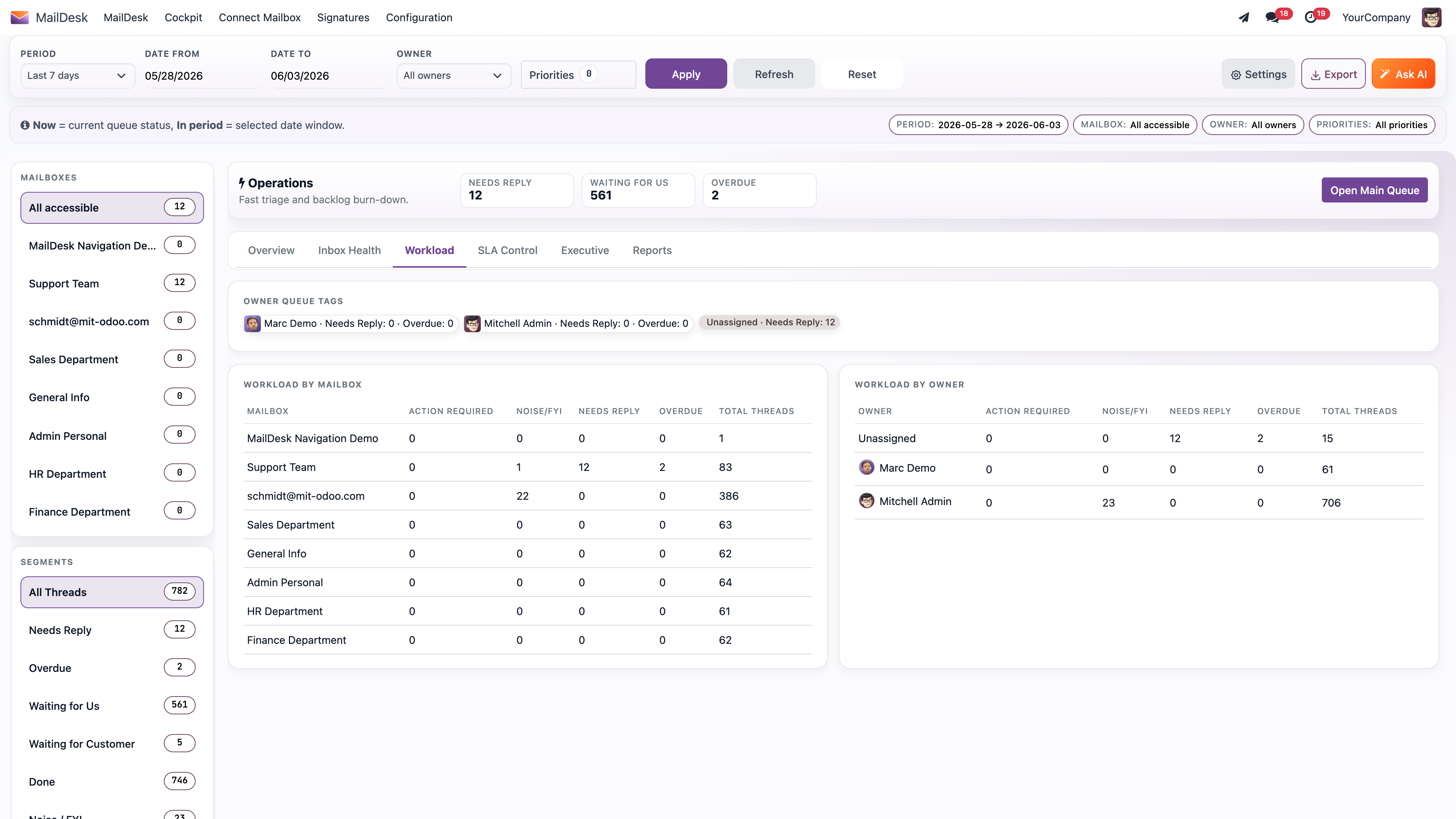
For managers, the AI panel can go further still - anomaly detection, a workload-rebalance proposal, and escalation-risk scoring on top of the daily briefing - always grounded in the same trustworthy numbers.
AI is grounded in real numbers
The statistical work - anomalies, health scores, rebalancing - is plain arithmetic done by MailDesk. The AI only turns those figures into readable text, so there is no guesswork in the numbers you act on.
Requirements
- MailDesk Basic, MailDesk Pro, and the Automation module installed.
- The Cockpit module (
maildesk_mail_client_cockpit) installed. - For AI briefings: an AI provider configured in MailDesk Pro (see Set up your AI provider). Without a provider, the cockpit still works - the KPI, SLA, alert, and report features need no AI.
- Works the same on Odoo 17, 18, 19, or 20 - your choice.
Permissions - four tiers
The cockpit ships four access levels, assigned in Settings → Users & Companies → Users under the MailDesk Cockpit category. Each tier includes everything below it.
- Cockpit Viewer - sees KPIs and trends for the mailboxes they can access; read-only drill-down and navigation.
- Cockpit Operator - adds their team's threads; can assign-to-me, mark noise, and override an SLA on their own threads.
- Cockpit Manager - adds the whole team scope; configures boards, layouts, and presets, edits SLA policies, schedules reports, manages alert rules, and runs AI briefings.
- Cockpit Administrator - everything, across companies; system settings, AI provider setup, and cross-company configuration.
AI briefings are manager-and-up
The AI features that summarise the whole team - daily briefing, anomaly detection, workload-rebalance proposals, and escalation-risk scoring - are available to Cockpit Manager and Cockpit Administrator only. Each user also has a daily usage limit per AI operation that rises with their tier (administrators are unlimited), so AI cost stays predictable.
Get MailDesk Cockpit
If your team handles shared mailboxes, the cockpit is the screen that tells you - every morning - whether you are on top of things or about to fall behind. See pricing and start a free trial at mit-odoo.de/preise, or talk to us and we will walk you through it on your own mailboxes. No risk, no long-term commitment - just a clearer view of your team's day.
Related
- Automation engine - rules that run when email arrives
- Partner 360 - customer context beside every email
- What AI can and cannot access
- Realtime & synchronization architecture
- Licensing & tiers
- Security & access rights