Replying and forwarding
This page explains how to reply to a message, reply to everyone on a conversation, and forward a message to someone new. It also covers the quoted-history fold (the Show quoted text toggle) and why your sent message appears in the Sent folder the moment you press Send.
What it does
When you open a message in MailDesk you can:
- Reply - write back to the person who sent the message.
- Reply All - write back to the sender and everyone else who was on the message (the original recipients and anyone in Cc).
- Forward - pass the message on to a new recipient, including its attachments.
Each action opens a composer window that is already filled in for you - the recipients, a Re: or
Fwd: subject line, and a quote of the original message - so you only have to type your text and press
Send.
Why it matters
Replies and forwards keep their place in the conversation. A reply carries the conversation's threading information forward, so your message stays grouped with the original under the same thread. A forward starts a fresh conversation, which is the expected behaviour when you hand a message to someone who was not part of it.
Requirements
- At least one mailbox connected to MailDesk that you have access to.
- A message open in the reading pane (or selected in the list).
Permissions required
You can reply to or forward any message in a mailbox you have access to. Sending uses the same mailbox account the message belongs to, and you can switch the sending account in the composer's From menu if you have more than one.
Note
You only ever see and act on mailboxes you already have access to. There is no special elevation - standard Odoo access rules apply.
Reply, Reply All, and Forward
There are several places to start a reply or forward - they all open the same composer.
| Where | How |
|---|---|
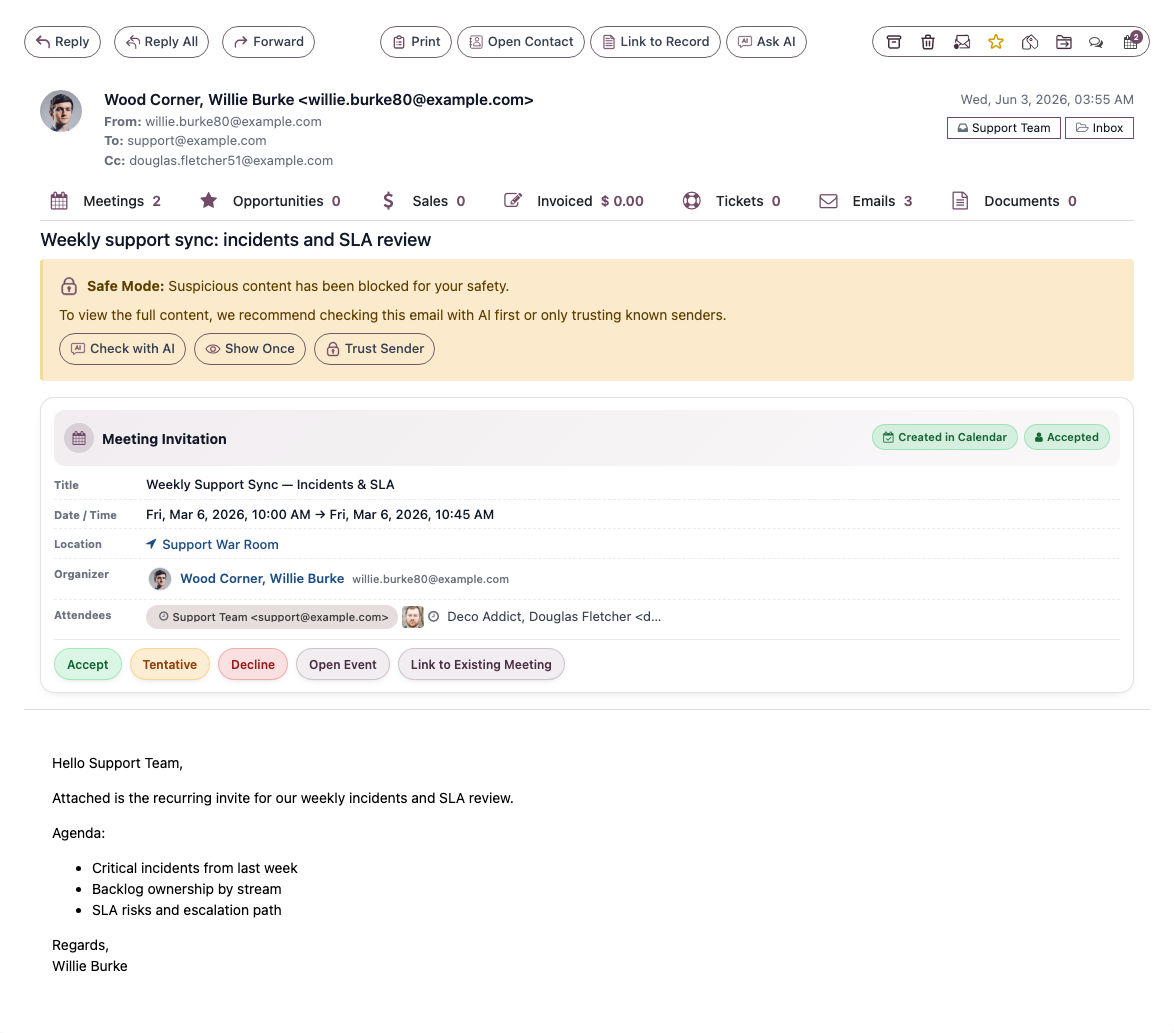
| Reading pane toolbar | The Reply, Reply All, and Forward buttons above the open message |
| Message list (hover) | The quick Reply and Forward buttons that appear when you hover a row |
| Message list (right-click) | Right-click a row → Reply, Reply All, or Forward |
| Conversation history | The reply/forward actions on an older message in the thread below |
Keyboard shortcuts
With a message open, press r to reply, a to reply all, or f to forward. Inside the composer, Ctrl + Enter sends the message.
Reply
Steps
- Open the message you want to answer.
- Click Reply (or press r).
- The composer opens with:
- To set to the original sender.
- Subject set to
Re: <original subject>(MailDesk does not add a secondRe:if one is already there). - The original message quoted below your cursor, under a line such as "On <date>, <sender> wrote:".
- Type your reply above the quoted text.
- Click Send (or press Ctrl + Enter).
Expected result: the composer closes and your reply appears in the Sent folder immediately. It stays in the same conversation as the original message.
Reply All
Steps
- Open the message.
- Click Reply All (or press a).
- The composer opens with:
- To set to the original sender plus everyone who was in the original To (your own address is left out).
- Cc set to everyone who was in the original Cc (again, your own address is left out).
- The same
Re:subject and quoted history as a normal reply.
- Review the recipients, add or remove addresses if needed, type your reply, and click Send.
Expected result: your reply goes to the whole group and appears in Sent, threaded with the conversation.
Warning
Reply All sends to every original recipient. Before sending to a large group, check the To and Cc lists in the composer.
Forward
Steps
- Open the message you want to pass on.
- Click Forward (or press f).
- The composer opens with:
- To empty - type the new recipient(s).
- Subject set to
Fwd: <original subject>. - A "---------- Forwarded message ----------" block showing the original From, Date, Subject, and To, followed by the original message body.
- The original message's attachments already attached, ready to send on.
- Add your recipients, write a note above the forwarded block if you like, and click Send.
Expected result: the message and its attachments are sent to the new recipient as a new conversation (a forward does not stay linked to the original thread).
Quoted history - the "Show quoted text" toggle
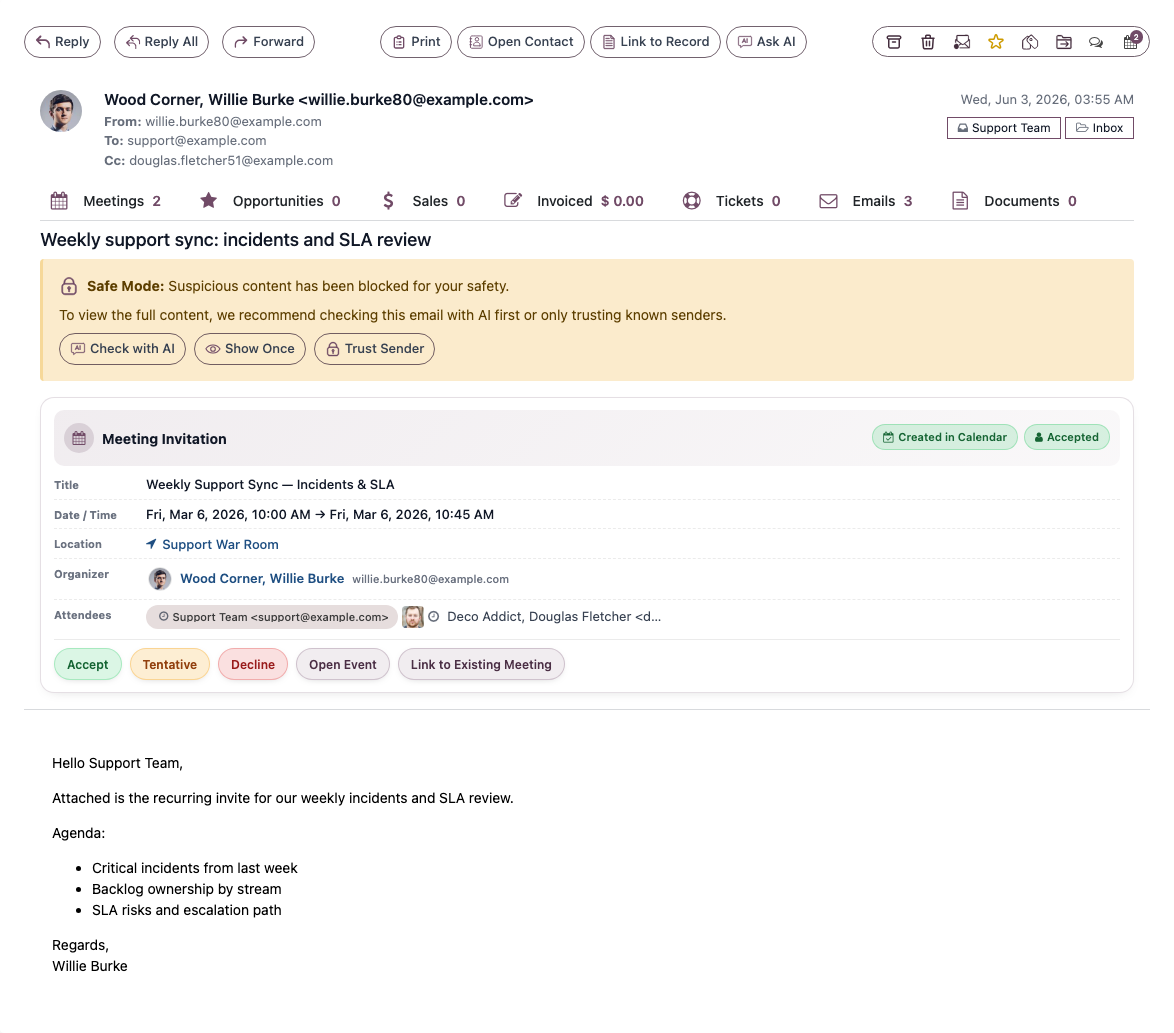
When you open a message that is itself a reply, the older quoted conversation underneath it is folded away behind a single Show quoted text button, so you see the new content first without scrolling through everything that came before.
- Click Show quoted text to expand the quoted history. The button changes to Hide quoted text.
- Click Hide quoted text to collapse it again.
- If MailDesk can count the quoted levels, the button shows the count, for example Show quoted text (3).
This is display-only - nothing is removed from the message, and the fold does not affect what you send.
Note
The fold recognises the common quoting styles used by Gmail, Outlook, and other mail clients. If a message uses an unusual quoting style, the history may not fold; the full message is still shown, just not collapsed.
Your sent message appears instantly
When you press Send, MailDesk delivers the message and then immediately places a copy in your Sent folder - you do not have to wait for the mail provider to confirm. You can open the message right away and read it back.
A short time later, the regular synchronization picks up the provider's own copy of the sent message and quietly takes over from the local copy. You will not notice the hand-over; the message simply stays in Sent.
Note
For Gmail and Outlook the provider keeps its own copy of sent mail automatically. For a plain IMAP/SMTP mailbox, MailDesk also saves the message into the server's Sent folder so it is available in other mail apps.
Saving a draft instead of sending
If you are not ready to send, click Draft in the composer to save your work. MailDesk also auto-saves your draft about once a minute while the composer is open, so you do not lose what you have typed. You can reopen a saved draft later from the Drafts folder with Edit Draft.
Troubleshooting
| You see | Likely cause | Fix |
|---|---|---|
| "Please add at least one recipient." | The To, Cc, and Bcc fields are all empty | Add at least one address before sending |
| "Please choose the sending account." | No mailbox is selected in From | Pick a sending mailbox in the From menu |
| Reply went to only one person | You used Reply, not Reply All | Use Reply All to include everyone on the conversation |
| Quoted history is not folded | The message uses an unusual quoting style | The full message is still shown; this only affects the collapse |
| Sending failed with a provider error | The mailbox could not send (sign-in or connection issue) | Your text is kept; check the mailbox connection and try again. Your draft is preserved |