Email templates
An email template is a reusable, pre-written message - a quote follow-up, a support reply, an onboarding note - that you pick instead of typing the same thing again. MailDesk uses Odoo's own email templates and surfaces them directly in the composer, so the templates your team already maintains in Odoo are the ones you insert here.
This page covers what templates are, where to manage them, and how to insert one while you write. Composing in general is covered in Composing and sending.
What it does
- Templates are the native Odoo email templates - the same records used elsewhere in Odoo - made available in the MailDesk composer through a picker.
- Picking a template merges its content into your message: the subject is set, the body is added, and any recipients and attachments from the template are brought in.
- You always review and edit the result before sending - a template is a starting point, never an automatic send.
Why it matters
Templates speed up repeated messages and keep wording consistent across your team. Because they are Odoo's own templates, a template maintained for, say, a Sales quote or a Helpdesk reply is available in MailDesk without being duplicated or kept in sync separately.
Requirements
- MailDesk Pro.
- At least one template that applies to your account (created by an administrator).
Permissions required
- Picking a template in the composer is available to any mailbox user.
- Creating and editing templates is an administrator task.
Insert a template while composing
- In the composer footer, click the Insert template button.
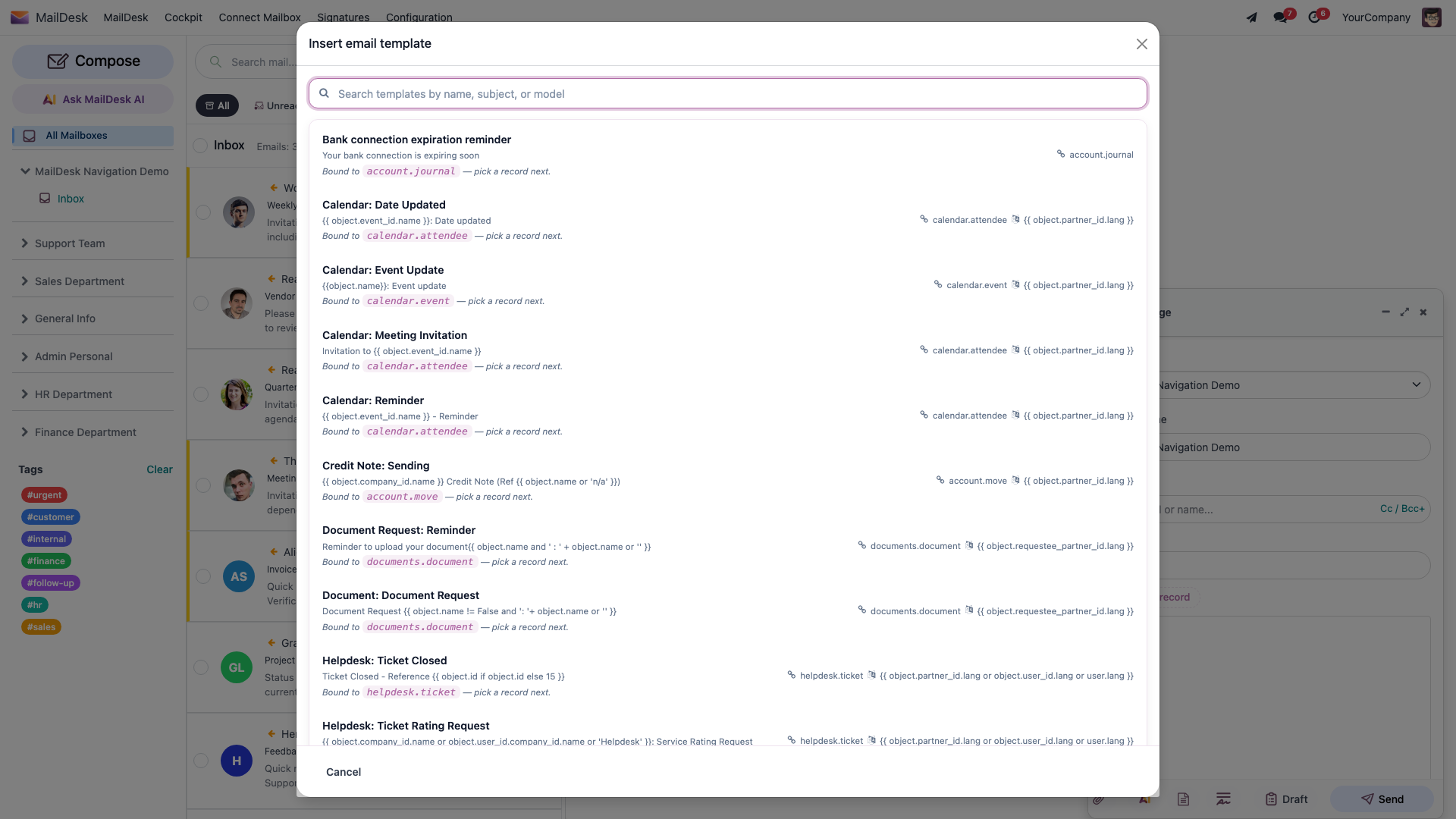
- The Insert email template picker opens. Search by name, subject, or model.
- Click a template. Its content is merged into your message - the subject is set, the body is added, and any recipients and attachments from the template are brought in.
- Edit the result as needed and send.
Templates never fire on their own
A template is a starting point you choose by hand - MailDesk does not send automatic replies.
On a phone, the picker is a bottom sheet
On the mobile layout the Insert email template picker slides up from the bottom of the screen instead of appearing as a centred dialog. See Gestures and layout.
Templates tied to a record
A template can be linked to an Odoo record type (a contact, CRM lead, Helpdesk ticket, Sale order, and so on). When you pick a record-bound template, MailDesk asks you to pick a record so it can fill in the template's placeholders - the customer's name, an order number, a ticket subject - from that record. If you would rather not, choose Apply without a record and the record-specific placeholders stay empty.
If the email you are replying to is already linked to a record, the picker can use that record directly and skip the extra step.
Manage templates (administrators)
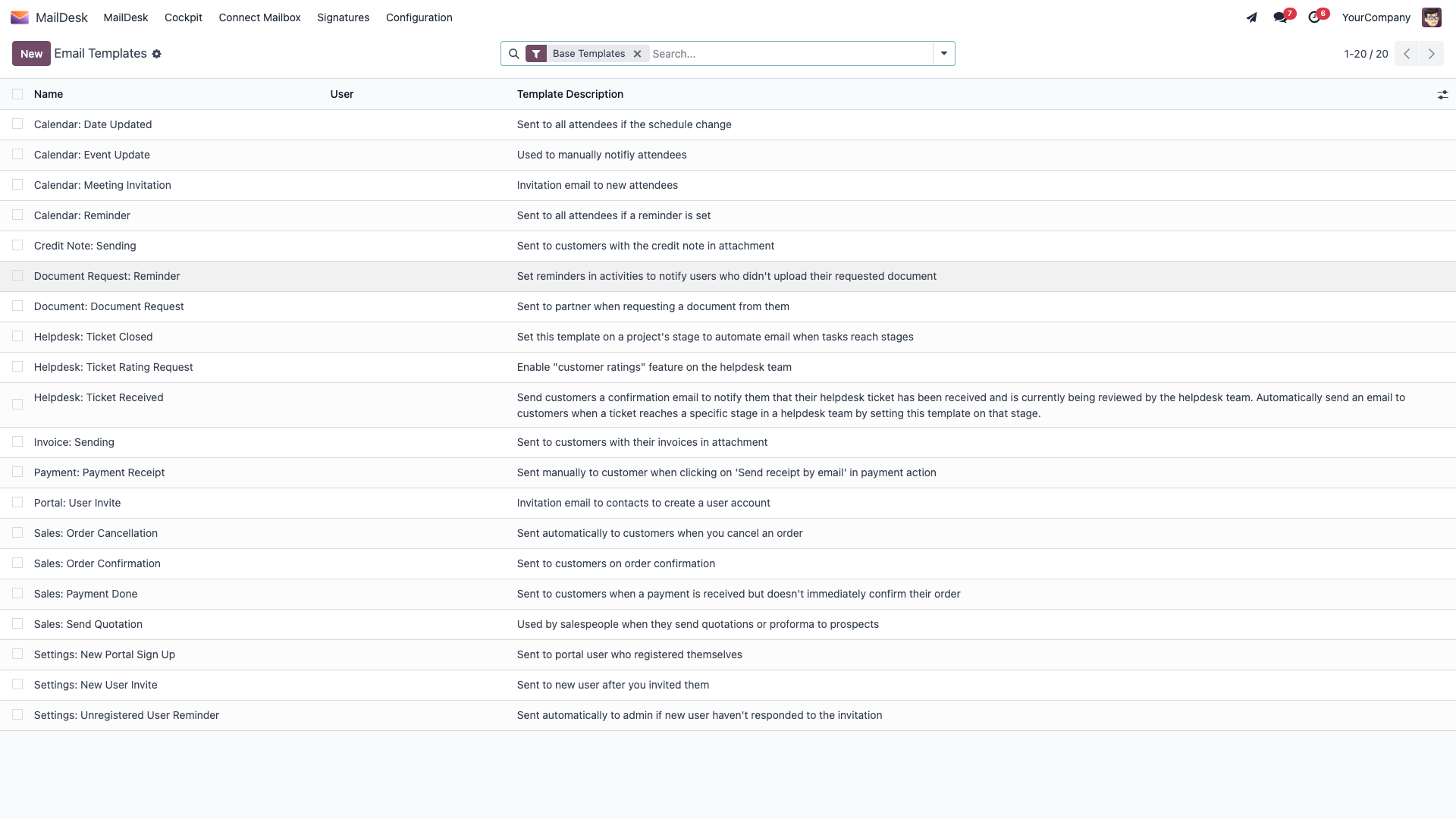
Templates are created and edited by administrators from MailDesk → Configuration → Mailboxes → Email Templates. There you set the template's name, subject, body, attachments, recipients, and any record binding. Once saved, the template appears in the composer's template picker for the relevant users.
If you have read our Knowledge base article
That article places the template manager under Settings → MailDesk → Email Templates. In the shipped product it lives in the MailDesk app, under Configuration → Mailboxes → Email Templates, and is restricted to administrators. The steps above match the product.
Expected result
- The Insert template button is present in the composer footer (MailDesk Pro).
- Picking a template fills in the subject, body, recipients, and attachments for you to adjust; a record-bound template asks you to pick a record (or apply without one) first.
Troubleshooting
| Symptom | Likely cause | What to do |
|---|---|---|
| The Insert template button is missing | Templates are Available in: Pro | Confirm MailDesk Pro is installed; ask your administrator |
| No templates are listed | None apply to your account yet | Ask an administrator to create templates (Manage templates, above) |
| Placeholders are empty after inserting | The template is record-bound and no record was chosen | Re-pick the template and choose a record, or accept empty placeholders with Apply without a record |
| The wrong recipients were added | They came from the template | Edit the To / Cc fields before sending |