Signatures
A signature is a saved block of text - your name, role, company, and contact details - that MailDesk adds to the bottom of a message for you. With MailDesk Pro you can keep several signatures, decide which applies to which mailbox, and switch between them while you write.
This page covers what signatures are, the three scopes a signature can have, how to manage them, and how the signature picker works in the composer. Composing in general is covered in Composing and sending.
What it does
- Each mailbox can carry its own signature, so a personal mailbox and a shared team mailbox sign off differently without you pasting the right block each time.
- When you compose or reply, the mailbox's default signature is added to the bottom of the message automatically.
- You can switch the signature, edit it inline, or remove it for that one message.
Why it matters
A consistent, correct sign-off makes every message look professional, and having the right signature chosen for you means you never send the wrong details from a shared mailbox. Because signatures live in MailDesk, the same set follows you across the contacts and mailboxes you already use in Odoo.
Requirements
- MailDesk Pro.
- At least one mailbox connected to MailDesk that you have access to.
Permissions required
- Picking a signature in the composer is available to any mailbox user.
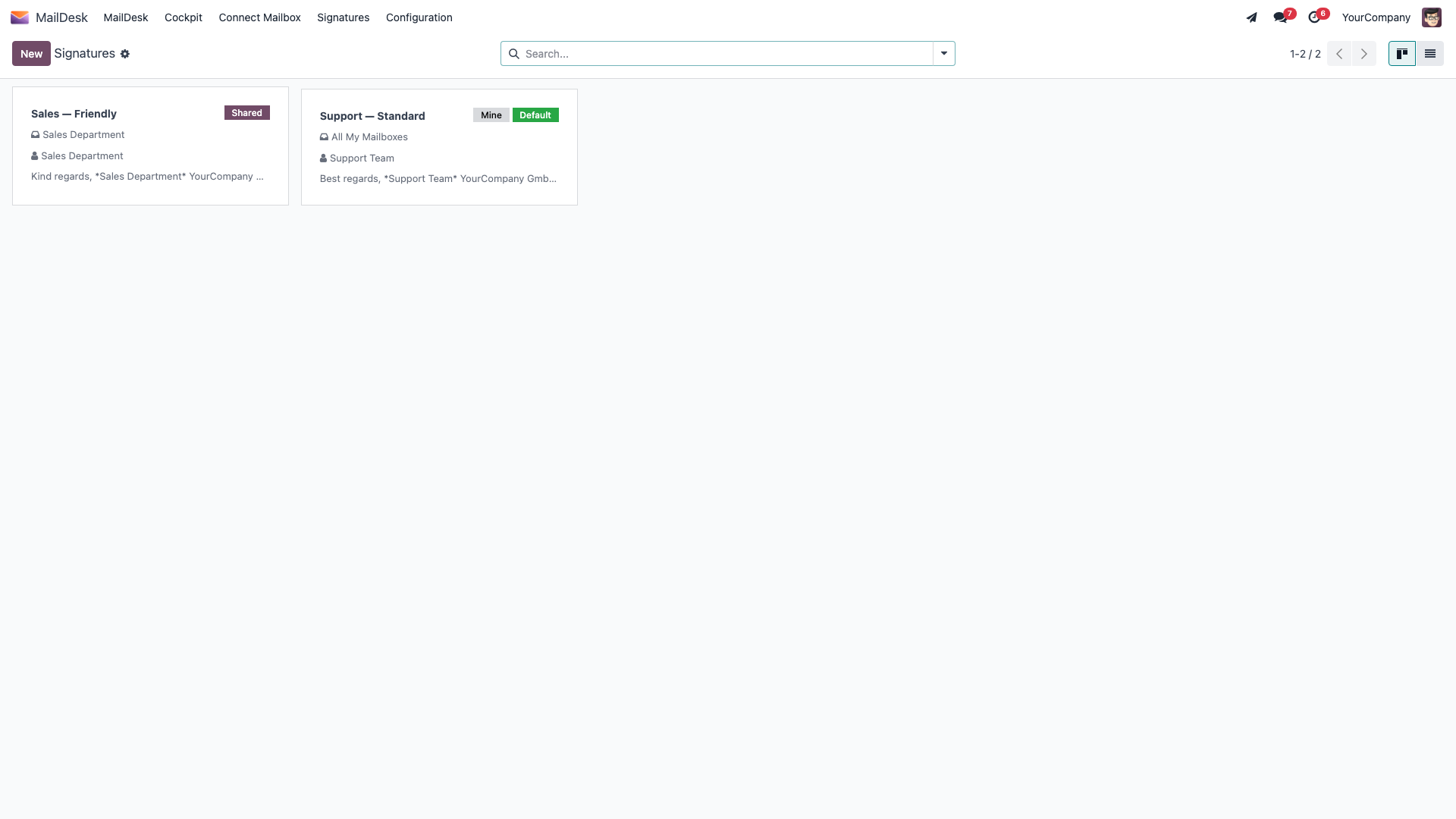
- You can create and manage your own signatures from the MailDesk Signatures menu.
- Shared signatures (used by everyone on a shared mailbox) are managed by an administrator.
The three signature scopes
A signature has a scope that decides who sees it and where it appears. The picker shows a small badge for each one so you can tell them apart at a glance.
| Scope | Who it belongs to | When it is offered |
|---|---|---|
| Global personal | Just you, across all your mailboxes | When you compose from any of your mailboxes |
| Mailbox personal | Just you, on one specific mailbox | When you compose from that mailbox |
| Mailbox shared | Everyone who uses a shared mailbox | When anyone composes from that shared mailbox |
One default per mailbox
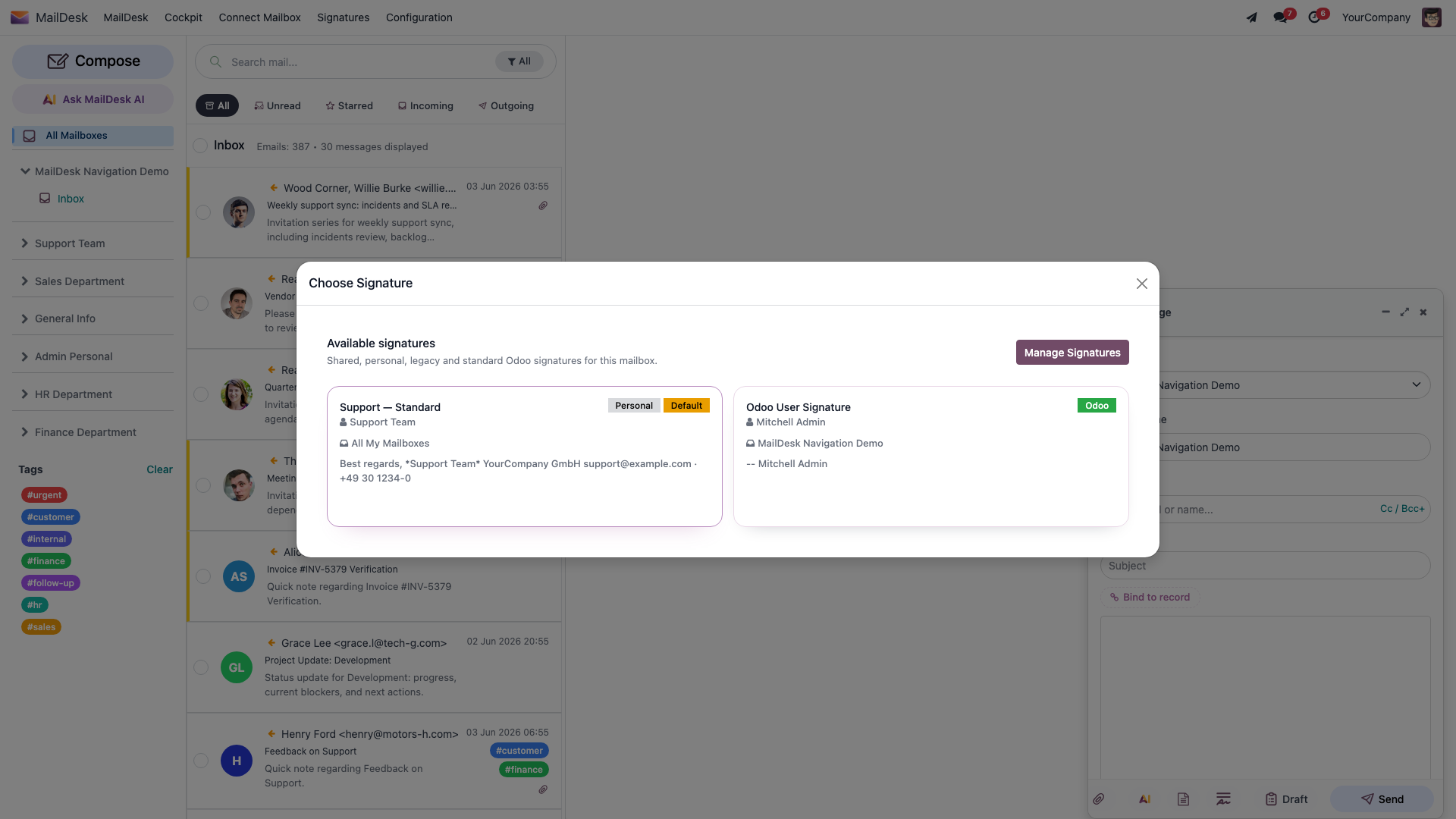
For each mailbox, one signature is marked Default and is the one MailDesk adds automatically. The picker shows a Default badge so you can see which it is.
Manage your signatures
- Open MailDesk → Signatures. (The Manage Signatures button inside the composer's signature picker opens the same list.)
- Click New to add a signature.
- Set the name, the mailbox it belongs to (leave it empty for a global personal signature), an optional Sender Name, and write the signature content in the rich-text body. Tick Default to make it the automatic choice for that mailbox.
- Save.
You can keep several signatures for one mailbox - for example a longer one with your full details for first contact, and a short one for ongoing replies - and pick the right one from the composer.
If you have read our Knowledge base article
That article describes adding signatures in a Signatures section on the Mailbox Account form. In the shipped product, signatures are their own list reached from MailDesk → Signatures (and chosen in the composer through the Choose Signature picker). The steps above match the product.
The signature picker in the composer
When you compose or reply, the mailbox's default signature is already in place. To change it:
- In the composer footer, click the signature button.
- The Choose Signature picker lists the signatures available for the current mailbox, with a badge showing each one's scope and which is the Default.
- Click a signature to insert it. It replaces any signature already in the message.
Selecting a signature also sets the sender name
Choosing a signature updates both the signature block and the Sender Name shown to your recipient, so the two always match.
On a phone, the picker is a bottom sheet
On the mobile layout the Choose Signature picker slides up from the bottom of the screen instead of appearing as a centred dialog. See Gestures and layout.
Expected result
- Composing or replying adds the mailbox's default signature to the bottom of the message.
- Opening the picker lists every signature available for the current mailbox, with scope and Default badges; clicking one inserts it and updates the sender name to match.
Troubleshooting
| Symptom | Likely cause | What to do |
|---|---|---|
| No signature appears | No Default signature for the mailbox, or the wrong mailbox is selected | Set a Default signature for that mailbox; check the composer's From field |
| The signature button is missing | Signatures are Available in: Pro | Confirm MailDesk Pro is installed; ask your administrator |
| A shared signature is wrong or missing | Shared signatures are managed by an administrator | Ask your administrator to create or correct it for that mailbox |
| The sender name does not match the signature | The signature was edited inline after it was chosen | Re-pick the signature from the picker so both are set together |