Partner 360 - customer context beside every email
Available in: Partner 360 integration (maildesk_mail_client_partner360). Requires MailDesk Basic
and MailDesk Pro.
You open an email, and the first question is always the same: who is this, and what's going on with them? Today you answer it by hopping between tabs - Contacts, CRM, Helpdesk, Sales - and losing your train of thought every time. Partner 360 ends that. The moment you open a message, the full customer picture appears right beside it, so you reply with context already in hand.
Why it matters
- No more window-hopping. Who this contact is, what's still open, and what happened recently sits next to the message - not three clicks and two tabs away.
- You only ever see what you're allowed to see. Partner 360 reads live Odoo data through your own access rights. It never surfaces an app or a record you couldn't already open yourself.
- It fits the Odoo you actually run. No Helpdesk? You see no tickets section. Add Sales, and orders show up on their own. Nothing to configure - it simply mirrors your installed apps.
The result: faster, sharper replies, fewer "let me check and get back to you" moments, and a sales or support team that always sounds like it knows the customer - because it does.
How it works
Step 1 - Switch it on for a mailbox
Partner 360 is off by default and is enabled per mailbox, so you stay in control of where it appears.
- Go to Settings → MailDesk → Mailbox Accounts and open the mailbox you want to enrich.
- Find the Partner 360 & Contact Intelligence card and turn on the Enable toggle.
- Save. That's it - the panel is live for that mailbox.
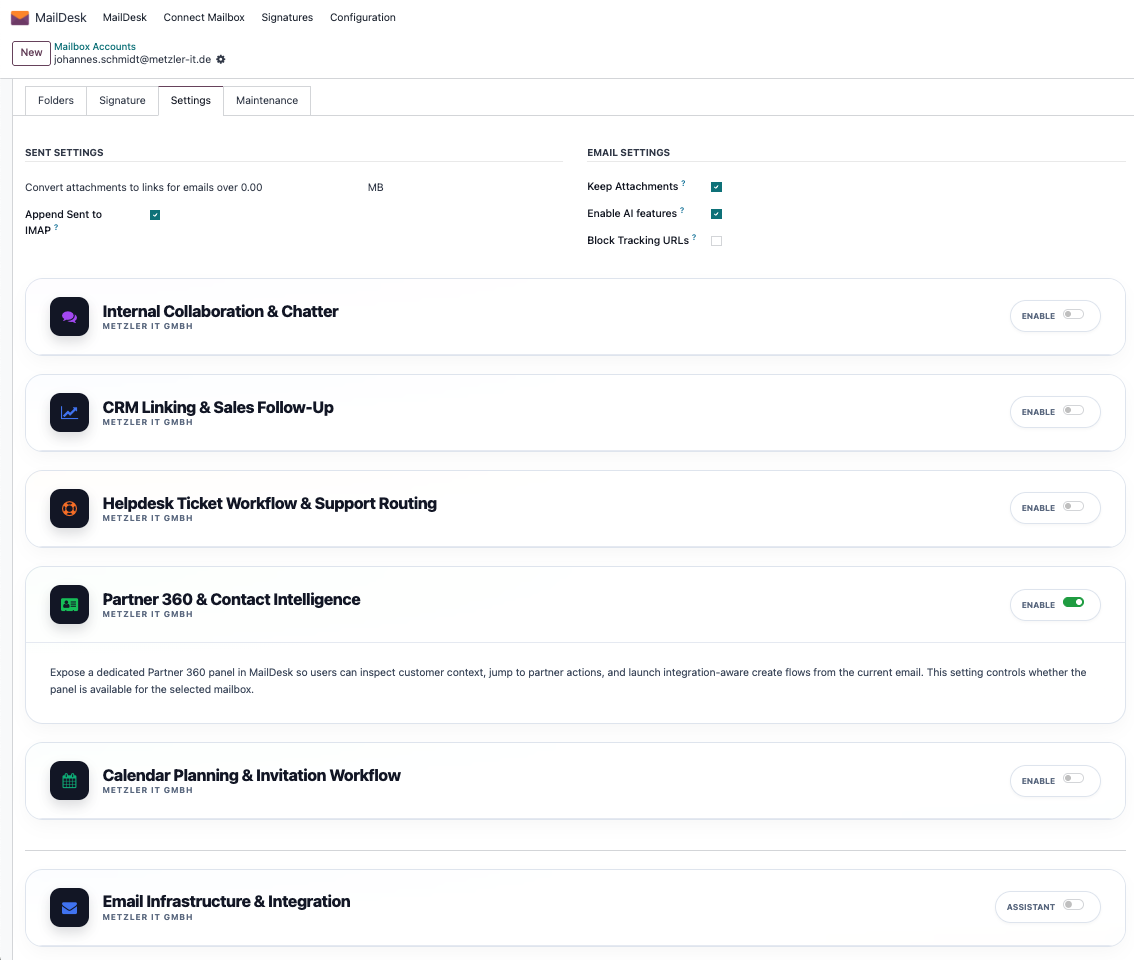
Where to find Mailbox Accounts
The mailbox accounts list also lives under MailDesk → Configuration → Mailboxes → Mailbox Accounts - both routes open the same form.
Step 2 - Open an email and the context is already there
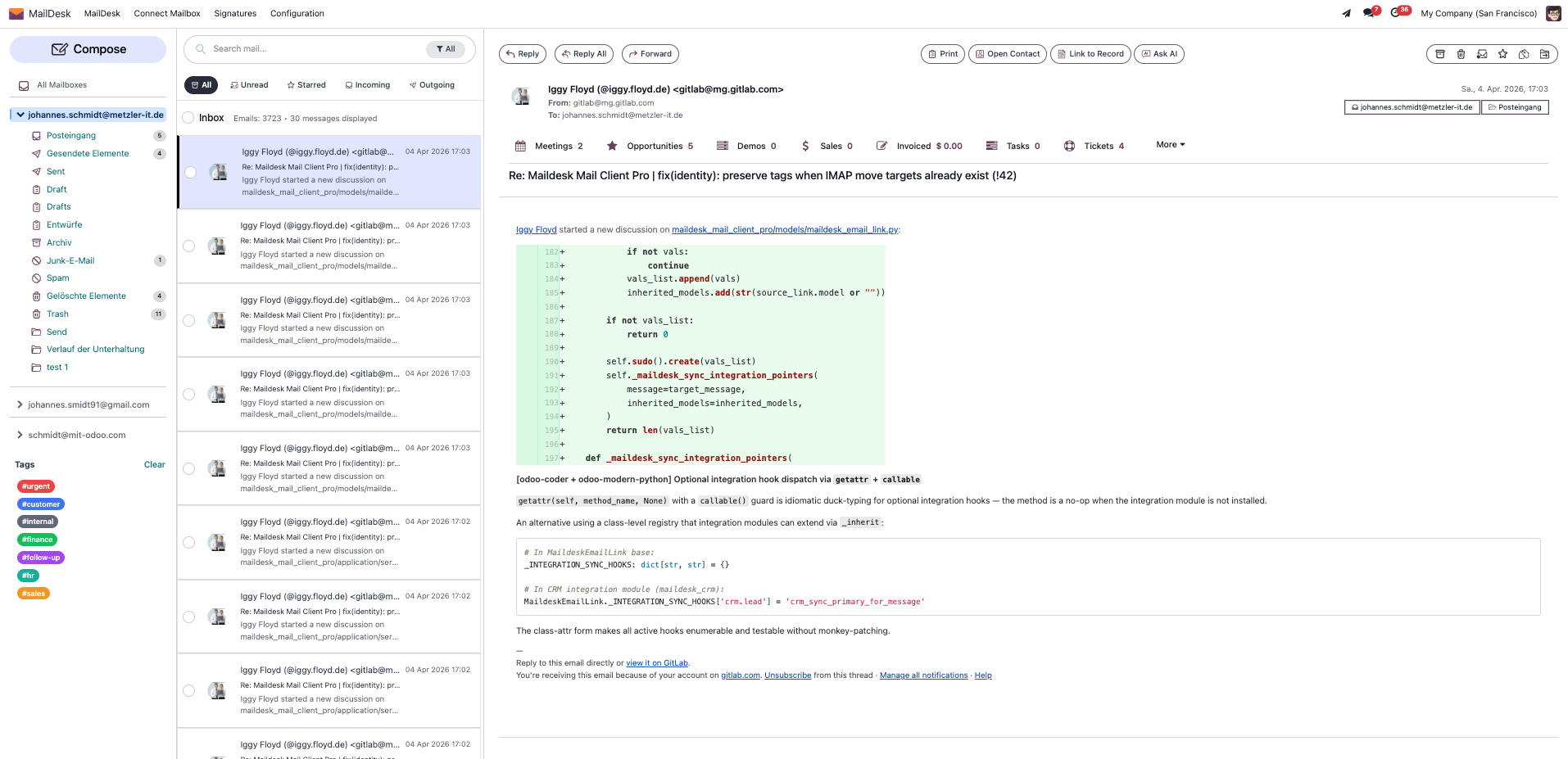
Open any email from a contact who exists in Odoo, and a Partner 360 strip appears at the top of the message. It shows the contact's real Odoo smart buttons - Meetings, Opportunities, Sales, Invoiced, Tasks, Tickets, and more - each with a live count for that customer. These are the same buttons you'd see on the Contacts form, limited to the apps you have installed and may access.
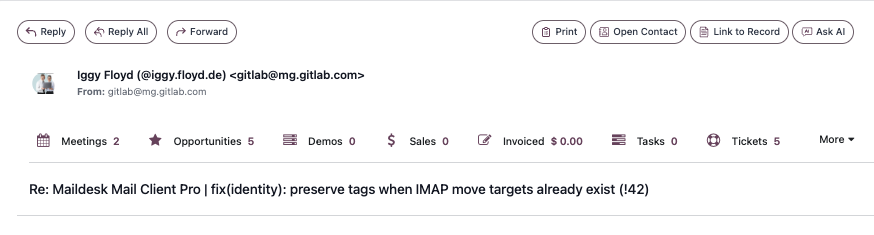
Step 3 - Click straight through to the records that matter
A counter that catches your eye is also a doorway. Click a smart button and the matching records open in a new browser tab, carrying your access context with you, so everything lands with the right rights and the right customer already in view - for example, this contact's Helpdesk tickets, ready to triage.
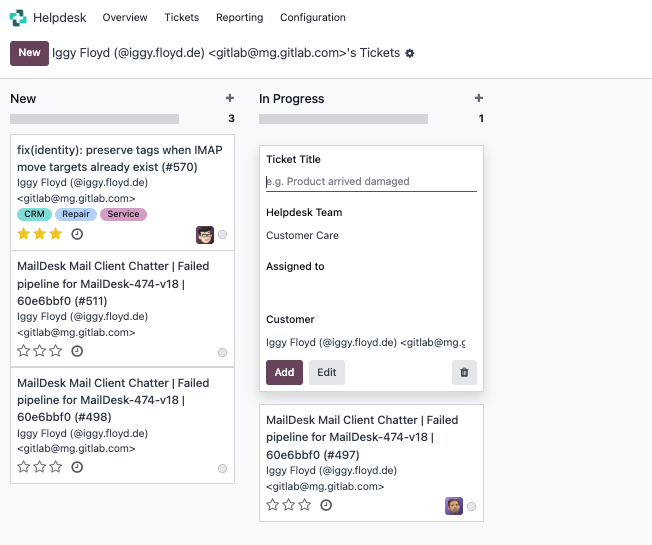
If a new tab doesn't appear
Smart buttons open the related record in a new browser tab. If your popup blocker stops it, allow popups for this page and click again.
Step 4 - Hover the contact for the full snapshot
Point at the contact and the enriched partner card opens - a single, scannable summary of the relationship. On top of the usual contact basics it adds:
- Badges - at a glance, is this a Customer, Vendor, Prospect, or Blocked contact, plus situation flags such as Needs reply, Open tickets, or Meetings.
- Analytics - compact progress bars for triage signals like reply urgency, risk score, and activity freshness.
- Health - counters of the open business items you can access: open opportunities, tickets, orders, tasks, meetings, activities, and overdue invoices.
- Last interactions - a short timeline of recent related records, each with an Open button that shows the record in a quick dialog without leaving your inbox.
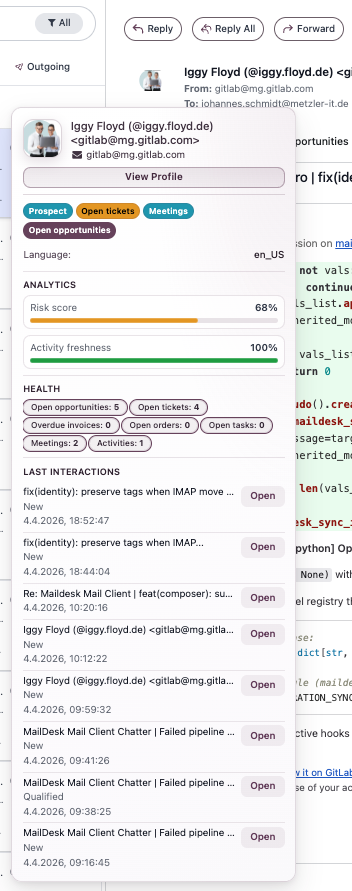
All together, in one screen
Here's the whole experience in context - the email you're reading, the Partner 360 strip above it, and the customer's world one click away. No tab-juggling, no guesswork, no lost context.
It follows the contact, not the inbox
Partner 360 builds its picture from the contact record that matches the sender. If the sender's address isn't on any contact in Odoo, there's nothing to summarise and the panel simply stays hidden.
Requirements
- MailDesk Basic and MailDesk Pro installed, with at least one mailbox connected.
- The Partner 360 module (
maildesk_mail_client_partner360) installed. - The Odoo apps whose data you want to see. Contacts is always present; CRM, Helpdesk, Calendar, Project, Sales, and Invoicing are optional and appear only when they're installed.
- Works the same on Odoo 17, 18, 19, or 20 - your choice.
Permissions required
- Read access to each Odoo app you expect to see in the panel (for example, CRM read access to see leads, Helpdesk read access to see tickets). Partner 360 hides any block you cannot access - it never elevates your rights.
- Enabling Partner 360 on a mailbox is a MailDesk administrator task, done on the mailbox account form (Step 1).
- The current-email status block only appears for mailboxes you have access to.
Troubleshooting
| Symptom | Likely cause | What to do |
|---|---|---|
| No Partner 360 panel on an email | The module isn't installed, or Partner 360 is off for this mailbox | Confirm the module is installed and the mailbox's Enable toggle is on (Step 1) |
| Panel appears but a section you expected is missing | You don't have read access to that Odoo app, or the app isn't installed | Ask an administrator for read access, or install the app; Partner 360 hides what you can't access |
| Panel never appears for any email | The sender isn't a known contact in Odoo | Partner 360 matches the sender to an Odoo contact; add the contact, or check the address matches |
| Current email status block is empty | You don't have access to the mailbox the email belongs to | This block only shows for mailboxes you can access |
Get MailDesk Partner 360
Stop reconstructing the customer story one tab at a time. With Partner 360, every email arrives with the full picture attached - and your team replies faster, warmer, and better informed. Partner 360 is part of MailDesk Pro, so you can try it on your own mailbox and see the difference on real emails today. Browse plans and start free at mit-odoo.de/preise, or talk to us if you'd like a quick walkthrough for your team - we're happy to help you get set up.
Related
- CRM integration - link emails to leads and opportunities
- Helpdesk integration - turn emails into support tickets
- Sales integration - link emails to quotations and orders
- Calendar integration - link emails to events and meetings
- Documents integration - save attachments into Documents
- Automation engine - rules that run when email arrives
- Manager cockpit - KPIs, SLA, and AI briefings for managers
- Licensing & tiers
- Security & access rights