Helpdesk integration - turn emails into tickets
Support requests still arrive as email - but email alone has no owner, no deadline, and no trail. With MailDesk you turn any customer message into a proper Odoo Helpdesk ticket in a single click, right from your inbox, and keep the whole conversation tied to it. No more copy-paste, no more "who's handling this?", no more lost follow-ups.
Available in: Helpdesk integration. This is a separate module (MailDesk Helpdesk Integration) that requires MailDesk Pro and the standard Odoo Helpdesk app.
Why it matters
- One click, not ten. A support email becomes a tracked ticket for the right team in a single step - no manual re-typing into a fresh case.
- The conversation stays together. Replies you send from MailDesk are logged onto the ticket, so the full case history lives in one place.
- Nothing slips through. When a customer writes back after a case was put on hold, MailDesk can reopen the ticket automatically - so a late reply never gets silently lost.
- It survives the mess. Links are anchored to MailDesk's stable internal email identity, so moving an email between folders or re-syncing the mailbox never breaks the connection to its ticket.
How it works
1. Switch it on for the mailbox
The integration is off by default on every mailbox, so it never appears where you don't want it. An administrator turns it on per mailbox in MailDesk → Configuration → Mailboxes → Mailbox Accounts, on the Helpdesk Ticket Workflow & Support Routing card. Flip Enable on and the card opens up to show the options.
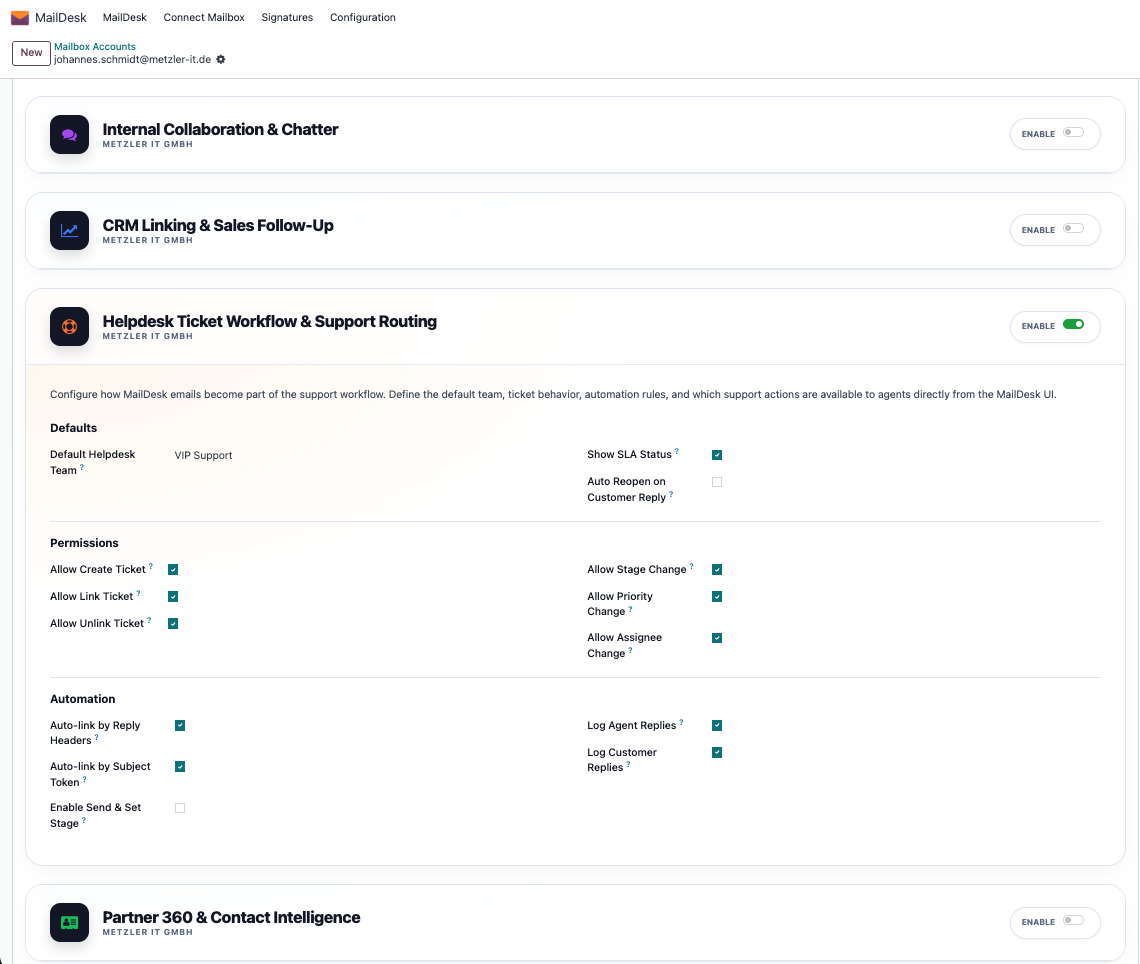
Here the administrator chooses the sensible defaults for the team that uses this mailbox:
- A default Helpdesk team to prefill on new tickets.
- Whether to show SLA status on each ticket in the panel.
- Whether to auto-reopen a linked ticket when a customer replies (off by default).
- Which actions agents may perform from the panel - create, link, unlink, and inline stage / priority / assignee changes - each one a separate toggle.
- Whether agent replies and customer replies get logged into the ticket's chatter.
Deterministic by design
Follow-up emails are auto-linked only when MailDesk is certain. Two opt-in rules are
available, both on by default: link by reply headers (the reply genuinely answers an
email already linked to a ticket) and link by subject token such as [HD-1234].
MailDesk never guesses from fuzzy text, so it will never attach the wrong ticket.
2. Open the Helpdesk panel beside any email
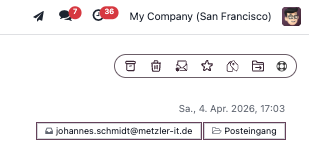
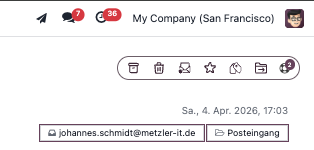
Every email now carries a small life-ring button in its toolbar. Click it to open the Helpdesk panel right next to the message - no need to leave your inbox.
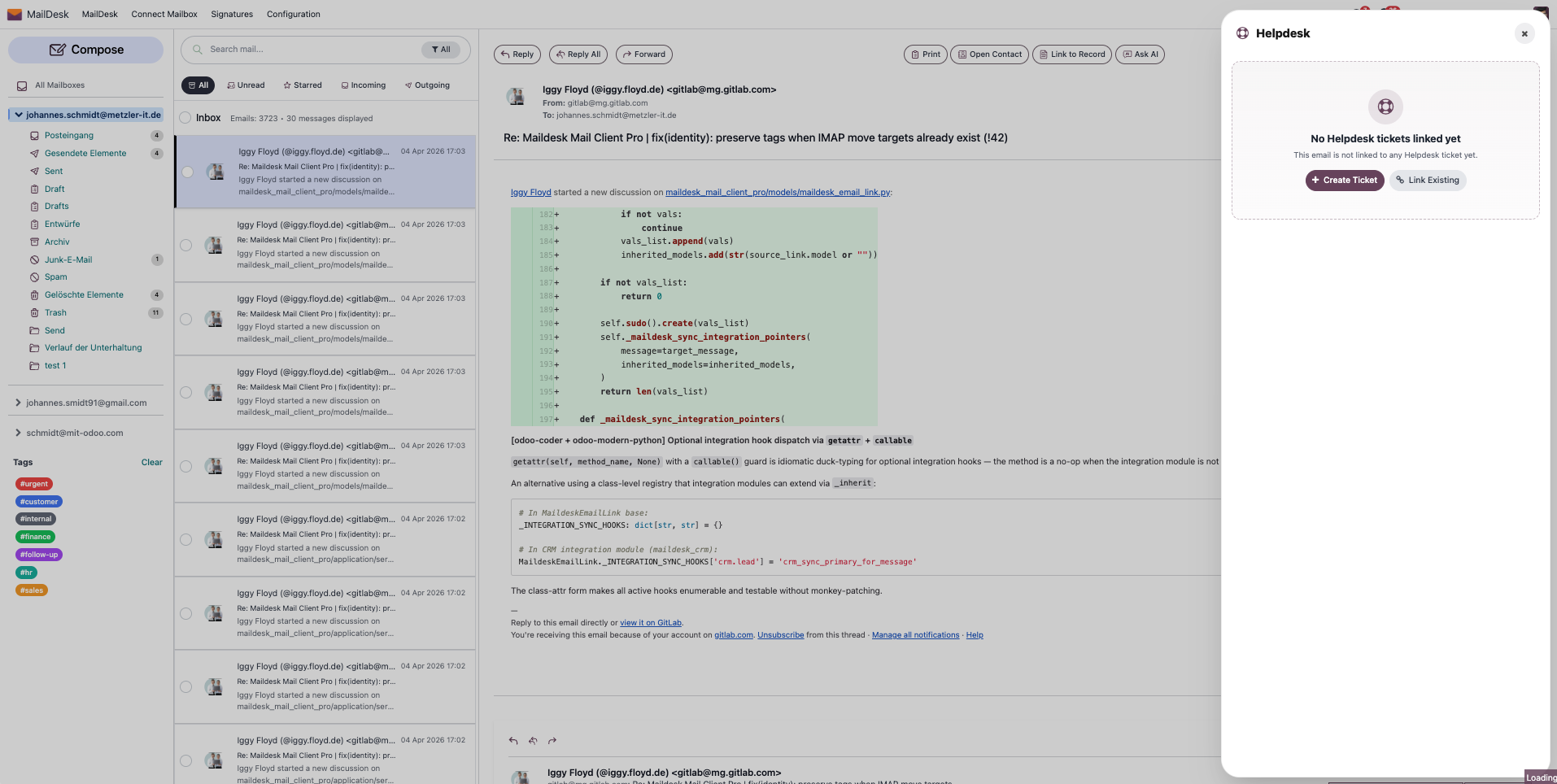
When an email isn't linked to anything yet, the panel says so plainly and offers the two things you'd want next: Create Ticket or Link Existing.
3. Create a ticket from the email
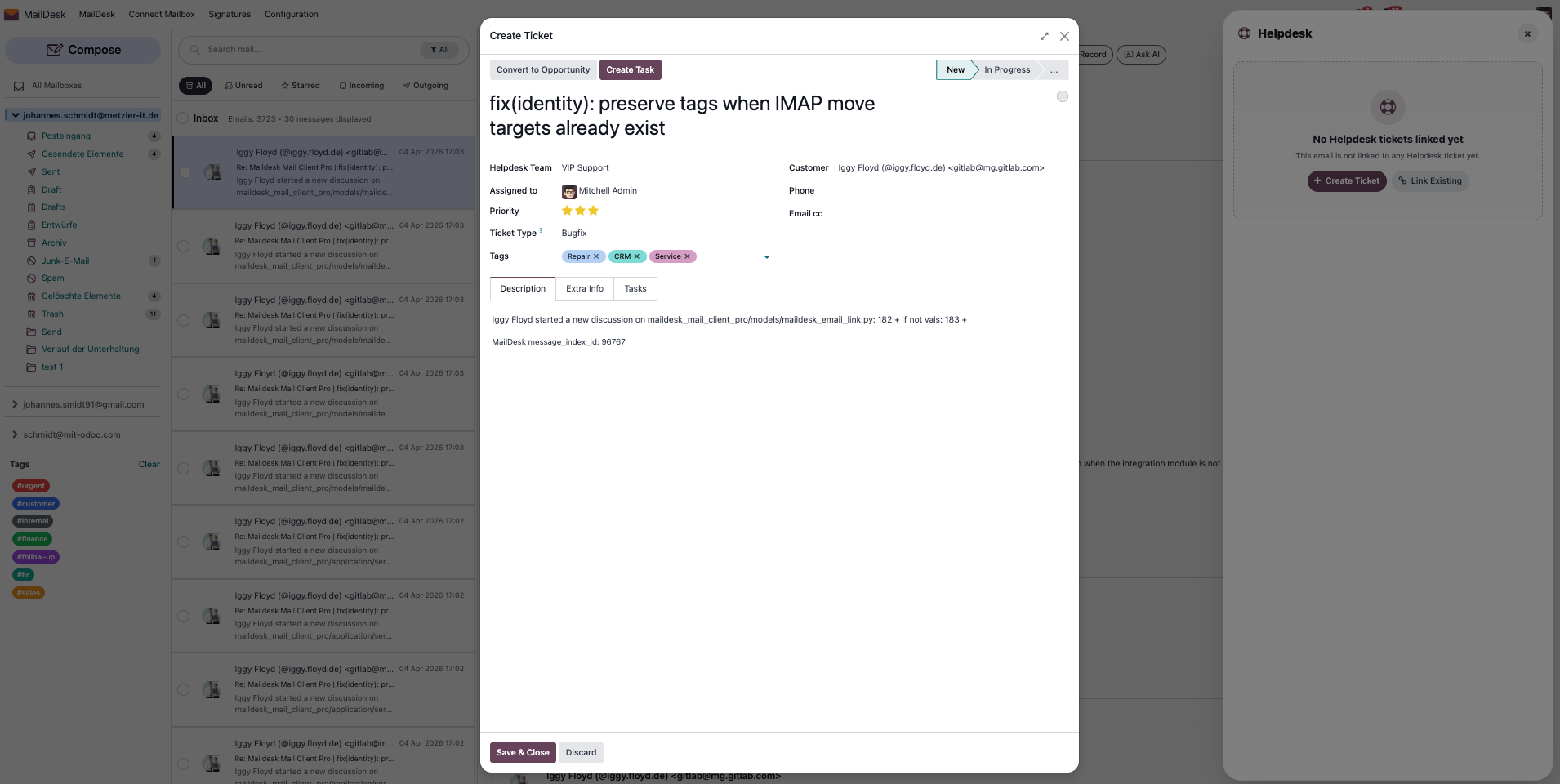
Click Create Ticket and a ticket opens, pre-filled from the sender and the email. Pick the team, set the priority, and save - MailDesk links the new ticket to the email for you.
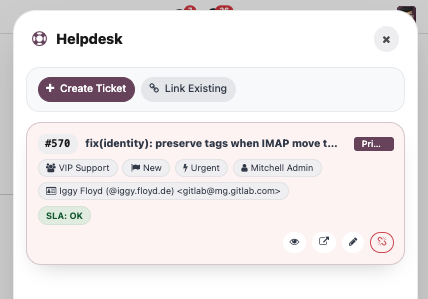
The panel updates immediately. Your new ticket appears as a card showing its team, stage, priority and assignee - and a Primary badge, since it's the main ticket for this email.
4. Or link an email to a ticket that already exists
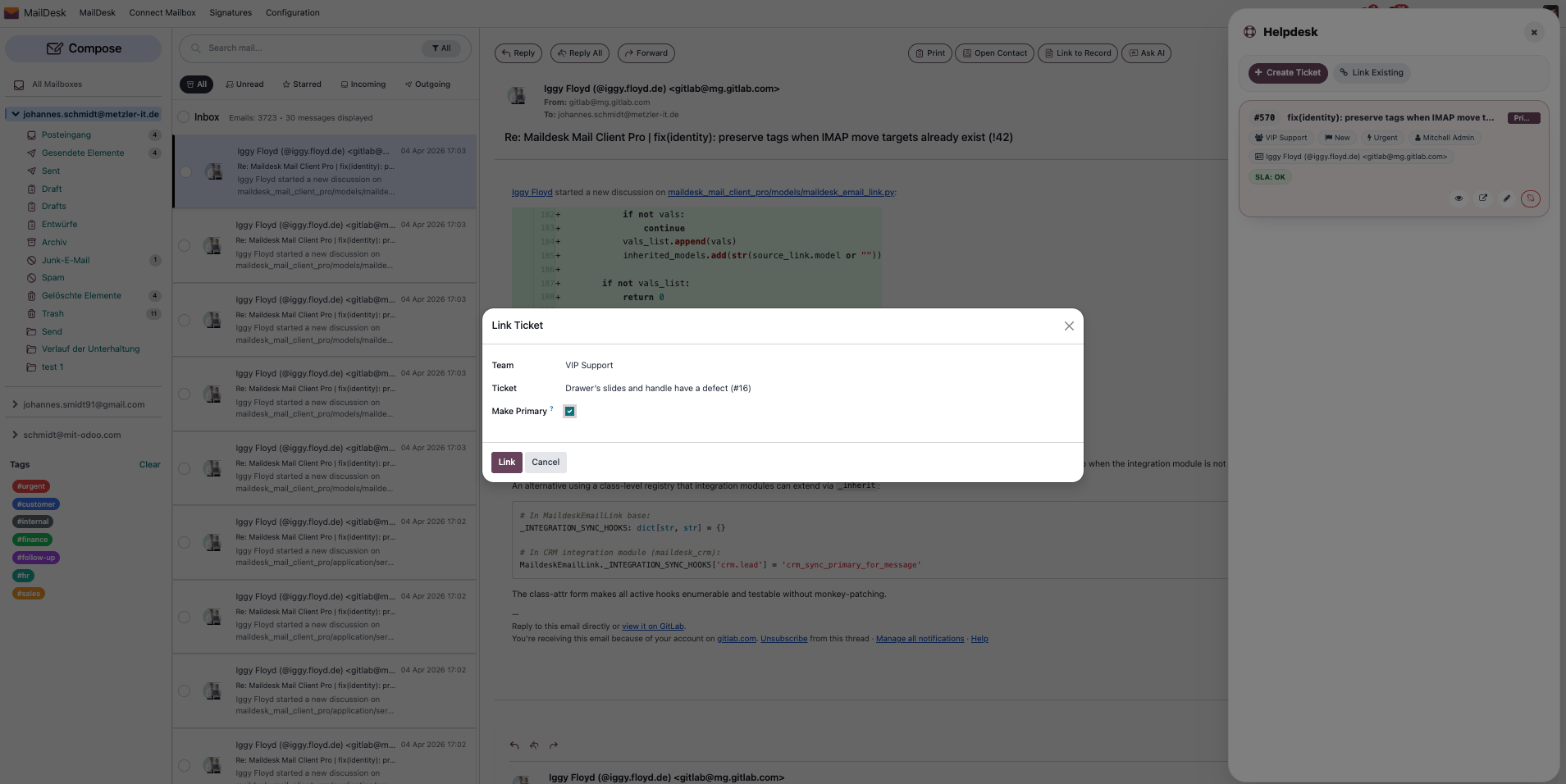
Sometimes the case is already open. Click Link Existing, pick a team to narrow the list, choose the ticket, and confirm. Tick make primary if this should become the email's main ticket.
5. Manage everything from the panel
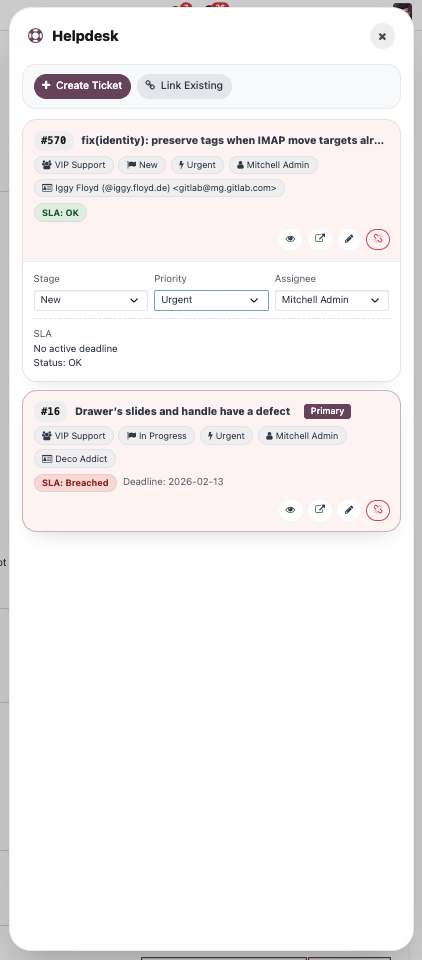
An email can carry more than one ticket. Each card shows the team, stage, priority and assignee - plus an SLA pill (OK, At risk or Breached) with its deadline when SLA display is on. From the card you can open the ticket in a popup or a new browser tab, and - where the mailbox allows it - change the stage, priority or assignee inline, without ever leaving the email.
Unlink is safe
Unlinking a ticket only removes the connection to that email - the ticket itself is never changed or deleted.
6. The conversation lands on the ticket
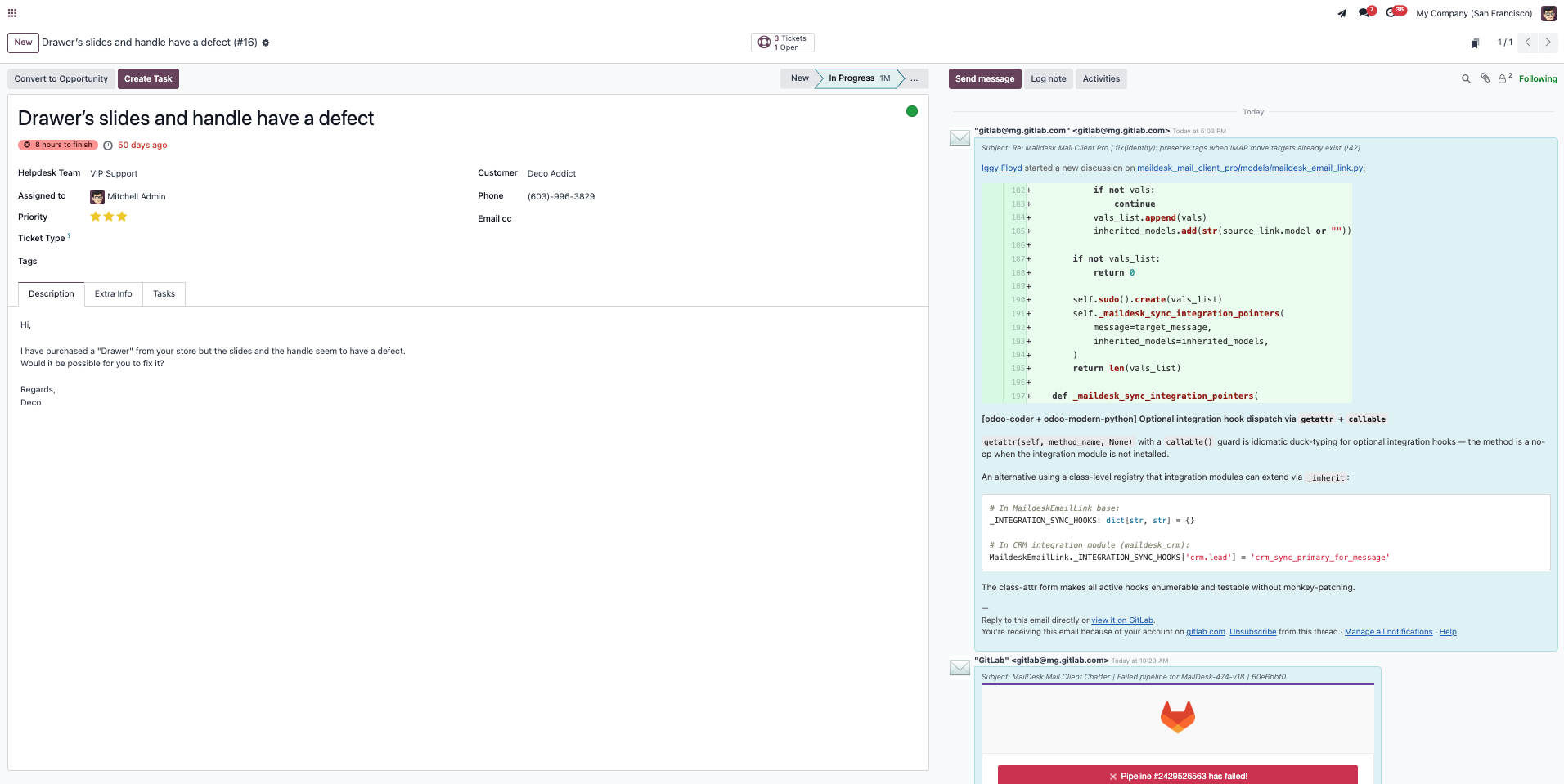
When reply logging is enabled, the emails for that thread are written into the ticket's chatter. Open the ticket in Helpdesk and the team sees the linked email conversation right there in the activity feed - alongside everything else on the case.
Back in the inbox, the life-ring button wears a small badge that counts how many tickets are linked to the email - so you can see at a glance which messages are already tracked.
Auto-reopen, when you want it
With Auto Reopen on Customer Reply on, an incoming customer reply moves the linked ticket from your On Hold stage back to In Progress - but only when the team has those stages. It's off by default so it never surprises an established workflow.
Requirements
- MailDesk Basic and MailDesk Pro installed, with at least one mailbox connected and syncing.
- The MailDesk Helpdesk Integration module installed.
- The standard Odoo Helpdesk app installed, with at least one Helpdesk team configured.
- MailDesk works on Odoo 17, 18, 19, or 20 - the steps are the same on each.
Permissions required
- The user needs access to Odoo Helpdesk, including membership of the team they create or edit tickets for. The panel acts as that user, so standard Helpdesk access rules apply.
- A MailDesk administrator turns the integration on for a mailbox and sets which actions are allowed (create / link / unlink, and stage / priority / assignee change).
- Per-action toggles on the mailbox can further restrict what users may do from the panel, even when they have Helpdesk access.
Get MailDesk Helpdesk
Stop letting support emails fall between the cracks. Turn your team's inbox into a tracked, SLA-aware Helpdesk workflow - without changing how anyone works. MailDesk lives right inside Odoo, so there's nothing new to learn and nothing new to host.
Want to see it on your own mailbox? Take a look at the plans and start a trial on mit-odoo.de/preise - or just talk to us first and we'll help you find the right fit. We're happy to walk you through it.
Related
- CRM integration - link emails to leads and opportunities
- Sales integration - link emails to quotations and orders
- Licensing & tiers
- Security & access rights