MailDesk AI - every feature, with real examples
Available in: MailDesk Pro. MailDesk Basic has no AI.
Your inbox is where work gets lost: long threads you have to re-read, replies you keep putting off, attachments you have to open one by one, and the nagging worry that one of these messages is a scam. MailDesk Pro puts a small, careful AI assistant right beside your mail to take that weight off you - it scans for phishing, recaps a thread in a sentence, drafts the reply, answers questions about a document, and even finds the email you mean when you just describe it in plain words.
Everything below is a real feature you can use today. Each one runs only on the email or thread you are working on, only for mailboxes you already have access to, and only when AI is switched on for that mailbox. For the exact data boundary, see What MailDesk AI can and cannot access.
One rule for all of it
AI output is a suggestion, not a verdict. Read a summary, a draft, or a security result with normal care before you act on it. The assistant is fast and usually right - it is not infallible, and MailDesk never sends anything or acts on your behalf without you.
Security scan - spot phishing before you click
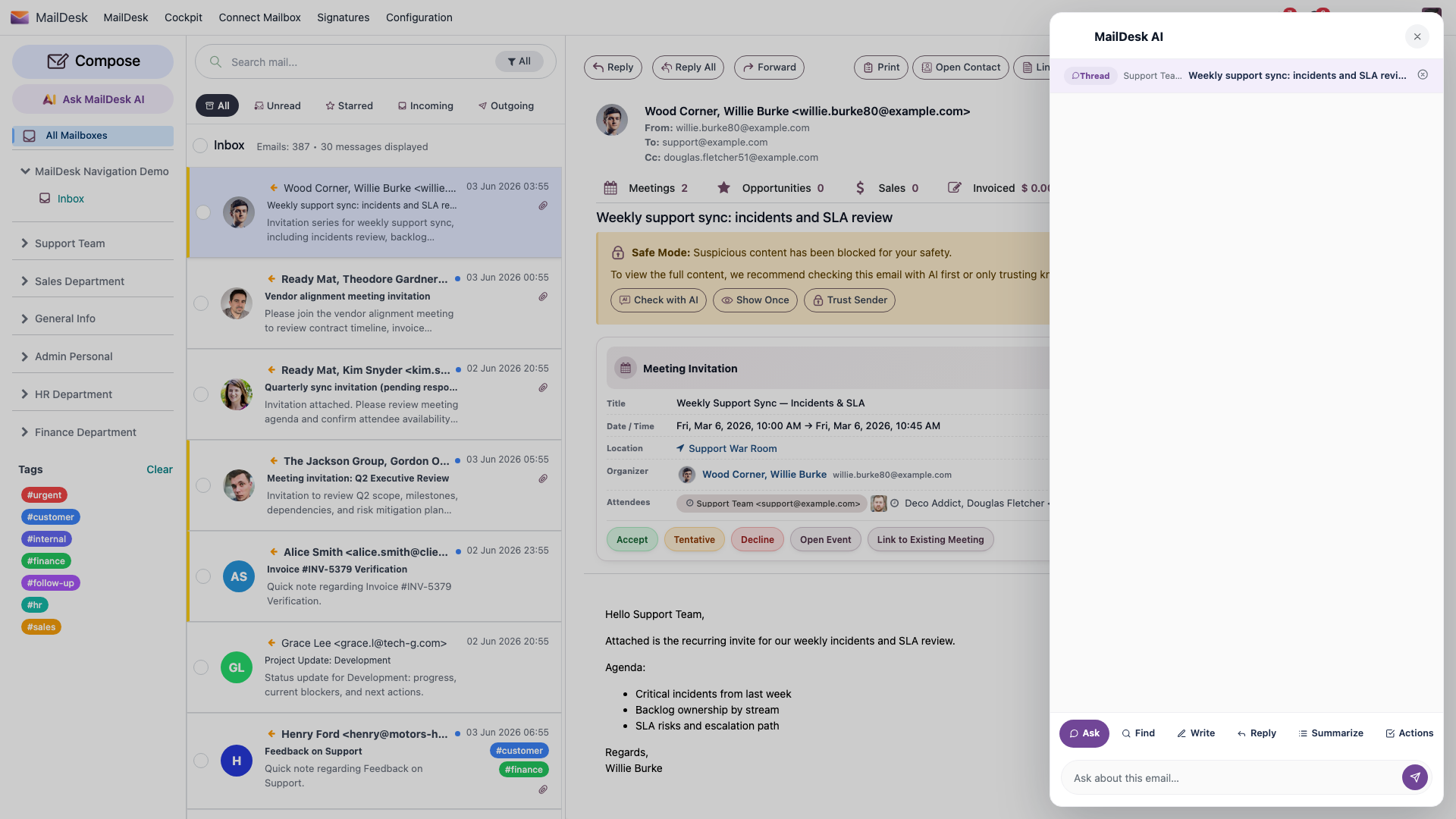
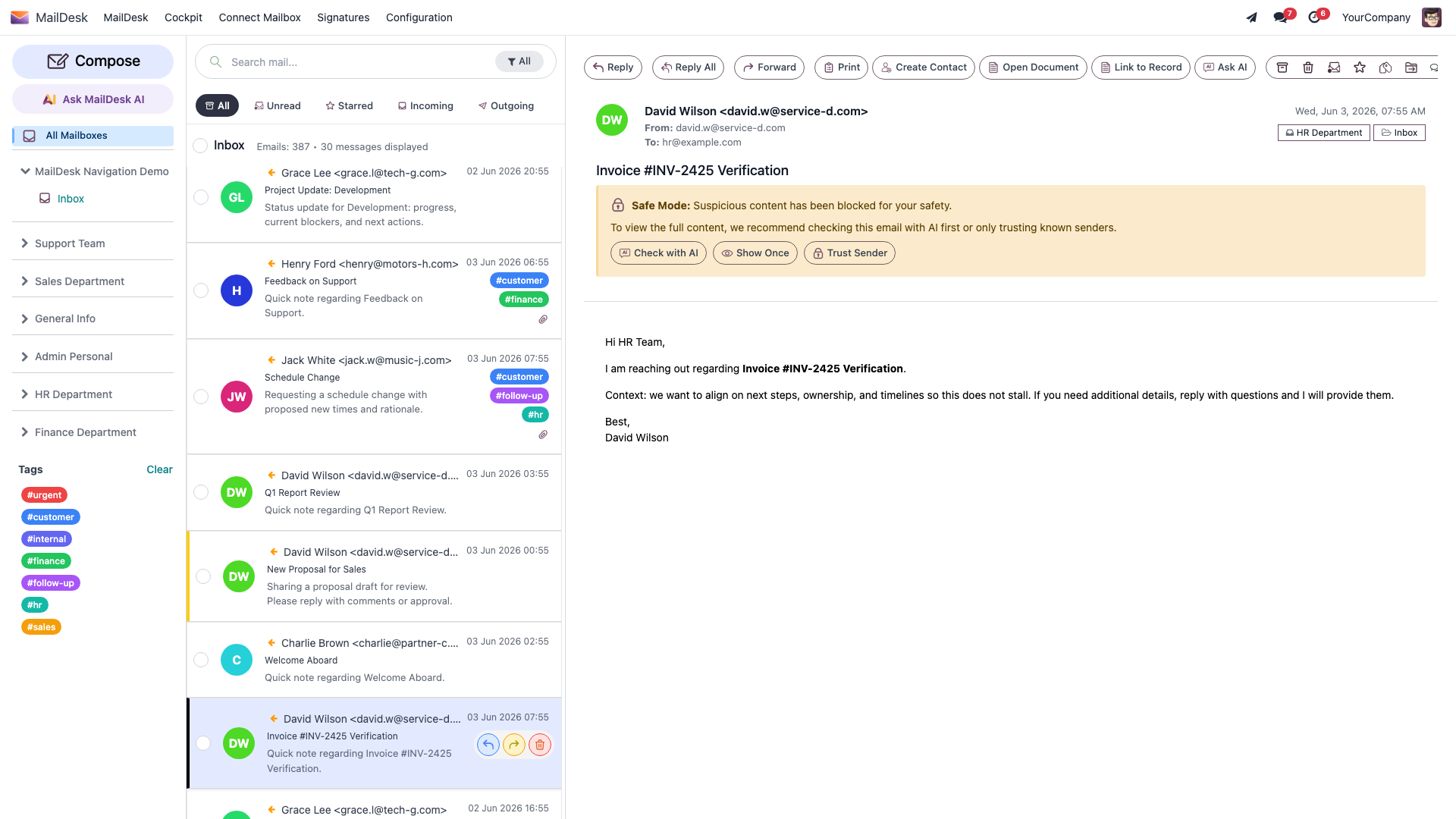
When you open an email, MailDesk can give you a structured second opinion on whether the message looks like phishing, impersonation, or another social-engineering attempt - before you click any link or trust any "urgent" request.
What it looks at
- Sender authenticity - the friendly display name versus the address that is really behind it, look-alike domains, and unusual reply-to fields.
- Phishing indicators - urgency and pressure language, requests for passwords or payment, and "click here to confirm" redirection.
- Suspicious links - URL shorteners, look-alike (homograph) domains, and link text that points somewhere other than where it says.
- Impersonation and intent - CEO, supplier, or invoice-redirect impersonation and other business-email-compromise patterns.
How to read the result
The result is a clear assessment with a risk level:
| Risk level | What it means | What to do |
|---|---|---|
| Low | No notable indicators | Treat it as normal mail |
| Medium | Some suspicious patterns | Verify with the sender on a separate channel before acting |
| High | Strong indicators of an attack | Don't click, don't reply - tell your administrator |
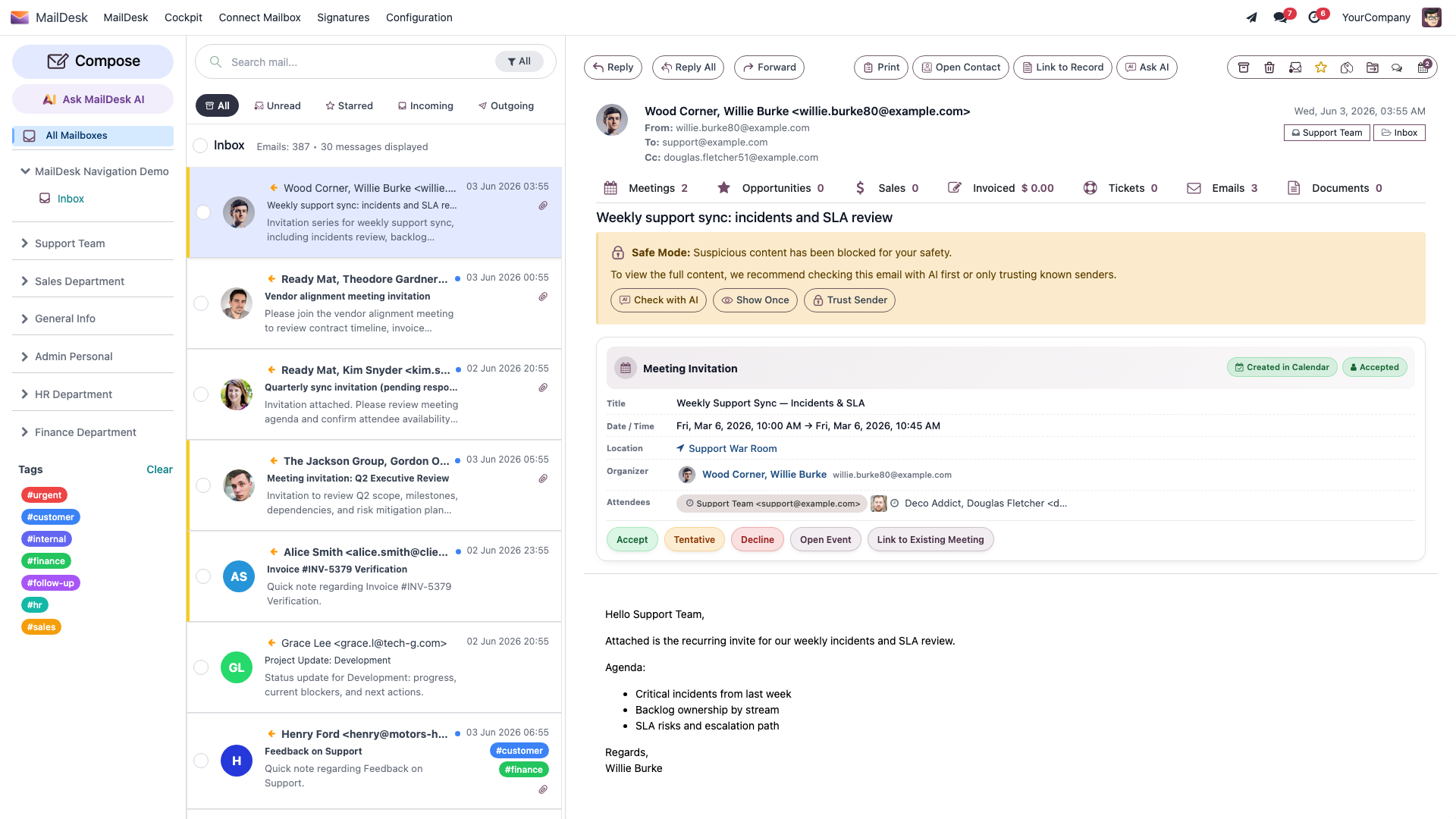
When the scan finds higher risk, MailDesk flags it for you as you open the email. Where your administrator has enabled the cautious Safe Mode, the message also shows confirm-before-you-trust controls - Check with AI, Show Once, and Trust Sender - so risky content stays held back until you decide. A Low result is shown quietly, so genuine mail doesn't get in your way.
The scan reads the sender address and the message text only. It does not open attachments, and it is deliberately tuned to keep false alarms low - ordinary newsletters, marketing mail, and order confirmations are not treated as threats.
A signal, not proof
A High result means be careful, not certainly malicious; a Low result does not make an email safe. Always verify a suspicious sender through a separate channel - a phone call to a known number, not the one in the email. If a legitimate email is flagged High, tell your administrator so it can be reviewed.
Summarize a thread - catch up in one read
Long thread, several people, three weeks of back-and-forth? Summarize gives you a short recap so you can pick up where it stands without re-reading every message.
How to use it
- Open the thread in MailDesk.
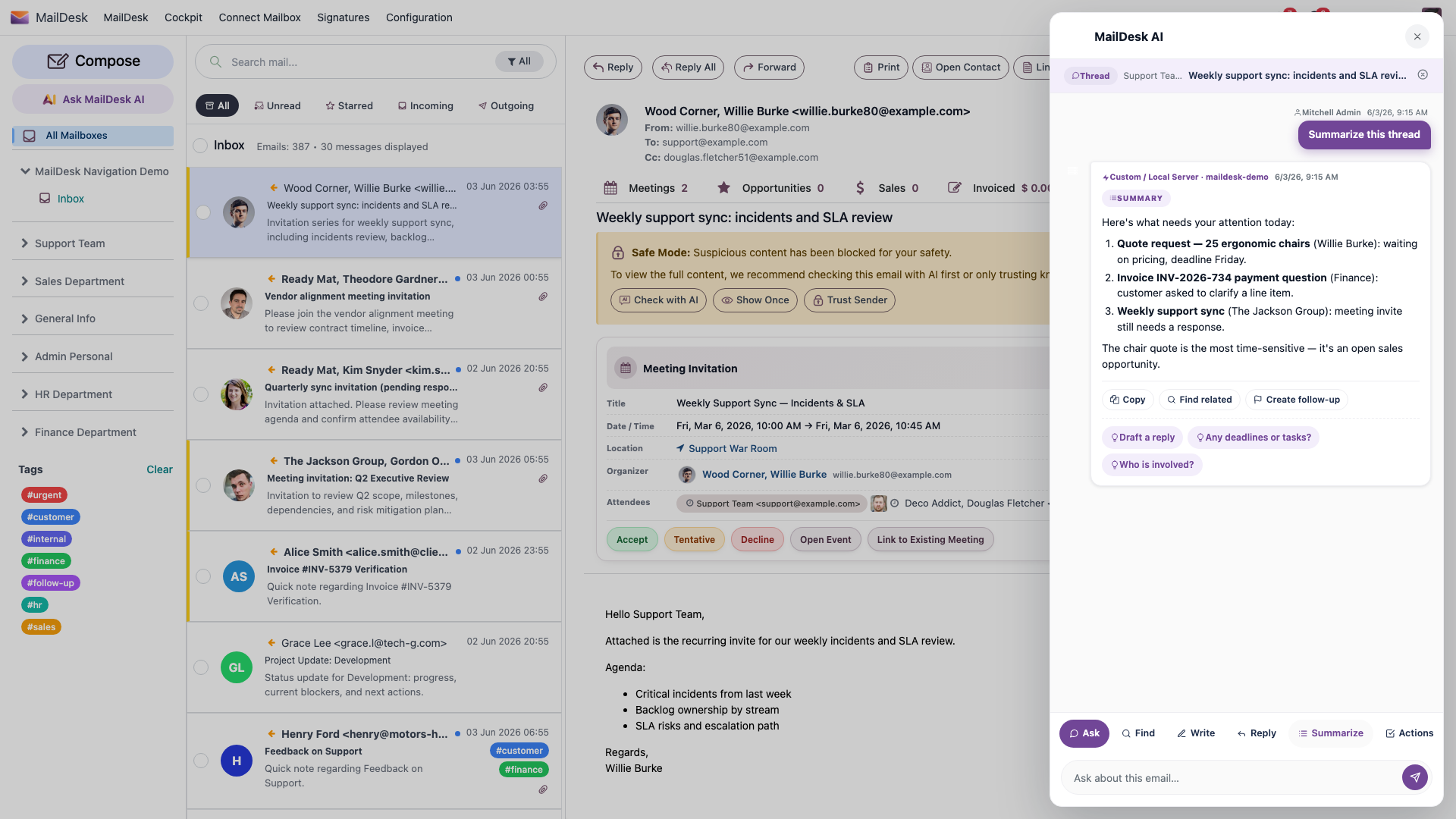
- Open the AI panel and click Summarize.
- A recap appears in the panel - typically the key decisions and commitments, the open questions, important dates, and who said what.
From the summary card you can act in one click: Copy it, Find related emails on the same topic, Create follow-up, or - when the summary cites specific messages - Open source to jump straight to them.
Only the messages in that one thread are used. Attachments, other threads, and your Odoo records are never included in a summary.
Ask AI - a conversation about your inbox
Ask AI is a multi-turn assistant that stays grounded in what you have open. It isn't a single button - it's a short conversation: you ask, it answers, and your follow-up questions keep the same context, so you can dig in without re-explaining yourself.
How to use it
- Open an email and choose Ask AI (from the message toolbar or the message menu).
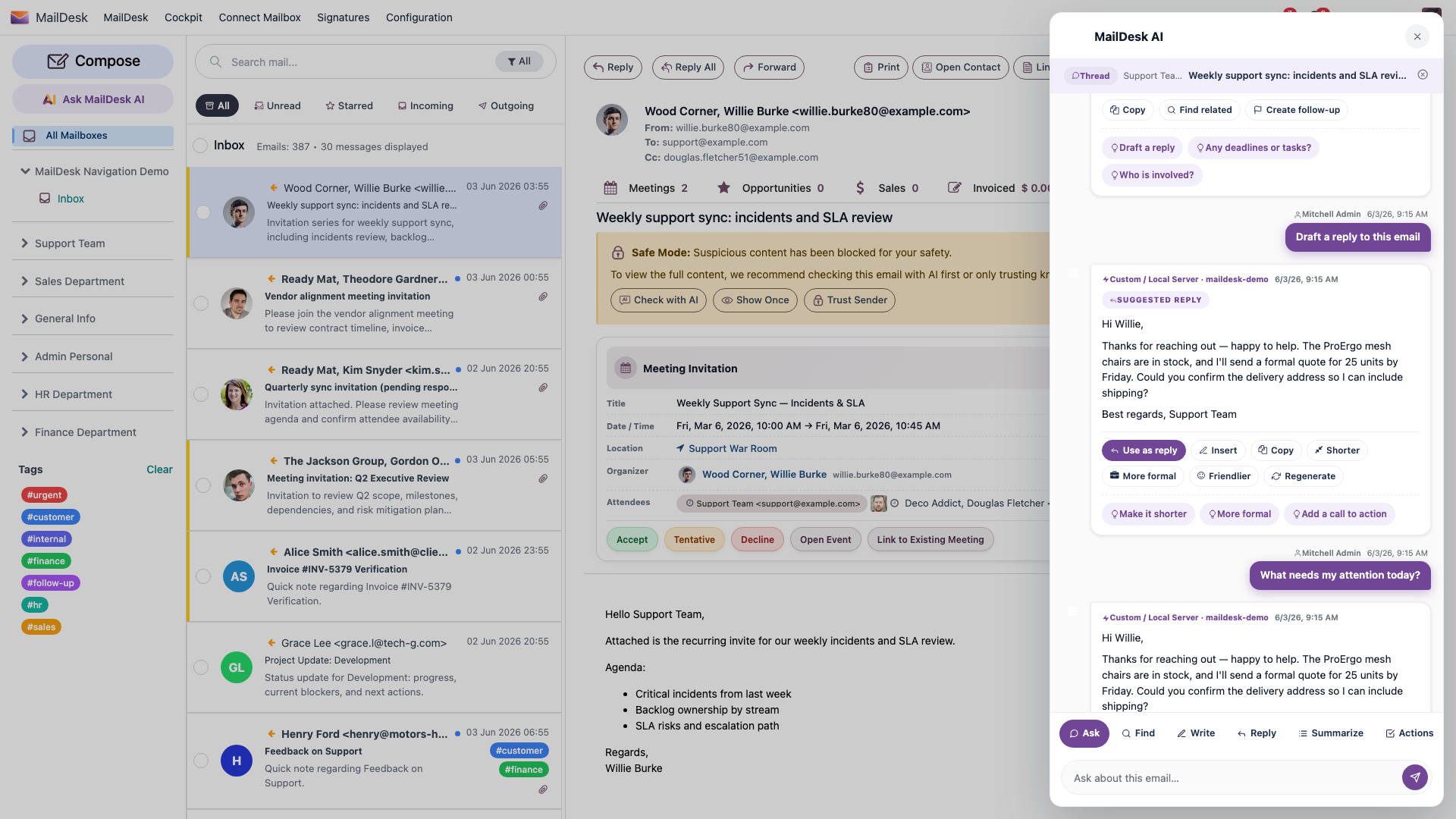
- The assistant starts grounded in that thread - the input box even reads "Ask about this email…" so you know what it's looking at.
- Ask in plain language. For example: - "What is this customer actually asking for?" - "Are there any deadlines or action items here?" - "Who is involved in this thread?" - "Help me write a reply in German." / "Make it shorter."
- Useful follow-up chips appear under each answer (such as Who is involved? and Any deadlines or tasks?), so you can keep going with one tap.
When an email is open, any answer can become a reply - click Use as reply (or Insert) and the text drops straight into the MailDesk composer with recipients, subject, and threading already prepared. You can also Copy an answer or Regenerate it.
The chat remembers - for your whole team
A thread's AI conversation is anchored to the mailbox and the thread, so everyone with access to that shared mailbox sees the same chat, and each question is stamped with who asked it. MailDesk stores only the questions and answers - never the raw email bodies - so the assistant has memory without keeping copies of your mail.
Ask AI only ever sees that thread - your question, the conversation so far, and that thread's text. It does not reach into other mailboxes, your CRM, your calendar, or any other Odoo data.
Draft a reply - the first draft, written for you
Draft a reply proposes a reply you can review and edit before sending. Because it's grounded in the thread, it reflects what was asked and what was promised - not a generic template.
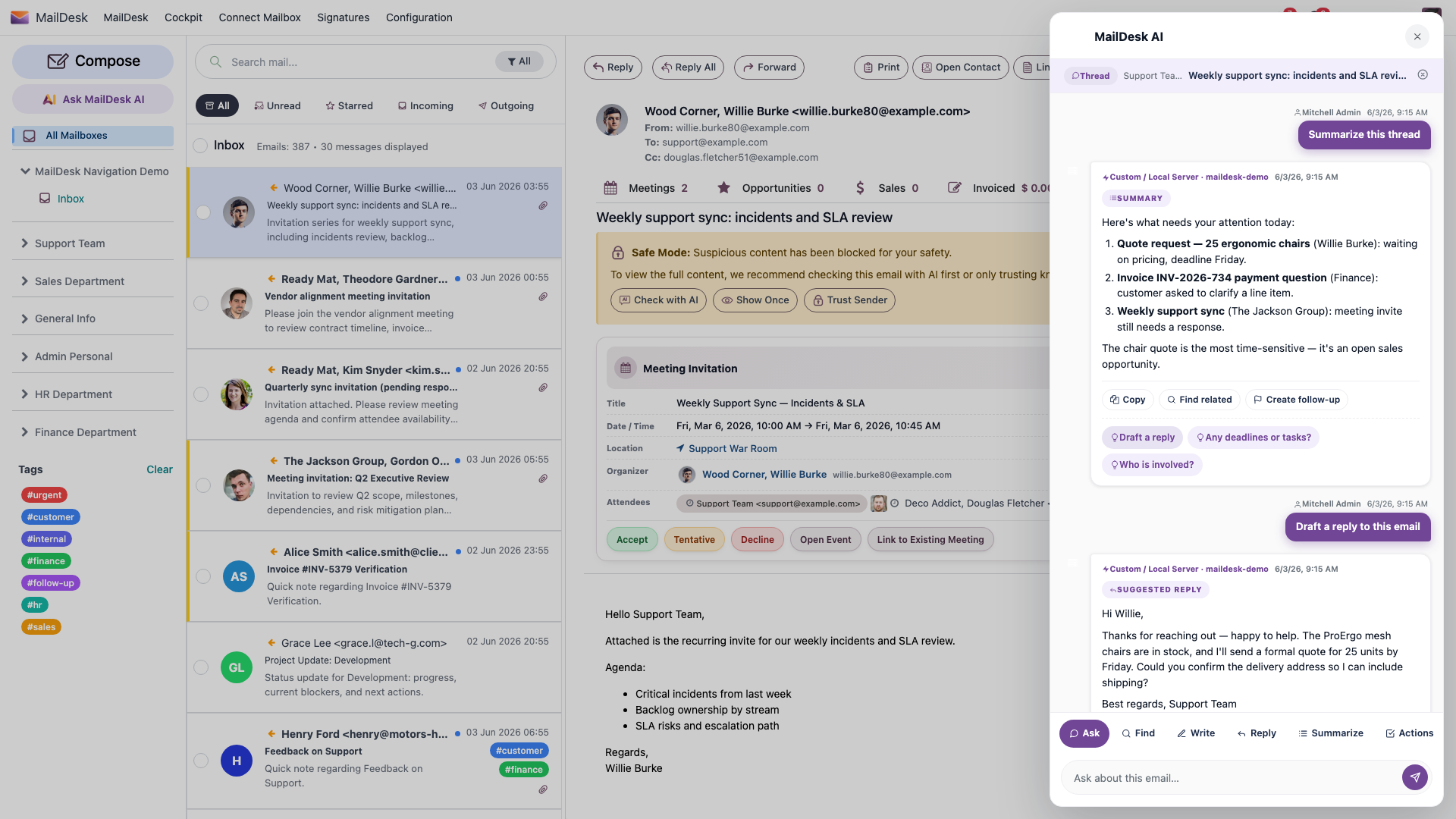
How to use it
- Open the email in MailDesk.
- Open the AI panel and click Draft a reply (or ask for one in Ask AI).
- Refine it in one click with Shorter, More formal, or Friendlier, Add a call to action, or Regenerate until it sounds like you.
- Click Use as reply (or Insert) - the draft opens in the composer. Read it carefully, edit, and send.
The reply is written in your active Odoo interface language by default, and you can simply ask for a different one. It produces the reply body only - no subject line, no salutation header, no signature; you add those exactly as you do now.
The draft is built from the thread (each message's sender, recipients, date, subject, and text). It does not see attachments, other emails, or any Odoo data outside the thread - so always read it before sending. The AI can be wrong about a fact or miss a subtle promise.
Find emails in plain words - natural-language inbox search
Stop guessing keywords. Switch the AI panel to Find mode (the box reads "Find emails…") and just describe what you're after - "show me emails from Michel", "invoices from last month that are still open", "anything about the renewal". MailDesk turns your words into a real search across the mailboxes you can see and shows the matches as clean, clickable cards.
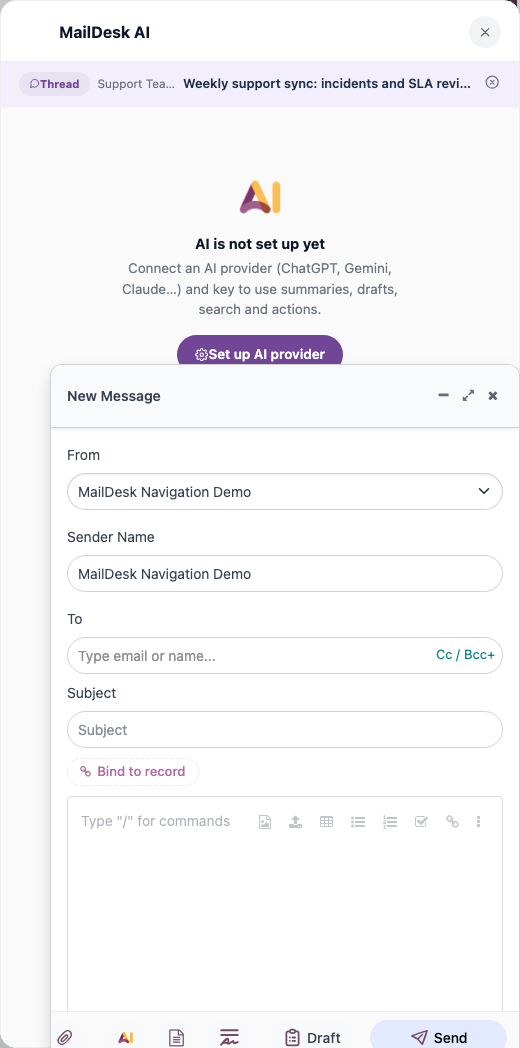
How to use it
- Open the AI panel without an email selected (the home view), or switch the input to Find.
- Type what you're looking for in everyday language and press Enter.
- MailDesk answers with a one-line recap - for example "7 emails from Michel Dupont" - and the matching messages below, each with the sender, subject, date, and any tags.
- Long result lists stay tidy: only the first page shows, with a Show N more button to reveal the rest.
Every result is a starting point, not a dead end:
- Click a result to open that email in place - MailDesk selects it without reloading the page, so the panel stays right where it is.
- Click the sender to open the contact in Odoo.
- Choose Ask about this email on any result to make it the assistant's active context, then ask a grounded follow-up - or Find related to widen the net.
Your last search is also remembered as context, so a follow-up question can reason over the emails you just found ("which of these still needs a reply?").
This search runs only across the mailboxes you already have access to - standard Odoo access rules apply, with no special elevation.
See the whole conversation - thread & chain view
A single email is rarely the whole story. Show the whole conversation pulls together the full chain a message belongs to, grouped by conversation, so you can see how it started and where it ended up.
How to use it
- With an email open, ask the panel to show the whole conversation (the chain view).
- MailDesk gathers the related messages and groups them - you get a tidy header like "3 conversations · 18 emails" and an N emails chip on each one.
- Click any message in the chain to open it in place and keep working.
It's the fast way to answer "wait, what was decided here, and by whom?" without scrolling a mailbox - and it pairs naturally with Summarize when a chain gets long.
Today's priorities - what needs you first
From the AI home view you can ask What needs my attention? (or open Today's priorities) and MailDesk surfaces the emails most likely to need you now, each with a short reason. It reads from insights MailDesk has already prepared, so it answers immediately and without sending anything to a provider - a quick triage before you start your day.
Two ready-made suggestions live on the home panel for exactly this:
- What needs my attention?
- Find unanswered - emails you haven't replied to yet.
Attachment Q&A - ask a document a question (opt-in)
You can ask the AI about an attachment on a message - "what's the total on this invoice?", "what date does this contract end?" - but only when an administrator has deliberately allowed it for that mailbox and you explicitly request it on that message.
How it works
- The mailbox must have attachment analysis enabled. It is off by default, and this version does not expose the option on the mailbox form.
- On a message with an attachment, choose to analyze the attachment.
- The AI returns what it found - a short excerpt and the key facts - drawn from that one document.
Attachments are never sent automatically. If the switch is off, MailDesk simply tells you the feature needs to be enabled for the mailbox and sends nothing. Some file types aren't supported, or a file may be too large - in those cases MailDesk says so plainly rather than sending anything. An analysis is cached per document, so asking again about the same file is instant and doesn't re-send it.
Off by default, on purpose
Until an administrator opts a mailbox in, no attachment content ever leaves Odoo. This keeps your documents inside Odoo unless you make a deliberate choice. See the full data boundary in What MailDesk AI can and cannot access.
How access is controlled
Every AI action runs only when all of these allow it - and they are checked on the server, not merely hidden in the interface:
- Global switch - an administrator can turn off all AI at once.
- Per-feature switch - individual features (for example the security scan) can be turned off on their own.
- Per-mailbox switch - Enable AI features - off for a mailbox means no AI for that mailbox, full stop.
- A configured provider - a cloud provider with a valid key, or your own local server.
You only ever see AI results for mailboxes you already have access to. The standard Odoo access rules still apply, and there is no special elevation.
Choosing and setting up a provider
You're not locked into one AI vendor. MailDesk works with OpenAI, Google Gemini, Anthropic Claude, xAI Grok, DeepSeek, or a local / self-hosted server (for example Ollama, LM Studio, or vLLM) - so you can keep everything on your own infrastructure if you prefer. Administrators can even route different actions to different providers: a careful provider for the security scan, a fast one for summaries.
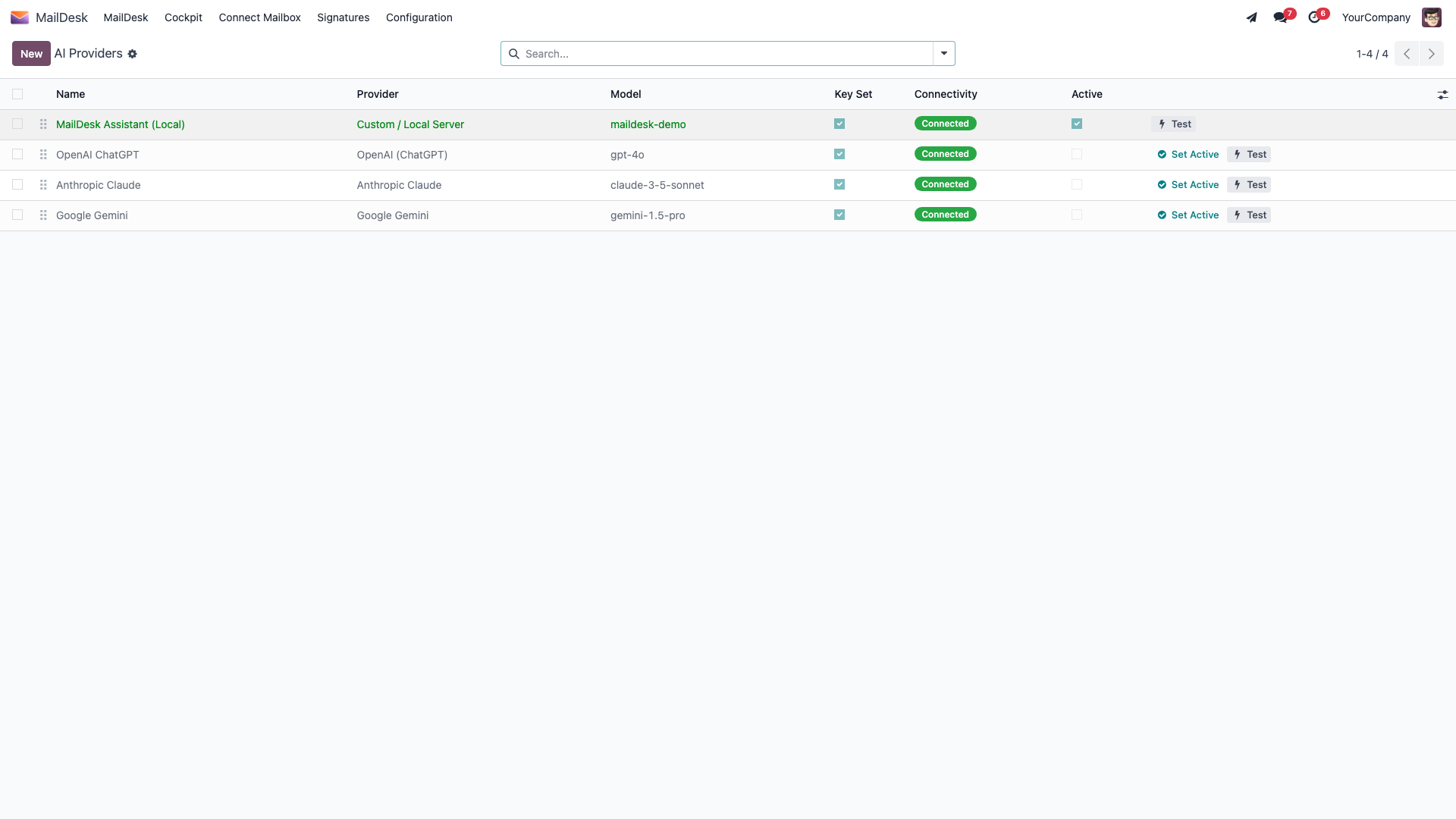
To connect a provider, and to see the full list of exactly what is and isn't sent, follow What MailDesk AI can and cannot access → Turn AI on.
Related
Available in MailDesk Pro 18.0.4.1.0+. Behaviour verified against the Pro AI service code (security scan, summarize, Ask AI, draft, natural-language inbox query, thread/chain view, today's priorities, opt-in attachment analysis) and KB 257/259/260/261.