Dark mode
MailDesk Pro ships a dark colour theme for the mail client, with a simple three-way choice - Auto, Light, or Dark. The choice is yours per device: it is saved in your browser, so it follows you across reloads and tabs on that device without changing anything for your colleagues.
Available in: Pro. The dark theme and the Auto/Light/Dark control are part of the Pro module. Basic does not include a dark theme.
What it does
MailDesk Pro can paint the mail client in a dark palette - dark surfaces, lifted text, and the MailDesk violet kept vivid - instead of the default light look. You pick how it behaves with a small Auto / Light / Dark control:
- Auto (the default) - MailDesk follows Odoo's own appearance. If your Odoo is in its standard light look, MailDesk stays light; if your Odoo is set to a dark appearance, MailDesk follows it.
- Light - always the light theme, regardless of Odoo's setting.
- Dark - always the dark theme, regardless of Odoo's setting.
The dark theme covers the whole mail client: the message list, the reading pane, the folder list, the search and filter bars, the composer, the move/link/template dialogs, and the add-on side panels (such as the customer, calendar, or record-link panels). Plain-text and simple HTML emails are themed to match; rich emails keep their own formatting, because their colours come from the sender, not from MailDesk.
Why it matters
- Comfort in low light. A dark interface is easier on the eyes in dim rooms and on small screens at night.
- It matches your Odoo. With Auto, MailDesk picks up whatever appearance your Odoo is configured for, so the mail client does not look out of place next to the rest of your workspace.
- Per-device, no admin step. Each person sets it on their own device. There is nothing for an administrator to configure and nothing is changed for other users.
Requirements
- MailDesk Pro installed and active.
- A modern browser (the theme is applied entirely in the browser).
- MailDesk works on Odoo 17, 18, 19, or 20 - the behaviour is the same on each.
What \"Auto\" follows
Auto follows Odoo's appearance, not your operating system's light/dark setting. This is deliberate: the mail client should match the workspace it lives in. On Odoo 18 the backend is light by default, so Auto resolves to Light unless your Odoo has been put into a dark appearance.
Permissions required
None beyond access to the MailDesk mail client itself. The theme choice is a personal browser preference; it does not touch the database and is not governed by any access group.
Where the control is
The Auto / Light / Dark control lives at the bottom of the folder drawer on phones and small windows.
- Open MailDesk (MailDesk app).
- On a phone or narrow window, tap Folders in the bottom navigation bar to slide the folder drawer in from the left.
- At the bottom of the drawer, use the Auto / Light / Dark control to pick your theme. The change applies immediately.
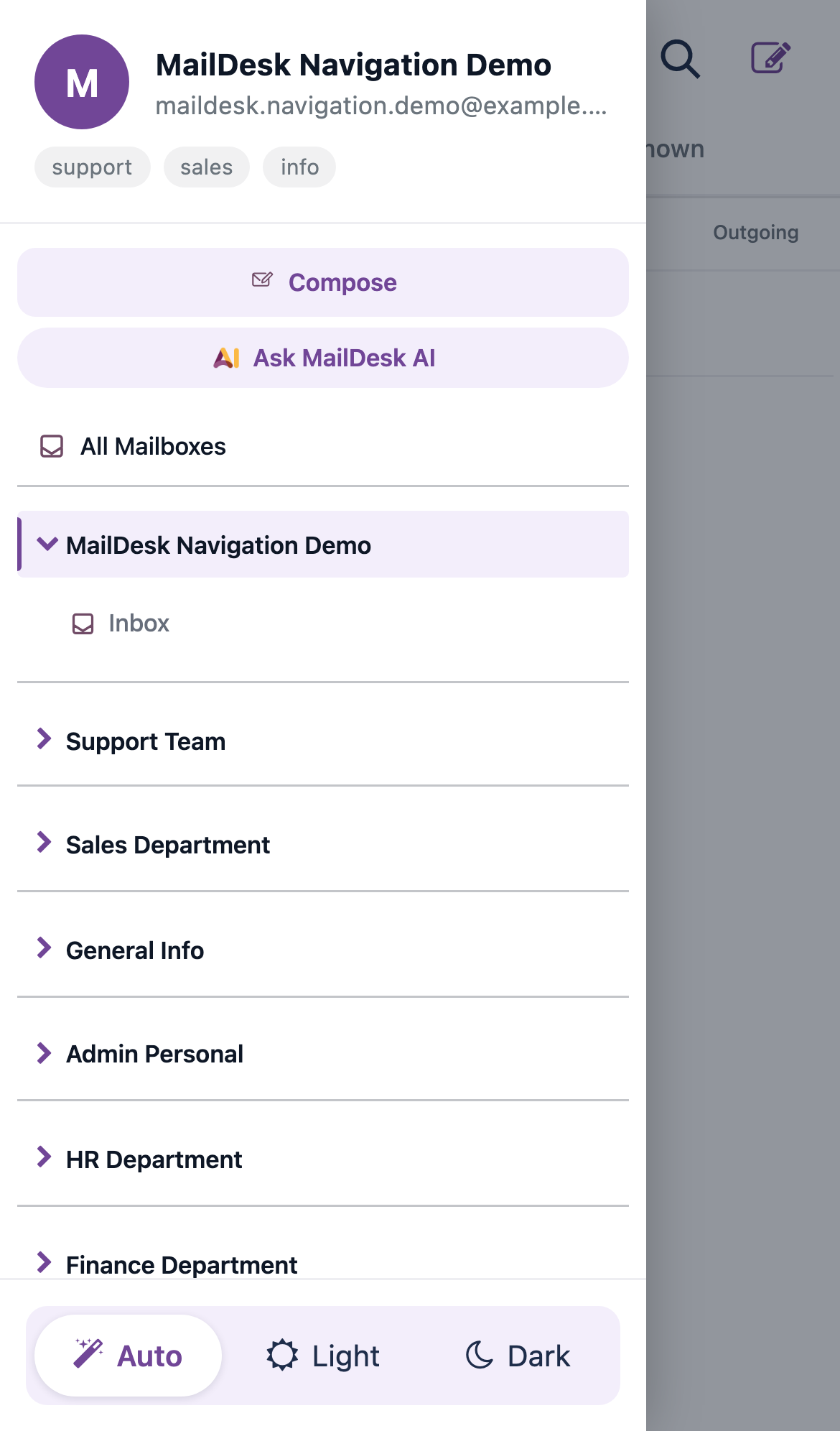
The drawer control appears in the mobile layout
The theme control sits in the folder drawer, which appears only while the mobile layout is active. The layout is detected automatically - there is no manual view switch. Open MailDesk on a phone, tablet, or in a narrow browser window to bring up the drawer and set your theme. Your Dark (or Light) choice is saved on that browser and stays in effect - including on the desktop layout - the next time you open MailDesk on the same device.
Expected result
The mail client repaints in your chosen theme right away. The choice is remembered on this browser and is reapplied automatically the next time you open MailDesk on the same device - and across other open MailDesk tabs in the same browser.
Mobile dark and desktop dark are two layers
Dark mode is built as two cooperating layers that share the same MailDesk colour palette, so dark looks consistent whether you are on a phone or a desktop:
| Layer | Where it applies | How it is reached |
|---|---|---|
| Mobile dark | The phone / mobile-view mail surface | Auto / Light / Dark control in the folder drawer |
| Desktop dark | The full desktop mail client (shell, list, reading pane, composer, dialogs, side panels) | The same Auto / Light / Dark choice - Dark (or Auto resolving to dark) carries through to the desktop layout |
Both layers read one shared set of theme colours, and both are switched by the same Auto / Light / Dark choice. The difference is only which screens each layer paints. Setting Dark once themes both your phone and your desktop MailDesk on that device.
Dark stays inside MailDesk
The dark theme is confined to the MailDesk mail client and its own panels and dialogs. It does not darken the rest of Odoo. Choosing Dark in MailDesk has no effect on other Odoo apps, and choosing a dark appearance for Odoo only affects MailDesk if your theme is set to Auto.
Troubleshooting
| Symptom | Likely cause | What to do |
|---|---|---|
| No Auto / Light / Dark control anywhere | You are running Basic, not Pro | The dark theme is a Pro feature - confirm Pro is installed and active |
| Picked Dark but the mail client is still light | The choice did not save in this browser (private/incognito mode can block it) | Reopen MailDesk in a normal (non-private) window and pick the theme again |
| Auto shows light even though my device is in dark mode | Auto follows Odoo's appearance, not the device | Set your Odoo to a dark appearance, or pick Dark explicitly in MailDesk |
| Dark on my phone but light on the desktop (or vice-versa) | The theme is saved per browser/device, not per account | Set the theme again on the device that is showing the wrong look |
| A rich email still shows bright colours in dark mode | The email's colours come from the sender, not MailDesk | This is expected - MailDesk does not recolour sender-formatted email content |