A day with MailDesk
Email shouldn't feel like a second job. This page walks you through one realistic morning - scanning what's new, reading a conversation, replying, linking an email to the right Odoo record, and tagging the rest for later - so you finish with an inbox that's a short list of things that actually need you. The names and companies here are fictional examples.
Available in: Basic. The whole read-reply-tag flow is part of the MailDesk engine. Linking an email to a lead, ticket, or order through a dedicated side panel comes from the matching integration module (for example CRM integration, Helpdesk integration, or Sales integration). AI drafting and summaries, and the mobile-adaptive layout, are part of Pro. Each step below notes which module it belongs to.
The idea in one line
MailDesk is built around conversations, not single messages. Every reply and forward stays grouped into one thread - across Gmail, Outlook, and IMAP - so you read the full back-and-forth in one place instead of hunting for the last reply. A good day is simply a loop: scan what's new, decide quickly, keep the related Odoo record up to date, and move on.
The payoff is calm. Tags become a lightweight worklist, folders stay tidy, and a linked email shows up right on its Odoo record - so your colleagues see the full context without a single copy-paste.
Before you start
- A connected, synced mailbox.
- To link emails to business records through a side panel: the relevant integration module installed (CRM, Helpdesk, Sales), which builds on Pro.
- For AI drafting and summaries: Pro with an AI provider configured (see What MailDesk AI can and cannot access).
You only ever work in mailboxes you already have access to - standard Odoo access rules apply. Linking an email to a record needs the usual access to that record's model (for example, access to CRM leads to link a lead).
The scenario
Lena handles the shared [email protected] mailbox. It's mid-morning, and 18 messages arrived overnight. Here's how she clears them in a few quiet minutes.
1. Triage: see what's new at a glance
- Lena opens MailDesk and selects the [email protected] mailbox. The Inbox is selected by default.
- She clicks the Unread filter chip to focus only on what arrived.
- She scans the list. Each row tells her almost everything at a glance: the sender, the subject, the date and time, a short preview, an unread dot, any tags, an attachment icon, and a star if one is set.
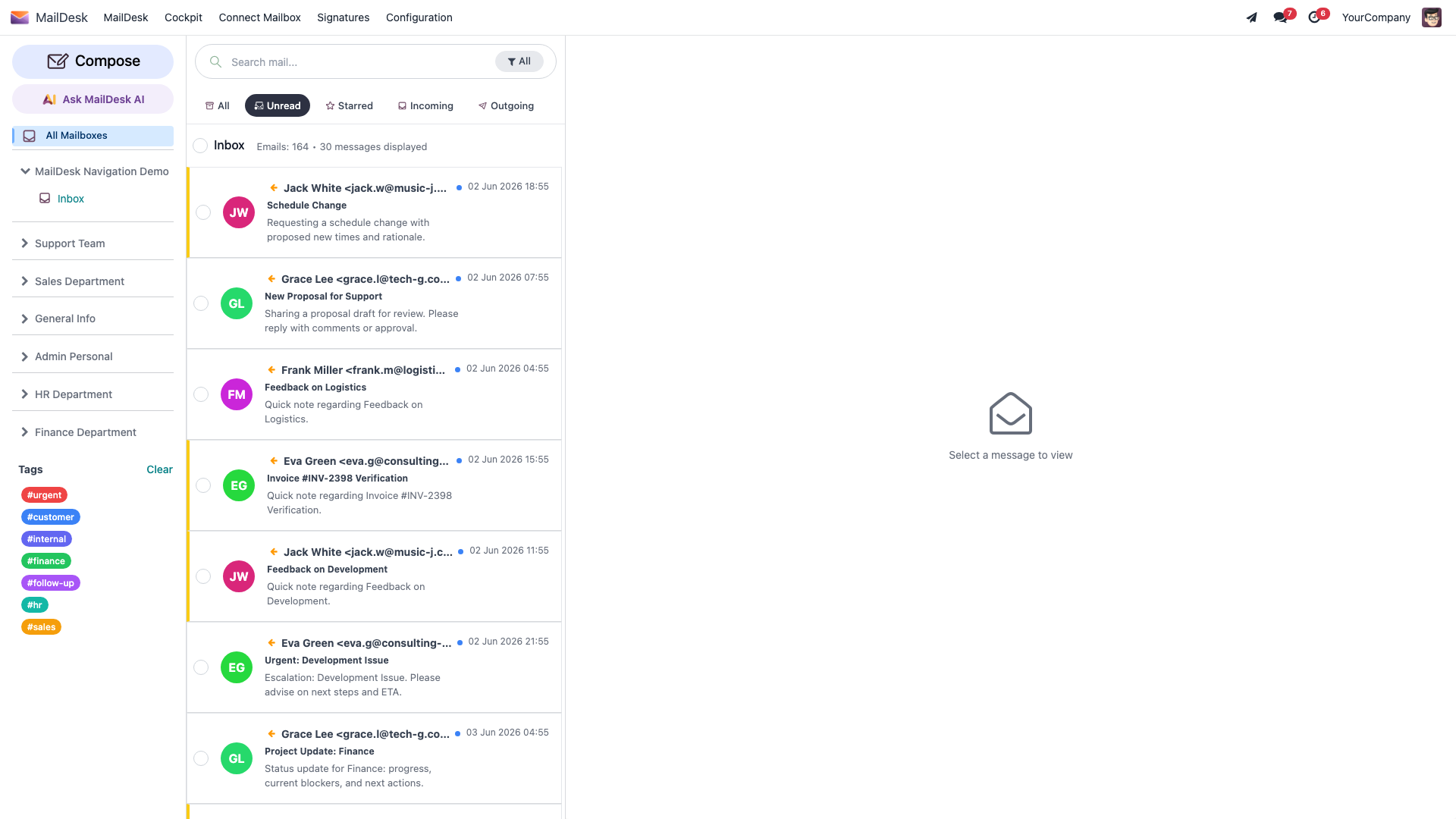
That single glance is the whole point. Most messages can be decided without even opening them.
Decide fast, one message at a time
For each row, make exactly one quick call: reply now, tag it for later, forward it to the right person, or archive it. Good inbox hygiene is just a habit of small, fast decisions.
2. Read the whole conversation, not a fragment
- Lena clicks the first unread message. The full body opens in the reading pane, any attachments become available, and the reply actions appear.
- Because MailDesk groups related emails into one conversation, she reads the entire thread in order - question, answer, follow-up - without scrolling back through her inbox to reconstruct what was said.
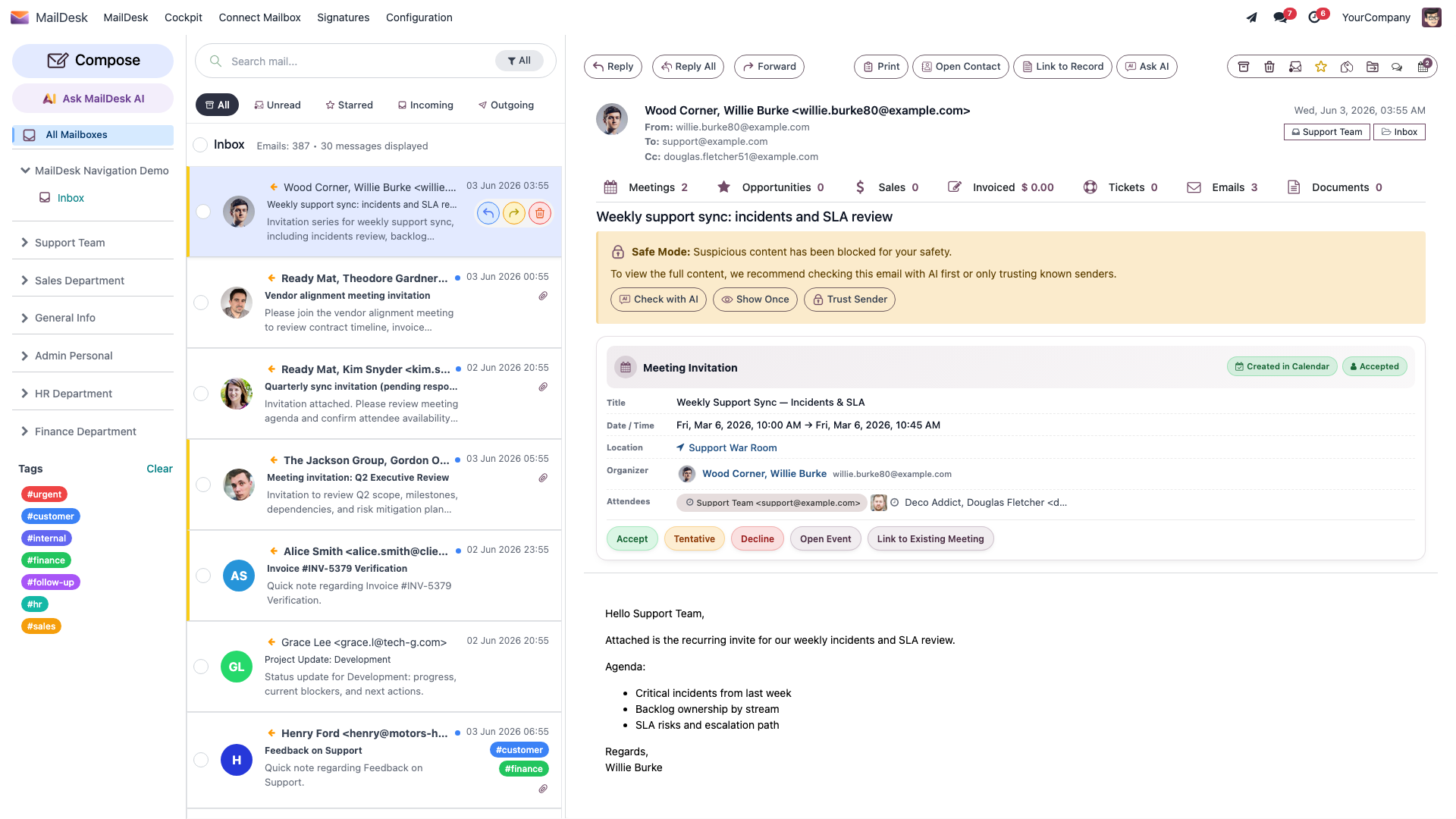
When a thread carries a long trail of older replies, MailDesk tucks them behind a tidy Show quoted text toggle so you see the new message first and expand the history only if you need it.
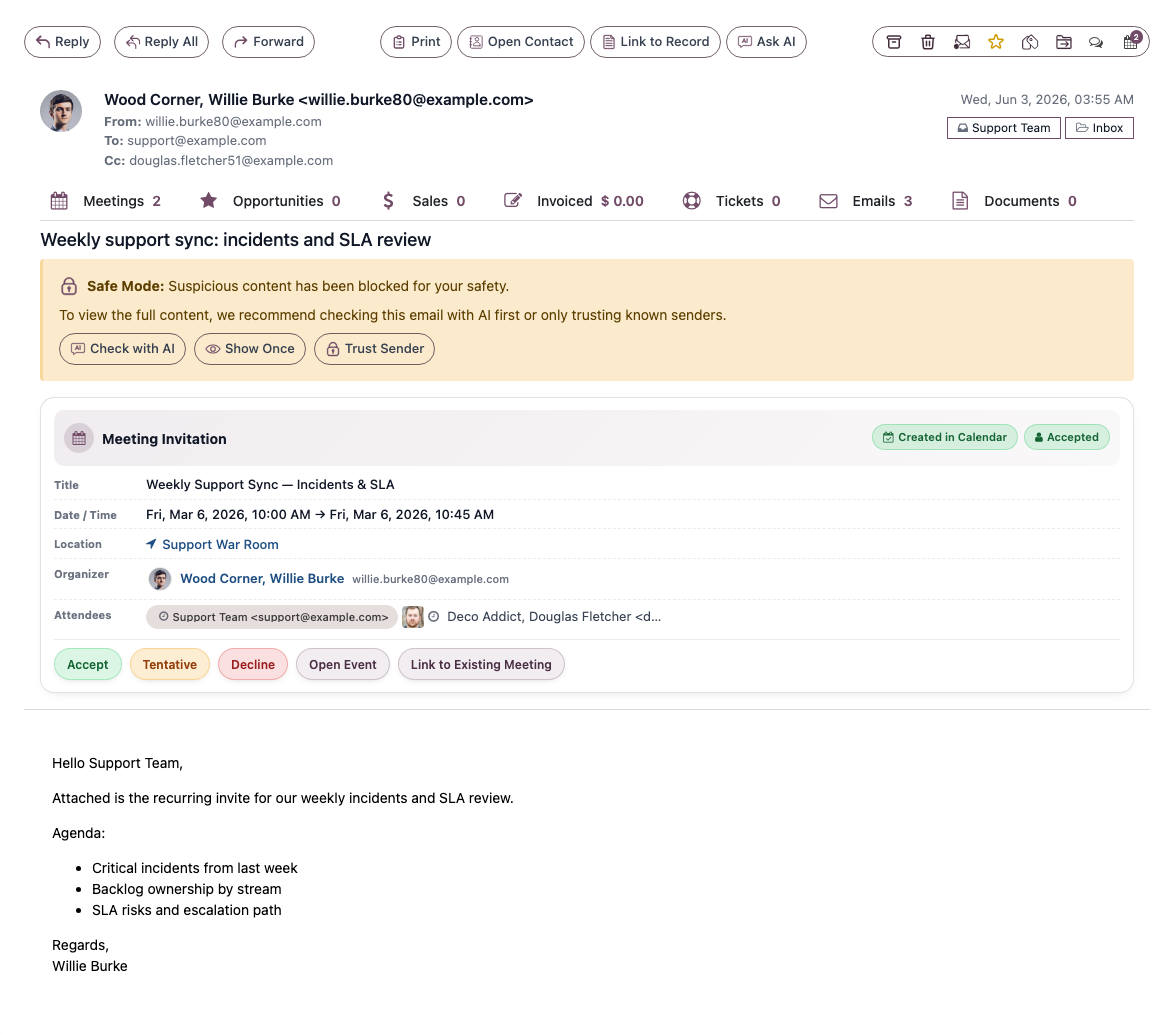
The first open may take a moment
The first time a message is opened, MailDesk fetches and caches its body, so it opens instantly next time. That first open is also what makes the message's full text searchable later (see Search, filters, and tags).
3. Reply, Reply All, or Forward
The first message is a simple question from a customer. Lena answers it in seconds.
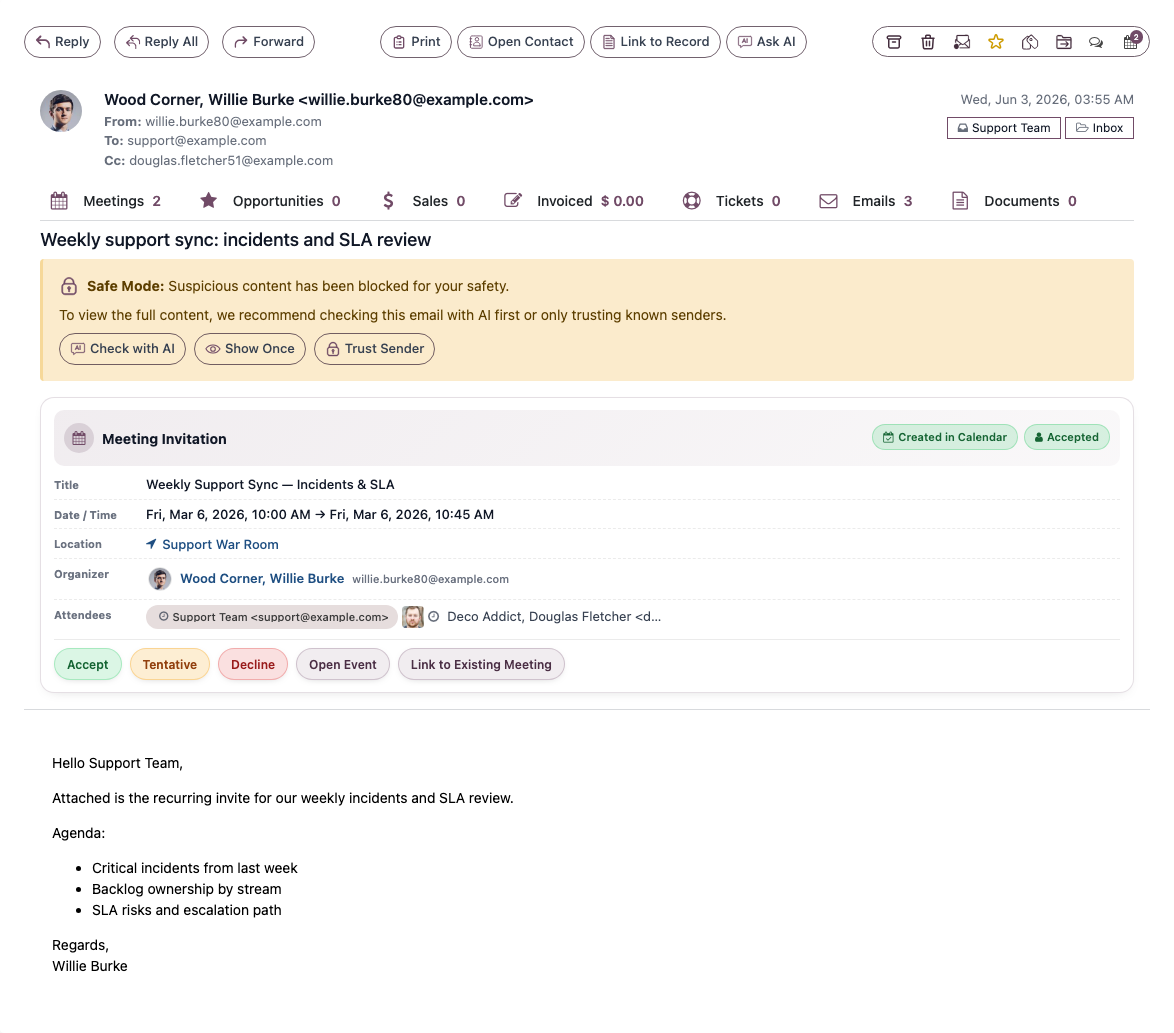
- With the message open, she clicks Reply to answer the sender, Reply All to answer everyone on the thread, or Forward to pass it to a colleague.
- She writes a short, clear answer and clicks Send.
| Action | Sends to | Use when |
|---|---|---|
| Reply | The original sender | A one-to-one answer (most common) |
| Reply All | Everyone on the thread | The whole group needs the update |
| Forward | A new recipient | Sharing information or asking someone else |
After she sends, the reply appears in Sent straight away and the conversation updates on its own. If the customer writes back, their reply joins the very same conversation - nothing to re-thread by hand.
Glance at the recipients before Reply All
Reply All copies in everyone on the thread. A quick look at the recipient list keeps an internal note from reaching the customer by mistake.
4. Link the email to its Odoo record
The next message is about an open quotation. Lena links it so the whole team can see the conversation from the order itself - no forwarding, no "what did the customer say again?".
- She opens the email so the detail view, with its side-panel buttons, is shown.
- She opens the integration panel for that record type - for example the CRM panel - and uses Link Existing to attach the email to the right lead, or Create Lead/Opportunity to start a new one straight from the email.
- The email now appears in that record's chatter, giving everyone the full context in the place they already work.
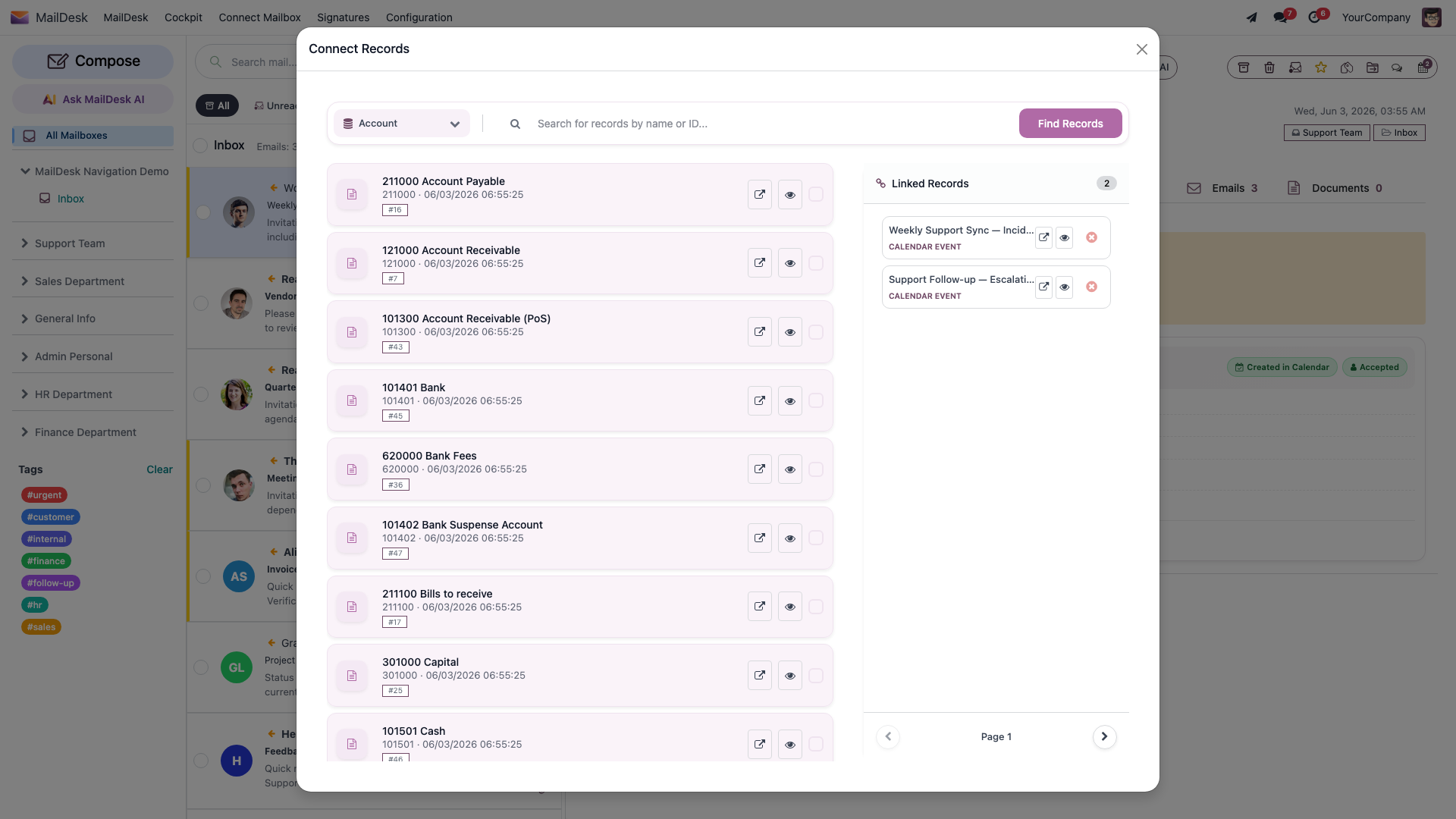
Once an email is linked, it's protected: even if it's later removed from the mailbox during a routine sync, MailDesk keeps the linked copy so the record never loses its history.
Linking happens from the open email
In Basic, the message row's right-click menu can Create Contact, Open Contact, and Open Linked Document - but linking to a lead, ticket, quotation, or order, and the record's panel that shows those emails, comes from the matching integration module (CRM, Helpdesk, Sales). It appears as a panel in the open-email view. Install the ones your team uses.
5. Tag for follow-up, then archive
Some messages can't be finished right now. Lena parks them where she'll find them again.
- She right-clicks a message and chooses Assign Tags….
- She applies the Waiting tag (or creates it on the spot) and clicks Apply.
- Once a message is fully handled, she selects it and clicks Archive to clear it from the Inbox while keeping it safe.
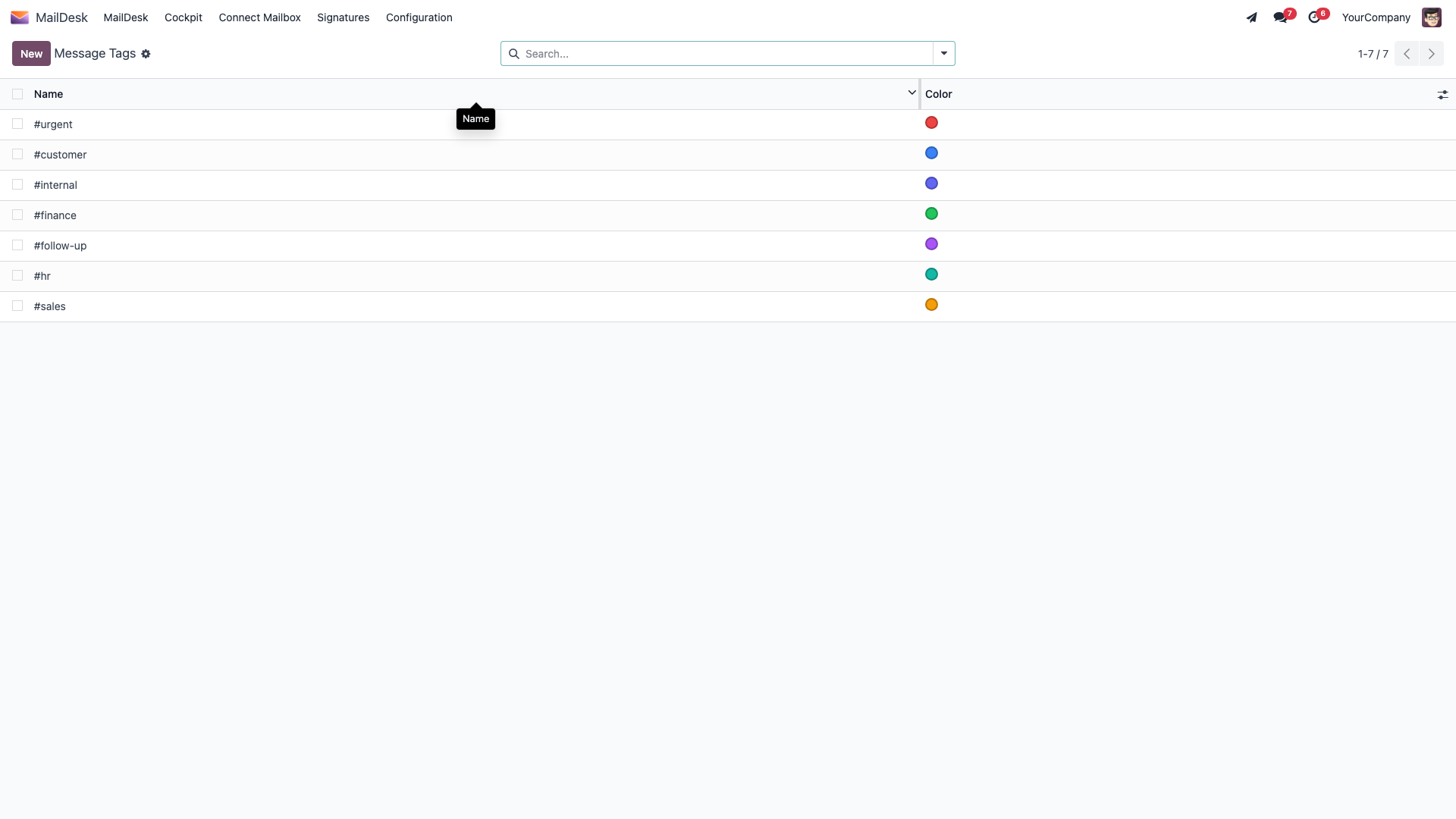
Later in the day she clicks the Waiting tag in the sidebar and every email she's still waiting on resurfaces in one list - her follow-ups, ready to clear.
6. Handle several at once
For routine clean-up, Lena ticks the checkboxes on a few rows. A bulk action bar appears showing how many are selected, with one click to Archive, Delete, mark Read or Unread, Move them to another folder, or Star them - all together. Twelve newsletters, gone in a moment.
7. Compose something new
A message that starts a brand-new topic is a fresh Compose, not a reply.
- Click Compose.
- Enter recipients in To, and use Cc for people who should stay informed and Bcc for hidden recipients.
- Add a subject, write the message, and attach files by dragging them in or using the attachment button.
- Click Send. The email goes out through your configured outgoing server, appears in Sent immediately, and your provider's own copy quietly replaces the local entry on the next sync - so you never see a duplicate sent email.
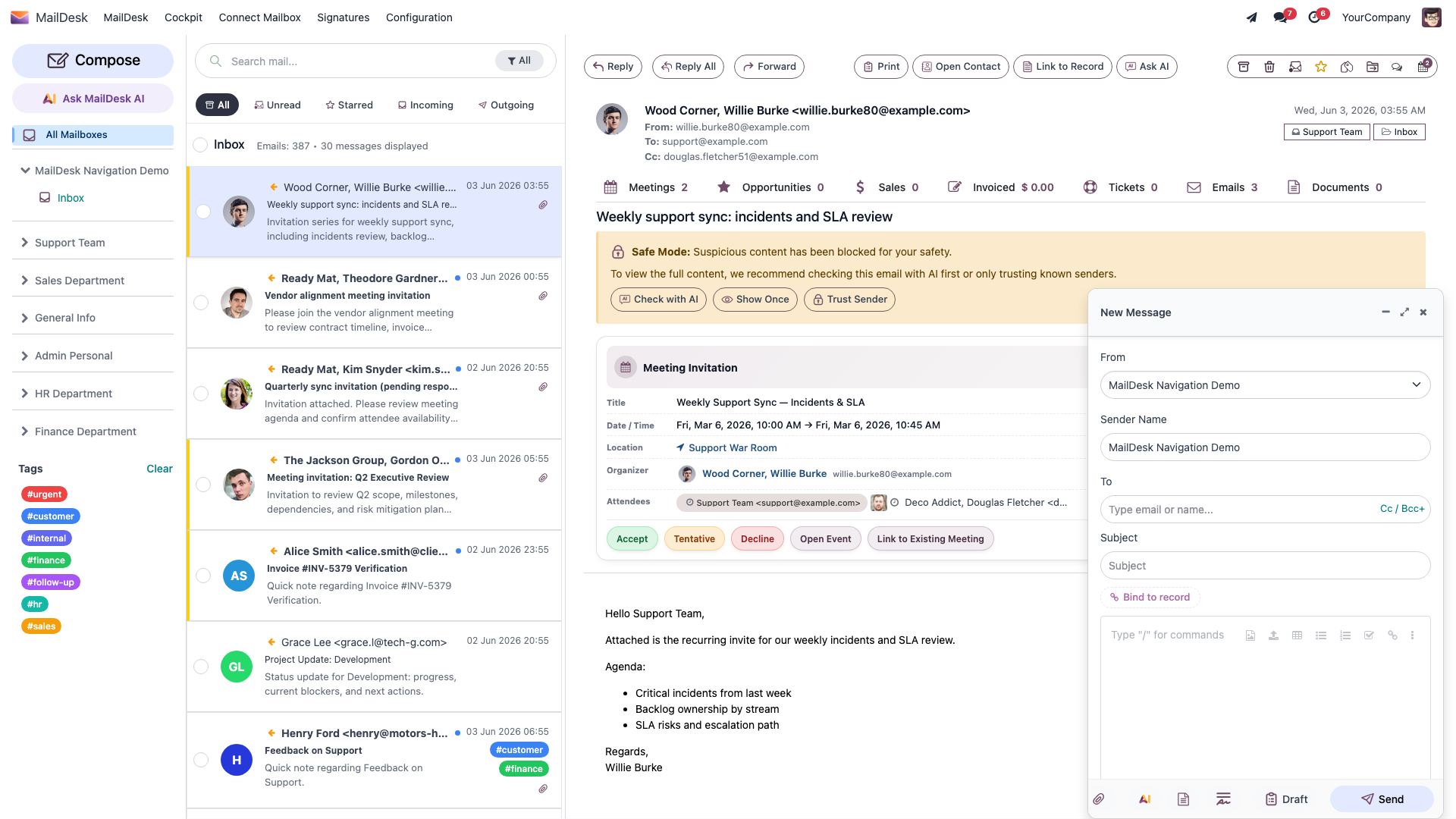
Reply continues a thread; Compose starts a new one
Use Reply / Reply All to keep a conversation together. Reach for Compose only when you genuinely mean to begin a new one.
Drafts protect work in progress
If you close the composer or lose connection partway through, MailDesk can keep your text as a Draft so you can finish it later. If an email ever fails to send, check Drafts and your outgoing server - MailDesk does not silently drop mail.
Let AI take the busywork (Pro)
On a heavy thread, a little help goes a long way. With Pro and an AI provider configured, MailDesk can read the conversation and hand you a head start - always as a draft you review and edit before anything is sent.
- Summarize a long thread into a few clear lines, so you grasp where things stand before you reply.
- Draft a reply in your own tone, ready for you to tweak and send.
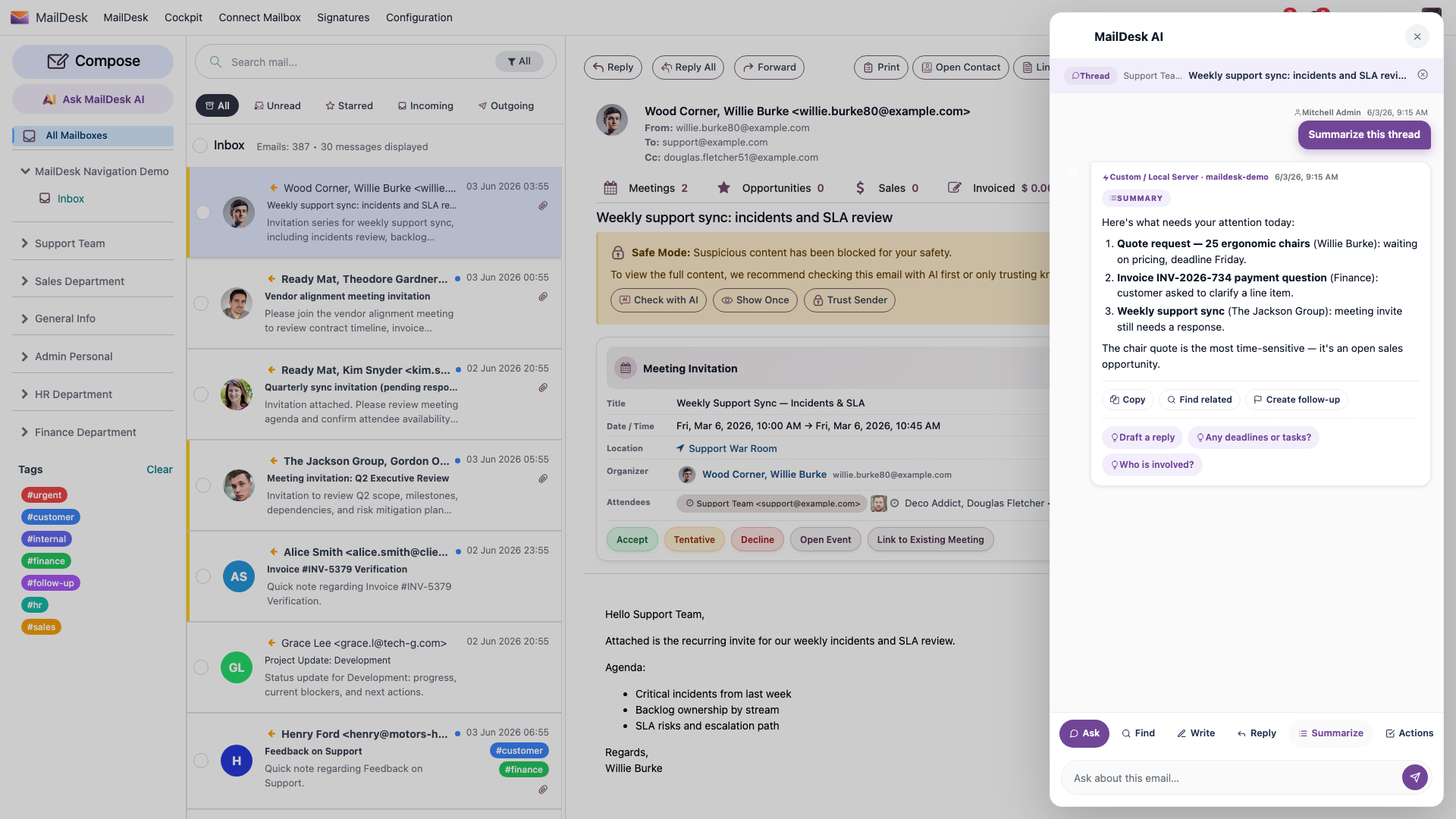
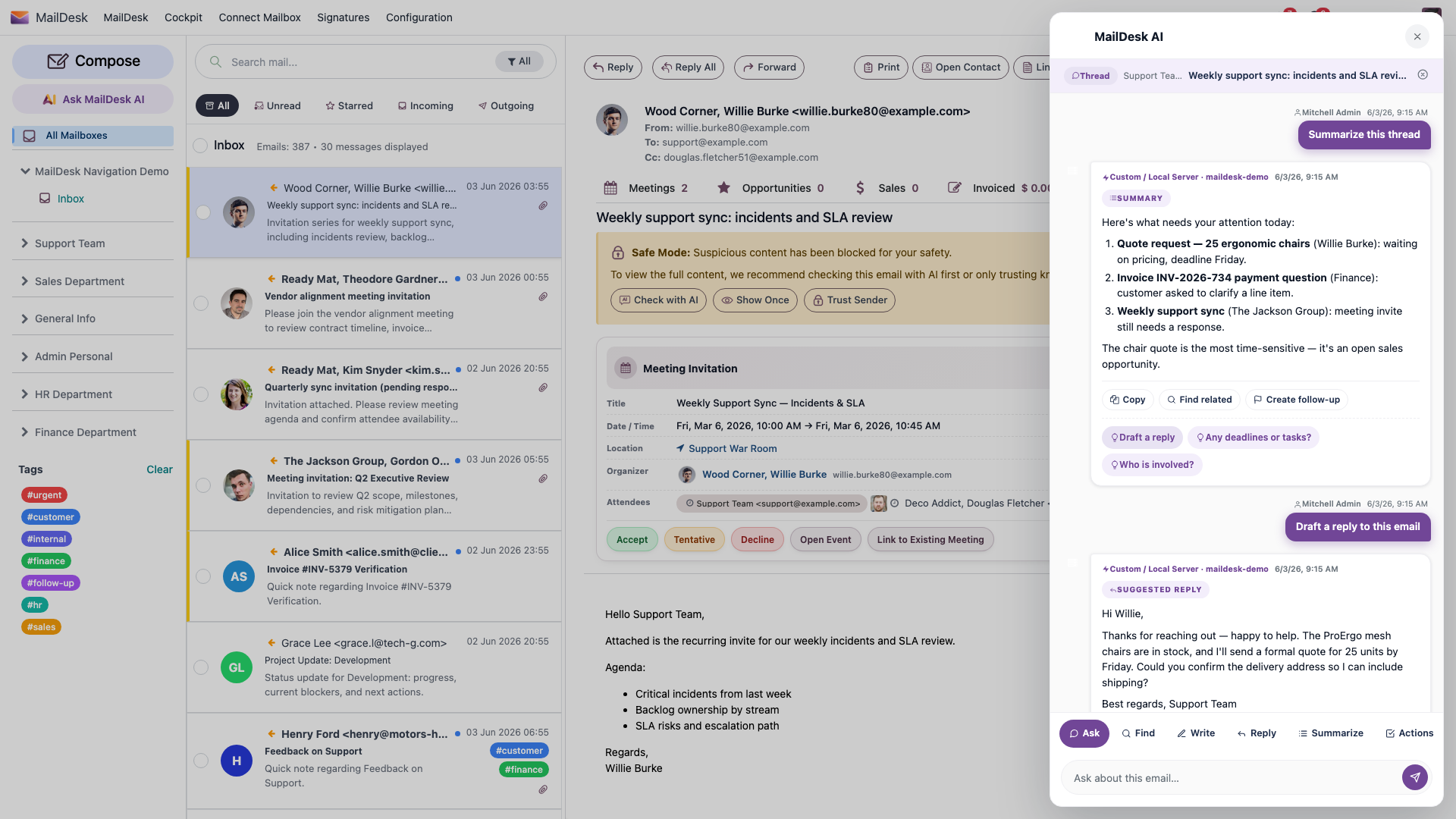
You stay in control: AI only ever prepares a draft, and what it can read is governed by your settings - see What MailDesk AI can and cannot access.
Find anything in seconds
When a customer references "the invoice from last month", you don't need to remember which folder it's in. MailDesk searches across senders, subjects, and message text, and you can narrow the results with filters - so the right email surfaces fast.

See Search, filters, and tags for the full picture.
The same calm loop, anywhere (Pro)
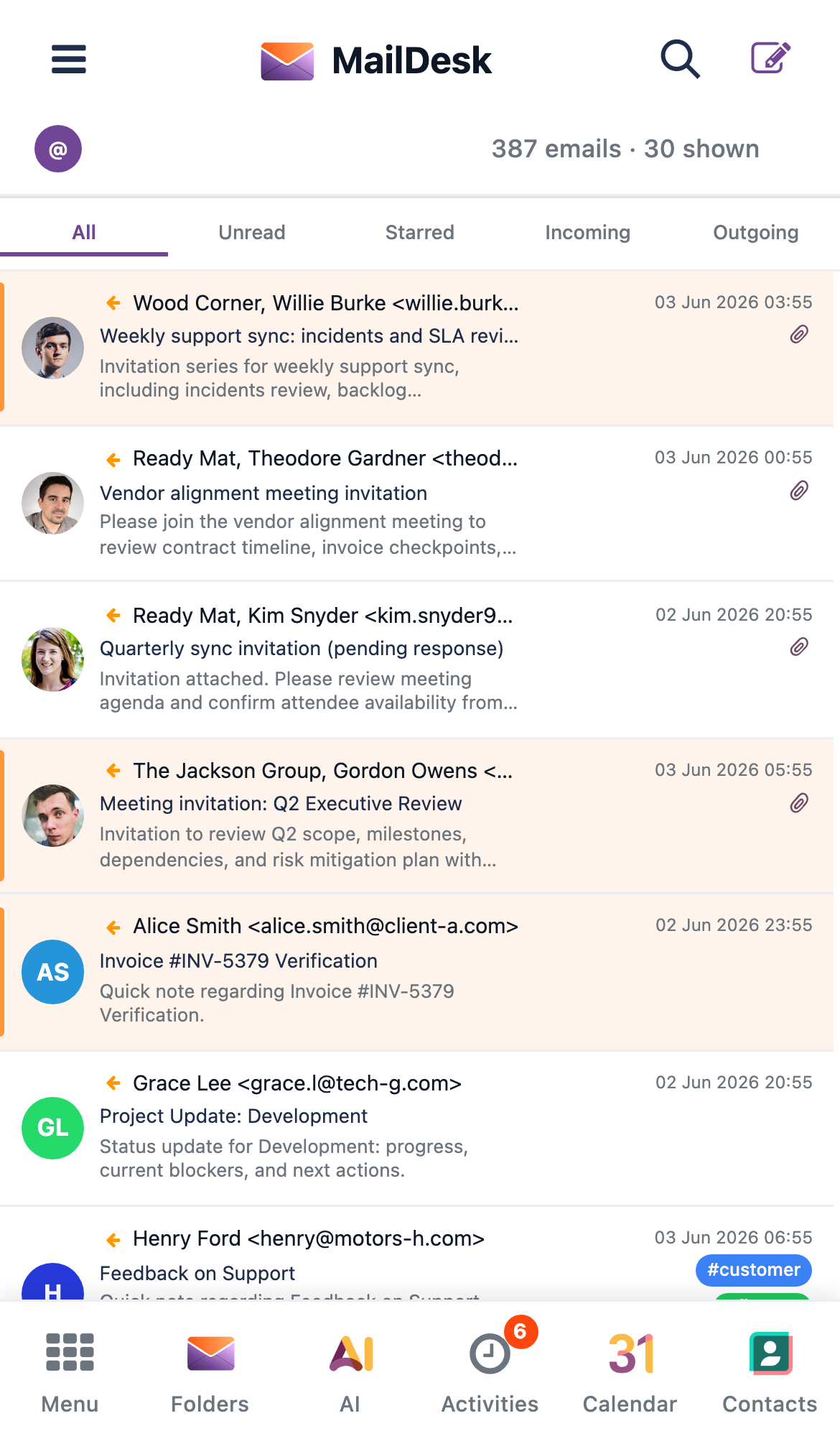
The morning routine works the same on your phone. With Pro, MailDesk adapts to a clean, touch-friendly layout, so triaging a few messages from the train feels just as effortless as at your desk.
A simple, repeatable loop
Inbox  →  read  →  decide
                     ├─ reply / forward  →  Sent
                     ├─ tag (e.g. Waiting / To do)  →  follow up later
                     ├─ link to record  →  visible in chatter
                     └─ done?  →  archive or move
Keep folders minimal and let tags carry your workflow. Review your Waiting and To do tags once a day, and archive conversations once they're finished. Do that, and the Inbox becomes exactly what it should be: a short list of things that still need you.
What you'll end up with
- An Inbox shrunk to a handful of items that genuinely need action.
- Replies filed in Sent, follow-ups tagged and easy to find, handled mail archived or moved.
- Linked emails visible from the related Odoo record, so colleagues always have the full story.
Troubleshooting
| Symptom | Likely cause | What to do |
|---|---|---|
| A sent email isn't where you expect | Providers use different Sent folders | Check which folder your provider files sent mail in; the local entry is replaced by the provider's copy on the next sync |
| New mail seems delayed | MailDesk syncs on an automatic schedule | Short delays are normal; the list refreshes after the next scheduled sync |
| A reply reached the wrong people | Reply All copied the whole thread | Use Reply for one-to-one answers, and check Cc before Reply All |
| Tagged follow-ups are hard to find | The tag list has grown too large | Keep a small, consistent set of tags and remove a tag once its task is done |
| Can't link an email to a lead/ticket/order | The matching integration isn't installed | Ask your administrator to install the relevant integration module |