Automation engine - rules that run when email arrives
Available in: Automation integration (maildesk_mail_client_automation). Requires MailDesk Basic and
MailDesk Pro.
Your busiest mailboxes never sleep - sales enquiries, support requests, shipment notices and vendor invoices arrive all day, and someone has to read each one, tag it, file it, and decide what happens next. MailDesk Automation does that work for you, the moment mail lands. You write simple rules once, and from then on every matching email is tagged, routed, answered, or turned into a lead or a ticket - automatically, and with a full record of everything that happened.
Why it matters
- Triage stops being manual. High-volume mailboxes get tagged, routed, and answered within seconds of arrival, with no one clicking through them by hand.
- No duplicates. Conversation-level de-duplication means one CRM lead or one Helpdesk ticket per thread - not one per email.
- Nothing slips through. Follow-up activities and notifications fire on their own, so a reply is never silently forgotten.
- Everything is auditable. Each action is logged with its outcome and the time it ran, so you always know what happened and why.
What it does
You define rules against a mailbox. Each rule has:
- a trigger - when it runs;
- optional conditions - which emails it applies to; and
- one or more actions - what it does.
When an email matches, the rule's actions run automatically and the result of every attempt is recorded. The engine is built to be predictable: it runs each action at most once for a given email (or conversation), so it never creates duplicate leads, tickets, or replies for the same message.
How it works
Step 1 - Switch automation on for a mailbox
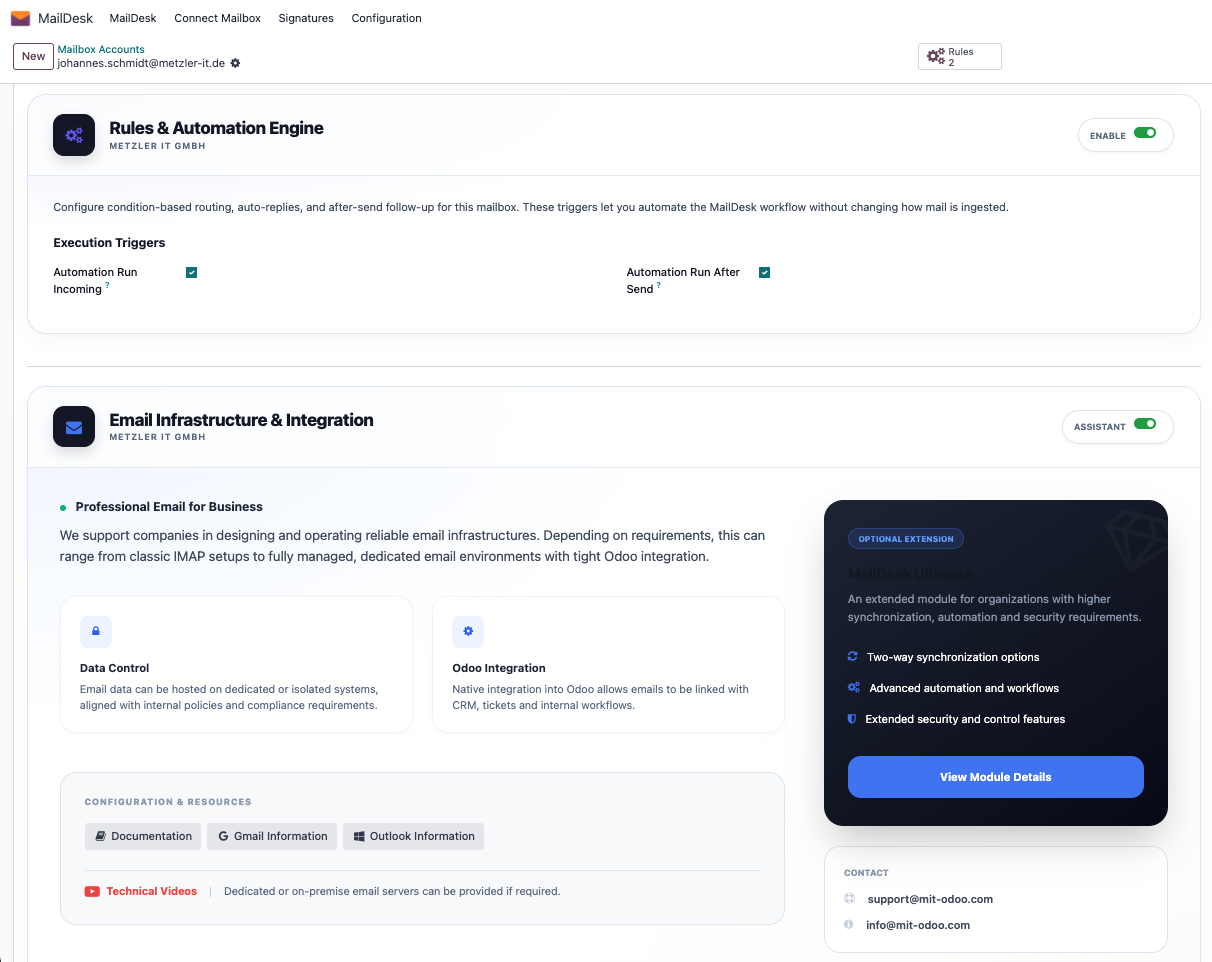
Automation is off by default on every mailbox, so nothing runs until you decide it should. Open Settings → MailDesk → Mailbox Accounts, choose the mailbox you want to automate, find the Rules & Automation Engine card, and turn on the Enable toggle. You can also pick which triggers may fire here - running rules on incoming mail, on mail you send from MailDesk, or both (both are on by default). Then save.
Step 2 - Create a rule
Rules live under MailDesk → Automation. Click New, give the rule a clear name, and you'll see it laid out in plain language: when it should run, which emails should match, and what should happen.
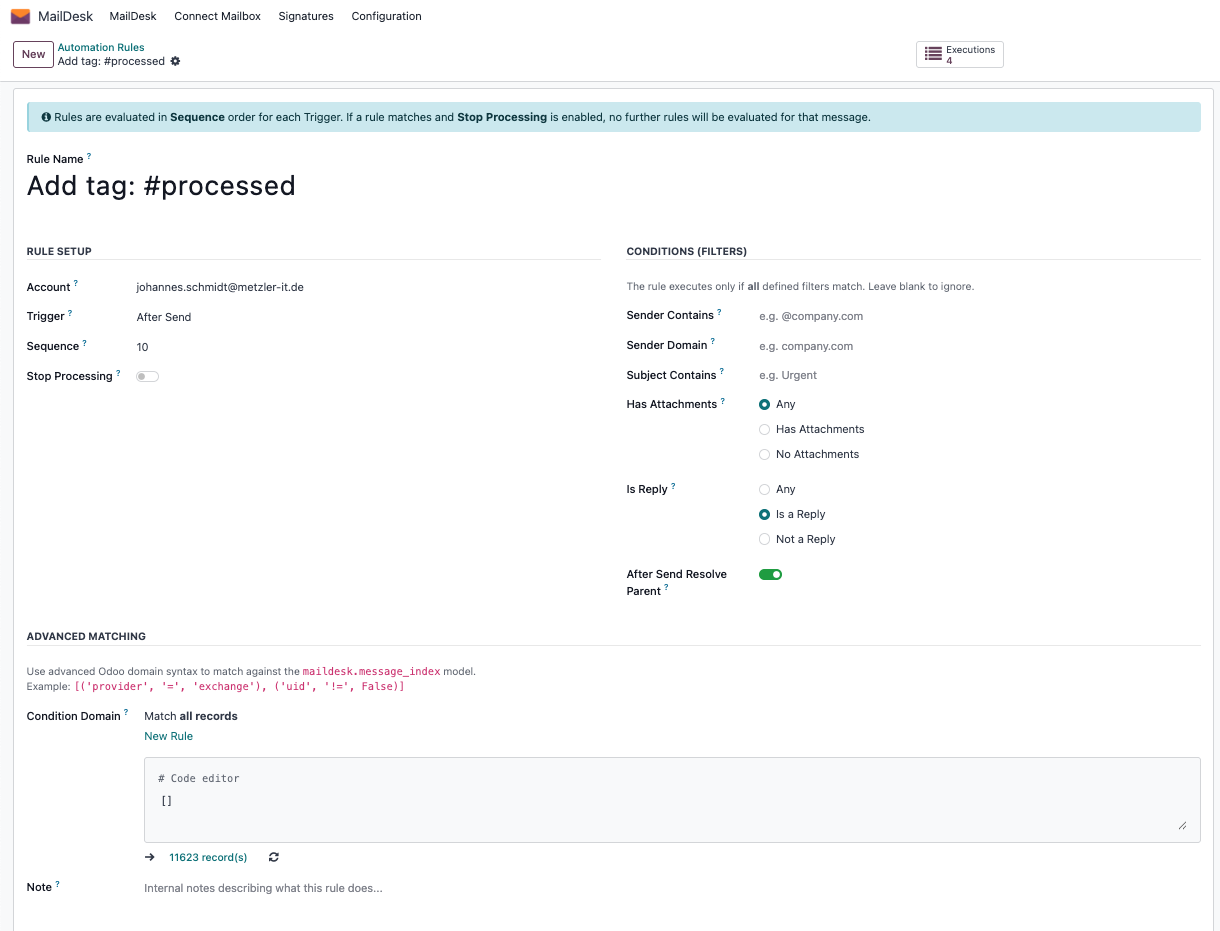
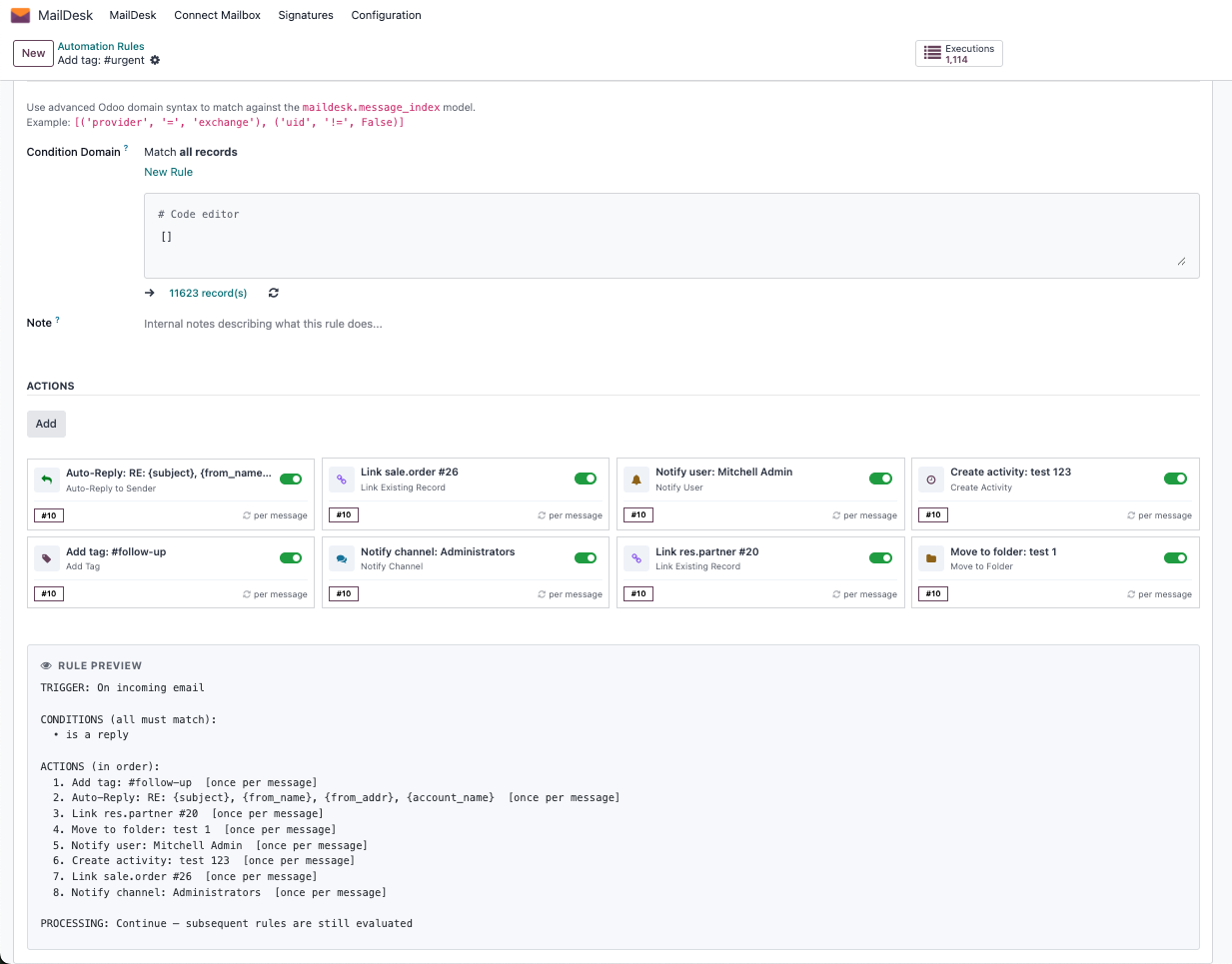
In the matching section you fill in only the filters you actually need - sender contains a name or domain, subject contains a keyword, whether the email has attachments, or whether it's a reply. Leave the rest blank. For the rare case the simple filters can't express, there's an optional advanced matching field. All the filters you set must match before the rule acts.
Step 3 - Choose when the rule runs
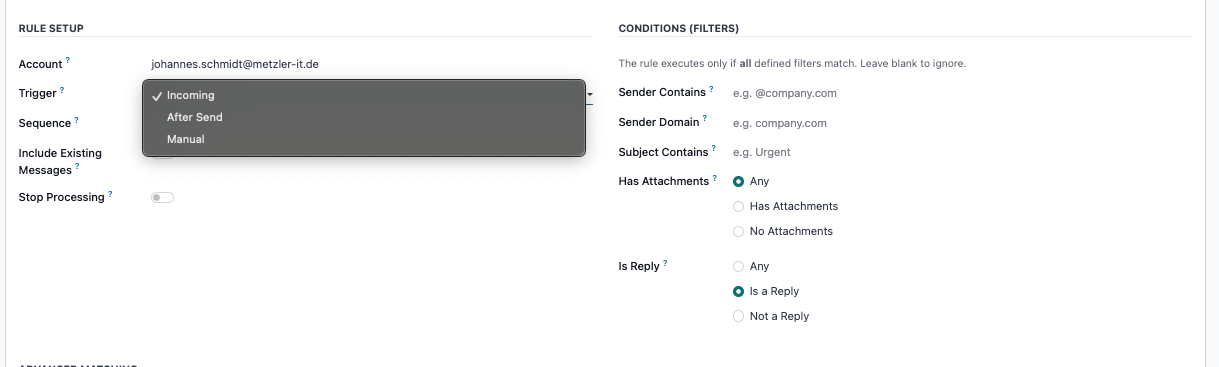
Every rule has one trigger that decides the moment it fires:
- Incoming - right after a new inbound email is taken in by MailDesk.
- After Send - after you send an email from MailDesk.
- Manual - only when an administrator runs it by hand from the email's Automation panel.
New rules only act on new mail by default
An incoming rule matches emails that arrive after you create it. It does not reach back over your existing inbox unless you deliberately turn on the rule's include existing messages option - which can match older, already-loaded emails, so use it with care.
Step 4 - Decide what should happen
Add one or more actions to the rule. MailDesk gives you a friendly menu of things it can do for you:
- Add Tag / Remove Tag - label the email with a MailDesk tag.
- Move to Folder - file the email into another folder in the same mailbox.
- Star Email - flag it for attention.
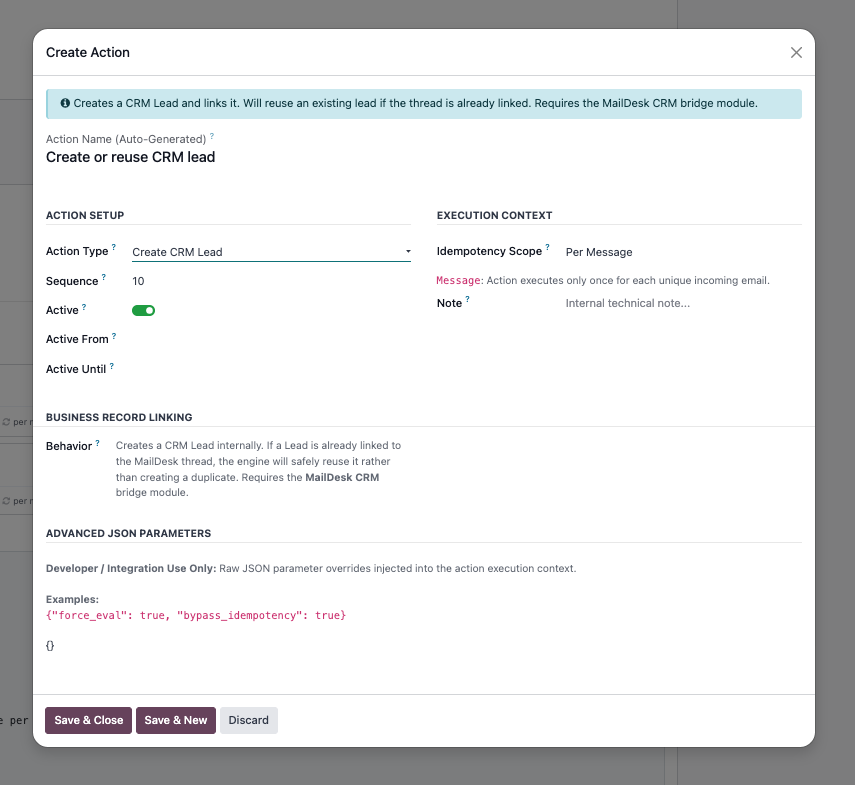
- Create CRM Lead - turn the email into a lead (re-using the conversation's existing lead, if any).
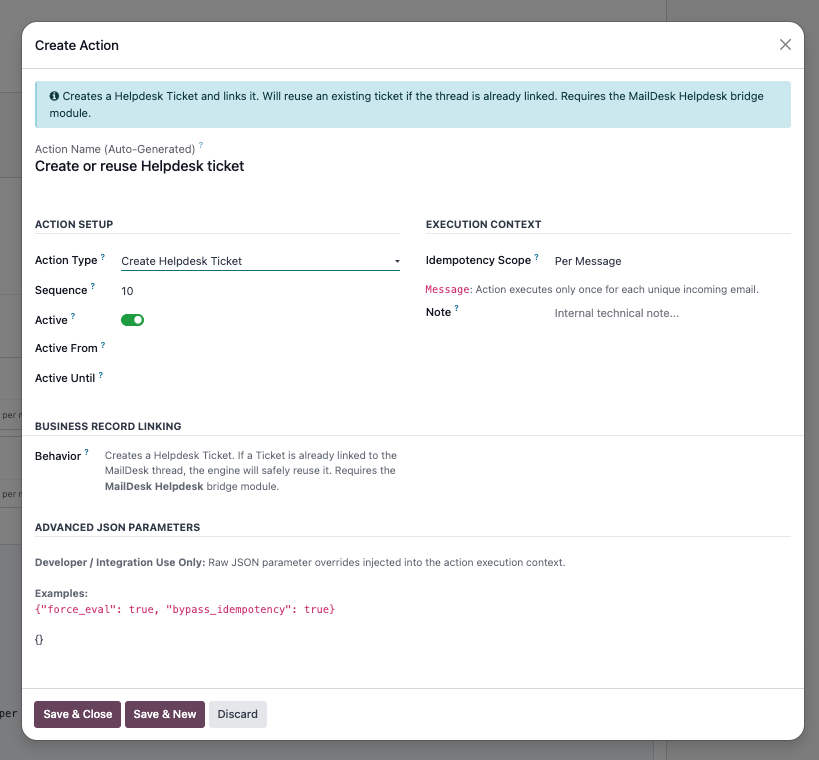
- Create Helpdesk Ticket - turn the email into a support ticket (re-using the existing one, if any).
- Link Existing Record - connect the email to a record you already have in Odoo.
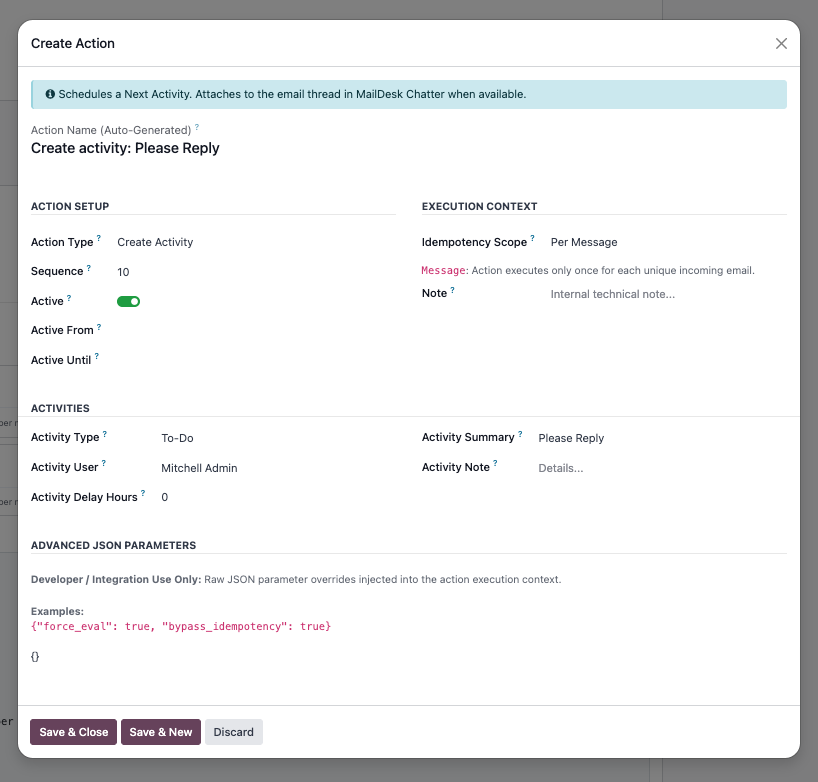
- Create Activity - schedule a follow-up (to-do, call, and so on) for a colleague.
- Notify User / Notify Channel - send a Discuss message to a person or a team channel.
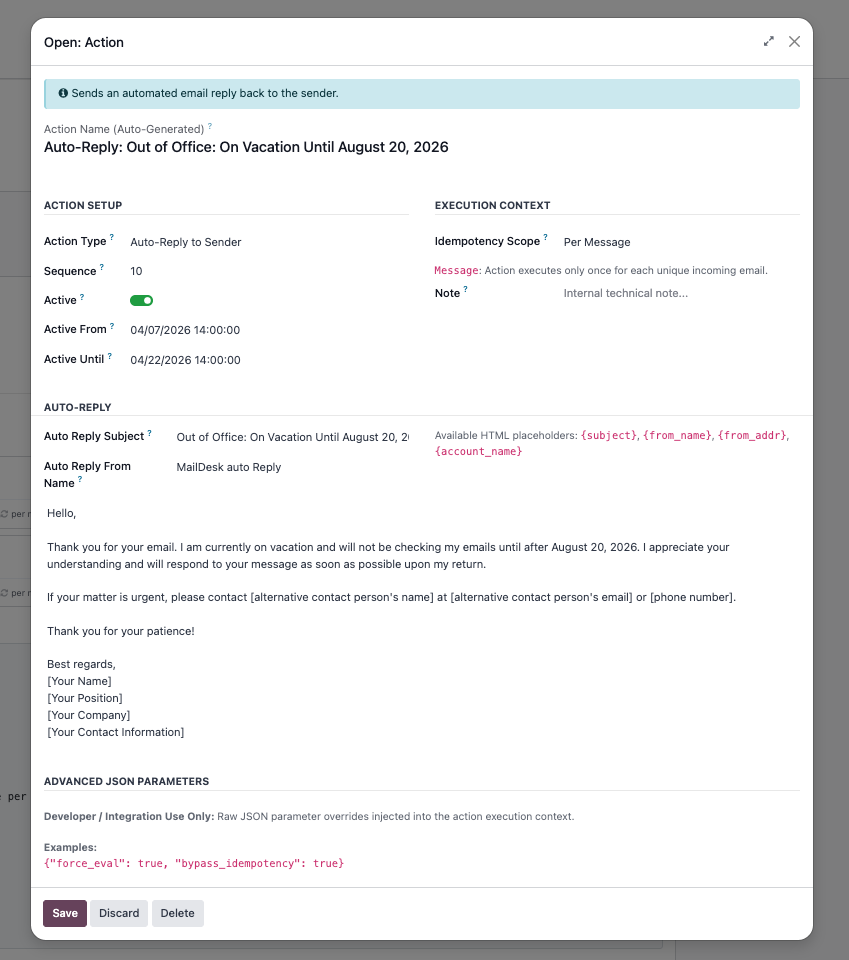
- Auto-Reply to Sender - send an automatic email reply (it lands in your Sent folder).
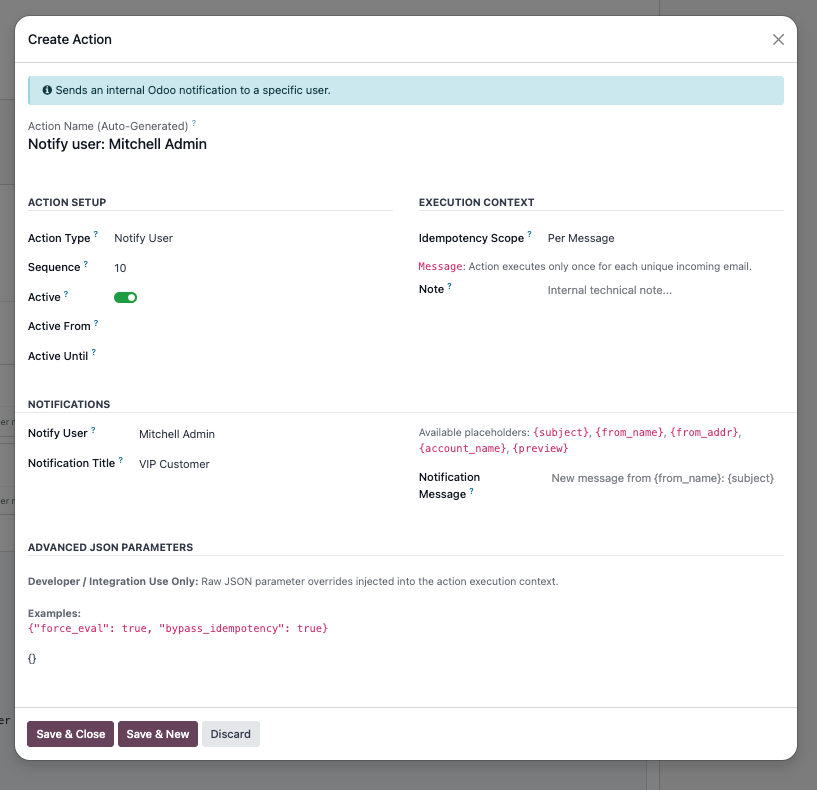
Notification and auto-reply text can include variables such as {subject}, {from_name}, {from_addr},
{account_name}, and {preview}, so each message reads naturally. Auto-reply has a built-in loop guard: it
never replies to your own mailbox address, and it does not set off further after-send rules.
No duplicates, by design
Each action carries a scope. Per message runs once for every matching email (great for tagging or starring). Per conversation runs once for the whole thread - this is what keeps you from getting a second lead, ticket, or reply for the same conversation. Per interval runs at most once every few minutes, handy for throttling notifications. You can also limit an action to a date range, for example a temporary vacation auto-reply.
Step 5 - Watch it run, and test safely first
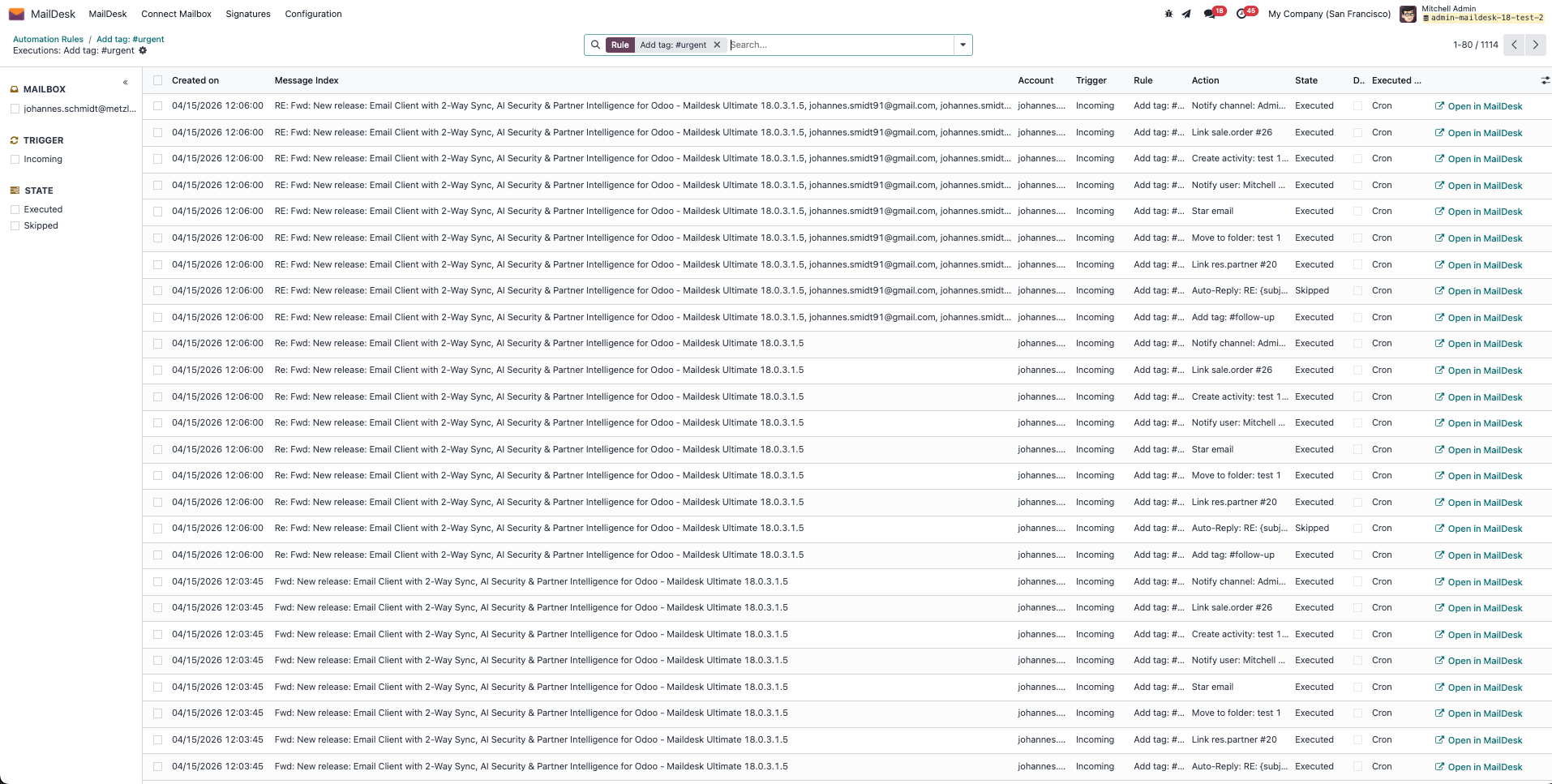
Every rule writes to a full audit log under MailDesk → Automation → Automation Executions. Each row shows the rule, the action, the outcome - executed, skipped, or failed - and the reason for any skip. You always have a clear, honest record of what the engine did.
Self-maintaining log
The execution log is trimmed automatically by a scheduled background job: routine entries are kept for about 90 days and failures for about 180 days. No clean-up is required from you.
The fast way - start from a template
You don't have to build every rule from scratch. Click New from Template (or the Create Rule from Template button on the mailbox card), pick a ready-made template and the target mailbox, and the wizard builds the rule and its actions in one step.
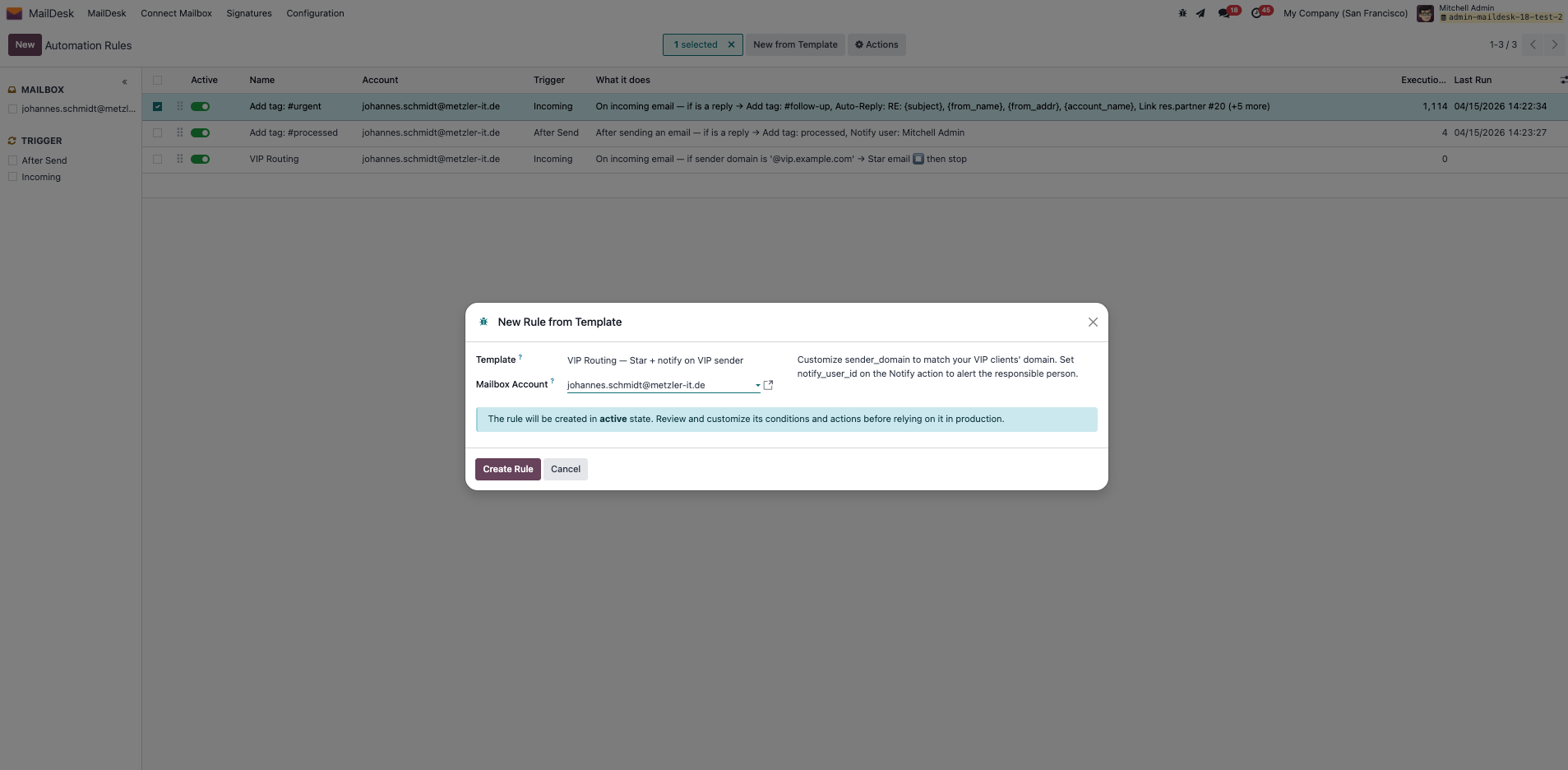
Built-in templates cover the everyday jobs: starring VIP senders, moving newsletters out of the way, tagging urgent mail, creating CRM leads, opening Helpdesk tickets, acknowledgement and out-of-office auto-replies, posting new emails to a Discuss channel, and routing invoice attachments to a finance folder. Templates use example values - such as a placeholder sender domain - so review and adjust each one before you rely on it.
Run and re-run from inside an email
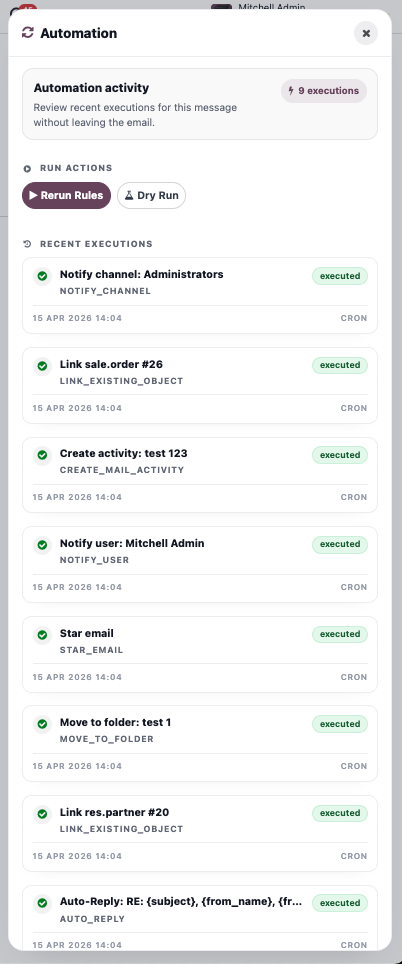
Open any email in the MailDesk detail view and you'll find an Automation panel showing the recent executions for that exact message. Administrators also get Rerun Rules and Dry Run buttons right there. Dry Run evaluates the manual rules and writes a simulated log entry without performing any real action - the safe way to tune a rule before going live.
See it in action
A few real examples of what a single rule can do for your team.
Turn enquiries into CRM leads. Sales mail arrives and the right person already has a lead waiting - one per conversation, never a pile of duplicates.
Open support tickets automatically. Support requests become Helpdesk tickets the moment they land, so your queue is always current.
Acknowledge senders instantly. A friendly auto-reply confirms you've received the message - personalised with the sender's name and subject, and safe from reply loops.
Loop the right colleague in. Schedule a follow-up activity or post a note to a Discuss channel so the right person picks it up - nothing waits in silence.
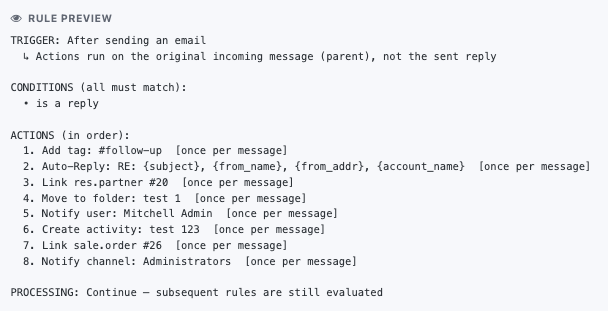
Know exactly what a rule will do. Preview a rule in plain language before it goes anywhere near live mail, so there are no surprises.
Requirements
- MailDesk Basic and MailDesk Pro installed, with at least one mailbox connected.
- The Automation module (
maildesk_mail_client_automation) installed. - For the two business-record actions, the matching bridge module: the CRM integration for Create CRM Lead, and the Helpdesk integration for Create Helpdesk Ticket. A rule that uses an action whose bridge is not installed is simply skipped and recorded - never failed.
- Works the same on Odoo 17, 18, 19, or 20 - your choice.
Permissions required
Two access groups ship with the module (assign them in Settings → Users & Companies → Users, under the MailDesk Automation category):
- MailDesk Automation User - read rules and read the execution log.
- MailDesk Automation Admin - everything above, plus create, edit, and delete rules, use templates, re-run rules manually from the email panel, and run dry-run simulations.
In a multi-company database, regular users only see rules and execution logs for mailboxes belonging to a company they are in. System administrators see everything.
Get MailDesk Automation
Stop hand-sorting your inbox. With a handful of rules, MailDesk triages, routes, answers, and tracks your mail for you - and keeps a clean audit trail of every step. The best way to see whether it fits your team is to try it on one busy mailbox and watch what it takes off your plate.
See plans and pricing - and start free - at mit-odoo.de/preise. Not sure which tier you need, or want a quick walkthrough on your own mailboxes? Just talk to us - we're happy to help you map your first few rules before you commit.
Related
- CRM integration - link emails to leads and opportunities
- Helpdesk integration - turn emails into support tickets
- Chatter integration - internal team discussion per email
- Partner 360 - customer context beside every email
- Manager cockpit - KPIs, SLA, and AI briefings for managers
- What AI can and cannot access
- Licensing & tiers
- Security & access rights