Folder mapping & sync settings
Your team should never have to wonder "is this the real, up-to-date inbox?" - and you should never have to babysit a sync to make it behave. This page shows you exactly how MailDesk maps your provider's folders into Odoo and keeps every connected mailbox current, plus the handful of settings an administrator can adjust to fit your storage, history, and load preferences. By the end you'll know which folders sync, how often, and what every toggle on the MailDesk Settings page actually does.
Available in: Basic. The synchronization engine and every setting on this page are part of the core MailDesk engine, so they behave the same on Basic and Pro. Pro adds two-way actions - changes you make in MailDesk (read/unread, moves, deletes) are pushed back to the provider - and near-instant delivery for Gmail and Outlook. See Realtime & synchronization architecture for that. The tuning settings below apply to both editions.
What you get
MailDesk doesn't hold a live connection open to every mailbox all day. Instead it runs a small set of scheduled background jobs that quietly check each provider on a short, regular cadence, fetch only what has changed since the last check, and update the inbox your team sees. The same machinery loads older email gradually after a mailbox is first connected, and keeps a short-lived cache of message bodies so opening an email feels instant.
In everyday use this means three things:
- New mail surfaces on its own within a few minutes - nobody has to click "refresh."
- Your folders look familiar. Inbox, Sent, Drafts, Spam, Trash and Archive are recognised automatically, even when your provider names them in German, French, Italian, Spanish, Portuguese or Russian.
- It stays out of the way. Work happens in small, timed batches, so a busy mailbox or a deep history never slows down the rest of Odoo.
Why it matters
- Predictable load. Syncing runs in bounded batches on a timer rather than one big burst, so the rest of Odoo stays responsive.
- Fast first use. When a mailbox is connected, the newest messages appear within seconds; the rest of the history fills in quietly behind the scenes.
- Tunable for your environment. Batch sizes, history depth and cache retention are all adjustable from a single settings page - so you can trade database size against how much history you keep locally and how often the provider is contacted.
Before you start
- At least one connected mailbox account - Gmail, Outlook / Microsoft 365, or IMAP. See Gmail setup, Outlook / Microsoft 365 setup, or IMAP / SMTP setup.
- Odoo's scheduled actions running on the server (they are, in any standard Odoo deployment).
- MailDesk runs on Odoo 17, 18, 19 or 20 - the settings below are identical on each.
Who can change these settings
- The MailDesk Settings page is available to MailDesk administrators (the Mailbox Admin access group). A regular MailDesk user (the Mailbox User group) doesn't see it.
- The OAuth credential fields on the same page are additionally restricted to Odoo Settings administrators.
How your folders are mapped
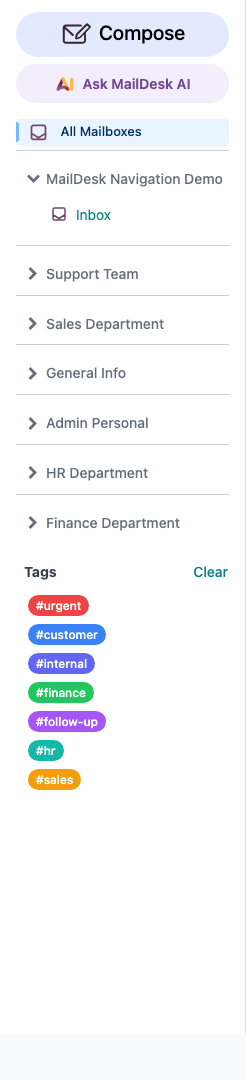
When MailDesk connects to a mailbox, it reads the folder list from the provider and recreates it inside Odoo so the sidebar mirrors what your users already know. It does more than copy names, though - it works out the purpose of each folder so the right icon and behaviour follow it everywhere.
Standard folders are recognised automatically. MailDesk maps each folder it finds to one of these logical types:
| Folder type | What lands here |
|---|---|
| Inbox | Your main incoming mail |
| Sent | Messages you've sent |
| Drafts | Unfinished messages |
| Archive | Filed / "All Mail" |
| Starred | Flagged or important mail |
| Spam | Junk / unwanted mail |
| Trash | Deleted mail |
| Other | Any folder that isn't one of the above (kept and shown, just not specially typed) |
It speaks your language. Recognition isn't tied to English. A "Gesendet", "Envoyés", "Inviati", "Enviados", "Отправленные" or "[Gmail]/Sent Mail" folder is all understood as your Sent folder; "Papierkorb", "Corbeille", "Cestino", "Papelera" and "Trash" all map to Trash; and so on for Drafts, Spam, Archive and Inbox. Nested project folders like Work/Sent are recognised too, so they sort and behave sensibly rather than getting dumped into "Other."
Non-mail folders are filtered out. Calendars, Contacts, Tasks, Notes, RSS feeds, sync-conflict folders and the Outbox are not email and would only clutter the sidebar, so MailDesk leaves them out. Hidden system folders are skipped as well, keeping the folder list clean and useful.
Don't see a folder you expected?
Every folder MailDesk can show has a visibility switch on the account. If a folder is missing from the sidebar, open the account, find it in the Folders tab and confirm it's set to be shown. If it's genuinely a mail folder but landed under "Other", that's harmless - its messages still sync and search normally.
How the background sync works
MailDesk keeps mailboxes current in three stages, all driven by scheduled jobs:
- Bootstrap - when a mailbox or folder is first connected, MailDesk fetches the newest messages straight away so the folder is usable within seconds.
- Incremental sync - on a short timer thereafter, MailDesk fetches only what has changed since the last check (new mail, read/unread changes, moves), using each provider's efficient delta mechanism.
- Progressive backfill - separately and at a lower priority, MailDesk works backwards through older history in small batches until the depth you've chosen is reached.
Once a message has been indexed, every open MailDesk tab refreshes promptly over Odoo's internal message bus, so users don't need to reload to see new mail. This in-app refresh fires after a scheduled sync has fetched the message - it isn't a separate live feed from the provider.
The scheduled jobs
These jobs run automatically; you don't normally need to touch them. They're listed here so you can recognise them under Settings → Technical → Scheduled Actions when checking sync health.
| Scheduled job | Runs every | What it does |
|---|---|---|
| MailDesk Gmail Incremental Sync | 2 minutes | Fetches new and changed Gmail messages |
| MailDesk IMAP INBOX Sync | 3 minutes | Fetches new and changed IMAP messages |
| MailDesk Outlook Delta Sync | 3 minutes | Fetches new and changed Outlook / Microsoft 365 messages |
| MailDesk Outlook Sparse Metadata Repair | 15 minutes | Fills in any thin Outlook message details |
| MailDesk: Alias Scan (Index → Queue) | 3 minutes | Promotes indexed messages into the import queue |
| MailDesk: Process Queue (Odoo Import) | 3 minutes | Brings queued messages fully into Odoo |
| MailDesk: Bootstrap Pending Folders | 4 minutes | Performs the first fill of newly added folders |
| MailDesk: Progressive Backfill | 4 minutes | Loads older history in small batches |
| MailDesk: Clean Expired Cache | daily | Removes cached message bodies past their retention period |
When new mail arrives
With the scheduled sync engine, new mail appears within its provider's poll interval - roughly two to three minutes. That's normal, expected behaviour, not a fault: the open list updates itself as each background sync completes. MailDesk Pro shortens Gmail and Outlook delivery to seconds with provider push; see Realtime & synchronization architecture.
Where the settings live
All of the tuning settings sit on one page. To reach them:
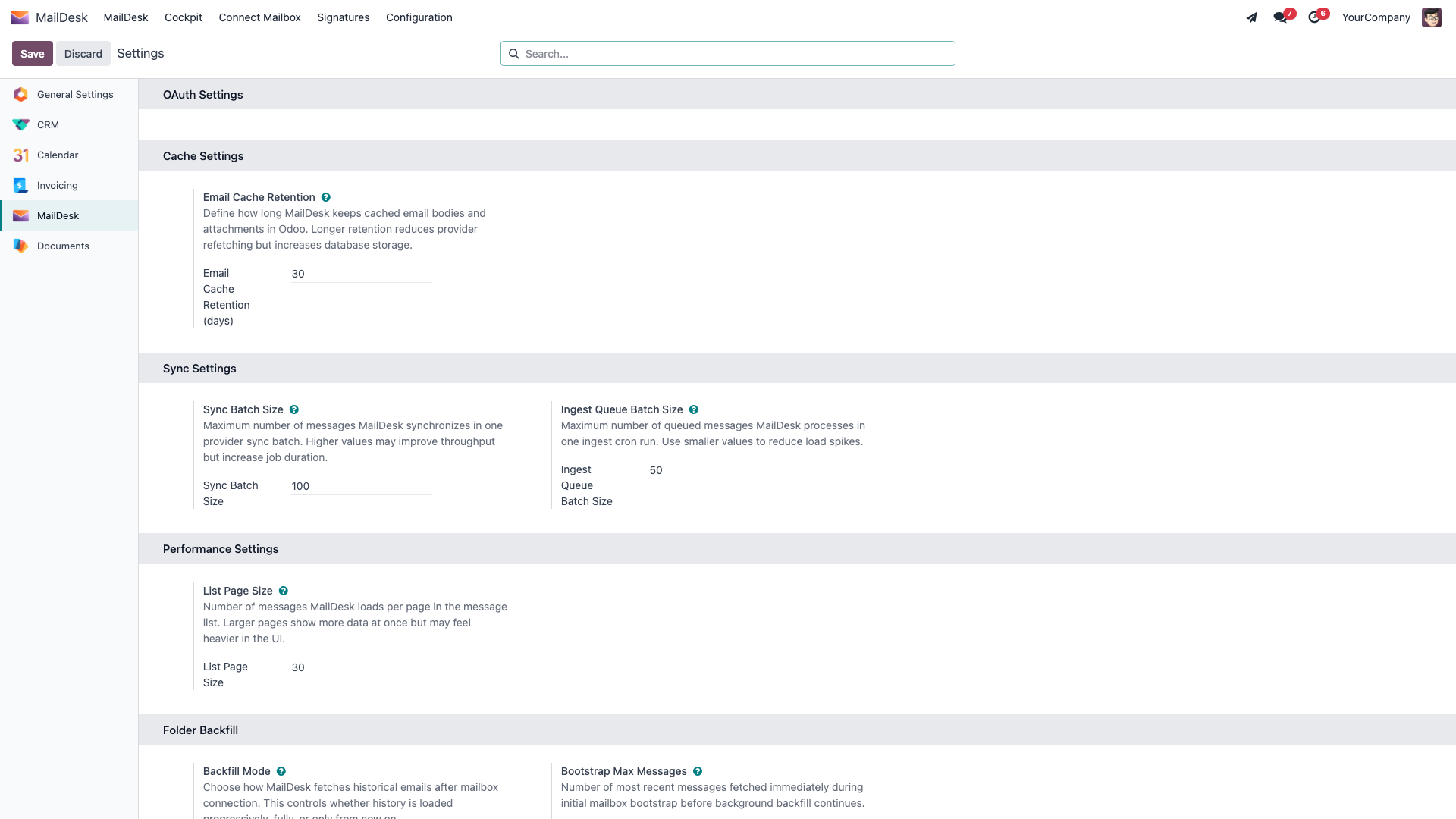
- Open MailDesk → Configuration → MailDesk Settings → Settings.
(This is the same place as Settings → MailDesk - both open the MailDesk section of Odoo's settings.)
- You'll see grouped blocks: OAuth Settings, Cache Settings, Sync Settings, Performance Settings, and Folder Backfill.
- Change the values you need, then click Save at the top of the settings page.
Cache Settings
| Setting | Default | What it controls |
|---|---|---|
| Email Cache Retention (days) | 30 | How long MailDesk keeps cached email bodies and attachments locally. Longer retention means messages reopen instantly for longer, at the cost of more database storage; shorter retention saves space but re-fetches from the provider more often. |
Sync Settings
| Setting | Default | What it controls |
|---|---|---|
| Sync Batch Size | 100 | The most messages MailDesk fetches from the provider in a single sync batch. Higher values can improve throughput on fast connections; lower values keep each job shorter. |
| Ingest Queue Batch Size | 50 | The most queued messages MailDesk fully imports into Odoo per job run. Lower this to smooth out load spikes on a busy server. |
Performance Settings
| Setting | Default | What it controls |
|---|---|---|
| Messages Per Page | 30 | How many messages MailDesk loads per page in the message list. Larger pages show more at once but feel heavier in the interface. |
Folder Backfill
These settings govern how much email history MailDesk loads after a mailbox is connected, and how hard it works while doing so.
| Setting | Default | What it controls |
|---|---|---|
| Backfill Mode | Progressive | How history is loaded - see the choices below. |
| Bootstrap: Max Messages | 1500 | How many of the newest messages MailDesk fetches immediately when a folder is first connected, before the slower background backfill takes over. |
| Backfill: Batch Size | 100 | How many older messages each background backfill run fetches. |
| Backfill: Job Budget (seconds) | 25 | The most time one backfill run is allowed before it stops and resumes on the next scheduled run, so backfill never monopolises a worker. |
| Backfill: Max Total Per Folder | 20000 | An upper limit on how many messages are stored per folder, to keep database growth predictable. Set to 0 for no limit. |
Backfill Mode offers three choices:
| Mode | Label in the form | Behaviour |
|---|---|---|
| Progressive | Progressive (Bootstrap + Background) | Fetches the newest messages immediately, then loads the rest of the history quietly in the background. Recommended for most deployments. |
| Full | Full Historical (Unbounded) | Loads the entire history. Use when you must have every message available locally and can accept the larger database. |
| From now on | From Now On (No Backfill) | Loads no history at all - only mail that arrives after connection. Use to keep the database small when older mail isn't needed in MailDesk. |
The two settings worth a second look
The defaults suit most installations. If you only review two things, make them Backfill Mode (how much history you want in Odoo) and Email Cache Retention (how much storage you want to spend on instant reopening). Changes apply on the next scheduled run - you don't need to restart anything.
Walkthrough - choose how much history a mailbox keeps
- Open MailDesk → Configuration → MailDesk Settings → Settings.
- In the Folder Backfill block, choose a Backfill Mode (Progressive, Full, or From Now On).
- If you want to cap storage, set Backfill: Max Total Per Folder to a number, or
0for no limit. - Click Save.
What happens next: new mailboxes connected from now on follow the mode you chose. Mailboxes that are already connected keep what they've loaded; the new depth and limits apply to their subsequent background runs.
Walkthrough - load older mail for one folder now
If a specific folder is missing older messages, you can ask MailDesk to fetch its history without changing any global settings:
- Open MailDesk → Configuration → Mailboxes → Mailbox Accounts and open the account.
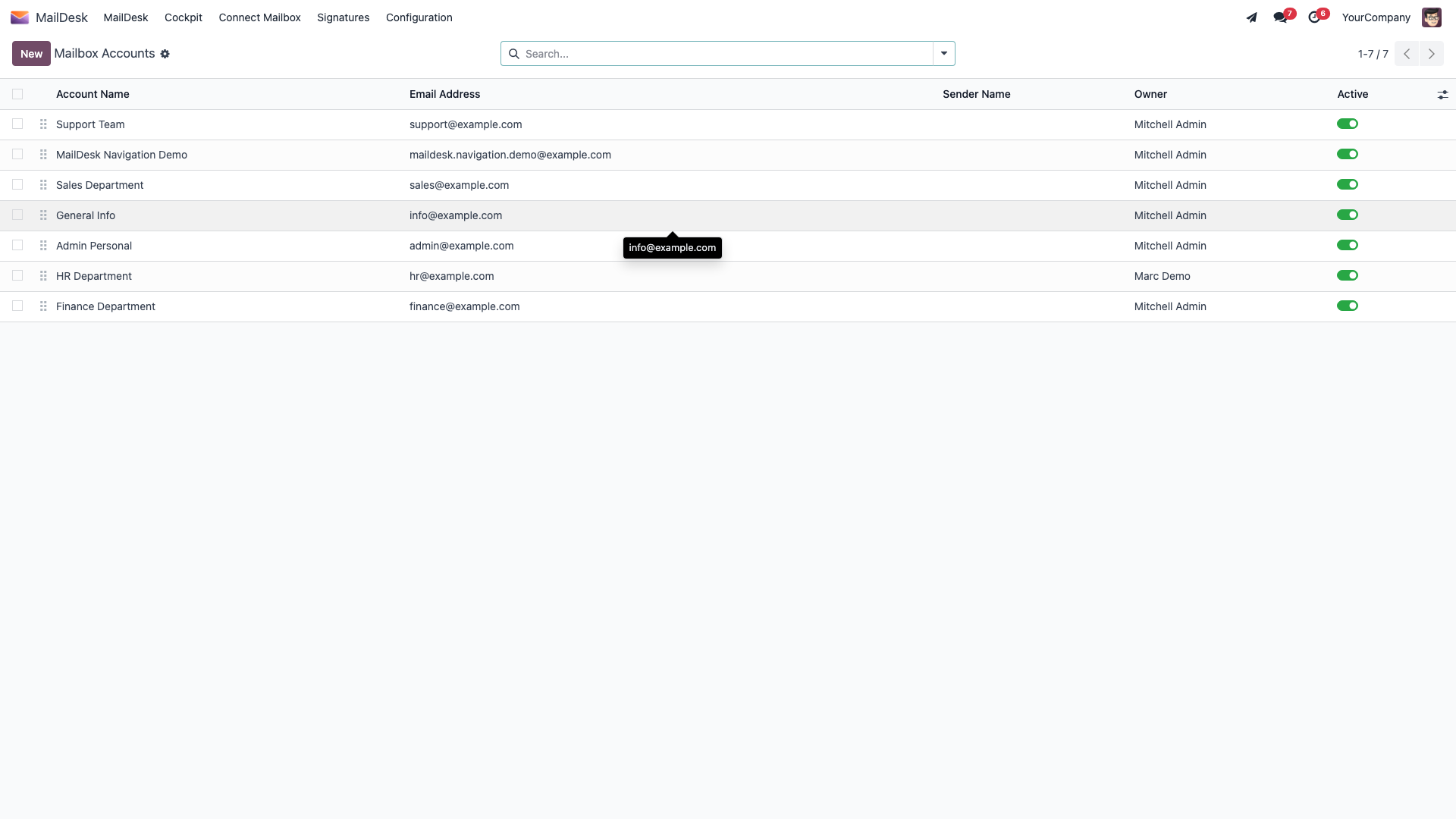
- Go to the Folders tab.
- Find the folder and check its Backfill Status and Progress.
- Click Trigger Backfill on that folder.
What happens next: MailDesk starts fetching that folder's older history in the background, using the batch sizes from the Folder Backfill block. The Progress indicator advances as history loads, and you'll see a confirmation that backfill has started.
If a folder ever gets stuck
On rare occasions a quirky mail server returns folder data MailDesk can't make progress on. After a few silent retries that folder is marked Bootstrap Failed and set aside so it doesn't loop forever. Once the underlying cause is fixed, an admin can re-queue it with the folder's Reset bootstrap button.
Troubleshooting
| Symptom | Likely cause | What to do |
|---|---|---|
| New mail takes a couple of minutes to appear | Normal scheduled-sync timing | This is expected. The open list refreshes on its own as each background sync completes - mail arrives within the poll interval without any action. To force an immediate fetch, run the relevant sync under Settings → Technical → Scheduled Actions, or trigger a folder backfill from the mailbox account. |
| Older messages are still missing after connection | Backfill is still running, or From Now On mode is selected | Leave the mailbox connected and give backfill time to finish. If you need history, set Backfill Mode to Progressive or Full, then use Trigger Backfill on the folder. |
| A folder shows no messages | The folder may be hidden from the sidebar, or has no mail at the provider | Open the account, confirm the folder is set to be shown in the Folders tab, and verify in webmail that messages exist there. |
| Backfill seems very slow on a large mailbox | Backfill is deliberately low-priority and time-budgeted | Raise Backfill: Batch Size and/or Backfill: Job Budget (seconds) in the Folder Backfill block. New mail always takes priority over backfill. |
| Database is growing faster than expected | Long cache retention, Full backfill, or a high per-folder limit | Lower Email Cache Retention (days), switch Backfill Mode to Progressive, or set Backfill: Max Total Per Folder to a smaller number. |
| Messages reopen slowly after a while | Their cached bodies expired and were re-fetched | This is expected once past the retention period; increase Email Cache Retention (days) if instant reopening of older mail matters to you. |
| A mailbox stops receiving new mail entirely | The provider authorization expired or the connection failed | Open the account and re-authorize (Gmail / Outlook) or re-test the connection (IMAP). See Troubleshooting. |
Most timing issues clear on their own
The majority of "missing email" reports are simply mail that is still syncing. Waiting one or two background cycles resolves them without changing any settings - the open list updates itself as each sync completes.
Related
- Realtime & synchronization architecture - the full technical picture, including push for Gmail and Outlook
- Mailbox setup
- Gmail setup · Outlook / Microsoft 365 setup · IMAP / SMTP setup
- Troubleshooting
- Security & access rights