Troubleshooting
Something not behaving the way you expect? You are in the right place. Almost every MailDesk hiccup comes down to one of three things - sync timing, account configuration, or how your email provider behaves - and the great majority clear up on their own within a minute or two. This page is organised by what you are seeing, so find the symptom that matches and follow the steps.
Available in: Basic and Pro. Synchronisation, OAuth, and sent-mail behaviour are part of the MailDesk engine (Basic). The AI section applies to Pro only.
First, give it a moment
MailDesk synchronises in the background and is near-real-time, not instant. Most "missing email" reports are simply mail that is still on its way in. Waiting a minute or two - or refreshing the view - resolves the majority of timing issues before you need to change a single setting.
Emails are missing or delayed
What is normal
MailDesk checks each connected mailbox on a schedule using scheduled background jobs, so new mail typically appears within a couple of minutes rather than the instant it arrives. Short delays are expected and depend on your provider and on system load. Once a message is indexed, the open MailDesk screen updates on its own - you do not need to keep reloading.
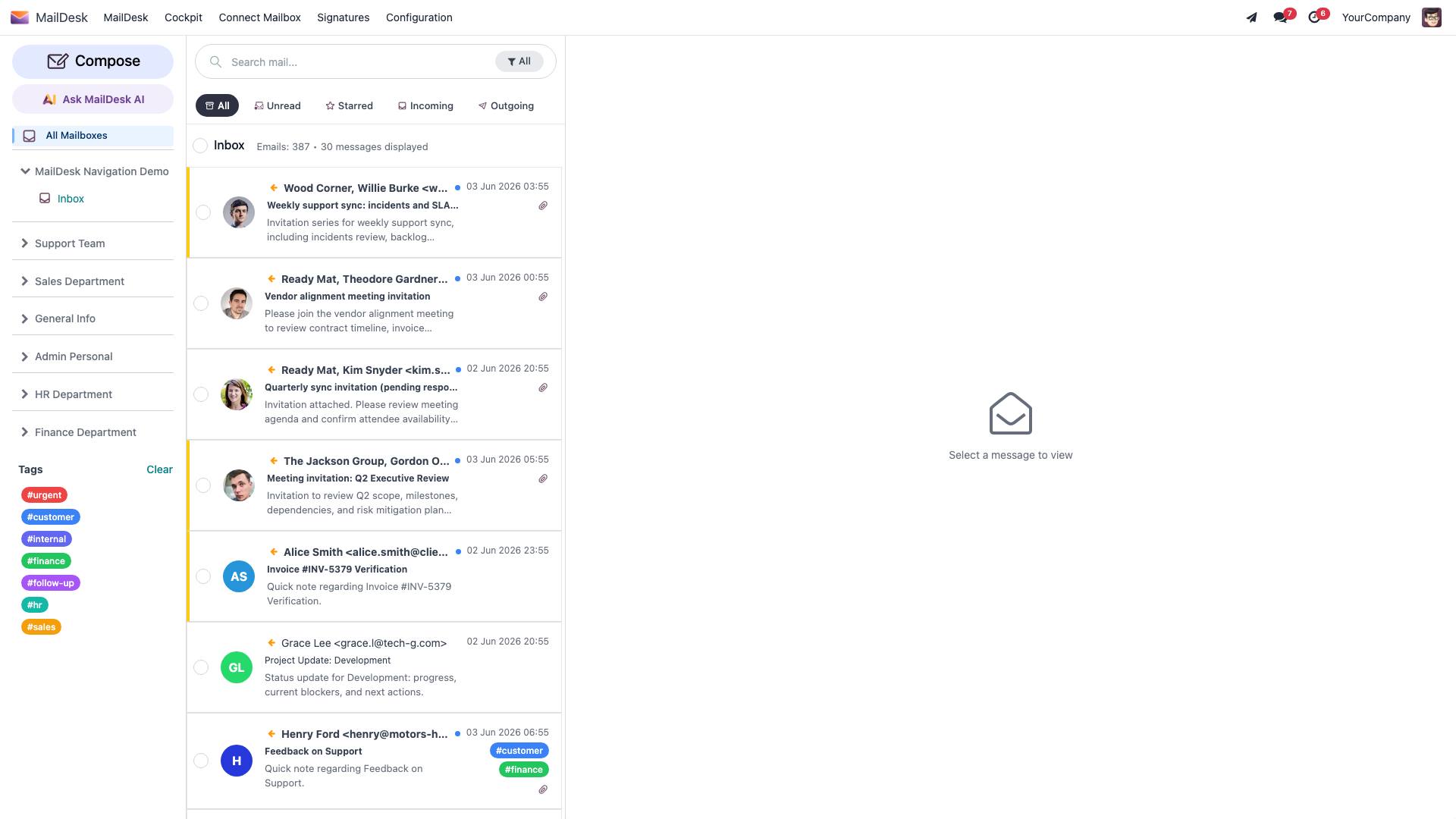
New mail has not appeared yet
Work down this list; most people stop at step 1 or 2.
- Refresh the MailDesk view.
- Wait a moment for the next background synchronisation.
- Confirm the mailbox is connected (see Mailbox is disconnected).
- Confirm the message actually arrived in your provider's own webmail (Gmail / Outlook). If it is not there either, it simply has not been delivered yet - that part is outside MailDesk.
Older emails seem to be missing
This one is almost always expected behaviour, not a fault. When a mailbox is first connected, MailDesk loads the newest messages first so you can start working immediately, then fills in older history gradually in the background. During this initial fill:
- leave MailDesk open and give the background fill time to complete;
- avoid disconnecting and reconnecting the account repeatedly - that restarts the work from the beginning.
If specific older messages in one folder still have not arrived after the initial fill, an administrator can force a deeper historical fetch for that single folder:
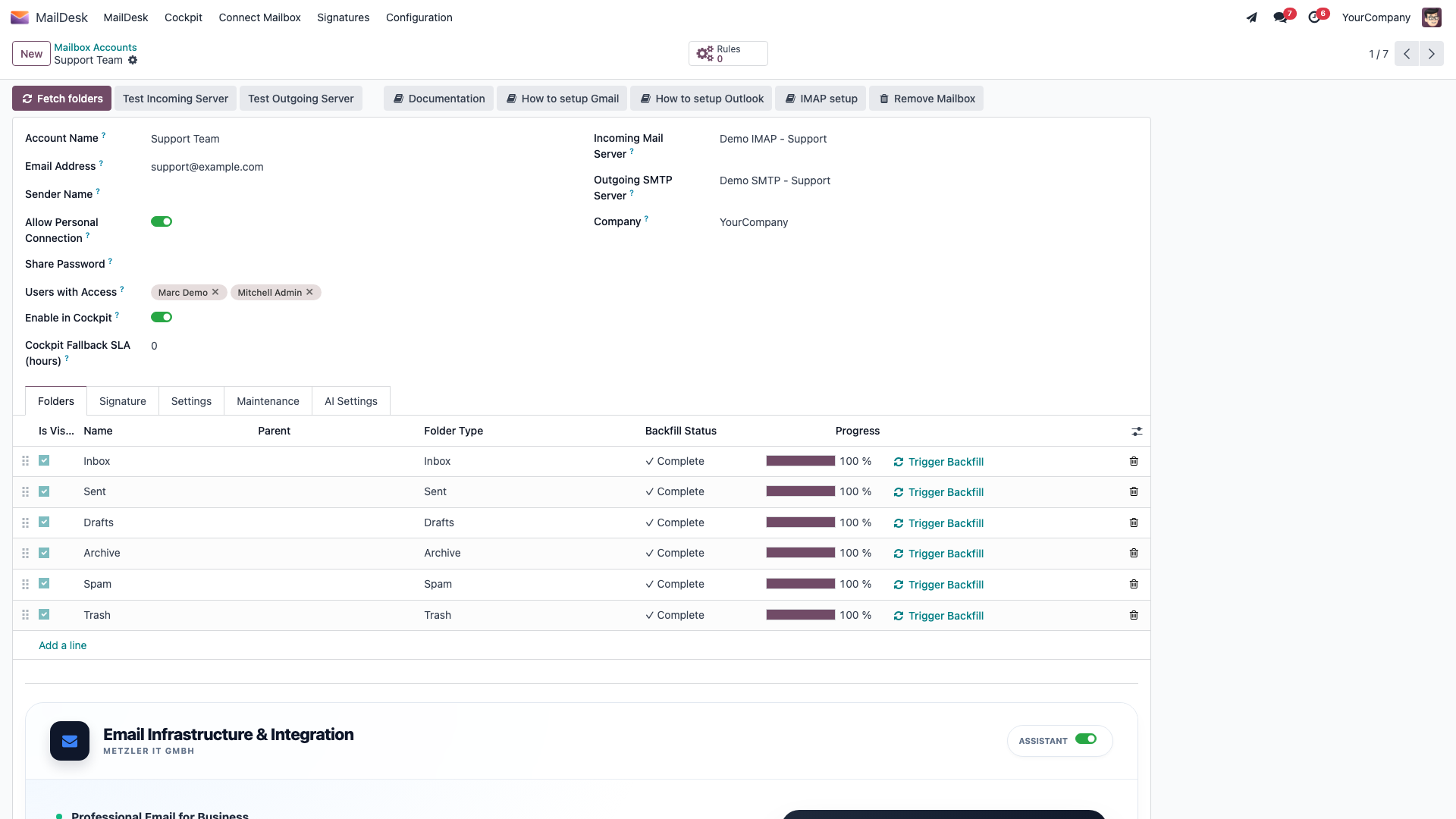
- Go to MailDesk → Configuration → Mailboxes → Mailbox Accounts and open the account.
- Open the Folders tab and select the folder.
- Click Trigger Backfill to start a deep historical fetch for that folder.
A folder shows "0 emails"
A folder only fills if it is selected for synchronisation:
- Open the mailbox account and the Folders tab.
- Make sure the folder is visible / selected for sync.
- Confirm in your webmail that the folder actually contains messages.
Gmail uses labels, not folders
On Gmail, a single message can appear under several labels at once - for example in both its conversation label and in All Mail. MailDesk reflects this faithfully, so the same email may show in more than one place. This is normal Gmail behaviour, not duplication. Make sure you are looking at the label you actually expect.
When to look closer
Investigate further (or escalate) only if no new mail appears for a long time, a connection test fails, error messages are shown, or synchronisation has clearly not progressed at all. In those cases, check OAuth and re-authorization and the IMAP connection settings, and see Where an administrator looks.
OAuth and re-authorization
This applies to Gmail and Outlook / Microsoft 365 mailboxes. The good news: most OAuth problems are one-time configuration issues, not faults in MailDesk - and once they are fixed they tend to stay fixed.
"OAuth not configured"
What it means: the Google or Microsoft OAuth credentials are missing or incomplete in Odoo, so MailDesk cannot start the sign-in flow.
What to do: this is an administrator task, done once for the whole company:
- Gmail: see Gmail OAuth setup.
- Outlook: see Outlook / Microsoft 365 OAuth setup.
Once the credentials are in place, start the mailbox authorisation again.
"Reconnect Required" / authorization expired
OAuth access does not last forever: tokens expire, access can be withdrawn from the provider side, and some security policies force periodic re-consent. When this happens to an Outlook mailbox, MailDesk marks it Reconnect Required and the fix is simply to sign in again:
- Go to MailDesk → Configuration → Mailboxes → Mailbox Accounts and open the affected account.
- Reconnect, depending on the provider:
- Outlook / Microsoft 365: click Connect Microsoft Graph (OAuth) on the account and complete the Microsoft sign-in.
- Gmail: re-run the Google sign-in for the mailbox's incoming mail server (Gmail's authorisation runs on the incoming server, not on a button on the account form - see Gmail setup).
No data is lost during re-authorization - your synced mail stays exactly where it is.
"Invalid OAuth Configuration" (Outlook)
If an Outlook mailbox shows Invalid OAuth Configuration, this is a deliberate safety state, not a crash. It usually means the app's Client Secret in Azure has changed or expired. To protect your account, MailDesk pauses background sync for that mailbox rather than hammering Microsoft with failing attempts. To recover:
- An administrator updates the Client Secret in the Outlook OAuth configuration (see Outlook setup).
- Open the mailbox account and click Connect Microsoft Graph (OAuth) to reconnect.
Sync resumes automatically once the mailbox is healthy again.
"Access denied" during sign-in
Usually the requested permissions were not granted, or - on Microsoft 365 - tenant admin consent is missing.
- Read the permission screen carefully during sign-in and accept the requested permissions.
- For Microsoft 365, make sure an administrator has granted admin consent for the app.
- Ask your administrator to review any tenant restrictions or conditional-access policies.
Sign-in works, but mail still does not sync
If authorisation succeeds yet no mail comes in, the cause is usually network or rate-limiting rather than authorisation:
- Confirm the Odoo server has outbound internet access to the provider.
- Check that the provider's API is available and not rate-limiting your account.
- MailDesk retries automatically - give it a sync cycle or two before escalating.
Resetting access cleanly
If you would rather start fresh, you can safely reset OAuth access and reconnect:
- Gmail: remove the mailbox account in MailDesk, revoke app access in Google Account → Security, then reconnect.
- Outlook / Microsoft 365: remove the mailbox account in MailDesk, revoke the app in Microsoft Entra / Azure AD, then reconnect.
Removing a mailbox with linked emails (Pro)
If emails from this mailbox have been linked to Odoo records, MailDesk will not let you delete the account outright - that would destroy your business history. Use the Remove Mailbox action, which keeps the linked emails as a readable archive, or archive the account instead of deleting it.
Sent mail does not appear
Why a sent email can seem to "disappear"
When you click Send, MailDesk does the following:
- sends the email immediately through your outgoing (SMTP) server;
- shows it in Sent right away as a local entry, so you see it instantly;
- your email provider saves its own copy in the provider's Sent folder;
- the next synchronisation replaces the local entry with the provider's copy.
That brief swap is completely normal - it is how MailDesk avoids leaving you with two copies of every sent message. If a message seems to vanish and reappear, it is simply being replaced by the authoritative provider copy.
Check the correct Sent folder
Providers name their Sent folder differently - Sent, Sent Items, or Sent Mail.
- Confirm which Sent folder is selected for synchronisation on the mailbox account.
- Check your webmail to see where that provider actually stores sent messages.
Provider-specific notes:
- Gmail labels sent mail automatically; MailDesk replaces the local copy after sync, and a short delay is normal.
- Outlook / Microsoft 365 stores sent mail in Sent Items; the server copy replaces the local one on Microsoft's sync timing.
- Classic IMAP servers do not all save sent mail by themselves. For these, MailDesk has an Append Sent to IMAP option on the mailbox account that writes a copy into your Sent folder for you. Leave it on for a plain IMAP server; turn it off only when your provider already saves sent mail automatically (such as Gmail or Outlook), to avoid a duplicate.
If sending failed
If the email never actually sent, it is not lost - it stays safely in Drafts:
- Open Drafts and confirm the message is there.
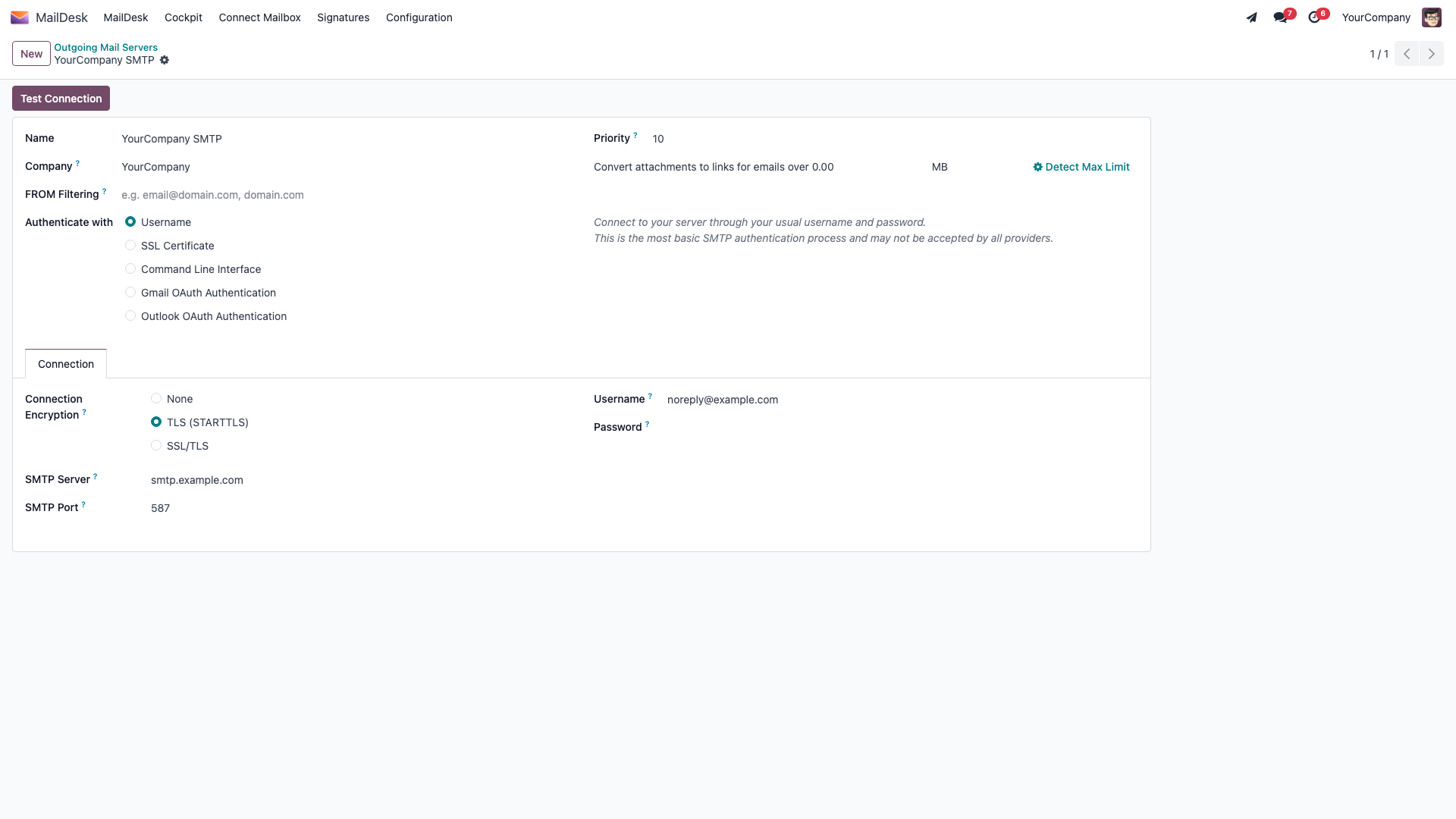
- Review the outgoing-server (SMTP) connection.
- Try sending again.
If sending fails repeatedly, error messages appear, or an SMTP test fails, ask your administrator to check the outgoing-server configuration and the mail logs (see Where an administrator looks).
Mailbox is disconnected
If MailDesk shows a mailbox as disconnected, or new mail simply stops arriving:
- Open the mailbox account under MailDesk → Configuration → Mailboxes → Mailbox Accounts.
- Check the connection status on the account form.
- For OAuth mailboxes (Gmail, Outlook), re-run the provider sign-in - see OAuth and re-authorization.
- For classic IMAP mailboxes, verify the credentials and click Test Incoming Server (and Test Outgoing Server for sending). A healthy connection shows a green "Connection Test Successful!" message.
- If you recently changed your provider password, an OAuth mailbox needs to be re-authorised and an IMAP mailbox needs the new password entered.
Tip
If the connection test fails again and again, ask your Odoo administrator to check the provider settings and confirm the Odoo server can reach the provider over the internet.
When MailDesk asks for attention
If a mailbox keeps failing to sync, MailDesk does not give up silently. After several consecutive failures it flags the account for an administrator and keeps trying on a gradually longer schedule. So if a mailbox has been quiet for a while, an admin checking the account form is the quickest way to see what it needs (usually a reconnect or a corrected password).
An AI action is unavailable (Pro)
Available in: Pro. Basic has no AI.
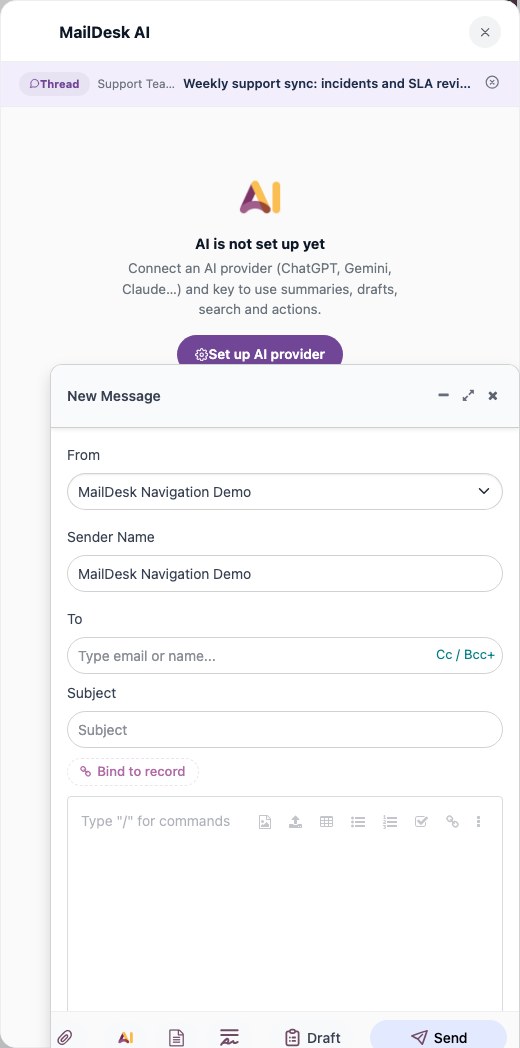
If an AI action such as Summarize current, Draft from context, or Check with AI is greyed out or fails, run through this short checklist:
- Confirm an administrator has configured at least one AI provider - see What MailDesk AI can and cannot access.
- For very long threads the provider may briefly rate-limit; try again in a minute.
- Confirm the mailbox has Enable AI features switched on, on its Mailbox Account form (see Security & access rights).
- Confirm AI has not been turned off system-wide. The global and per-feature switches live
under Settings → Technical → System Parameters:
maildesk.ai.enabledturns all AI on or off at once, andmaildesk.ai.feature.<feature>.enabledcontrols a single feature. Both are on by default; AI is off only if one of these is set to0. - Confirm the mailbox is running MailDesk Pro - AI features are not part of Basic.
A Workflow Bridge action is missing on a record
If a bridge action such as Create lead, Create ticket, or Link to order does not appear where you expect it:
- Confirm the matching Workflow Bridge module is installed (CRM, Helpdesk, Calendar, Documents, Sales, Partner 360, Chatter, or Automation).
- Confirm the bridge is enabled on the mailbox - open the mailbox account and check the bridge settings.
- Confirm you have read access to the target Odoo app. You cannot link an email to a CRM lead if you have no access to CRM in the first place.
- For shared mailboxes, an administrator can enable the bridge for the whole team.
- If a smart-button count on an Odoo record looks wrong, refresh the form - the count catches up on the next synchronisation.
Every bridge requires MailDesk Pro.
Where an administrator looks
When timing or sync behaviour needs a closer look, an administrator can inspect MailDesk's background activity directly in Odoo.
- Scheduled background jobs: Settings → Technical → Scheduled Actions. MailDesk's synchronisation, import, and maintenance jobs run here; their last-run time and status show at a glance whether synchronisation is progressing.
- Outgoing mail / sending problems: the standard Odoo mail logs, plus the Test Outgoing Server action on the mailbox account.
- Connectivity: confirm the Odoo server can reach the email provider over the internet (firewall / outbound rules), and that the provider's API is available.
How synchronisation behaves under failure
MailDesk is built to degrade gracefully. Transient problems - network timeouts, provider rate limits - are retried automatically, and the wait between retries grows the longer a mailbox struggles, so a flaky provider never gets hammered. A problem in one folder does not stop the others. And if a provider resets a folder or an authorisation expires, MailDesk re-fetches that folder from scratch or asks for re-authorisation rather than losing any of your data.
When to contact support
Contact your administrator or Metzler IT support if:
- OAuth cannot be configured, or authorisation fails repeatedly even after re-authorising;
- connection or SMTP tests fail consistently;
- errors appear over and over, or you suspect a server or firewall issue;
- you have a valid licence but it is not recognised, or the activation screen shows an error you cannot resolve.
To help support help you faster, include:
- the email provider (Gmail / Outlook / IMAP);
- the exact error message, if any;
- what you expected versus what happened, and roughly when.