Working with attachments
This page explains how to attach files to a message you are writing, and how to open, preview, and download files that arrive on a message you have received.
What it does
MailDesk handles attachments in both directions:
- Sending - attach one or more files to a new message, a reply, or a forward. A forward keeps the original message's attachments automatically.
- Receiving - open, preview, and download the files that came with a message.
Why it matters
Attachments stay with the conversation. Files you receive are kept with the message in MailDesk, and files you attach are delivered with the email and saved alongside your copy in the Sent folder, so you always have a record of what you sent.
Requirements
- A mailbox connected to MailDesk that you have access to.
- For sending: a message open in the composer (new, reply, or forward).
- For receiving: a message open in the reading pane.
Permissions required
You can attach files to any message you send from a mailbox you have access to, and you can open the attachments on any message in those mailboxes. Standard Odoo access rules apply - there is no special elevation.
Attaching files to a message
Steps
- Open the composer - start a New message, or Reply/Forward an existing one.
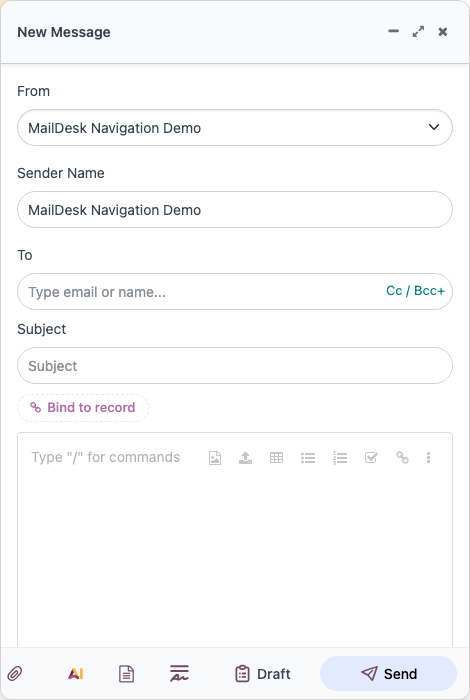
- Click the attach button in the composer footer (the paperclip-style icon, tooltip "Attach a file to this email").
- Choose one or more files. You can select several at once.
- Each file appears as a chip below the message body.
- To remove a file before sending, remove its chip.
- Finish your message and click Send.
Expected result: the files are delivered with the email, and your copy in the Sent folder keeps the same attachments.
Drag an image into the message
If you drag an image straight into the message body, MailDesk adds it as an attachment rather than pasting raw image data into the text. This keeps your message tidy and the image delivers reliably.
Note
A forwarded message already includes the original message's attachments - you do not need to re-attach them. Add more files the same way if you want to send additional ones. A plain reply does not carry the original attachments; attach anything you want to include.
Opening attachments on a message you received
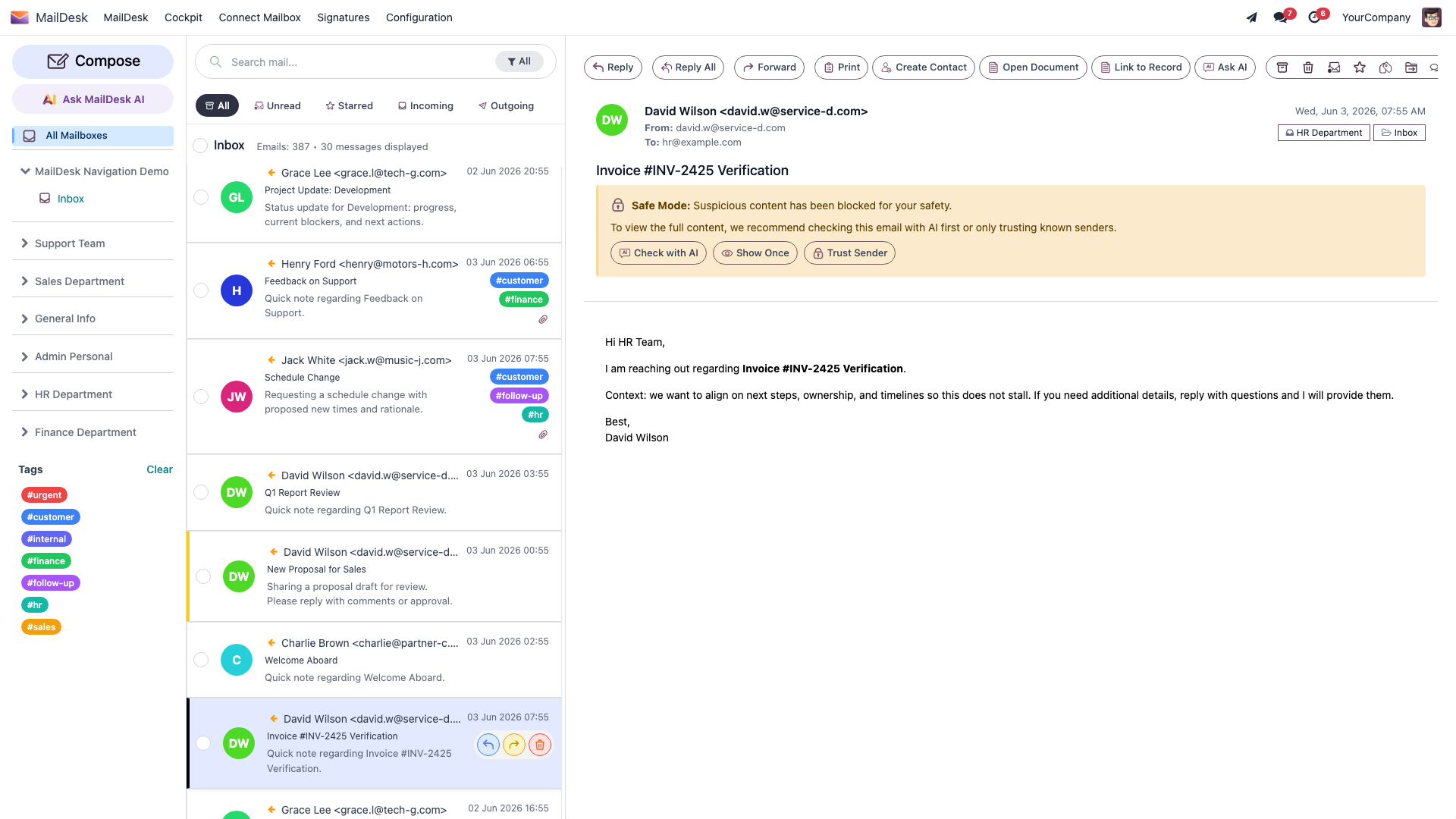
When you open a message that has attachments, they are listed below the message body. From there you can:
- Preview a file in the built-in viewer (for supported types such as images and PDFs) by clicking it.
- Download a file to your computer using the download control on the attachment.
Steps
- Open the message in the reading pane.
- Scroll to the attachments shown under the message body.
- Click an attachment to preview it, or use its download control to save it.
Expected result: the file opens in the viewer or downloads to your computer.
Images that are part of the message
Some images are embedded directly in the message layout (for example a logo in a signature). Those appear inside the message itself rather than as separate files in the attachment list.
How sent attachments behave
When you press Send, MailDesk places your message - with its attachments - in the Sent folder right away, so you can open it and check what you sent without waiting for the mail provider to confirm. A short time later the regular synchronization takes over with the provider's own copy. You will not notice the hand-over.
Note
For Gmail and Outlook the provider keeps its own copy of sent mail automatically. For a plain IMAP/SMTP mailbox, MailDesk also saves the message and its attachments into the server's Sent folder so they are available in other mail apps.
Troubleshooting
| You see | Likely cause | Fix |
|---|---|---|
| "Upload error" when attaching | The file could not be uploaded (too large, or a connection issue) | Try a smaller file or check your connection, then attach again |
| Attachment will not preview | The file type is not previewable in the built-in viewer | Use the download control to save and open it locally |
| Forward seems to be missing attachments | They were removed from the composer before sending | Forward again and leave the original attachment chips in place |
| A signature image shows in the message, not the attachment list | It is embedded in the message layout, not a separate file | This is expected; no action needed |