Gmail realtime push setup (administrator)
Turn on provider-native push for a Gmail or Google Workspace mailbox so that new mail arrives in MailDesk in seconds instead of waiting for the next scheduled sync. A guided setup assistant walks you through every step inside Odoo and checks each prerequisite for you before you spend time in Google Cloud.
Available in: Pro. Gmail realtime push is part of the MailDesk Pro module - it is not present in Basic, which always uses scheduled background sync. The mailbox itself is connected with the same Gmail OAuth credentials used for normal sync; realtime push reuses that connection and asks for no new permissions.
Honest expectation on speed
With push enabled, new Gmail mail typically appears in MailDesk in about 3 to 8 seconds. This is genuine provider push - Google notifies MailDesk the moment mail arrives - but it is not instantaneous: the notification still has to travel to your server and trigger a short sync. MailDesk does not claim "instant" delivery.
What it does
Gmail's API can notify your server whenever a mailbox changes, using Google's Cloud Pub/Sub messaging service and a Gmail "watch" registration. MailDesk's setup assistant helps you create the Pub/Sub resources in your own Google Cloud project, validates that everything is wired correctly, then registers the watch. After that, each time mail arrives, Google publishes a notification that reaches MailDesk's secure webhook, which triggers the normal Gmail sync for just that mailbox.
The push notification does not carry the email itself. It only tells MailDesk "this mailbox changed" - MailDesk then runs its usual incremental fetch and updates the inbox. Push therefore shortens the delay; it does not replace the proven sync engine behind it.
Why it matters
- Faster mail. New messages surface in seconds rather than waiting for the next scheduled sync.
- You stay in control. Every Google Cloud resource is created in your own project and owned by you. MailDesk only stores non-secret identifiers (your project id, the topic name, and the notifying service-account email) plus the settings its webhook needs to verify incoming notifications.
- Safe fallback. If push ever stops arriving, MailDesk automatically falls back to its scheduled background sync, so no mail is ever lost - push only ever makes things faster.
Requirements
- A Gmail or Google Workspace mailbox already connected to MailDesk over OAuth and syncing. See Gmail OAuth setup first.
- A Google Cloud project you can administer, with permission to enable APIs and create Pub/Sub topics, subscriptions, and a service account. The recommended path runs a single script in Google Cloud Shell.
- Your Odoo server reachable over HTTPS at a stable public address. Google will only
push notifications to an
https://URL with a valid certificate. Plainhttp://and local-only addresses cannot receive push. - MailDesk Pro installed.
- MailDesk works on Odoo 17, 18, 19, or 20 - the steps below are the same on each.
Permissions required
- Configuring Gmail realtime push is restricted to MailDesk administrators (the Mailbox administrator access group). The assistant refuses to register a watch for a user without that access.
- The webhook secret that authenticates incoming notifications is visible only to MailDesk administrators.
Step 1 - Open the setup assistant
- Go to MailDesk → Configuration → Mailboxes → Mailbox Accounts and open the Gmail account you want to speed up.
- In the form header, click Configure Gmail Realtime. (Once push is configured, the same button reads Manage Gmail Realtime and reopens the assistant for review.)
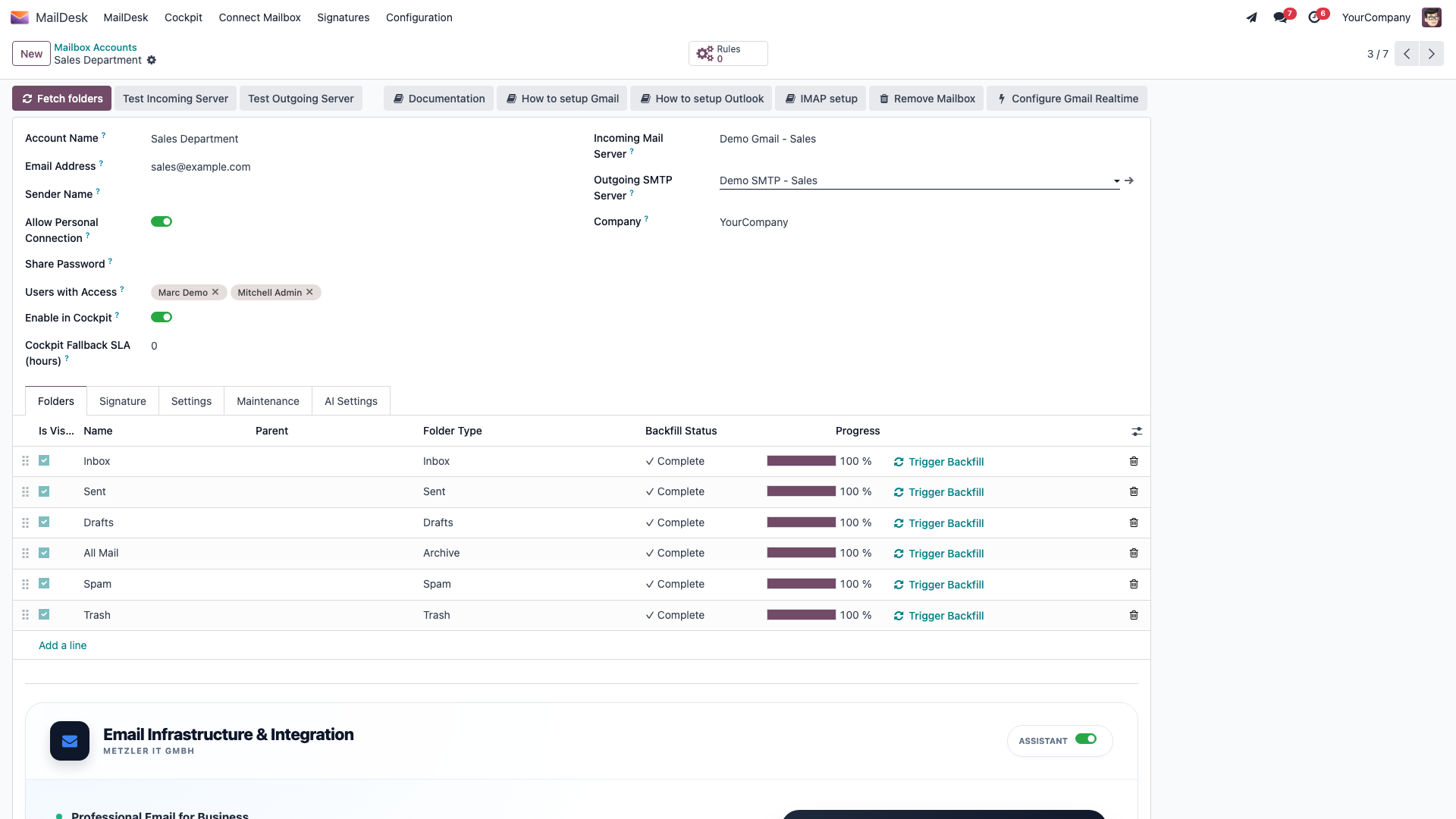
The assistant opens as a step-by-step dialog with a status bar at the top: Preflight → Choose mode → Run setup script → Paste result → Validate & enable → Run realtime test → Done.
Step 2 - Run the preflight checks
The first screen confirms the prerequisites before you touch Google Cloud, so you do not waste time on a setup that cannot work. Click Run preflight. MailDesk checks, with a clear "OK" or "Action needed" beside each row:
- the account is a connected Gmail account with a usable OAuth token;
- your public address (
web.base.url) is set and uses HTTPS; - the webhook can be reached from the internet (MailDesk probes its own push URL);
- the push renewal and fallback sync jobs are active.
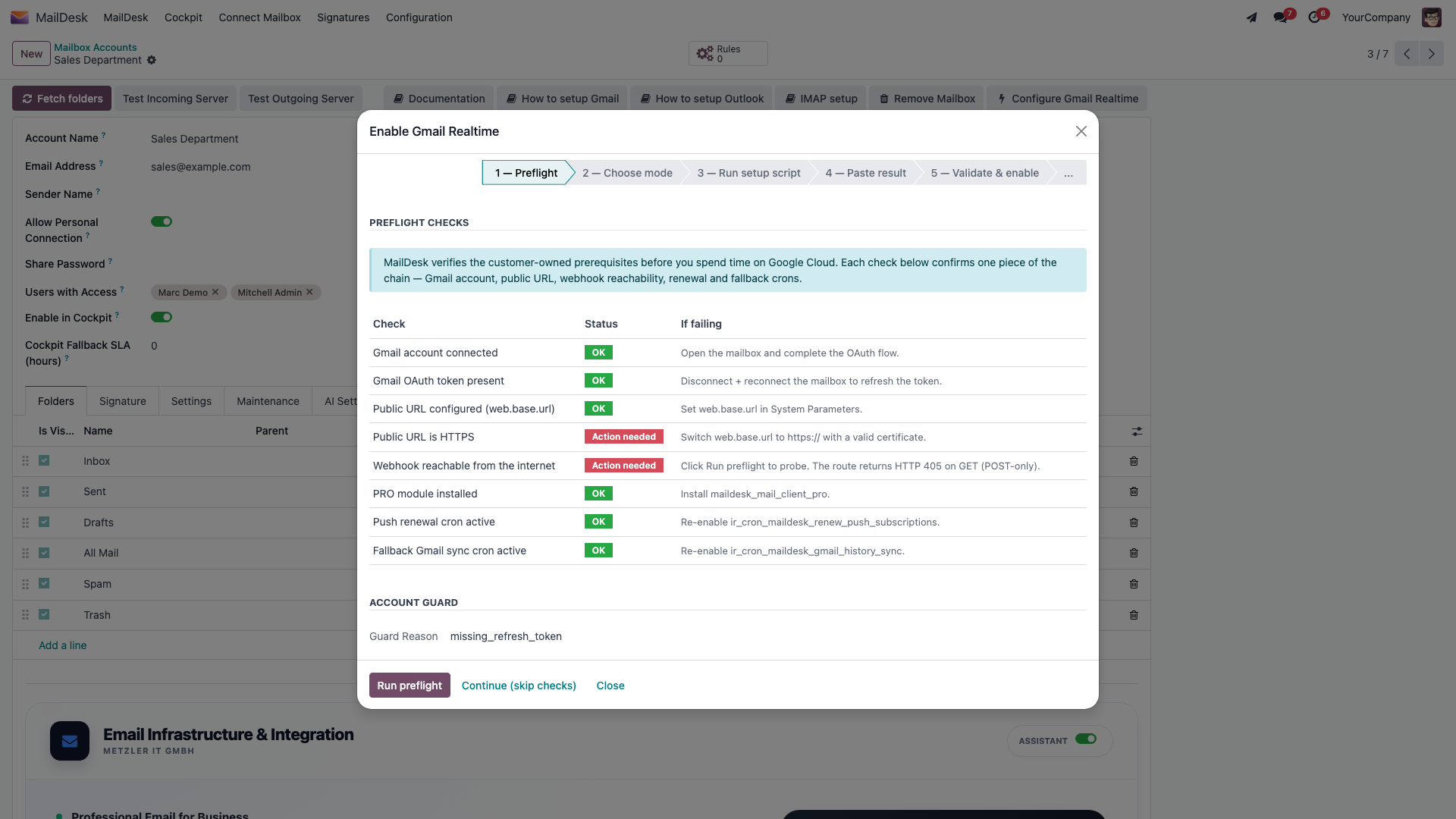
If a required check fails, the screen tells you exactly what to fix (for example "Set
web.base.url in System Parameters" or "Switch web.base.url to https://"). Fix it, then
click Run preflight again.
Reachability check explained
The webhook route only accepts POST requests, so when MailDesk probes it with a GET it expects an HTTP 405 response. That 405 is the success signal - it proves the route exists and is reachable over HTTPS.
Step 3 - Choose a setup mode
When the required checks pass, pick how you want to create the Google Cloud resources:
| Mode | Use it when | What happens |
|---|---|---|
| Recommended | Most customers | MailDesk generates one setup script you run in Google Cloud Shell. It creates the topic, subscription, and signer service account, grants the right permissions, and prints the values to paste back. |
| Advanced | You already have a Pub/Sub topic, push subscription, and signer service account | Skip the script and enter the three values directly. |
| Developer / Test | QA setups with short-lived tunnels and throwaway projects | Same script, with extra warnings. |
Step 4 - Run the setup script in Google Cloud Shell (Recommended mode)
- Enter your GCP project id. MailDesk fills in sensible default names for the topic
(
maildesk-gmail-push), the push subscription (maildesk-gmail-push-sub), and the signer service account (maildesk-pubsub-push) - adjust them only if you have a naming convention. - A ready-to-run script appears below. It is safe to re-run (idempotent): existing
resources are detected and reused. The script:
- enables the Gmail API and the Pub/Sub API in your project;
- creates (or reuses) the Pub/Sub topic;
- grants Google's Gmail publisher service account
(
[email protected]) permission to publish to that topic; - creates (or reuses) the OIDC signer service account;
- creates (or updates) the push subscription pointing at your MailDesk webhook URL;
- prints a final line beginning
MAILDESK_PUSH_RESULT=followed by the values to paste back.
- Copy the whole script, open Google Cloud Shell (a console link is provided), paste, and run it.
Step 5 - Paste the result
- Click I've run the script to move to the paste step.
- Copy the last line the script printed (it starts with
MAILDESK_PUSH_RESULT={…}) and paste it into the box. - Click Parse JSON. MailDesk reads the three values it needs - your project id, the fully-qualified topic name, and the signer service-account email - and advances to validation.
If you used Advanced mode instead, type the same three values in directly and click Validate manually.
Step 6 - Validate and enable
Click Enable Realtime. MailDesk runs a checklist and shows each row's result:
- the public URL is configured and HTTPS;
- the webhook is reachable from the internet;
- the notification audience matches your URL;
- the topic name and signer service-account email are well-formed;
- the signer is saved to the webhook's allow-list;
- finally, Gmail's
users.watchcall succeeds against your topic.
When the last step succeeds, MailDesk stores the watch and shows its expiration date.
If a step fails
The assistant highlights the first failing step with a plain-language explanation, a suggested fix, and a link to the relevant Google documentation. Common causes are listed in the troubleshooting table below. Re-running validation is safe.
Step 7 - Run the realtime test
After the watch is registered, the assistant moves to a realtime test screen. Send a test email to this Gmail inbox from a safe sender, wait a few seconds, and click Re-check to watch the timeline confirm that the notification was delivered, verified, synced, and the message became visible in MailDesk. Click Finish when you are done.
Expected result
The mailbox now receives push notifications. New mail in the Gmail inbox appears in MailDesk within a few seconds, and the mailbox account form shows the realtime status as Active. The watch is renewed automatically before it expires, so you do not need to repeat this setup.
Renewal is automatic
A Gmail watch is valid for at most 7 days. MailDesk renews it automatically with about a day to spare, using a scheduled background job, so push keeps running without any further action.
Check a stored token at any time
On the mail-server form, MailDesk shows a neutral "Gmail token stored" badge - not a misleading always-green "valid" - plus a Verify token now button that performs a real refresh exchange against Google and reports the true status. If the token was revoked at the Google account, use Reconnect Gmail to re-run the sign-in. The same honest badge, verify, and reconnect controls exist for Outlook. See Gmail account flows for the full lifecycle.
Troubleshooting
| Symptom | Likely cause | What to do |
|---|---|---|
| Preflight: "Public URL is HTTPS" fails | web.base.url is empty or http:// |
Set web.base.url to your public https:// address in Settings → Technical → System Parameters |
| Preflight: "Webhook reachable from the internet" fails | The server is not reachable over HTTPS, DNS does not resolve, or the certificate is invalid | Confirm the public address resolves and serves a valid TLS certificate; check any firewall or reverse proxy in front of Odoo |
| Validation stops at "OIDC audience matches URL" | The configured audience does not match the webhook URL | Re-run validation so MailDesk re-saves the audience; confirm web.base.url did not change |
users.watch fails with a permission error |
The Gmail publisher service account was not granted publish rights on your topic, or the Gmail API is not enabled in the project | Re-run the setup script (it grants this and enables the API); the assistant names the exact missing grant |
users.watch fails with "topic not found" |
The topic does not exist or is in a different project | Confirm the project id and topic name, then re-run the setup script |
users.watch fails with a topic / project mismatch |
The Pub/Sub topic lives in a different Google Cloud project than your Gmail OAuth client | Re-run the setup script in the project that owns the OAuth client, then paste the new topic name back. See Gmail realtime troubleshooting |
users.watch fails with an OAuth error |
The mailbox's Gmail authorization expired or was revoked | Reconnect the Gmail mailbox (re-run the Google sign-in), then re-open the assistant |
| No mail appears after enabling | A notification was missed | MailDesk automatically falls back to scheduled sync, so mail still arrives within the normal sync interval; check the realtime status on the account |
Push never blocks normal sync
Realtime push sits on top of MailDesk's scheduled background sync. If a notification is ever delayed or missed, MailDesk notices the silence and runs a catch-up sync automatically. Push only ever makes mail arrive sooner - it can never make it arrive late.
Related
- Gmail OAuth setup - connect the mailbox first
- Public URL requirements - the HTTPS endpoint push needs, and how to verify it
- Gmail account flows - connect, watch, renewal, fallback, token verify
- Google Cloud setup (A-Z) - the GCP / Cloud Shell walkthrough
- Gmail realtime troubleshooting - fixes keyed to each wizard error code
- Outlook realtime push setup
- Realtime & synchronization architecture - how push, sync, and prefetch fit together
- Mailbox setup
- Licensing & tiers