Inbox and folders
Juggling several mailboxes - your own, a shared team address, maybe an info@ inbox - usually means logging in and out of different webmail tabs all day. MailDesk ends that. Every connected account lives on one screen, related emails are grouped into a single conversation, and you spend your time reading and replying instead of hunting for the thread. This page is your tour of that screen: the folder tree on the left, the message list in the middle, the reading pane on the right, and how MailDesk turns a back-and-forth exchange into one tidy conversation.
The three-pane layout, at a glance
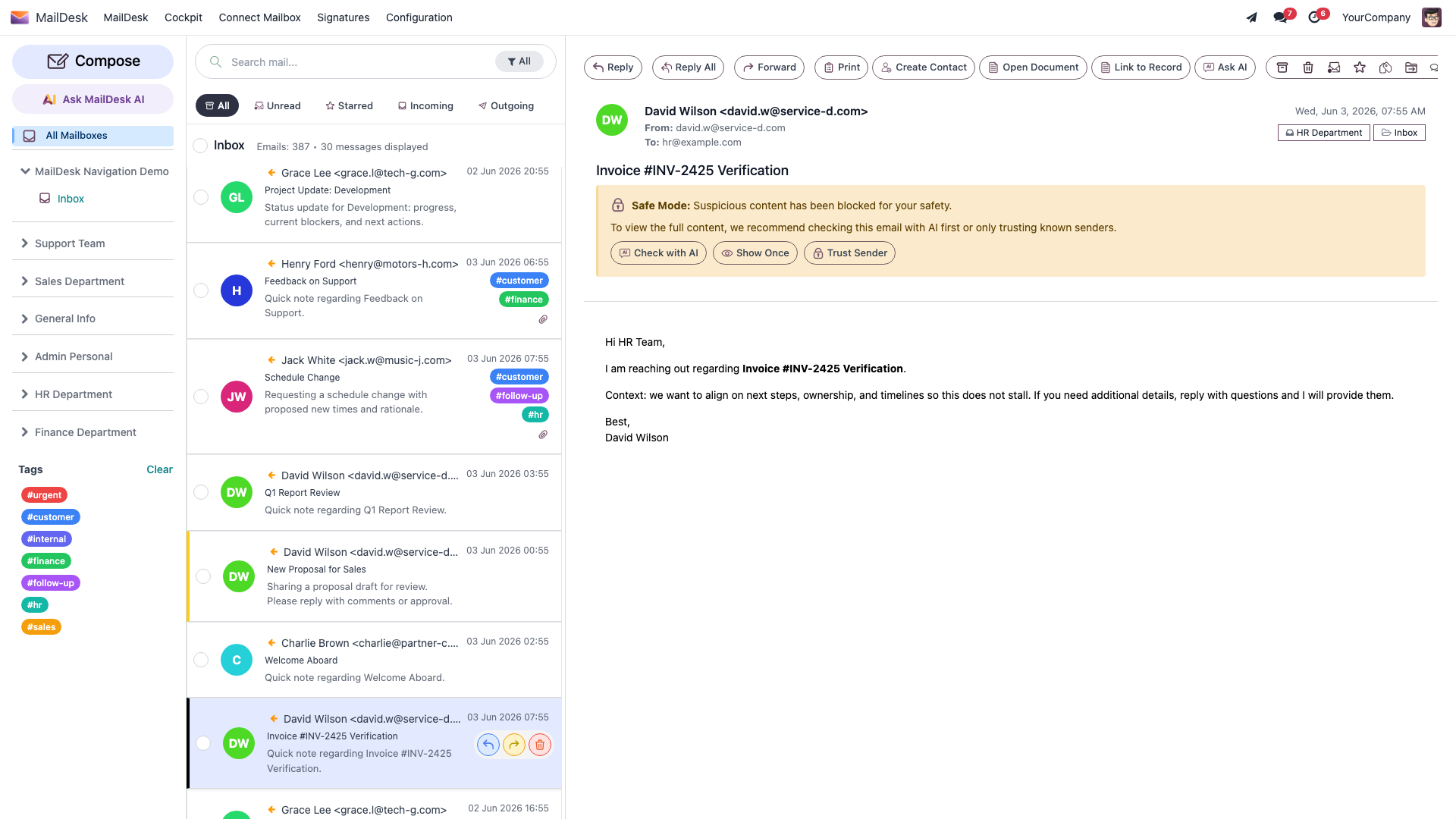
Open MailDesk from the main Odoo apps menu. On a desktop screen you get three columns working together: your folders on the left, the message list in the middle, and the reading pane on the right. Click a folder, pick a message, read it - without anything ever reloading.
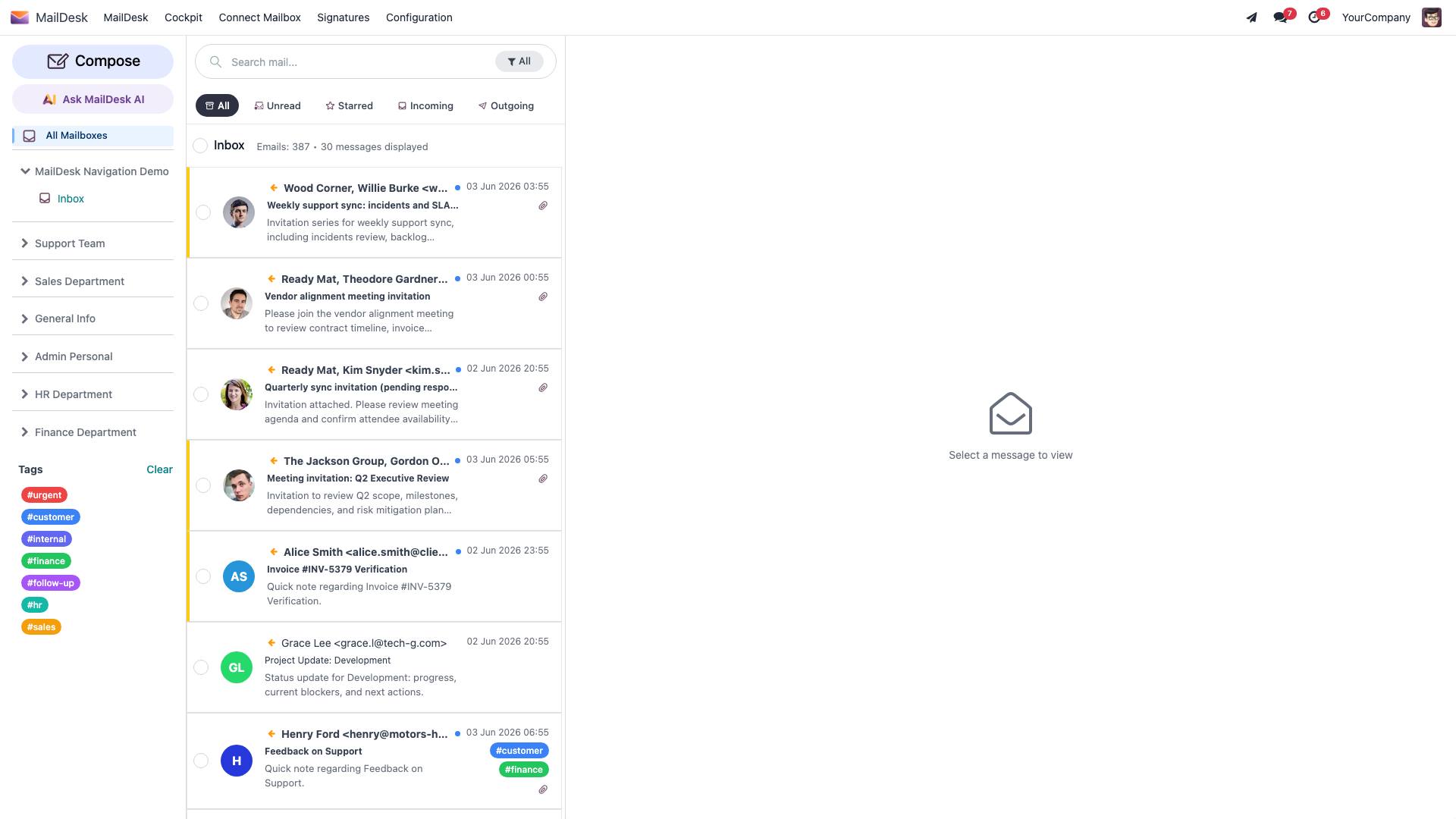
On a phone or a narrow window the same three areas stack into one column, with a bottom bar to jump between Folders, AI, and the rest - so the layout above shows the message list as you would see it on a smaller screen. Everything in this guide works the same way whatever the size of your window.
Here is what each area does for you.
1. The folder tree (left)
The left sidebar is your map. It lists every account you can access and the folders inside each one.
- Compose sits at the top - it opens a new, empty message. See Composing and sending.
- All Mailboxes shows everything from every account together. This is the unified inbox, and it is where most people live.
- Each connected account appears as a heading you can expand or collapse. Under it sit the account's folders: Inbox, Sent, Drafts, Archive, Spam, Trash, and any custom folders that already exist on that account.
- A blue number beside a folder is its unread count, so you can see at a glance where new mail is waiting.
- Click an account name to focus on just that account; click All Mailboxes again to bring everything back.
MailDesk speaks your provider's language
Standard folders are recognised even when your provider names them in another language - Posteingang, Bandeja de entrada, and Boîte de réception all appear as your Inbox. Folders MailDesk does not recognise are still shown; they simply appear after the standard ones.
Folders versus tags - two tools, two jobs
MailDesk gives you two ways to organise mail, and they do genuinely different things:
| Folders (or labels) | Tags | |
|---|---|---|
| Where they live | On your email provider | Inside MailDesk only |
| Effect on the server | Moving a message changes its folder on the server | None - tags never touch your email account |
| How many per message | Outlook / IMAP: one folder at a time. Gmail: several labels at once | As many tags as you like |
| Best for | The structure your provider already uses | Your own workflow (To do, Waiting, Invoice…) |
Most people only need tags
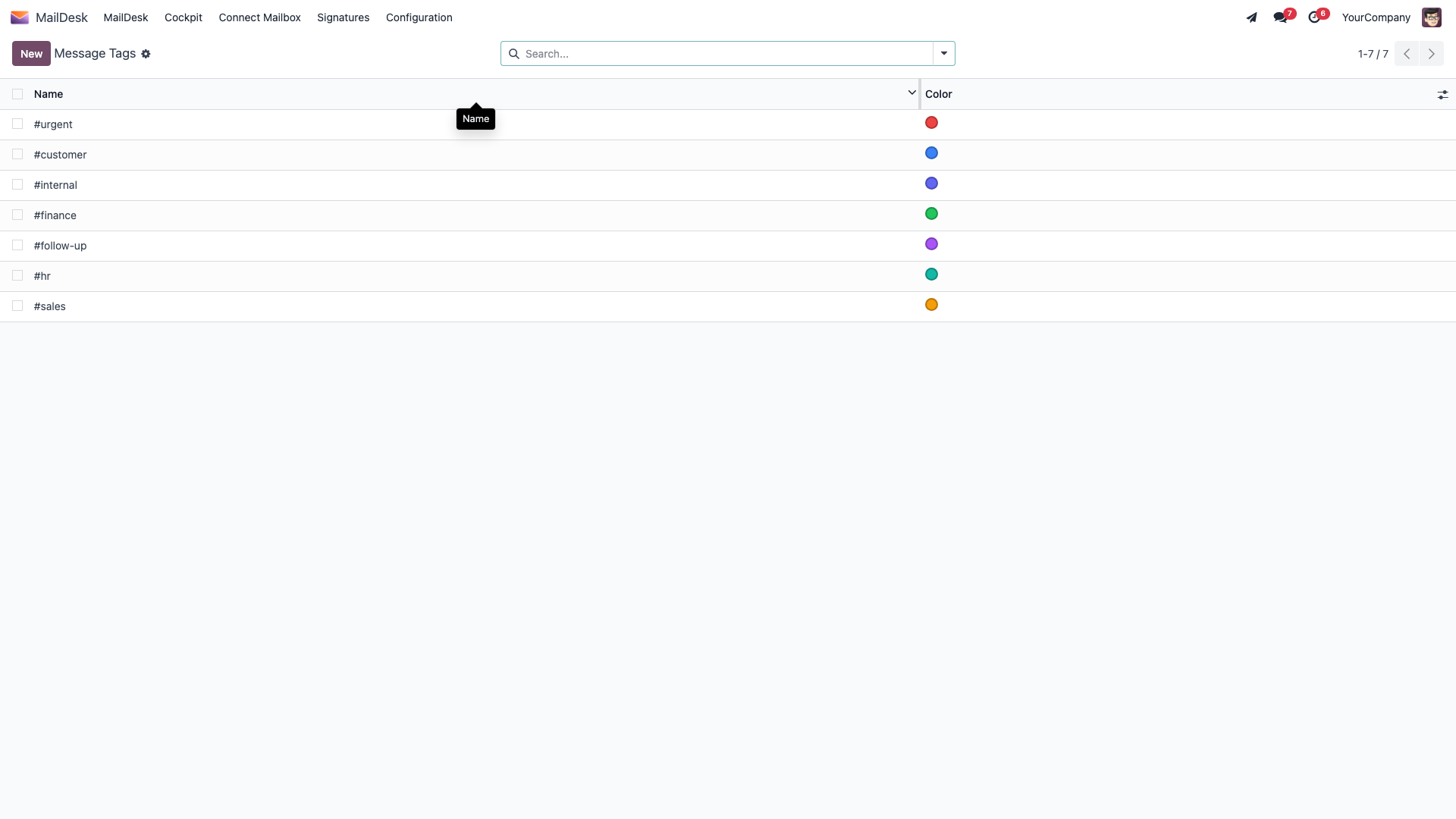
Keep folders simple and let them mirror what your provider already has. Use tags for the way you work - short, meaningful names you apply and clear as tasks move along. Tags appear under a Tags section at the bottom of the folder tree; click one to filter the list to that tag, and use Clear to drop all tag filters.
Gmail labels can show the same message twice
Because a Gmail message can carry several labels, the same email may appear under more than one folder. That is expected - they are not duplicates, just the same message seen through two labels.
2. The message list (middle)
The middle column shows the messages in the folder - or filter - you selected. Each row is designed to tell you what you need to know before you even open it.
A row shows:
- the sender,
- the subject (an untitled message reads No Subject),
- a short preview of the body,
- the date and time,
- any tags you have applied, and
- a paperclip when the message has attachments.
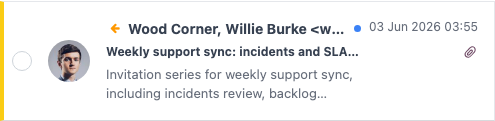
Unread messages stand out in bold. A reply or forward you sent carries a small orange arrow, and a draft is flagged with a red [Draft] label so you never mistake an unfinished message for a sent one.
The filter tabs and search
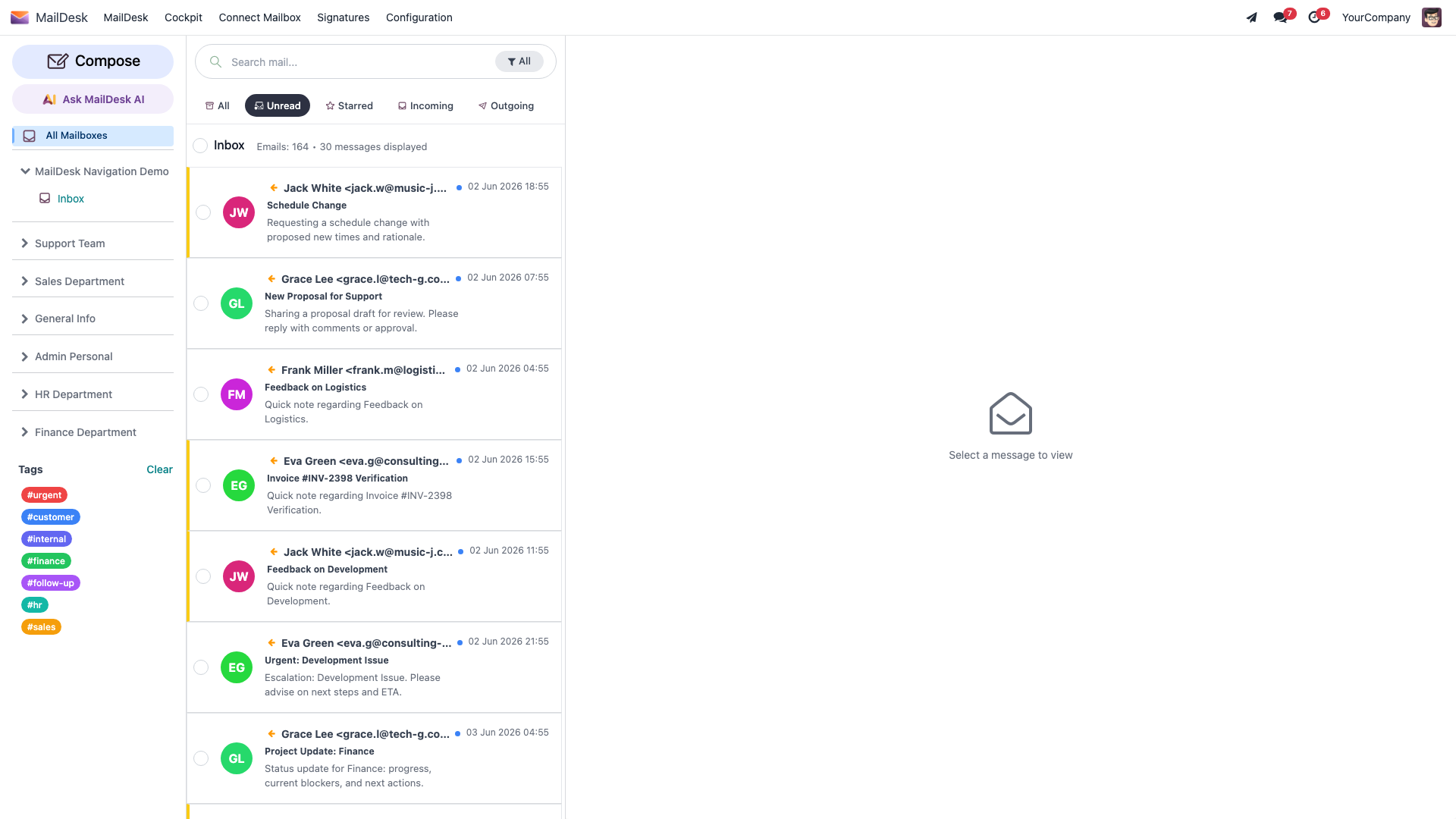
Across the top of the list, a row of tabs lets you cut the noise instantly:
- All - everything in the folder.
- Unread - only what you have not read yet.
- Starred - the messages you flagged to come back to.
- Incoming - mail you received.
- Outgoing - mail you sent.
A search box filters the list as you type, and the header tells you the folder name and how many emails it holds. Together these make even a busy inbox feel small.
For the full power of search - across every account at once - see Search, filters and tags.

Act on a message without opening it
Hover over a row to reveal quick Reply, Forward, and Delete buttons. Tick the checkbox on one or more rows to act on several at once - a bar appears with Archive, Delete, Read, Unread, Move, and Star. Triaging a morning's mail takes seconds.
3. The reading pane (right)
Click any row and the message opens on the right: the full, formatted body, the sender and recipient details, the mailbox and folder it belongs to, and any attachments below. A toolbar at the top keeps Reply, Reply All, and Forward within easy reach.
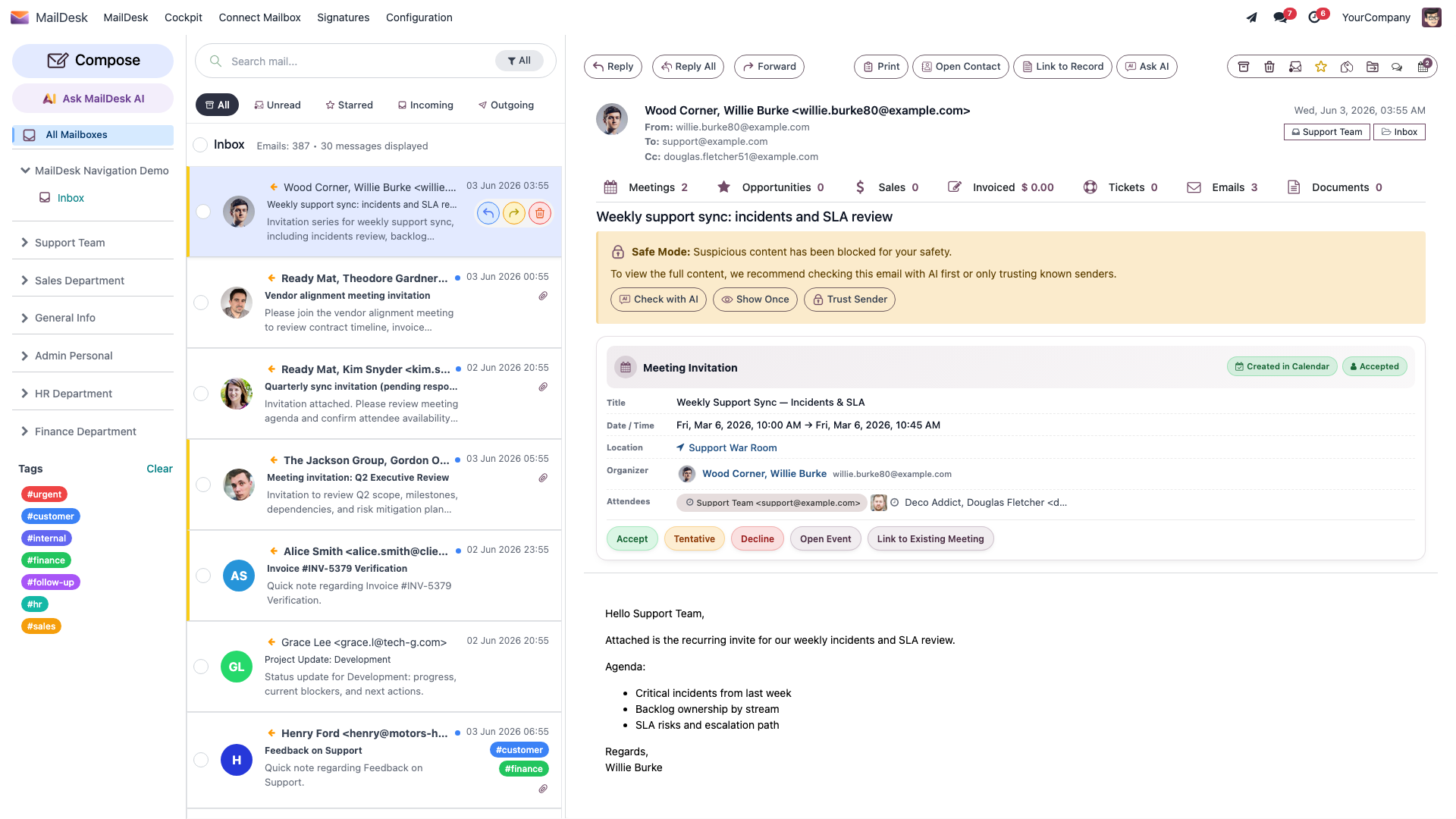
Attachments appear right under the message, so you can open or download them without scrolling away.
Safe Mode holds back risky content
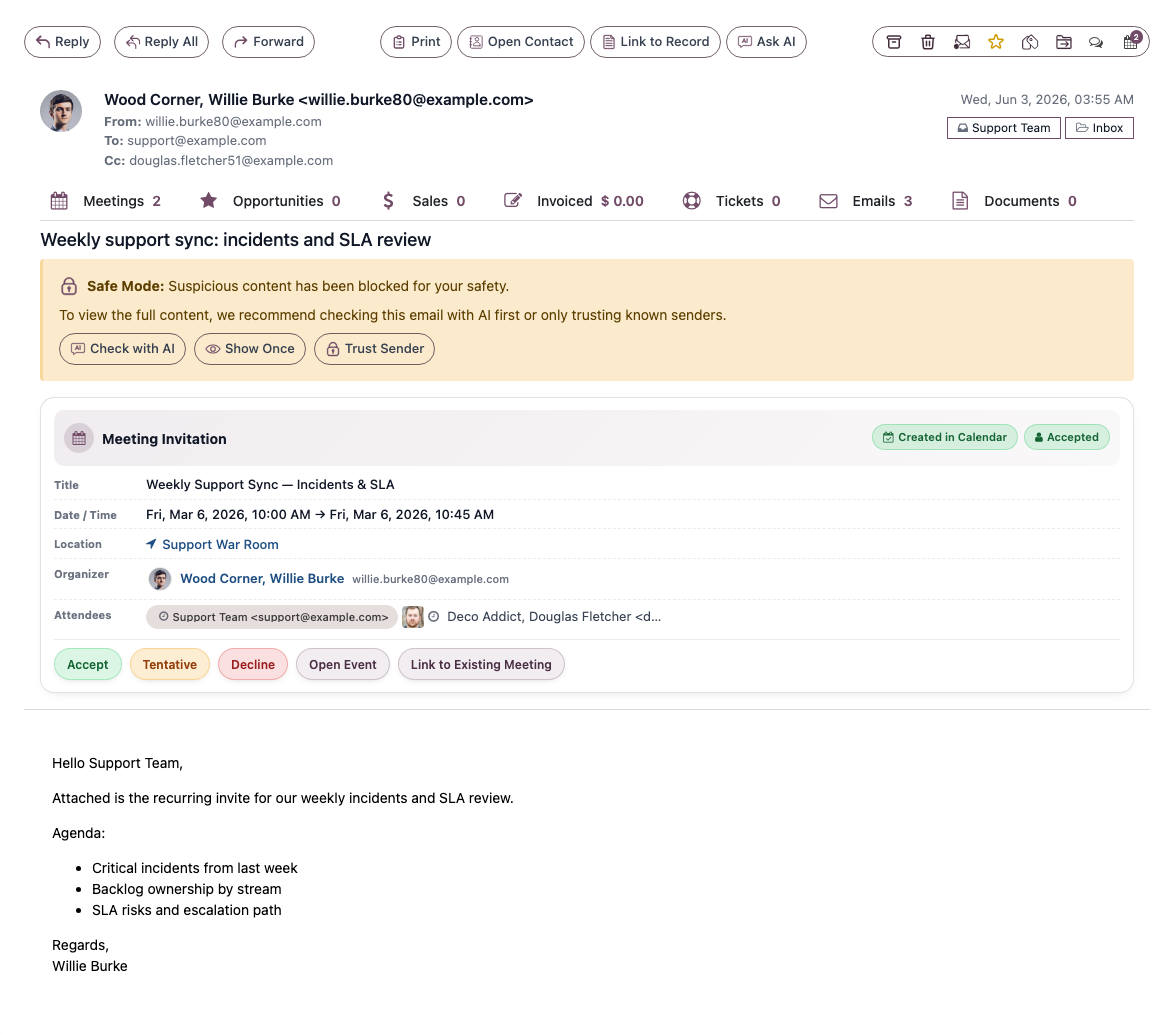
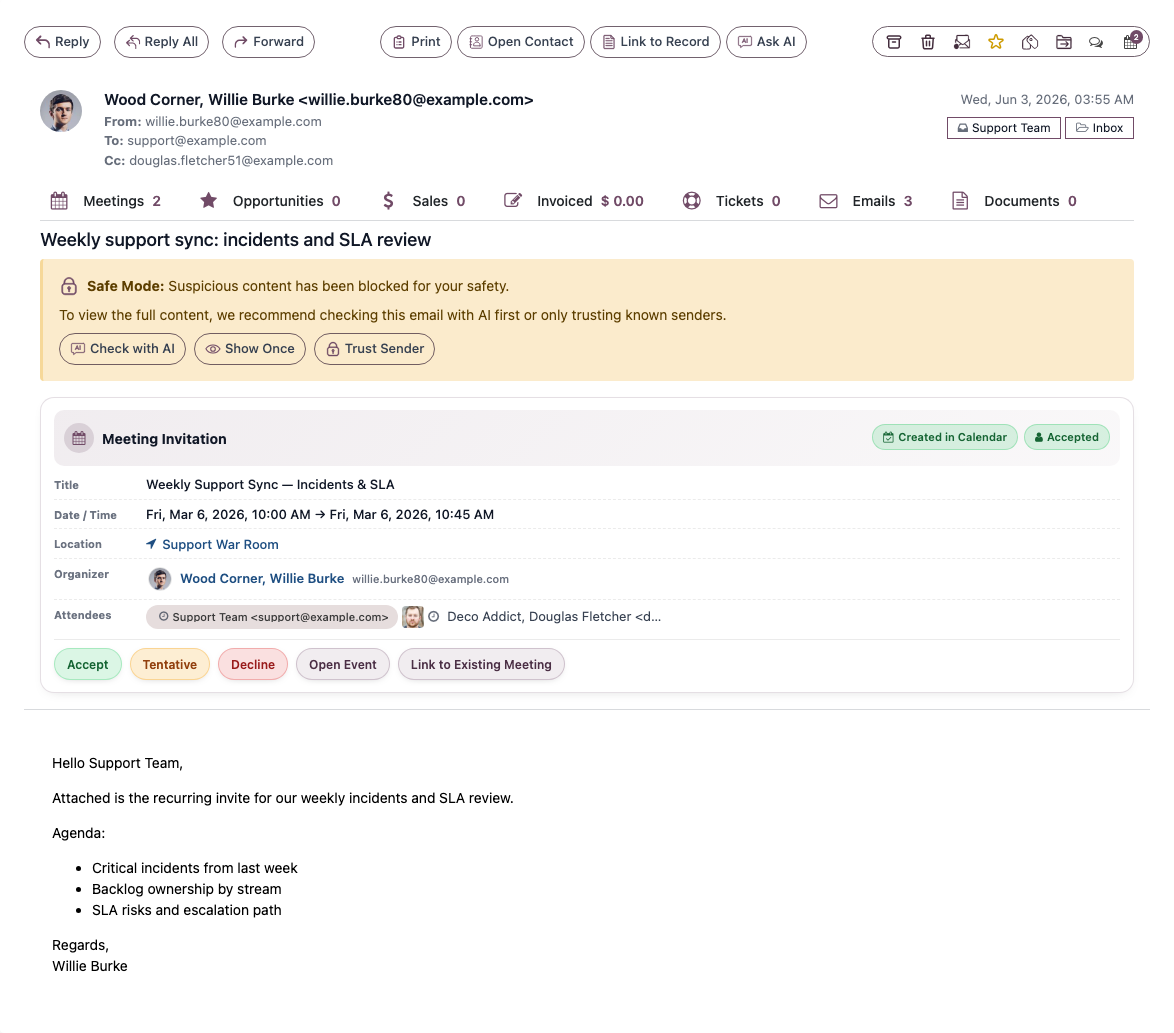
If MailDesk judges a message's content to be risky, it shows a Safe Mode notice instead of the full body. You can Show Once to view it this time, Trust Sender to always show messages from that sender, or Check with AI to have MailDesk look it over first. Only reveal content from senders you recognise.
How conversations work
This is the heart of MailDesk. A single question and its three replies are not four separate emails to dig through - they are one conversation.
When several messages belong to the same exchange, the earlier ones appear as thread history beneath the message you opened. You read the whole discussion top to bottom, in order, in one place - no clicking back and forth, no wondering whether you missed a reply.
What ties messages together
You never have to set this up. MailDesk reads the hidden headers that every email carries - the same ones your previous mail program used - to work out which messages reply to which:
- the message's own Message-ID,
- the In-Reply-To header that points at the message being answered, and
- the References trail that lists the earlier messages in the chain.
From those, MailDesk gives each conversation a shared identity and keeps every message in it grouped together - across folders and even across accounts.
Gmail and Outlook conversations line up too
Gmail and Outlook keep their own idea of a conversation. When a reply comes in, MailDesk lines its own grouping up with the provider's, so a thread you started in MailDesk and a reply that lands in Gmail end up shown as the same single conversation - not two loose ends.
Folding the quoted history
Long threads pile up quoted text - the "On Monday, X wrote:" block repeated under every reply. MailDesk folds that older quoted material behind a tidy Show quoted text link, so you see the new words first and can expand the history only when you actually need it.
Reading and acting on messages
Open a message
- In the folder tree, choose a folder - or All Mailboxes for everything.
- Click a message in the list.
- The full message opens in the reading pane.
What you'll see: the message body, its attachments, and the reply actions. If the message is part of a longer exchange, the earlier messages appear as thread history below it.
The first open can take a moment
MailDesk fetches the body the first time you open a message, then keeps it ready - so it opens instantly every time after that.
Reply or forward
Open a message and use Reply, Reply All, or Forward at the top of the reading pane, or the quick buttons on the list row. For the full walkthrough - including how the quoted history behaves and where your sent mail lands - see Replying and forwarding.
Mark read or unread, and star
- A message is marked read automatically the moment you open it.
- Use Mark as unread in the reading pane - or the Unread button when several rows are selected - to bring a message back to your attention later.
- Use the star to flag a message you want to return to. The Starred filter then shows just those.
Stars and tags are a great pair
Star a message and add a tag such as Follow up - the star makes it stand out, and the tag tells you why it is waiting.
Archive
Archiving clears a message out of the Inbox once you are done, without deleting it. Use Archive in the reading pane, or select rows and choose Archive. Archived mail stays available under the Archive folder.
Move to another folder
- Open the message - or select one or more in the list.
- Choose Move (the Move to Folder action).
- Pick the destination folder and confirm.
Where a folder move takes effect
In Basic, moving a message updates where it sits inside MailDesk - the change is recorded and shown straight away.
Available in: Pro - With MailDesk Pro, folder moves are pushed back to your provider on the next sync, so the message also moves on your actual email account. Give it a short moment to settle everywhere as MailDesk syncs the change back.
Tag a message
- Open the message - or select rows in the list.
- Choose Assign tags.
- Tick the tags you want, or create a new one: type a Tag name, pick a colour, and click Create.
- Click Apply.
Tags live only inside MailDesk and never change anything on your email account. Remove a tag the same way - open Assign tags and untick it.
How fresh is the list?
New mail arrives through MailDesk's automatic sync - background jobs check each account on a schedule and bring in new messages, and the open screen then updates on its own, no manual refresh needed. A short delay between an email landing at your provider and appearing in MailDesk is normal.
Note
For the precise sync cadence and how near-real-time delivery works per provider, see Realtime and synchronization architecture.
Troubleshooting
| Symptom | Likely cause | What to do |
|---|---|---|
| The folder tree says No mailboxes configured | No account is connected, or you have no access to one | Connect a mailbox (admin guide), or ask your administrator for access |
| A new message has not appeared yet | Sync runs on a schedule; a short delay is normal | Wait a moment - the list updates automatically, no refresh needed |
| The same email shows under two folders (Gmail) | Gmail labels let one message carry several labels | This is expected; they are not duplicates |
| A message opens slowly the first time | The body is fetched on first open, then kept ready | Open it again - it now loads instantly |
| A message shows a Safe Mode notice instead of its body | MailDesk held back content it judged risky | Use Show Once for a message you trust, or Trust Sender for a known sender |
| A moved message has not updated everywhere | With Pro, the move is pushed to your email server on the next sync | Give it a moment to sync (Pro); in Basic the move is local to MailDesk |