Cockpit AI briefings for managers
Available in: Cockpit integration (maildesk_mail_client_cockpit). The Cockpit module builds on
MailDesk Pro and uses the same AI provider you configure for Pro. Without Cockpit there are no manager
briefings; without a configured Pro AI provider the written briefings stay disabled.
You run a shared inbox - support, sales, or info@ - and several people answer from it. You don't have the hours to open every thread and judge whether the team is on top of things. The MailDesk Cockpit gives you a single screen that already knows the answer, and an AI Insights panel that turns that screen into a short, readable briefing you can act on in under a minute. Instead of skimming conversations, you read one paragraph and a short to-do list - and you know exactly where to look first.
The dashboard, in one glance
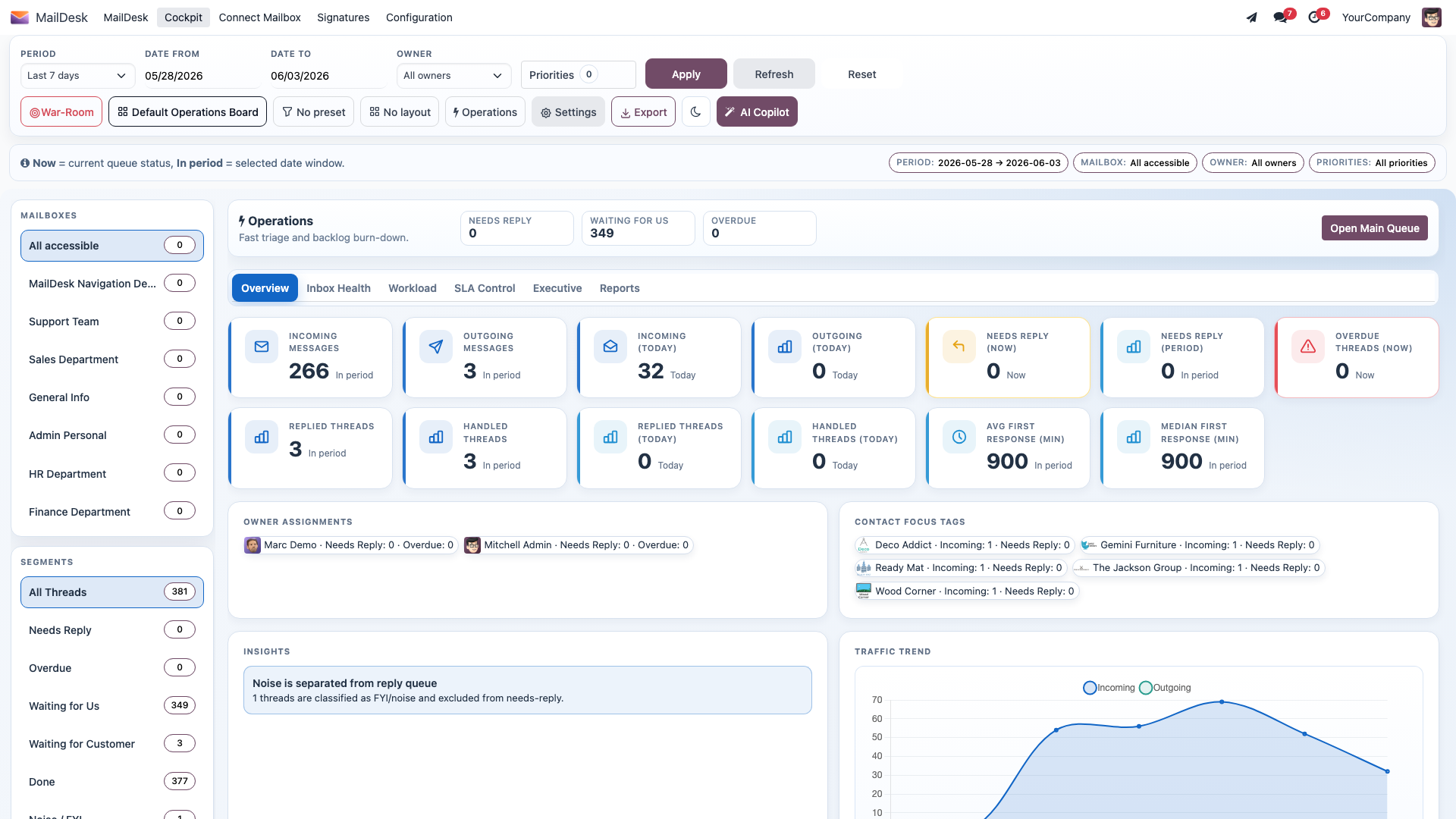
The Cockpit is an operational dashboard for the people who own a shared mailbox. Across the top it shows live KPI cards - how much came in, how much needs a reply, how much is overdue, and your average first response time - pulled straight from your real MailDesk accounts. Every number is clickable: open the exact email, the thread, or the backlog row right there, without leaving the screen.
That's useful on its own. The AI Insights panel beside it is what turns those numbers into a decision.
What the AI Insights panel does
The panel sits in the Cockpit's side area. A small badge shows your access tier (for example manager), and below it you get a focused set of actions - each one answers a question a busy manager actually asks.
- Generate daily briefing - a one-page written summary of your queue: the state of the queue, the risks and anomalies worth knowing about, and 2-4 recommended actions for today. The text writes itself in live, and you can copy it straight into your stand-up notes or a message to the team.
- Customer escalation risk - ranks the customers most likely to escalate, so you can reach out before the complaint arrives. The ranking is based on open threads, overdue threads, urgency wording, and how long the oldest message has been waiting.
- Rebalance workload - proposes how to spread open work more evenly across the team when one person is drowning and another has room.
- Anomalies (last 30 days) - flags any metric that is unusually high or low compared with its recent normal, each with a severity badge, so a quiet spike never goes unnoticed.
The maths is honest - the AI only writes it up
Anomaly detection, mailbox health, and the workload-rebalance scoring are all calculated in plain arithmetic on the Cockpit's own metrics. They never call an AI provider, never cost you anything per run, and are available even before any AI is configured. Only the wording - the briefing text and the reply strategy - is produced by your AI provider. The Cockpit never invents a number; it only narrates the ones it has already computed.
Why managers love it
A manager watching several mailboxes does not have time to read every thread. The daily briefing condenses the whole day into a paragraph and a short action list. The escalation-risk and anomaly tools point you straight at the customers and metrics that need attention first - no opening, no skimming, no guesswork. And because the statistical tools never call an AI model, they are free to run and always available, even on day one before a provider is set up. You spend your morning acting, not investigating.
Run a daily briefing
This is the heart of the page - three clicks from open mailbox to a briefing you can paste into your stand-up.
- Open MailDesk → Cockpit from the MailDesk menu.
- In the side panel, find the AI Insights block. The badge in its corner shows your tier (for example manager) - that's how you know which actions you'll see.
- Click Generate daily briefing.
- A briefing panel slides in and the text streams in live, headed by a quiet Thinking… indicator. While it is still writing you can press Stop. When it's finished, the header reads Ready and you can Copy the text or Close the panel.
What the briefing looks like
The briefing arrives in three short sections - State of the queue, Risks & anomalies, and Recommended actions today - built entirely from your real KPIs and any detected anomalies. It's concrete: a couple of sentences of context, the risks worth knowing, and two to four things to do today. Read it, copy it, share it, move on.
The free tools - no provider needed
These three run entirely on the Cockpit's own data and never contact an AI provider, so they work immediately, cost nothing, and are great for a quick check before you've even set AI up:
- Anomalies (last 30 days) compares the latest day against a 30-day baseline and lists the metrics that are unusually high or low, each with a severity badge. (Before a provider is configured, this same button reads "Detect anomalies (statistical, no LLM)".)
- Customer escalation risk lists the customers most at risk, each with a score and a severity.
- Rebalance workload proposes how to spread open work across the team.
Who can see what - the four tiers
Cockpit uses a four-tier access model, and each tier includes everything the tier below it can do. The written briefings (and the rest of the manager toolkit) are reserved for Manager and above - that keeps the serious, account-wide picture in the right hands.
| Tier | Group | What they can do with AI |
|---|---|---|
| Viewer | Cockpit Viewer | Read KPIs, trends, and drilldowns for mailboxes they can access. No AI actions. |
| Operator | Cockpit Operator | + reply-strategy and reply-draft help on their own threads, plus a small "Cockpit Brief Chat" allowance. |
| Manager | Cockpit Manager | + the full manager toolkit: daily briefing, weekly summary, anomaly detection, escalation risk, workload rebalance, mailbox health, and workload forecast. |
| Administrator | Cockpit Administrator | Everything, across companies, plus AI-provider setup - and no daily limit. |
Briefings are a Manager (or higher) action
The daily briefing, weekly summary, anomaly detection, escalation risk, workload rebalance, mailbox health, and workload forecast are reserved for the Cockpit Manager tier and above. An Operator who tries to run one is told the operation is restricted to Cockpit Manager or higher. A standard MailDesk administrator is automatically treated as a Manager for these tools, so they work out of the box for the person who already runs MailDesk.
What you need first
-
The Cockpit module installed. It builds on MailDesk Basic, MailDesk Pro, and the Automation module (plus Odoo's Resource module) - Odoo installs all of these for you automatically.
-
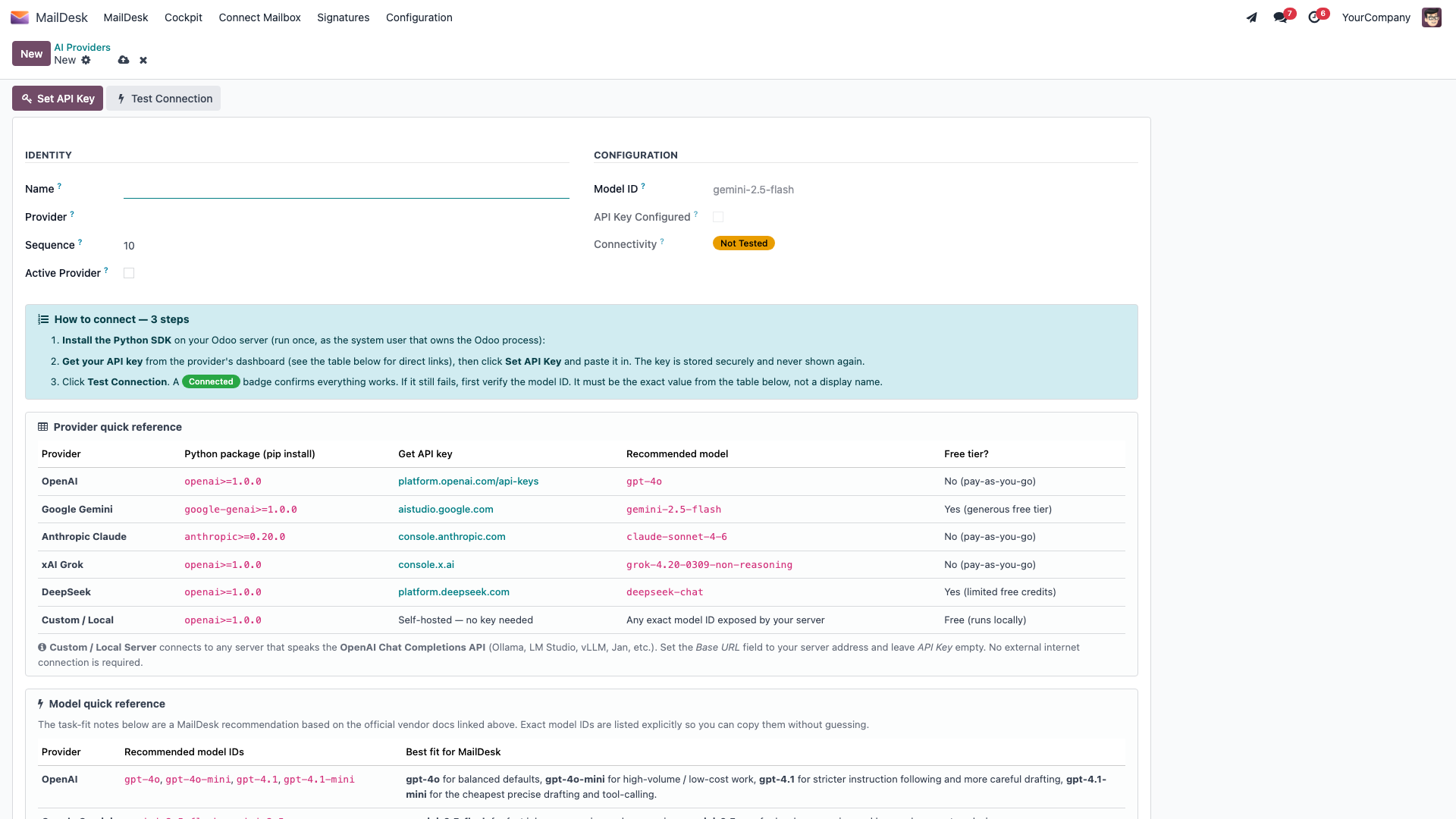
A working AI provider - but only for the written briefings. Cockpit reuses the very same provider you already configured for MailDesk Pro, so there's one key for both. See Set up your AI provider. The statistical tools (anomalies, escalation risk, rebalance, mailbox health) need no provider at all.
- At least one mailbox account visible to the manager, with some message history so the KPIs have something to report.
- MailDesk works on Odoo 17, 18, 19, or 20 - the steps above are the same on each.
Daily usage limits (quotas)
Every AI action is counted per user, per day, per operation - a fair-use cap that keeps costs predictable. When someone reaches the limit for an operation, MailDesk simply asks them to try again tomorrow or have an administrator raise the cap. Administrators have no daily limit.
| Operation | Operator / day | Manager / day | Administrator |
|---|---|---|---|
| Daily briefing | - (manager only) | 25 | unlimited |
| Weekly summary | - (manager only) | 10 | unlimited |
| Anomaly detection | - (manager only) | 50 | unlimited |
| Workload rebalance | - (manager only) | 50 | unlimited |
| Escalation risk | - (manager only) | 50 | unlimited |
| Mailbox health | - (manager only) | 100 | unlimited |
| Workload forecast | - (manager only) | 20 | unlimited |
| Anomaly explanation | - (manager only) | 100 | unlimited |
| Reply strategy | 30 | 200 | unlimited |
| Reply draft generator | 60 | 400 | unlimited |
| Cockpit brief chat | 10 | 50 | unlimited |
See who used how much
Usage is recorded per user and per operation. A manager or administrator can review it under MailDesk → Configuration → SSOT & Cache → Cockpit Debug → Cockpit Next → AI Usage, with totals for calls and tokens, and filters for errors and rate-limited calls - handy for spotting heavy use or a misbehaving provider.
When something looks off
| You see | Likely cause | What to do |
|---|---|---|
| The Generate daily briefing button is missing | You're below the Manager tier, or no AI provider is ready | Have an administrator grant the Cockpit Manager tier and confirm a Pro AI provider is configured |
| Briefing says it needs an AI provider "to enable daily briefings" | No working AI provider in Pro | Set up and test a provider - see Set up your AI provider |
| "Daily AI quota reached for …" | The per-day limit for that operation is used up | Wait until tomorrow, or ask an administrator (administrators have no limit) |
| "Operation … is restricted to Cockpit Manager or higher" | An Operator triggered a manager-only briefing | Run the manager tools as a Manager; Operators have reply-help tools instead |
| "MailDesk Pro is not installed …" | The Pro module is missing from this database | Install MailDesk Pro; Cockpit AI reuses Pro's provider |
| The anomaly / escalation tools work but the written briefings don't | The statistical tools need no provider; the written briefings do | Configure a Pro AI provider for the written briefings |
For provider-side errors (an invalid key, quota exhausted at the provider, an unreachable local server), see the AI troubleshooting page.