What MailDesk AI can and cannot access
Available in: MailDesk Pro (plus the optional Cockpit module for manager briefings). MailDesk Basic has no AI.
Before you let any AI near your email, you deserve a straight answer to one question: what does it actually see? This page gives you that answer in plain language - exactly what MailDesk's AI is handed, what it is never given, and the controls you hold to switch it on or off. Nothing here is sales talk: every line matches how the product really behaves, so you can trust it with the inbox your business runs on.
The short version
- AI is off-limits unless you allow it. It is controlled per database, per feature, and per mailbox - and those switches are enforced on our server, not just hidden in a menu.
- When AI runs, it sees only the one email or the one thread you are working on - never your whole inbox, never a colleague's mail, never your Odoo contacts, deals, or invoices.
- Attachments are never sent on their own. A file is shared only if an administrator opts that mailbox in and you personally click to analyse that attachment.
- You choose the AI provider. Use a trusted cloud service, or run a local AI server inside your own network - in which case your email content never leaves your premises.
What the AI is given
MailDesk is deliberately stingy with what it shares. Each feature is handed the bare minimum it needs to do its job - and nothing else.
| When you… | The AI receives | The AI does not receive |
|---|---|---|
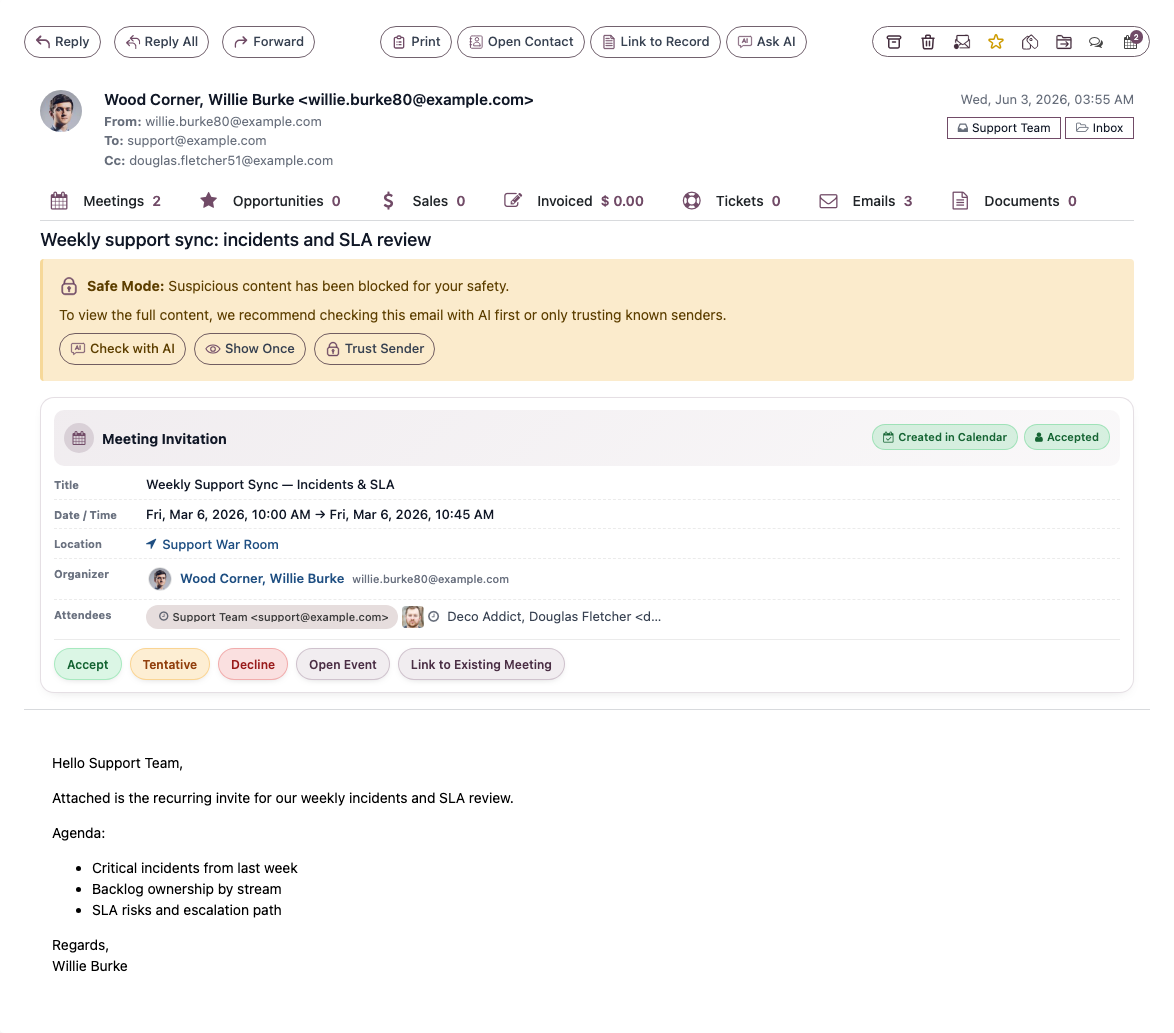
| Open an email (security check) | The sender address and the text of that one email | The thread, attachments, other emails, any Odoo record |
| Summarise a thread / draft a reply | The messages in that thread (sender, recipients, date, subject, text) | Attachments*, other threads, other mailboxes, any business data |
| Ask the AI a question about a thread | Your question + the conversation so far + that thread's text | Anything outside that thread |
* Attachments are included only when both are true: the mailbox has Allow AI Attachment Analysis switched on, and you explicitly ask the AI to look at that attachment.
The email text handed to the AI is plain text (formatting and HTML are stripped) and is clearly marked as untrusted data, so a malicious instruction hidden inside an email cannot hijack the AI. The AI is never given passwords, access tokens, your contact database, CRM leads, helpdesk tickets, orders, or invoices.
Optional context you control
To make summaries and drafts fit your team, you can give a mailbox a short Team / Mailbox Context description and a Default Reply Tone (Professional, Formal, Friendly & Warm, Technical & Precise, or Concise). This is background you write yourself - it is not your data being harvested, and you can change or clear it any time.
What the AI never receives
- Binary attachments - unless explicitly opted in (see above).
- Any Odoo record - contacts, leads, tickets, orders, invoices - even when an email is linked to one.
- Mail from mailboxes or threads you are not currently working in.
- Other people's mail.
- Credentials or authentication tokens.
How access is controlled - four layers, checked on the server
AI only ever runs when all four of these allow it. Crucially, they are verified on our server on every single request - including background jobs and direct integrations - not just greyed out in the screen. There is one single place in the code that makes this decision, so there is no back door that skips it.
- Global switch. An administrator can turn off all AI for the whole database at once.
- Per-feature switch. Individual features (summarise, reply draft, security check, and so on) can each be turned off on their own.
- Per-mailbox switch - Enable AI features. Off for a mailbox means no AI for that mailbox, full stop.
- A provider must be configured with a valid key (or a reachable local server). No provider, no AI.
And it fails safe: if a mailbox can't be found or you don't have access to it, the answer is automatically no. The system never errs on the side of sharing.
You only see what you're already allowed to see. AI results appear only for mailboxes you already have access to - there is no special elevation, and standard Odoo access rules still apply. Turning AI on or off, and choosing the provider, is an administrator task.
Where your data goes, and what is kept
- Email content is sent to the AI provider you configure, one request at a time, only to produce the result you asked for.
- A cloud provider (OpenAI, Google Gemini, Anthropic Claude, xAI Grok, DeepSeek): the request is governed by that provider's privacy and retention policy.
- A local / self-hosted server (for example Ollama, LM Studio, or any OpenAI-compatible server on your network): your email content stays on your network and is never sent to a third party.
- If no provider is set, MailDesk can fall back to Odoo's built-in AI service, governed by Odoo's terms.
- MailDesk keeps the AI's output - the summary, the security verdict, the draft - beside the email so you don't have to regenerate it. It does not keep a separate AI copy of the email content.
- Saved AI conversations keep only the question-and-answer turns you had - never the raw email body.
Want zero data leaving the building?
Configure a local AI server as your provider. MailDesk then sends nothing to any outside company - every summary, draft, and security check is produced inside your own network.
Turn AI on
1. Add and activate a provider.
Go to MailDesk → Configuration → AI Providers and click New.
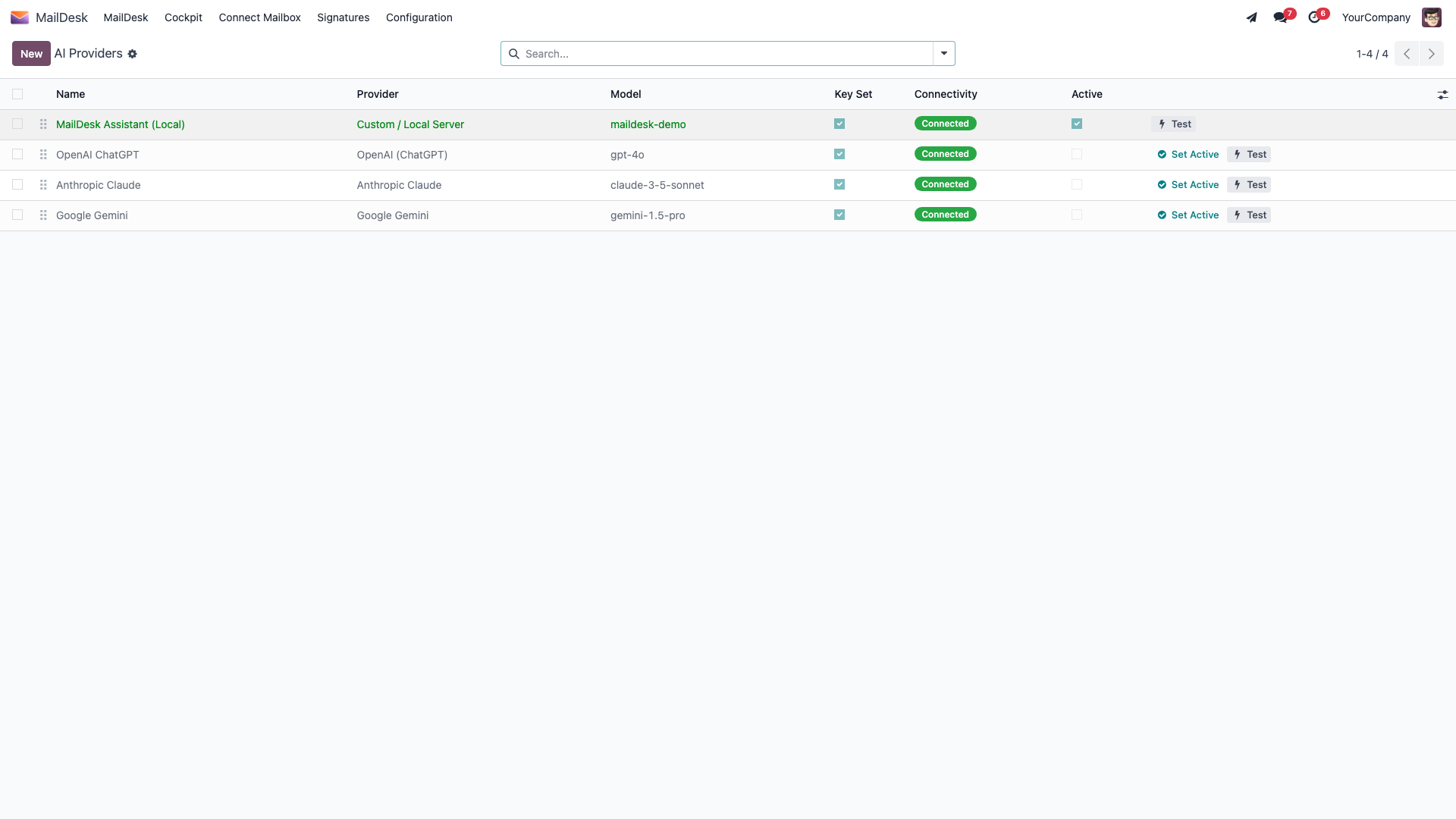
- Choose the Provider, enter the Model, then click Set API Key and paste your key. For a local
server, set the server's Base URL instead (it must end in
/v1). - Click Test Connection - a green Connected status means it works.
- Click Set as Active so MailDesk knows which provider to use.
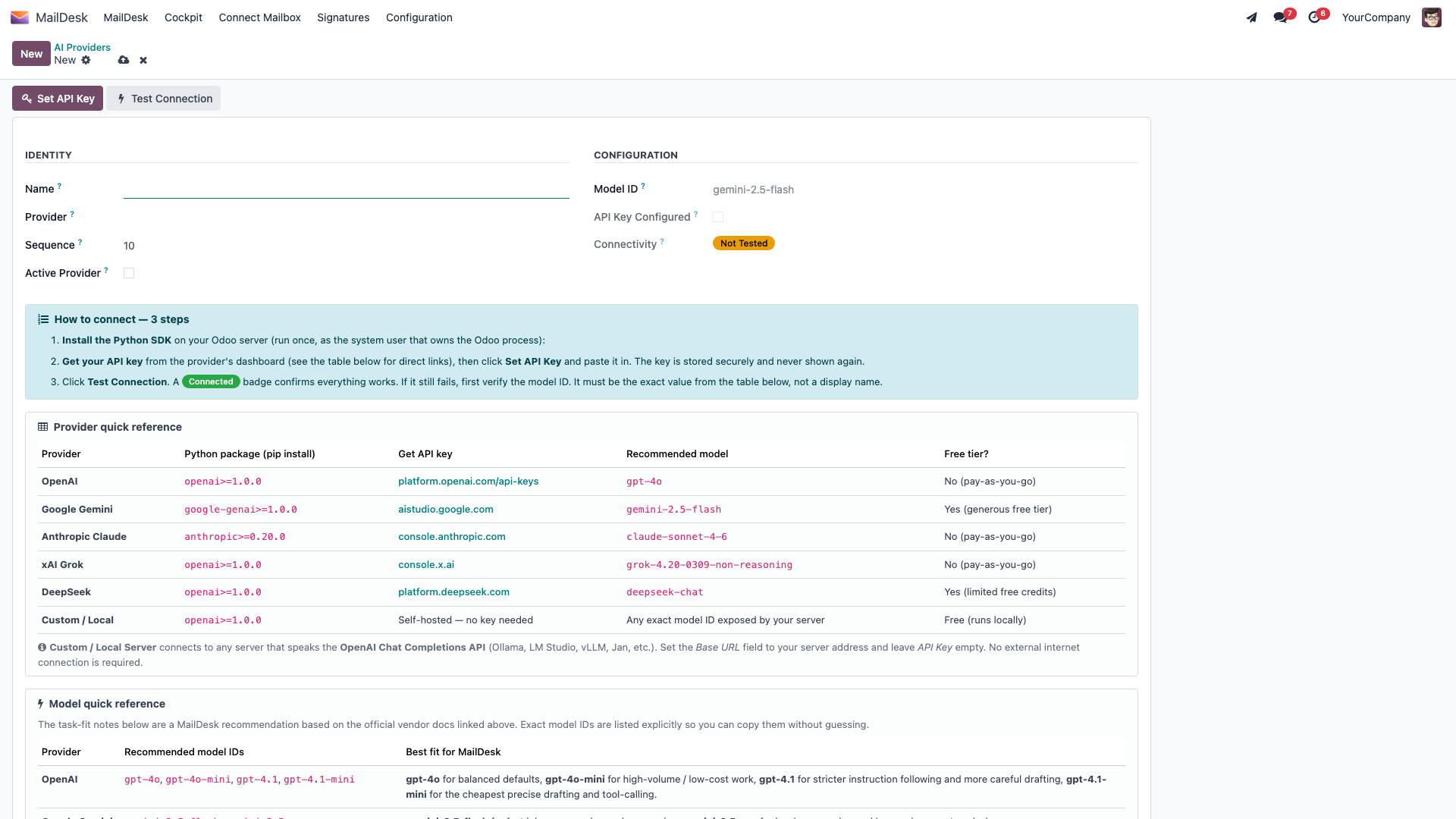
2. Allow AI for the mailbox.
Open MailDesk → Configuration → Mailboxes → Mailbox Accounts → [your account]. On the Settings tab, under Email Settings, switch Enable AI features on. An AI Settings tab then appears, where you can write the optional Team / Mailbox Context and pick a Default Reply Tone. Attachment analysis is a separate opt-in that is off by default and not exposed on the mailbox form in this version.
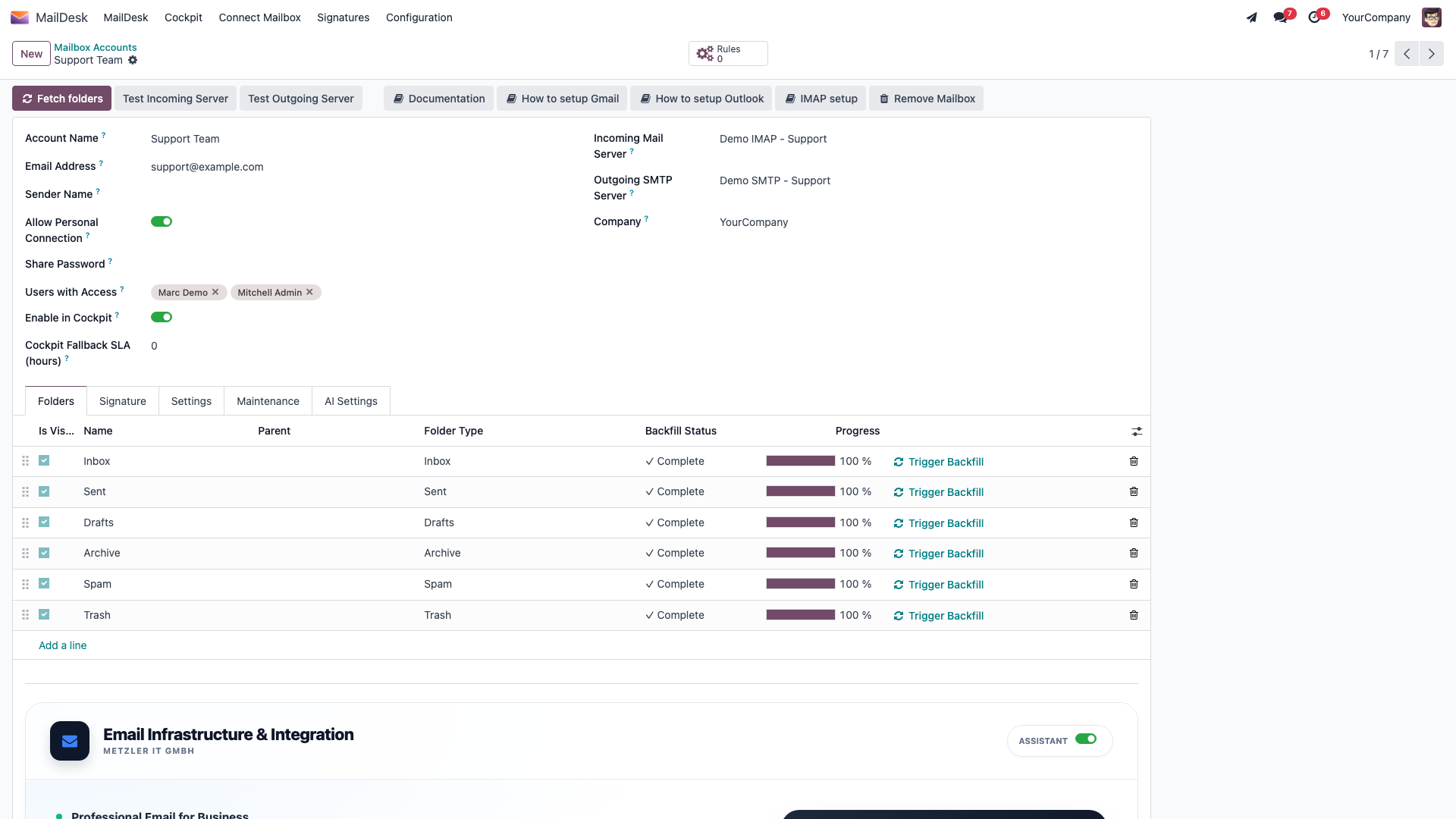
Expected result: open an email and a security badge appears after a moment; Summarise and Ask AI become available on threads.
Turn AI off
- For one mailbox: MailDesk → Configuration → Mailboxes → Mailbox Accounts → [account] → Settings tab → switch Enable AI features off.
- For one feature, or for everything: an administrator can disable it in MailDesk settings (the per-feature and global switches above).
- Remove a provider: MailDesk → Configuration → AI Providers → open the record → Delete. The stored key is cleared with it.
Troubleshooting
| You see | Likely cause | Fix |
|---|---|---|
| No security badge on emails | No provider configured or activated | Add a provider and click Set as Active (above) |
| "API key invalid" | Wrong or expired key | Re-enter the key with Set API Key on the provider record |
| "Quota exhausted" | Provider rate or billing limit reached | Switch model, or raise your plan with the provider |
| AI options greyed out for a mailbox | Enable AI features is off | Switch it on under the mailbox's Settings tab |
| Local server "connection failed" | Server not running, or wrong URL | Start the server; the Base URL must end in /v1 |
Available in MailDesk Pro 18.0.4.1.0+. Provider names and behaviour verified against the Pro AI service code.