CRM integration - link emails to leads and opportunities
A promising email lands in your inbox - and then it has to be retyped into CRM, where half the context gets lost on the way. MailDesk closes that gap. Turn any prospect's email into a CRM lead or opportunity in one click, keep the whole conversation tied to that record, and let your replies log back to it on their own.
Available in: CRM integration. This is a separate module (MailDesk CRM Integration) that requires MailDesk Pro and the standard Odoo CRM app.
Why it matters
- No copy-and-paste. An inquiry becomes a lead while you are still reading the email - no second window, no retyping.
- Context stays with the deal. The conversation is tied to the CRM record, and the replies you send from MailDesk are logged into that record's chatter.
- Nothing slips through. Follow-up emails on the same thread can be linked automatically, so the deal history stays complete on its own.
- Your team keeps control. An administrator decides, per mailbox, exactly which actions sales users may take from the inbox.
The result: your sales people work the way they already do - in their inbox - while CRM quietly stays up to date behind them.
How it works
1. Turn it on for the mailbox
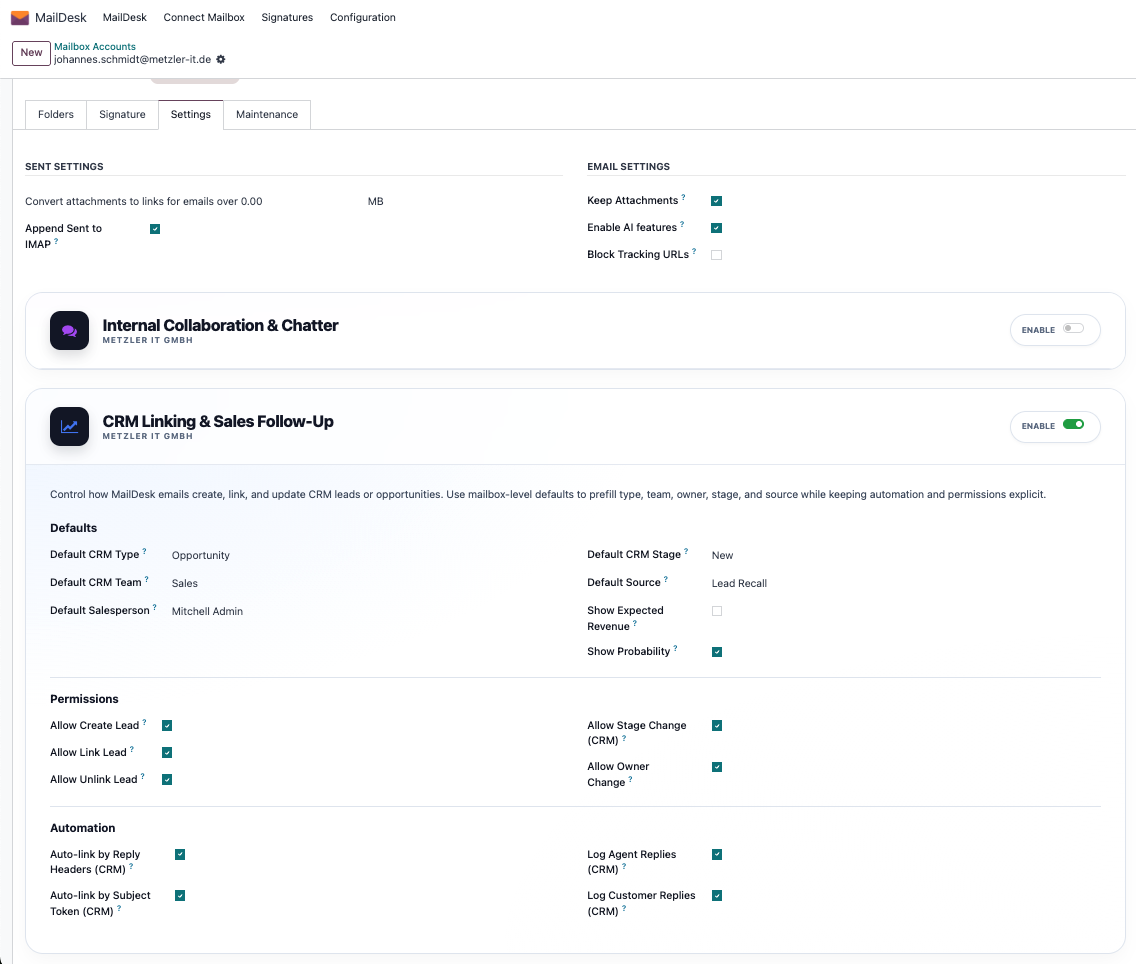
The integration is off by default. An administrator switches it on for each mailbox that needs it, in MailDesk → Configuration → Mailboxes → Mailbox Accounts. Open the mailbox, find the CRM Linking & Sales Follow-Up card, and toggle Enable. The card then opens up the defaults, permissions, and automation options.
Set it up once, sensibly
While you are here, choose the defaults new records should inherit - sales team, salesperson, stage, source, and whether new records start as a Lead or an Opportunity. New leads then land in the right place every time, with no extra clicks for your team.
2. Open the CRM panel from any email
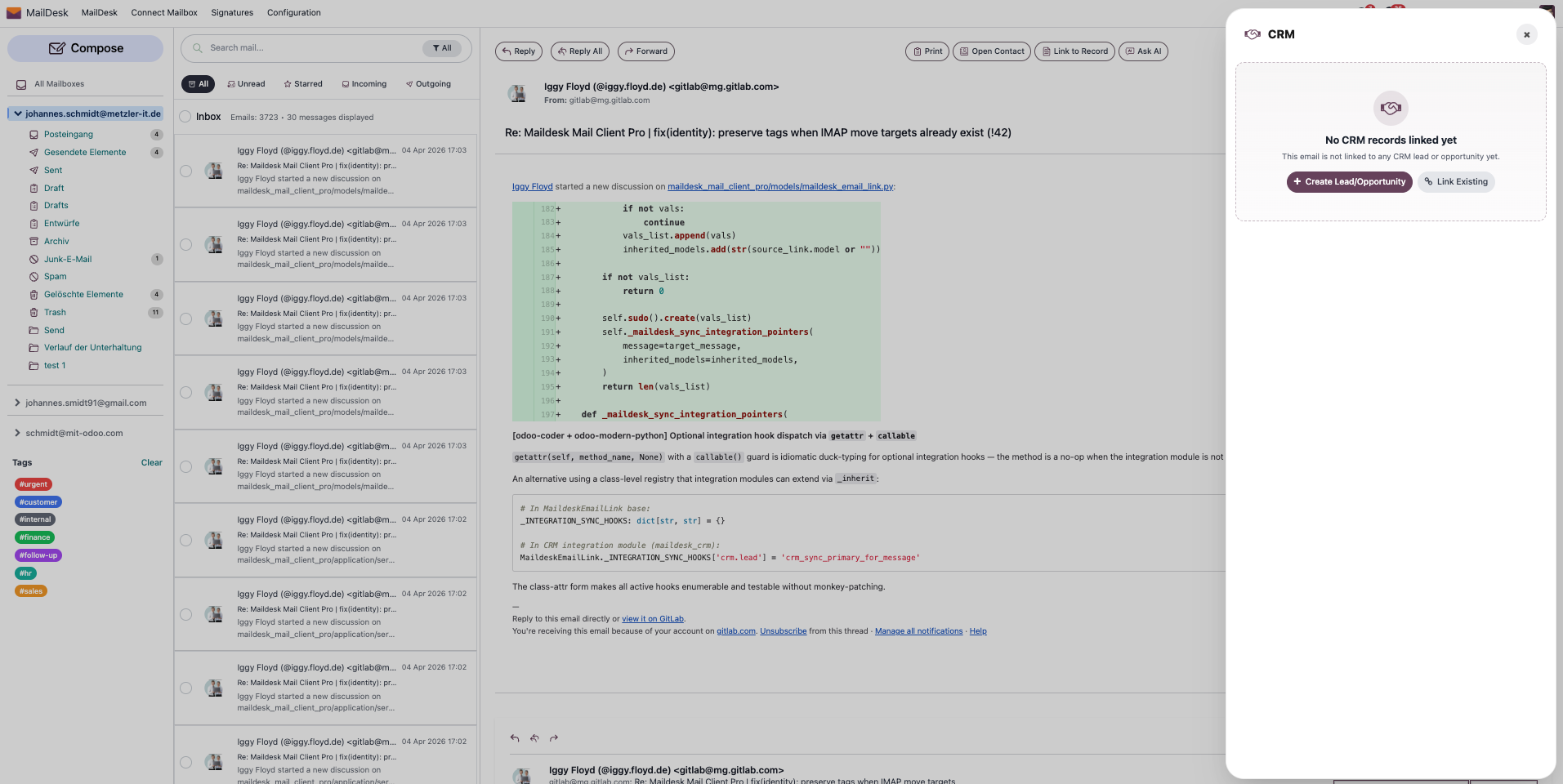
Once it is enabled, a small CRM button (the handshake icon) appears on the toolbar of every email. Click it to open the CRM panel right beside the message.
When an email is not linked to anything yet, the panel simply offers you the two things you can do next: create a new record, or link an existing one.
3. Create a lead or opportunity in one step
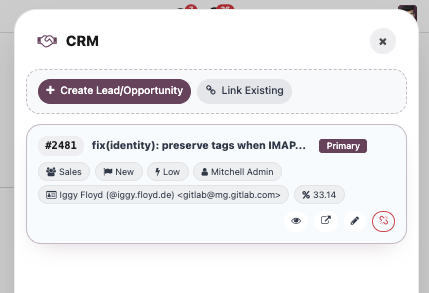
Click Create Lead/Opportunity and a CRM form opens, already filled in from the email - the sender's name and address, the subject as the title, and the message as the description. Complete anything you like and save.
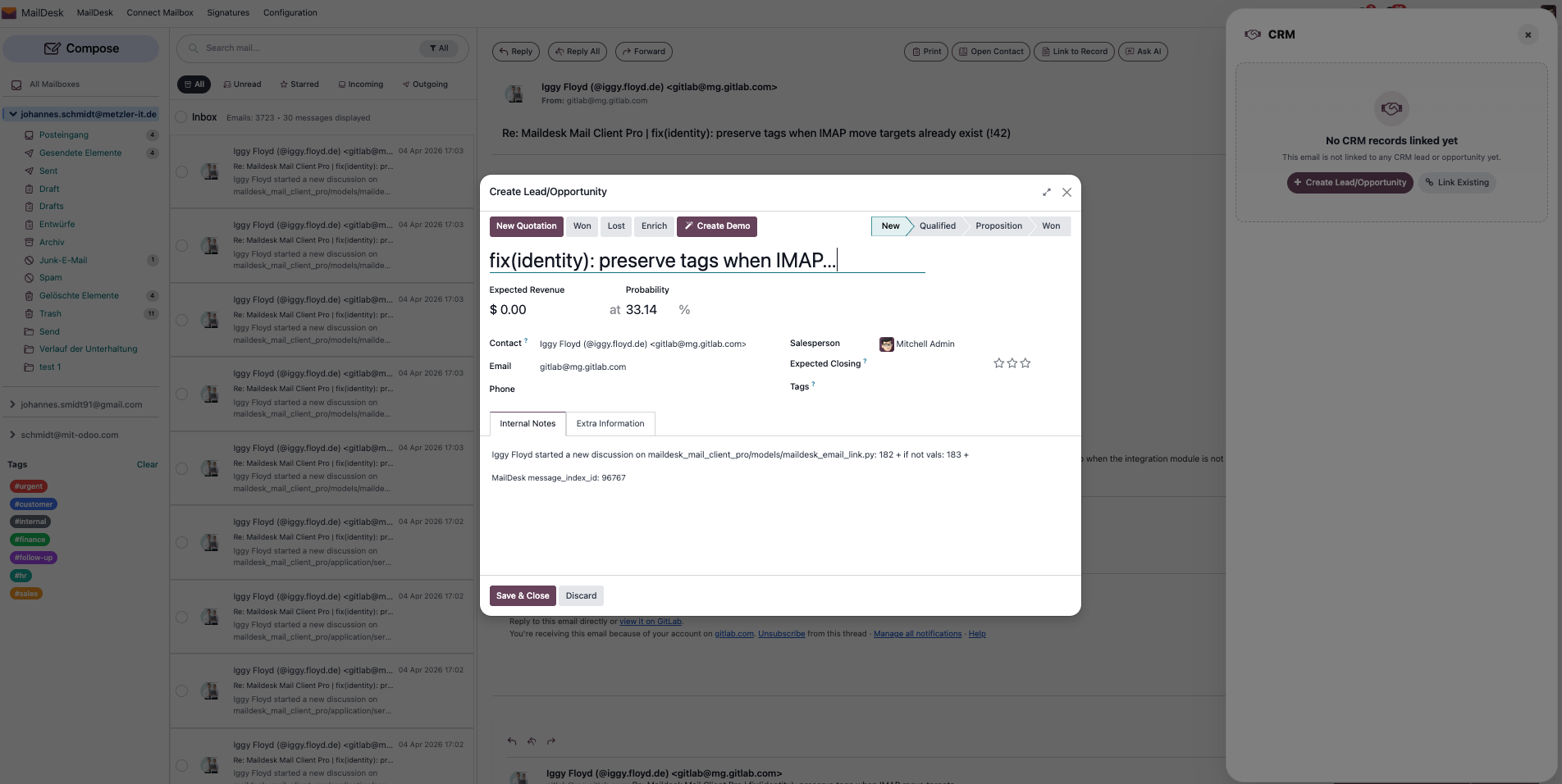
The new record is linked to the email automatically and shows up in the panel - the first linked record is marked Primary.
4. Or attach the email to work you already have
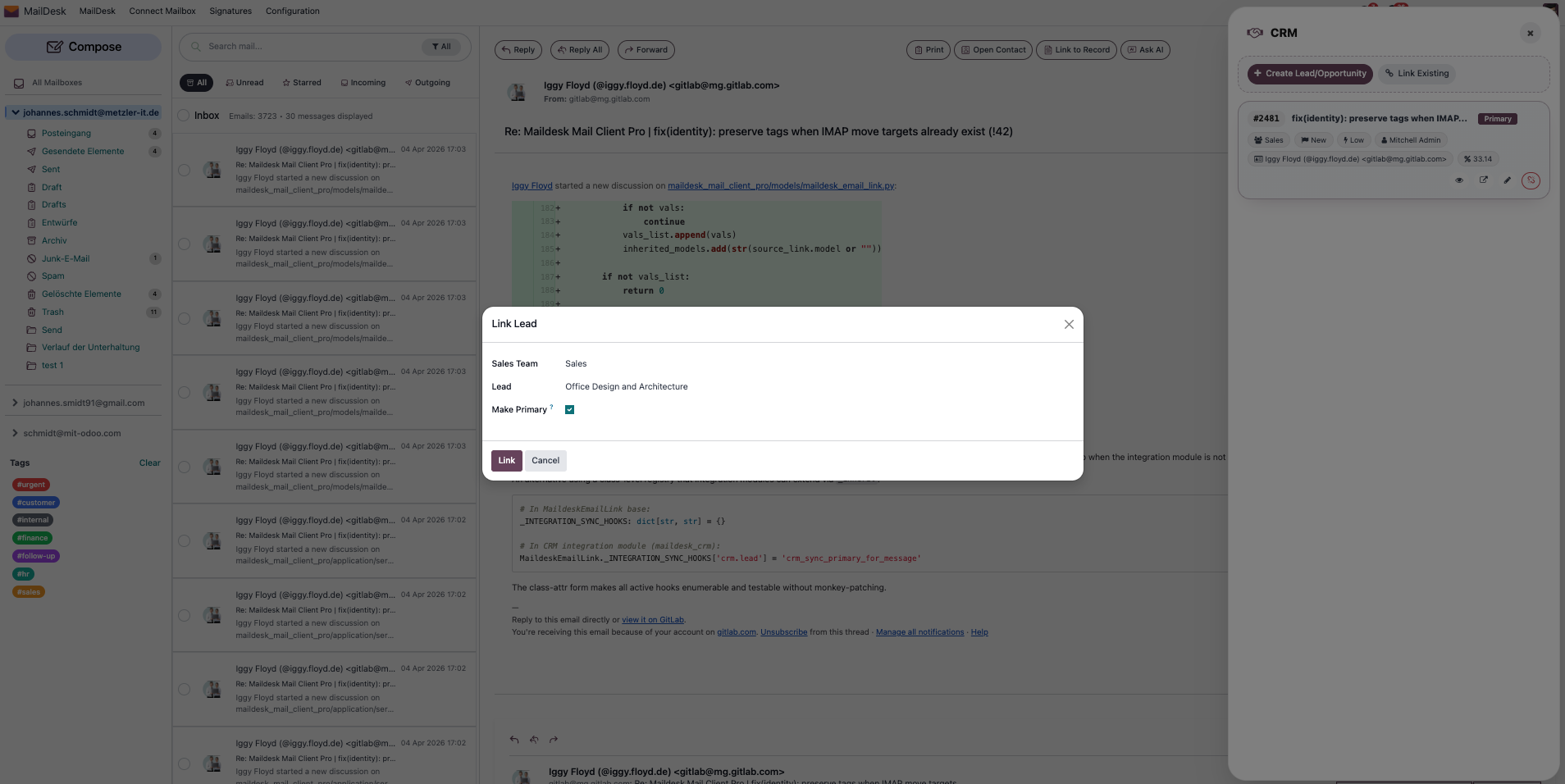
If the deal already exists in CRM, click Link Existing instead. Pick a sales team to narrow the list, choose the right lead or opportunity, and confirm. You can mark it as the primary record for this email.
5. Make quick edits without leaving the inbox
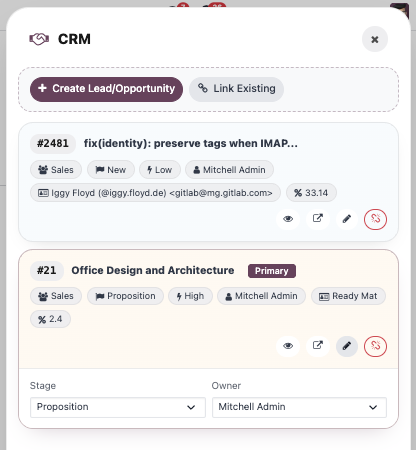
From each card in the panel you can open the full record, or - when the mailbox allows it - change the stage or owner inline. No tab-switching to move a deal forward.
Unlinking is safe
Unlinking a record from an email only removes the link. The CRM lead or opportunity itself is never changed or deleted.
6. The conversation logs back to CRM
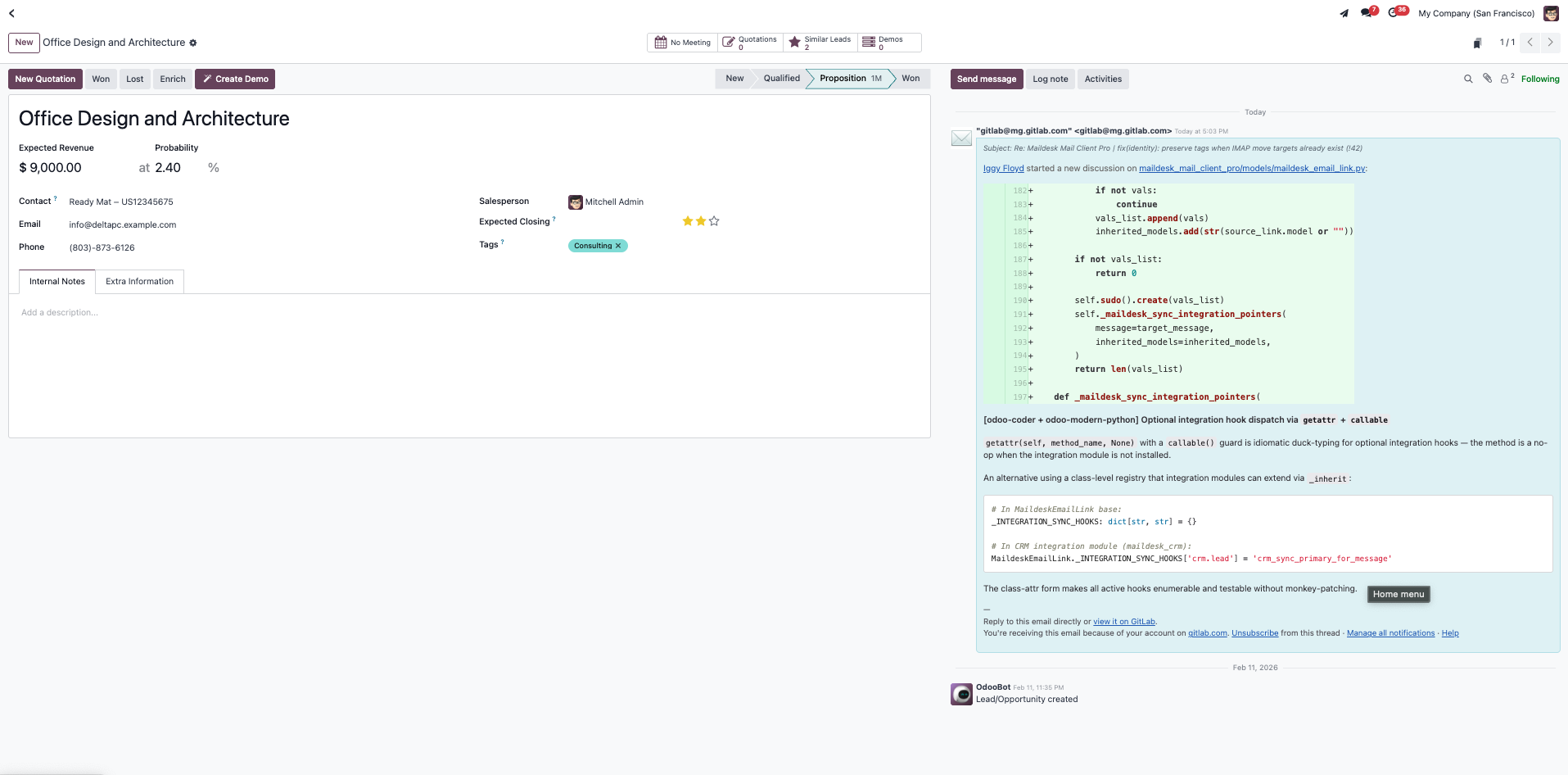
As you keep replying from MailDesk, those replies are logged into the linked record's chatter - so anyone opening the lead in CRM sees the full email history in context.
And back in the inbox, the CRM button carries a badge showing how many records are linked to the email - so you always know an email is already on the radar.
Automatic linking - only when it is certain
Follow-up emails on the same thread can be linked to the right CRM record on their own. MailDesk only does this when it is sure, using two opt-in rules (both on by default):
- By reply headers - a reply is linked to the same record when its email reply headers match an email that was already linked.
- By subject token - a recognized token in the subject, such as
[LEAD-123]or[OPP-123], links the email to that exact record.
MailDesk never guesses from "similar subject" or "same customer", so it will not link the wrong record.
You can also choose whether agent replies and customer replies are logged into the linked record's chatter.
Requirements
- MailDesk Basic and MailDesk Pro installed, with at least one mailbox connected and syncing.
- The MailDesk CRM Integration module installed.
- The standard Odoo CRM app installed.
- MailDesk works on Odoo 17, 18, 19, or 20 - the steps are the same on each.
Permissions
- A user needs read/write access to Odoo CRM to create, open, and edit leads and opportunities. The panel acts as that user, so your normal CRM access rules still apply.
- An administrator turns the integration on per mailbox and decides which actions are allowed - create, link, unlink, stage change, and owner change - so you can hand the inbox to your team without handing over the whole CRM.
Get MailDesk CRM
Stop retyping prospects into CRM. With the MailDesk CRM integration, every email is one click away from being a real, tracked opportunity - owned by the right team, with the full conversation attached.
See plans and pricing, start a free trial, or talk to us about your setup at mit-odoo.de/preise. We are happy to help you get it running on your mailboxes.
Related
- Sales integration - link emails to quotations and orders
- Helpdesk integration - turn emails into support tickets
- Licensing & tiers
- Security & access rights