
Connect Gmail & Google Workspace (administrator)
Want your team to work their Gmail and Google Workspace mailboxes right inside Odoo — without ever typing an email password into the system? This is the page that gets you there. You set up a secure Google sign-in once for the whole company, and from then on every mailbox connects with a single "Sign in with Google" click. No passwords are stored, and you can revoke access from your Google account at any moment.
Want your team to work their Gmail and Google Workspace mailboxes right inside Odoo — without ever typing an email password into the system? This is the page that gets you there. You set up a secure Google sign-in once for the whole company, and from then on every mailbox connects with a single "Sign in with Google" click. No passwords are stored, and you can revoke access from your Google account at any moment.
Available in: Basic and Pro. Gmail sign-in is part of the MailDesk engine, so the setup on this page is identical on both tiers. Pro adds two-way sync and other features on top of the very same Gmail connection — there is no extra Gmail configuration for Pro.
Prefer not to use Google sign-in? There's a simpler path.
If your organization can't use Google OAuth, Gmail can also be connected as a classic IMAP/SMTP account using a Google App Password. That path skips every step on this page — see IMAP / SMTP setup. The Google sign-in described here is the recommended option, though: faster sync, no stored password, and access you can switch off any time.
The short version
There are two halves to this:
- In Google — you create a small Google Cloud project, switch on the Gmail API, describe your app, and generate one Client ID and Client Secret. This is the one-time part.
- In MailDesk — you paste that Client ID and Secret into your company settings, then create a mailbox account and let each user sign in with Google.
After that, connecting any mailbox is just a Google login. You'll never handle the Client ID or Secret again unless you rotate it.
Before you begin
You'll want these ready:
- A Google account that can create a Google Cloud project — a Google Workspace administrator account is ideal for a company rollout.
- Your Odoo server reachable over HTTPS at a stable public address. Google refuses to sign in to
plain
http://addresses (the only exception ishttp://localhostfor local testing). - Administrator access to Odoo, including the technical settings.
HTTPS is not optional
Google will only return users to a secure https:// address. If your Odoo isn't reachable over
HTTPS at a fixed public address yet, sort that out first — otherwise the sign-in can't complete.
Who can do what
- The Gmail Client ID and Secret fields are restricted to Odoo Settings administrators (the Administration: Settings group). Only such a user can view or change them.
- Creating mailbox accounts and connecting them is available to MailDesk administrators.
Part 1 — Set up Google (do this once)
Step 1 — Create a Google Cloud project
- Open the Google Cloud console.
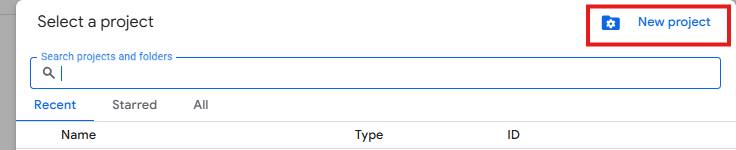
- In the top bar, open the project selector and choose New Project.
- Give it a clear name (for example MailDesk), pick your organization if you have one, and confirm. Give Google a few seconds to create it, then select the new project.
Step 2 — Switch on the Gmail API
This is what lets MailDesk read and send mail through your Google account.
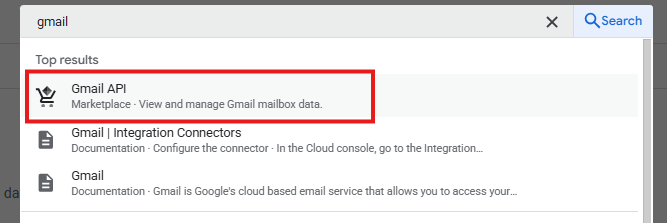
- Go to APIs & Services → Library.
- Search for Gmail API and open it.
- Click Enable.
You can confirm it's on later under APIs & Services → Enabled APIs & services.
Step 3 — Describe your app (the consent screen)
This is the screen your users will see the first time they sign in — so a clear app name builds trust.
- Go to APIs & Services → OAuth consent screen.
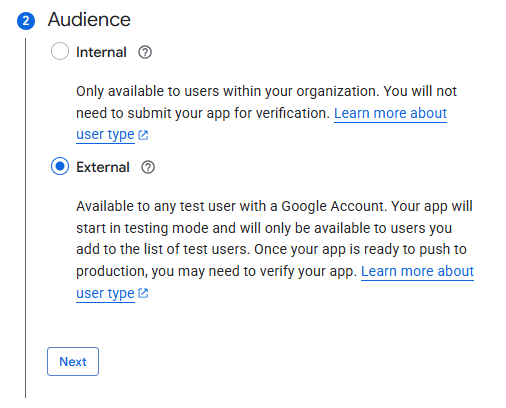
- Choose who is allowed to sign in:
- Internal — recommended for Google Workspace organizations. Only people in your organization can connect, and Google requires no extra verification.
- External — needed if you must connect personal
@gmail.comaccounts or several different organizations. While the app is in Testing mode you can add up to 100 named test users; going beyond that requires Google's app-verification review.
- Fill in the app details: an app name (for example MailDesk), a user-support email, and a
developer-contact email. Under Authorized domains, add your Odoo server's domain without
the
https://prefix (for exampleerp.example.com). - On the scopes step, add the four Gmail permissions MailDesk uses (listed just below), then save and continue.
What MailDesk asks permission for
MailDesk requests exactly four Gmail permissions — no more — so users can see precisely what they're granting:
| Permission | Why MailDesk needs it |
|---|---|
| Read Gmail messages and settings | Show messages, labels, and your folder structure |
| Manage Gmail messages | Mark read/unread, star, apply labels, move messages |
| Send email | Send mail from MailDesk |
| Manage drafts | Save and manage drafts |
The same four permissions on Basic and Pro
These four are requested whether you run Basic or Pro. Two-way actions like marking read and moving messages are part of the engine; Pro builds its extra features on top of the same Gmail access — nothing more to grant.
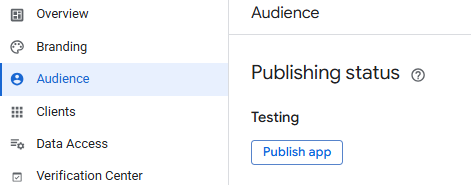
When you're ready for everyday use, move the app's publishing status out of Testing so anyone in your audience can sign in (Internal apps for Workspace don't need Google's review).
Step 4 — Generate your Client ID and Secret
This is the credential that ties MailDesk to your Google project.
- Go to APIs & Services → Credentials.
- Click Create Credentials → OAuth client ID.
- For Application type, choose Web application and give it a name.
-
Under Authorized redirect URIs, add exactly this — it's where Google sends users back after they sign in:
https://YOUR-ODOO-DOMAIN/google_gmail/confirmReplace
YOUR-ODOO-DOMAINwith your real Odoo address, for examplehttps://erp.example.com/google_gmail/confirm. -
Click Create. Google shows the Client ID and Client Secret. Copy both — you'll paste them into MailDesk in Part 2.

The redirect address must match character-for-character
MailDesk always sends users back to {your Odoo address}/google_gmail/confirm. The value in the
Google console must match exactly: same https, same domain, no trailing slash, no typo. A
mismatch is the single most common cause of a redirect_uri_mismatch error during sign-in.
Part 2 — Tell MailDesk about it
Step 5 — Enter the credentials in MailDesk
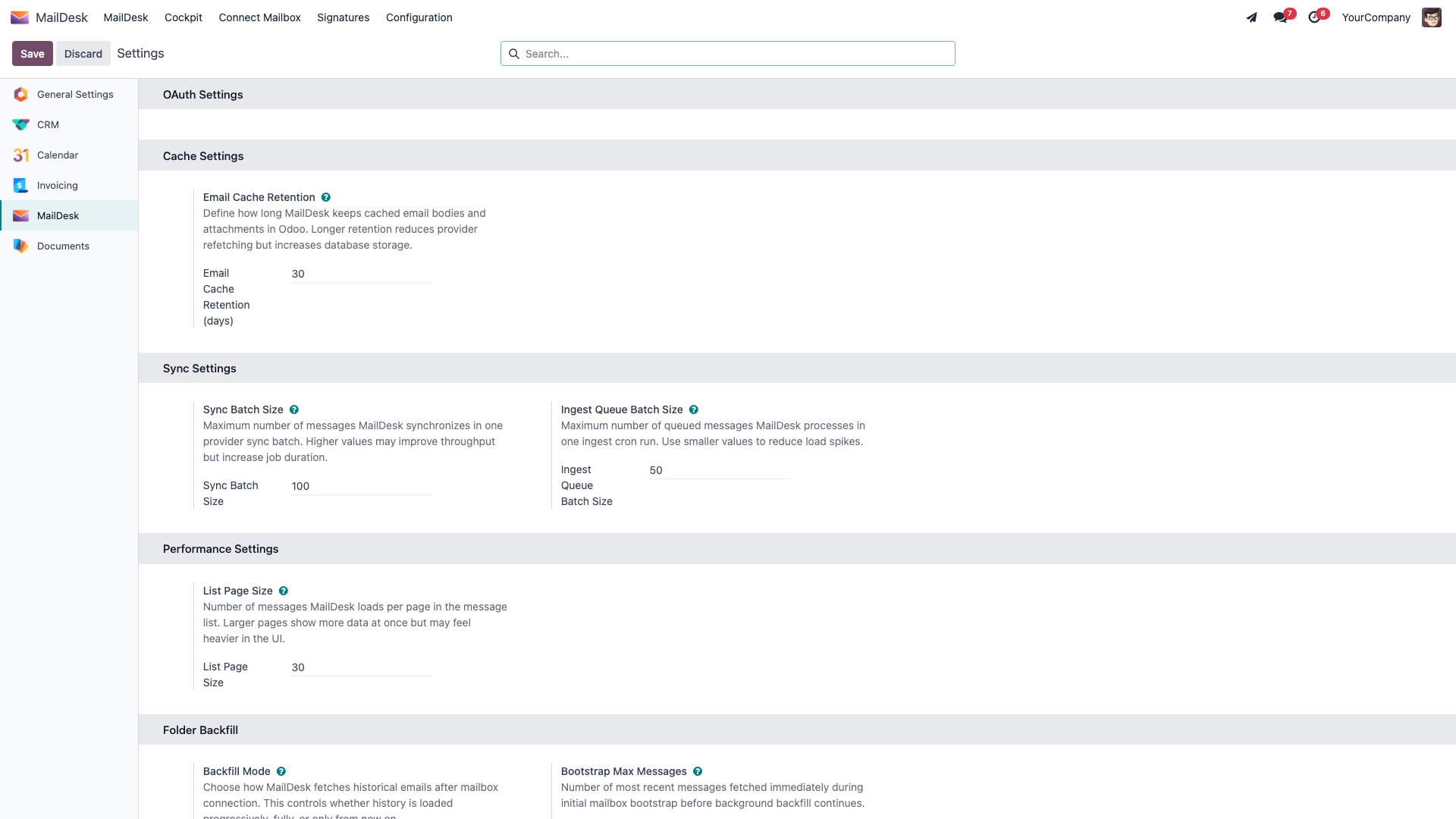
MailDesk stores the Gmail Client ID and Secret per company, so each company can have its own Google project. There are two equivalent places to enter them — use whichever suits you.
Option A — MailDesk settings (easiest)
- In Odoo, go to Settings, open the MailDesk section, and find the OAuth Settings block.
- Turn on Use a Gmail Server.
- Paste the Google ID and Secret from Step 4.
- Save.
The values here belong to the company selected in the top-right company switcher.
Option B — Company form
- Go to Settings → Users & Companies → Companies and open the company.
- Open the Mail OAuth tab.
- Under Gmail OAuth, fill in Gmail Client Id and Gmail Client Secret.
- Save.
Multi-company, and what happens on upgrade
MailDesk reads the credentials in a fixed order: it uses the company's Gmail Client ID and Secret first, and only if those are empty does it fall back to older system-wide Gmail credentials. So set the values on each company that runs Gmail mailboxes. If you're upgrading an existing single-company install, MailDesk copies any previous system-wide credentials onto your main company automatically — nothing breaks — but the per-company fields are now the place to manage them.
Step 6 — Double-check Odoo's base address
MailDesk builds the Google return address from Odoo's base URL, so it has to match what you registered in Step 4.
- Go to Settings → Technical → System Parameters.
- Find
web.base.url. It should be your public HTTPS address with no trailing slash (for examplehttps://erp.example.com). - Correct it if needed and save.
Step 7 — Create a mailbox and sign in
Now the payoff — connecting an actual Gmail mailbox.
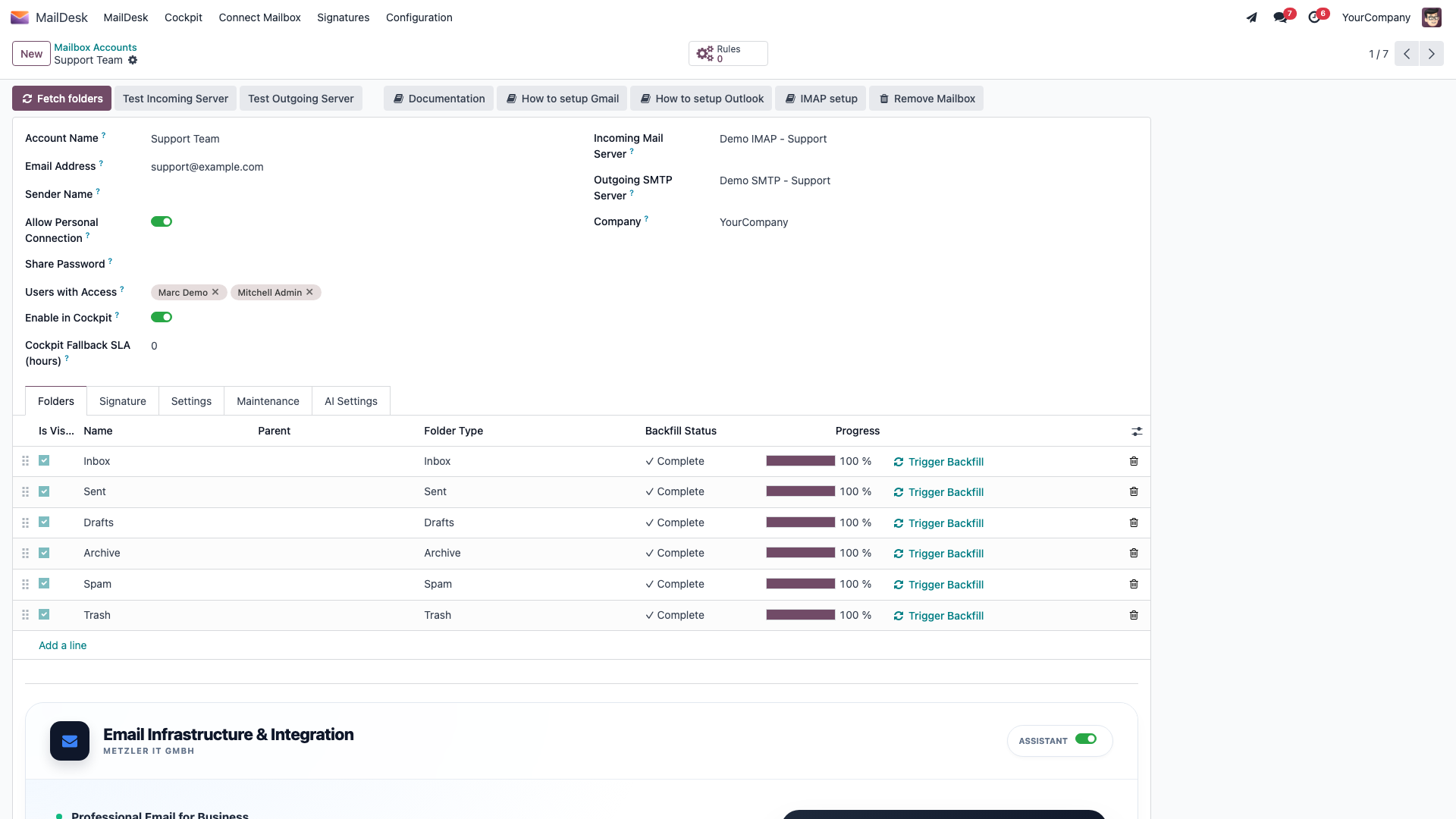
- Go to MailDesk → Configuration → Mailboxes → Mailbox Accounts and create a new account.
- Fill in the Account Name (a friendly label like Support or Sales) and the Email Address of the Gmail mailbox.
- In Incoming Mail Server, link a Gmail incoming server — an incoming server whose type is the Gmail option. Save.
- Complete the Sign in with Google prompt for that mail server, and grant the four permissions. Google brings you back to Odoo, and the mailbox starts syncing.
Gmail signs in on the mail server, not with a button on the form
Unlike Outlook, Gmail doesn't use a dedicated authorize button on the mailbox account form. The Google sign-in runs through the standard Gmail incoming-server flow, using the company credentials you entered in Step 5.
What you'll see
After sign-in, the mailbox connects and MailDesk pulls in your newest messages first, then keeps loading older history quietly in the background. From then on, new mail arrives automatically on the regular sync schedule — your inbox just stays up to date.
You can also confirm the connection on the mailbox account at any time using the incoming-server test, which shows a friendly Connection Test Successful! when everything is wired correctly.
When something isn't right
| What you see | Likely cause | What to do |
|---|---|---|
redirect_uri_mismatch from Google |
The return address in Google doesn't exactly match {your Odoo address}/google_gmail/confirm |
Compare web.base.url (Step 6) with the Google console value; fix the scheme, domain, and any trailing slash |
| A "not configured" style error at sign-in | The Gmail Client ID or Secret is empty for this company | Enter them via Step 5; confirm you're on the correct company in the top-right switcher |
| "This app isn't verified" | An External consent screen without verification | Use Internal for a Workspace org, add the user as a test user in Testing mode, or submit the app for verification |
| "Access blocked: invalid request" | A permission is missing on the consent screen | Re-open the consent screen and confirm all four Gmail permissions from Step 3 are present |
| Sync stops and Gmail asks to sign in again | The stored access was revoked or expired | Re-run the Google sign-in for that mailbox's incoming server |
Keeping the Client Secret safe
- The Client ID and Secret live in your Odoo database and are visible only to Settings administrators. They are never written to logs.
- Treat the Secret like any password: don't paste it into tickets, chat, or version control. Rotate it periodically — and immediately after any suspected exposure — by creating a new secret in the Google console and updating it in MailDesk (Step 5).
- Running separate dev / staging / production servers? Register a separate redirect address (or a separate OAuth client) for each, so every environment has its own credentials.
Related
- Outlook / Microsoft 365 setup
- IMAP / SMTP setup — the App Password alternative for Gmail
- Mailbox setup
- Security & access rights
- Licensing & tiers
- Troubleshooting