
Connect Outlook / Microsoft 365 to MailDesk
Your team's Outlook and Microsoft 365 mailboxes belong right where the work happens — inside Odoo, next to your customers, quotes and tickets. This guide walks you, the administrator, through connecting them once and for good: you register a small application with Microsoft, then each mailbox is linked with a single Microsoft sign-in from inside MailDesk. No email passwords are ever stored in Odoo — Microsoft handles the login and hands back a token that you can revoke at any
Your team's Outlook and Microsoft 365 mailboxes belong right where the work happens — inside Odoo, next to your customers, quotes and tickets. This guide walks you, the administrator, through connecting them once and for good: you register a small application with Microsoft, then each mailbox is linked with a single Microsoft sign-in from inside MailDesk. No email passwords are ever stored in Odoo — Microsoft handles the login and hands back a token that you can revoke at any time.
- Basic connects Outlook for reading and the engine's own actions, asking Microsoft for read access to mail (Mail.Read) plus an offline refresh so the connection stays alive.
- Pro asks for broader access (Mail.ReadWrite) so it can also write changes back to Outlook — marking messages read or unread, moving them between folders, and deleting them. The Microsoft app registration is identical for both; Pro simply requests the wider permission when a mailbox is authorized.
This is MailDesk's own Microsoft connection — not Odoo's built-in one
MailDesk does not reuse Odoo's standard Outlook integration (the one used to send mail from CRM and other Odoo forms). MailDesk has its own Microsoft Graph sign-in and keeps its tokens on the mailbox account. Configuring Odoo's standalone Outlook settings will not configure MailDesk — and you don't need to.
How it works, in plain terms
- You create one application in Microsoft Entra ID (formerly Azure Active Directory).
- You generate a client secret for it and grant it the right mail permission.
- You paste the application's Client Id and Secret into MailDesk — once, for the company.
- From then on, connecting any Outlook mailbox is a single Microsoft sign-in. MailDesk receives a token and a refresh token and starts syncing. The password is never seen.
Why it's worth it
- No passwords in your database — and access can be pulled from Microsoft instantly.
- Modern, efficient sync over Microsoft Graph instead of slow full-mailbox scanning.
- Set up once, used by everyone — register the app a single time, then let each person connect their own mailbox.
Before you start
- A Microsoft Entra ID / Azure account that may create an app registration (Azure portal). For company mailboxes this is normally your Microsoft 365 tenant administrator.
- Your Odoo server reachable over HTTPS at a stable public address. Microsoft refuses
OAuth redirects to plain
http://. - Administrator access to Odoo, including the technical settings.
- MailDesk works on Odoo 17, 18, or 19 — the steps below are the same on each.
Who can do what
The Outlook Client Id and Secret fields are reserved for Odoo Settings administrators (the Administration: Settings group) — only they can view or change them. Creating mailbox accounts and connecting them is open to MailDesk administrators.
Part 1 — Register the application with Microsoft
These steps happen in the Azure portal. You only do them once per company.
Step 1 — Create the app registration
- Open the Azure portal and go to Microsoft Entra ID (you may also see it called Azure Active Directory) → App registrations.
- Click New registration and give it a recognizable name, for example MailDesk.
- Choose the supported account types that match who should be able to connect:
- Single tenant — recommended for one organization; only your own users can connect.
- Multitenant — for several organizations.
- Multitenant and personal Microsoft accounts — also allows Outlook.com / Hotmail sign-ins.
-
Under Redirect URI, choose the platform Web and enter your Odoo address followed by
/microsoft_outlook/confirm, exactly:https://YOUR-ODOO-DOMAIN/microsoft_outlook/confirmFor example:
https://erp.example.com/microsoft_outlook/confirm. -
Click Register.
The redirect URI and platform must match exactly
MailDesk always sends Microsoft to {your Odoo base URL}/microsoft_outlook/confirm. The
value in Azure has to match it character for character, and the platform must be Web
(not Single-page application or Mobile). A mismatch is the single most common error
and shows up as Microsoft error AADSTS50011.
On the registration's Overview page, copy the Application (client) ID — you'll need it shortly. If you chose single tenant, also note the Directory (tenant) ID.
Step 2 — Create a client secret
- In the app registration, open Certificates & secrets.
- Click New client secret, add a description, choose an expiry, and click Add.
- Copy the secret Value immediately — Azure shows it only this once. If you lose it, simply create a new one.
Secrets expire — set a reminder
Client secrets have a maximum lifetime. Note the expiry date and replace the secret before it lapses by creating a new one and updating MailDesk (Part 2). When a secret expires, sign-in stops working until you enter a fresh one.
Step 3 — Grant the mail permission
- Open API permissions → Add a permission → Microsoft Graph → Delegated permissions.
- Add the permission your edition needs:
- Mail.Read — enough for Basic.
- Mail.ReadWrite — required for Pro's two-way changes (mark read, move, delete).
Mail.ReadWritealso covers reading, so a Pro deployment can simply grantMail.ReadWriteon its own.
-
Planning to connect a Microsoft 365 Shared Mailbox? Additionally grant the shared variant of your edition's permission:
- Mail.Read.Shared on Basic.
- Mail.ReadWrite.Shared on Pro.
These let a mailbox member read (and, on Pro, update) the shared mailbox on its behalf — the plain permissions only ever reach the signed-in person's own mailbox. See Microsoft 365 Shared Mailboxes for the full walkthrough.
-
You do not need to add the sign-in permissions (
offline_access,openid,profile) — these are standard OpenID Connect permissions that MailDesk requests automatically.openid/profilelet MailDesk verify which Microsoft account actually signed in, so a token from the wrong account is rejected instead of being silently attached to your mailbox.
Use Delegated permissions, not Application permissions
MailDesk connects on behalf of the signed-in person. Grant Delegated Graph permissions; avoid Application permissions, which use a different, much broader access model than MailDesk needs.
Step 4 — Grant admin consent (only if your organization requires it)
If your organization requires administrator approval for delegated permissions, open API permissions and click Grant admin consent for [your organization]. People can then connect their mailboxes without each seeing an individual consent prompt. This step is optional for personal accounts and for one-off individual testing.
Part 2 — Tell MailDesk about the application
MailDesk stores the Outlook Client Id and Secret per company. There are two equivalent places to enter them — pick whichever you prefer.
Option A — In the MailDesk settings
- In Odoo, open Settings, scroll to the MailDesk section, and find the OAuth Settings block at the top.
- Turn on Use an Outlook Server.
- Enter the Microsoft ID (the Application / client ID from Step 1) and Secret (from Step 2).
- Click Save.
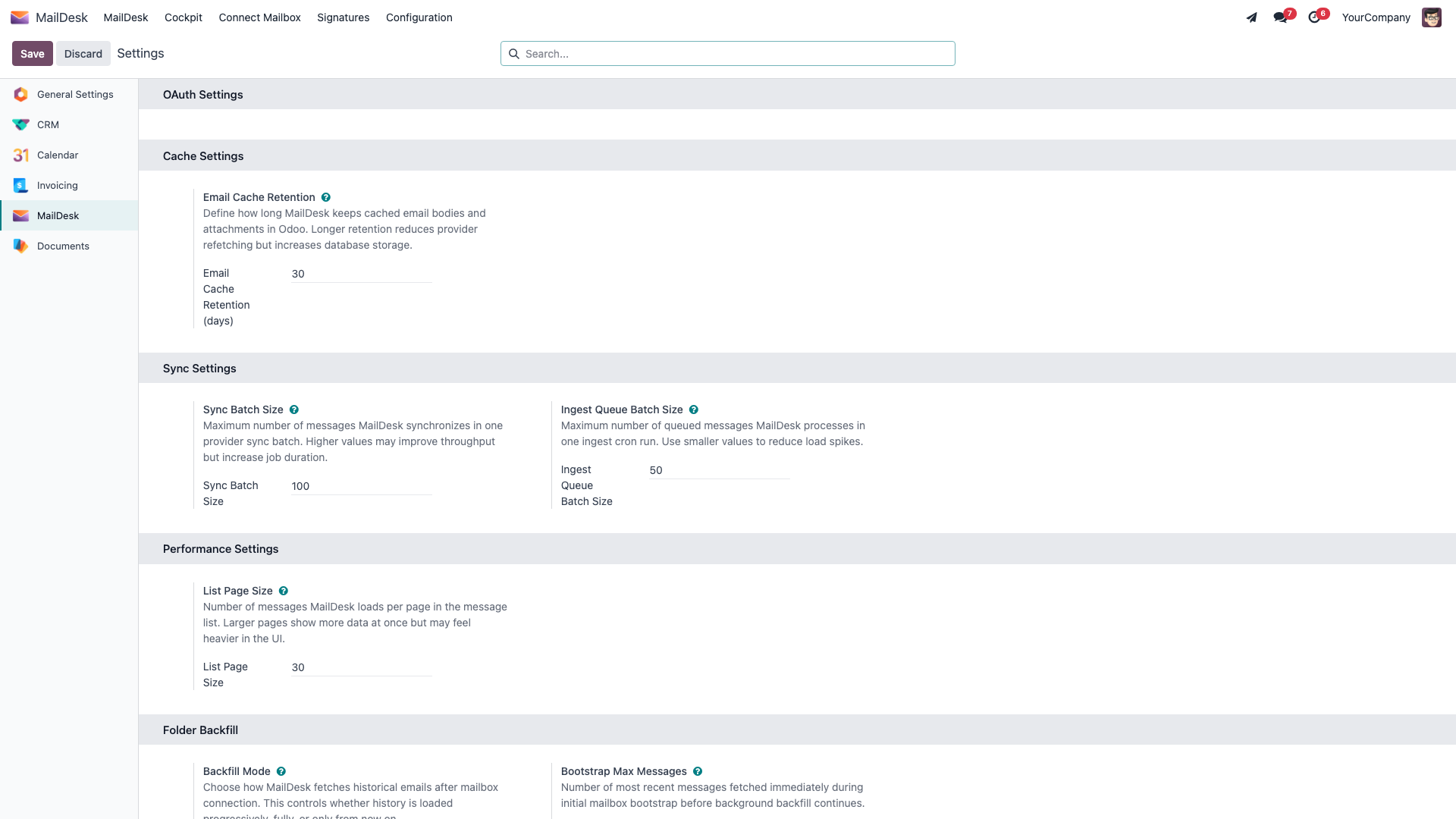
The values you see here belong to the company currently selected in the top-right company switcher — so if you run more than one company, make sure you're on the right one.
Option B — On the company form
- Go to Settings → Users & Companies → Companies and open the company.
- Open the Mail OAuth tab.
- Under Outlook OAuth, fill in Outlook Client Id and Outlook Client Secret.
- Click Save.
How MailDesk picks the right credentials
MailDesk always uses the company's Outlook Client Id and Secret first. Only if those are empty does it fall back to older system-wide credentials. For a single-tenant app it also works out the correct Microsoft sign-in address automatically. When you upgrade an older single-company install, MailDesk copies any previous system-wide Outlook credentials onto your main company for you.
Step 5 — Confirm the Odoo base URL
MailDesk builds the Microsoft redirect address from Odoo's base URL, so it must match what you registered in Azure.
- Go to Settings → Technical → System Parameters.
- Find
web.base.url. It should be your public HTTPS address with no trailing slash — for examplehttps://erp.example.com. - Correct it if needed and save.
Part 3 — Connect an Outlook mailbox
With the application in place, connecting a mailbox is quick and repeatable for every user.
Step 6 — Create the incoming Outlook server
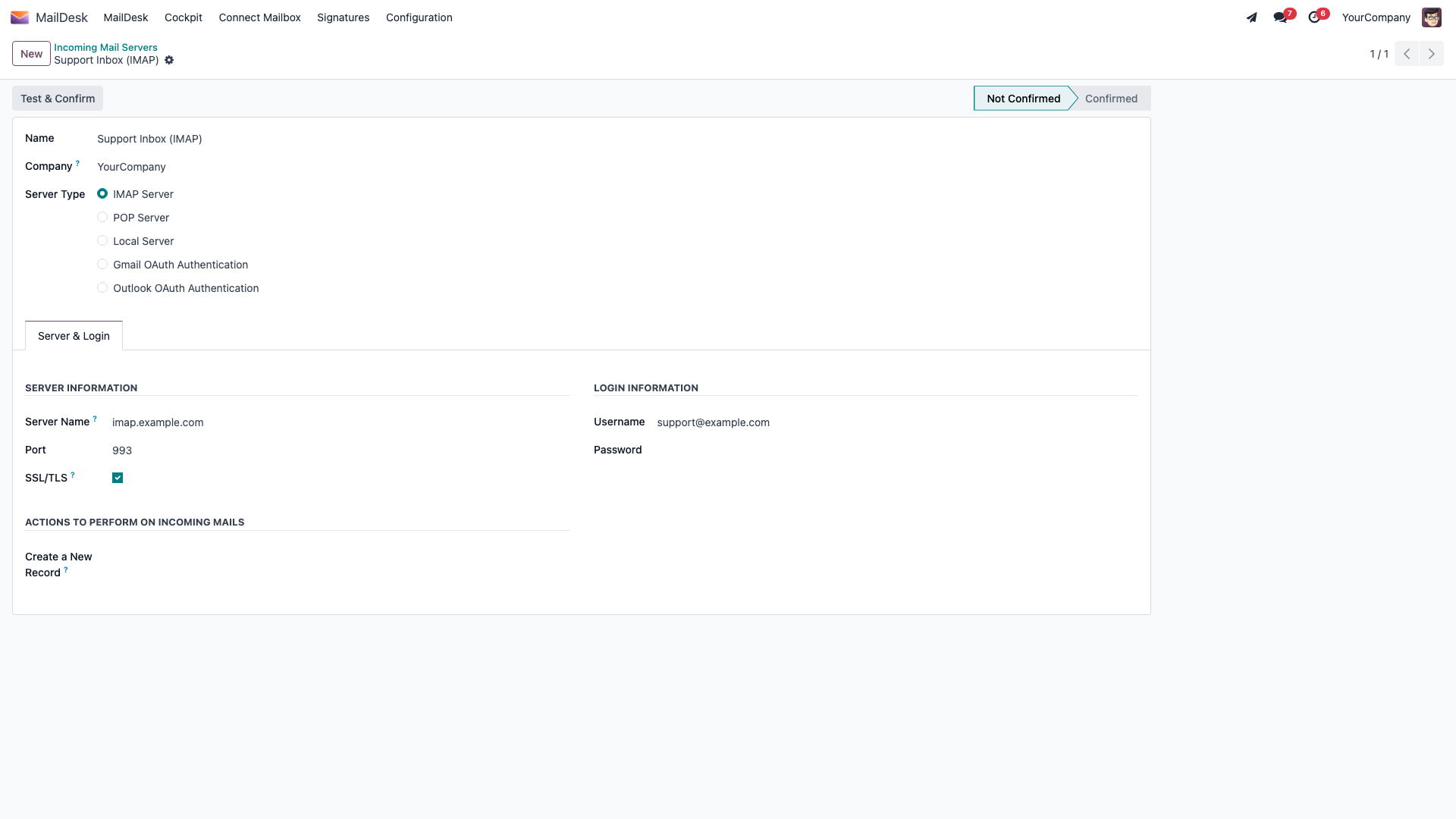
Open MailDesk → Configuration → Mailboxes and create a new incoming mail server. Give it a name, then set the Server Type to Outlook OAuth Authentication — this is what tells MailDesk to treat the mailbox as an Outlook account.
Step 7 — Create the mailbox account
-
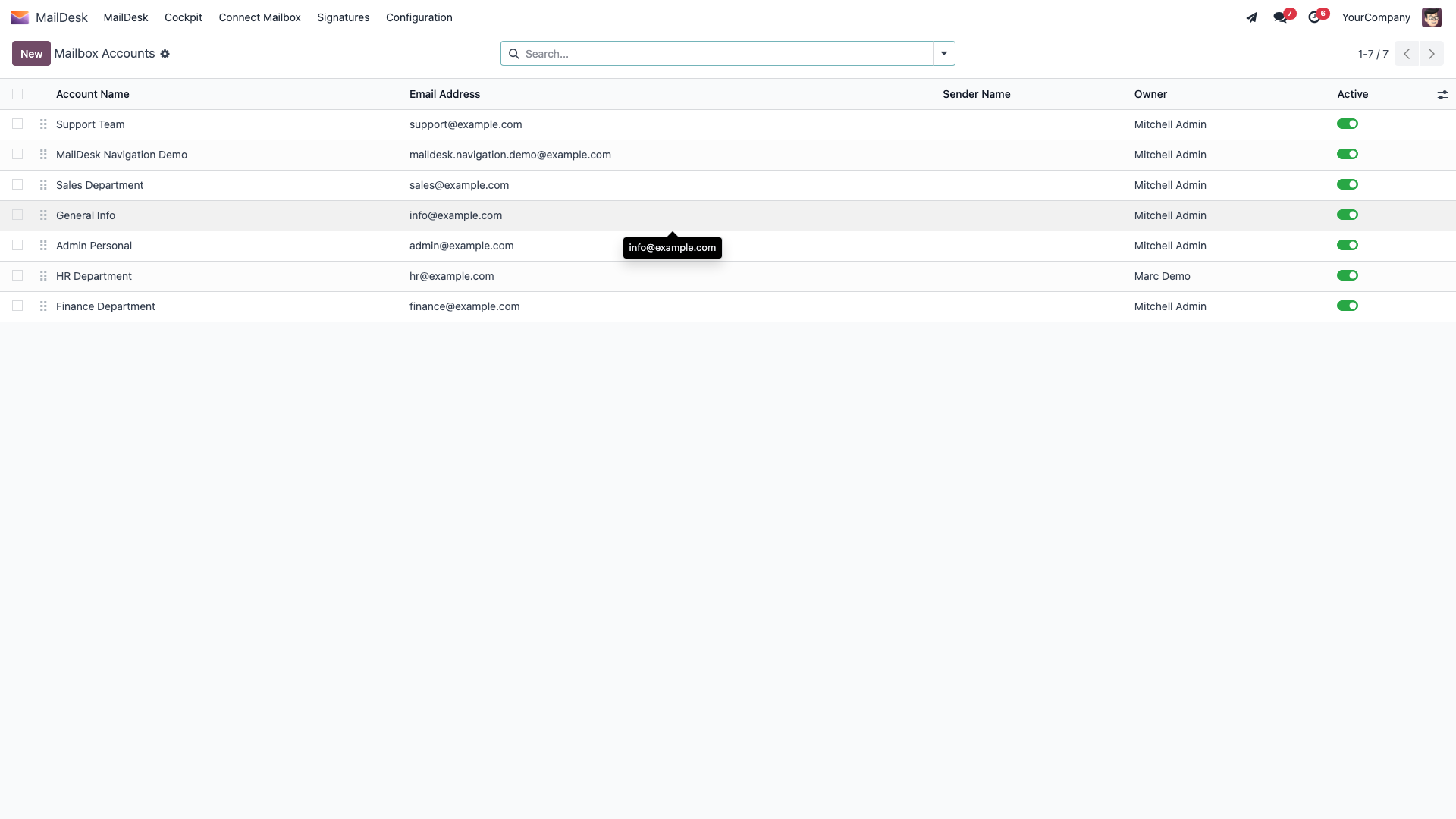
Go to MailDesk → Configuration → Mailboxes → Mailbox Accounts and click New.
-
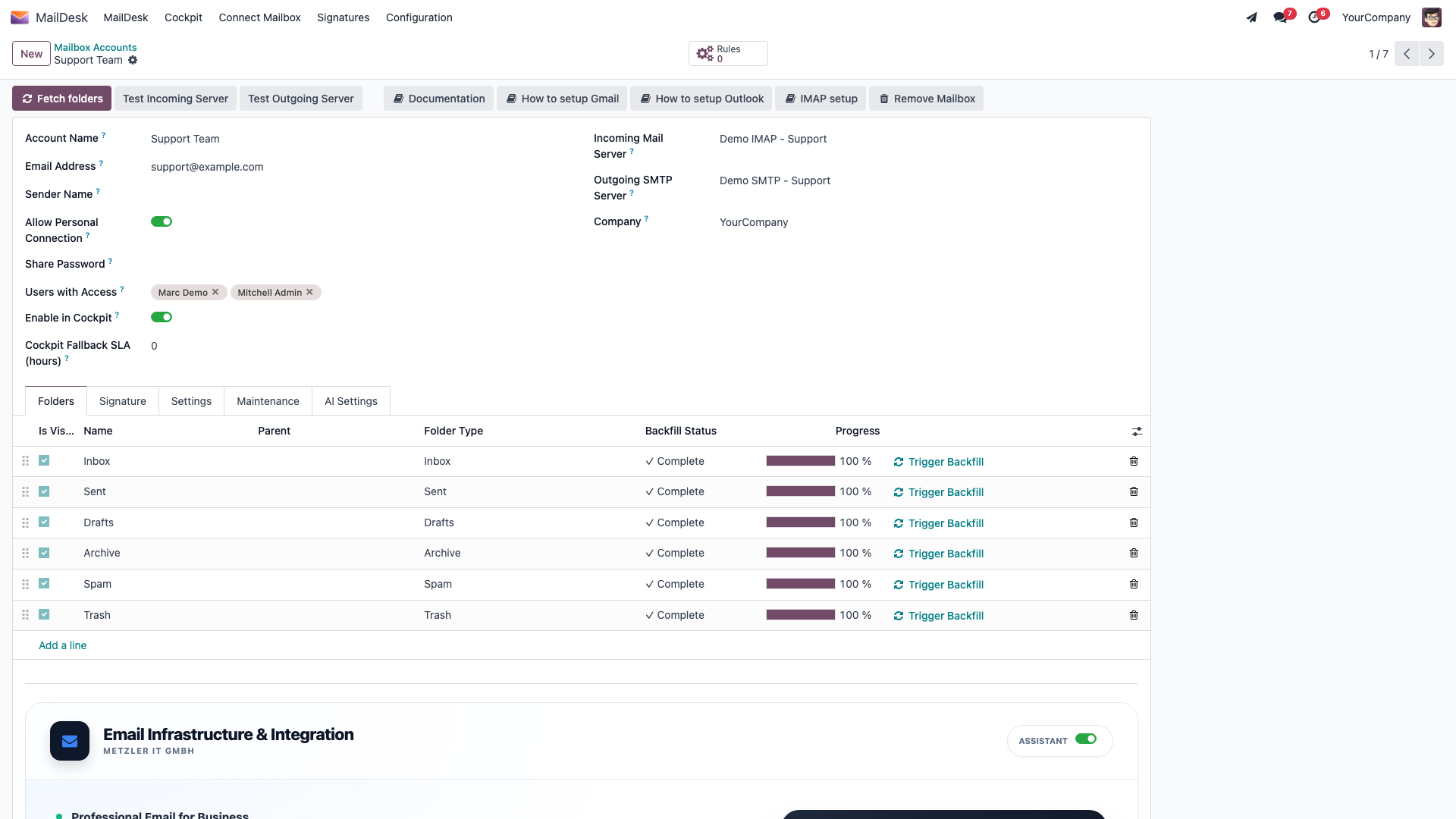
Fill in the Account Name (a friendly label such as Support or Sales), the Email Address of the Outlook mailbox, and link it to the Incoming Mail Server you just created (and an Outgoing SMTP Server for sending). Click Save.
Step 8 — Authorize with Microsoft
- On the saved Outlook account, click Connect Microsoft Graph (OAuth) in the form header. This button appears only on Outlook accounts.
- Complete the Microsoft sign-in and accept the requested permissions.
- Microsoft returns you to the mailbox account in Odoo, and syncing begins.
Verify the link straight away
Use Test Incoming Server in the header to confirm MailDesk can reach the mailbox. A green Connection Test Successful! message means you're done.
What happens next
After sign-in the mailbox connects and MailDesk loads the newest messages first, then keeps filling in your history quietly in the background. From then on, new mail arrives automatically on the regular sync schedule. On Pro, the changes you make inside MailDesk — read/unread, moving messages, deleting — are written straight back to Outlook, so the two stay perfectly in step.
Already-connected mailboxes keep working
Mailboxes connected before these sign-in permissions existed continue to sync unchanged — nothing to do. The next time such a mailbox is re-connected, Microsoft simply shows the standard sign-in consent once.
Connecting a Microsoft 365 Shared Mailbox
A shared mailbox (support@, billing@, …) has no login of its own: a member connects it
with their own Microsoft account, and MailDesk addresses the mailbox explicitly instead
of using /me. Tick M365 Shared Mailbox on the account form, grant the .Shared
permission from Step 3, and sign in as yourself — never as the shared address.
The full walkthrough, including Exchange permissions, sending, and what each error means, lives in Microsoft 365 Shared Mailboxes.
Troubleshooting
| What you see | Likely cause | What to do |
|---|---|---|
AADSTS50011 redirect mismatch |
The Azure redirect URI doesn't exactly match {web.base.url}/microsoft_outlook/confirm, or the platform isn't Web |
Compare web.base.url (Step 5) with the Azure value; fix the scheme, domain, trailing slash, and platform |
| Clicking Connect Microsoft Graph (OAuth) shows a "not configured" error | The Outlook Client Id or Secret is empty for this company | Enter them via Part 2; confirm you're on the right company |
| Sign-in returns with an invalid-secret error | The secret in MailDesk is wrong or has expired | Create a fresh secret in Azure (Step 2) and update it in MailDesk |
| Microsoft asks for administrator approval | Your organization requires admin consent for delegated permissions | Have a tenant admin grant consent (Step 4) |
| A person from another organization can't connect | The app is single-tenant | Change the app's supported account types to allow other tenants |
| Sync has paused and the account asks to reconnect | The stored sign-in is no longer valid (e.g. the secret expired) | Fix the secret if needed, then click Connect Microsoft Graph (OAuth) again to re-authorize |
| Pro changes don't write back to Outlook | The mailbox was connected with read-only access | Make sure Mail.ReadWrite is granted in Azure (Step 3), then re-authorize the mailbox (Step 8) so the wider permission is consented |
| A shared mailbox shows someone's personal mail | The account was connected without the M365 Shared Mailbox switch | Enable the switch on the account and reconnect — see Connecting a Microsoft 365 Shared Mailbox |
| Connecting a shared mailbox is rejected with a permissions message | Missing admin consent for the .Shared permission, or the signed-in person lacks Full Access |
The rejection message names the exact cause; grant it (Steps 3–4, or mailbox membership) and reconnect |
Looking after the client secret
- The Client Id and Secret live in the Odoo database and are visible only to Settings administrators. They're never written to logs.
- Treat the Secret like any password: don't paste it into tickets, chat, or version control. Set a reminder to rotate it before it expires, and replace it immediately if you suspect it's been exposed.
- If you run separate development, staging, and production servers, register a separate app (or at least a separate redirect URI) per environment, so each has its own credentials and isolated secret rotation.